iOS 10

Eleven: an upcoming collection of iOS 11-like jailbreak tweaks

If you’re jailbroken on iOS 10 and yearn to make your device look like it's running iOS 11, then you’re in luck because prominent developers are taking on a full-scale project to bring several iOS 11 features to the jailbreak community before the operating system update is released this Fall.

The project is being undertaken by iOS developers LaughingQuoll and Antique_Dev, and will be called Eleven. It will be a collection of multiple different jailbreak tweaks that each focus on specialized features of iOS.

Choose your default web browser in iOS with BrowserChanger10

Everyone has a favorite web browser they prefer to use on their computer, but when it comes to the iPhone or iPad, Apple forces all URL links to open in Safari by default.

You can change this with a new free jailbreak tweak called BrowserChanger10 by iOS developer HiDaN, which lets you choose a new default web browser for opening URL links.

This tweak makes Spotify album artwork display in full screen mode

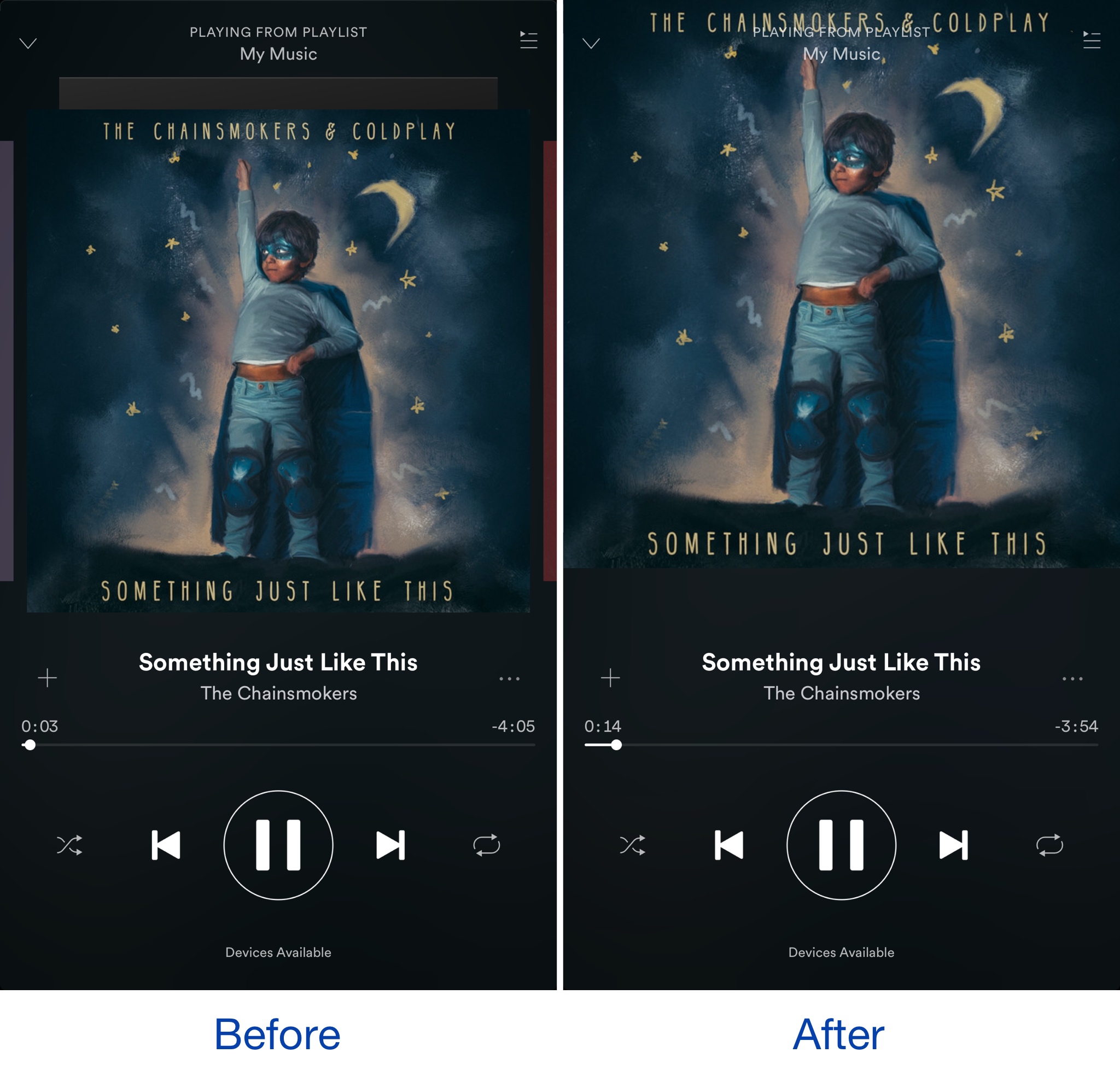
When listening to your songs in the Spotify Music app, the album artwork is typically scaled down slightly so that there’s a bit of empty space in between it and the edge of the display.

A new free jailbreak tweak dubbed SpotifyFullScreenArtworkUI by iOS developer theo78825 scales up the album artwork a little bit more so it fills the whole top half of the screen.

Make unlocking non-Touch ID devices quicker with Accelerated Unlock

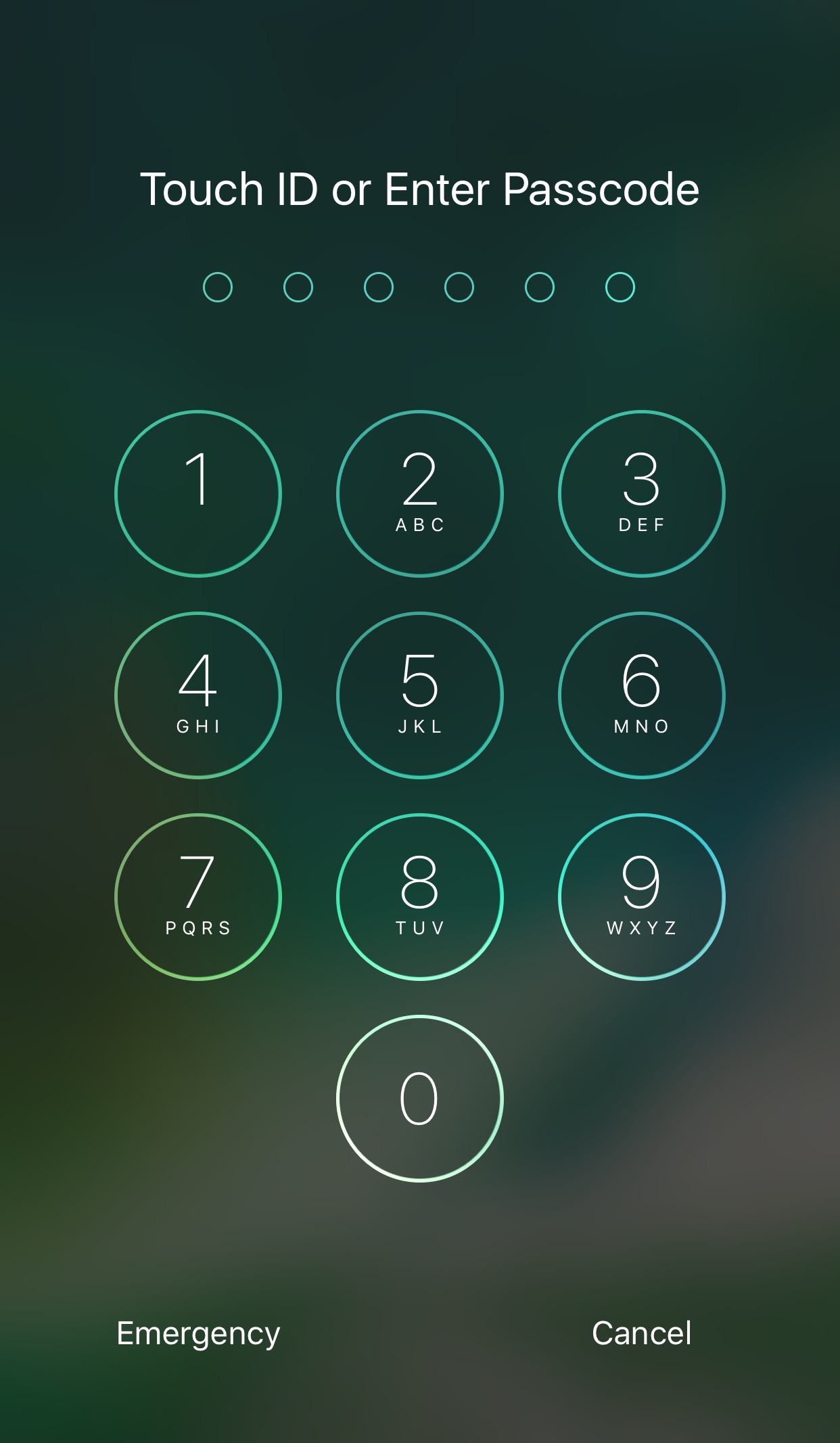
Devices that don’t support Touch ID or just aren’t utilizing the feature typically resort to passcodes as the next best form of security. On the other hand, there tends to be a rather annoying delay after pressing the Home button before the passcode interface finally appears.

A new free jailbreak tweak dubbed Accelerated Unlock by iOS developer Youssef Mikhail does away with this unwanted delay and makes unlocking your device seem faster.

How to build extra_recipe from source code using Xcode

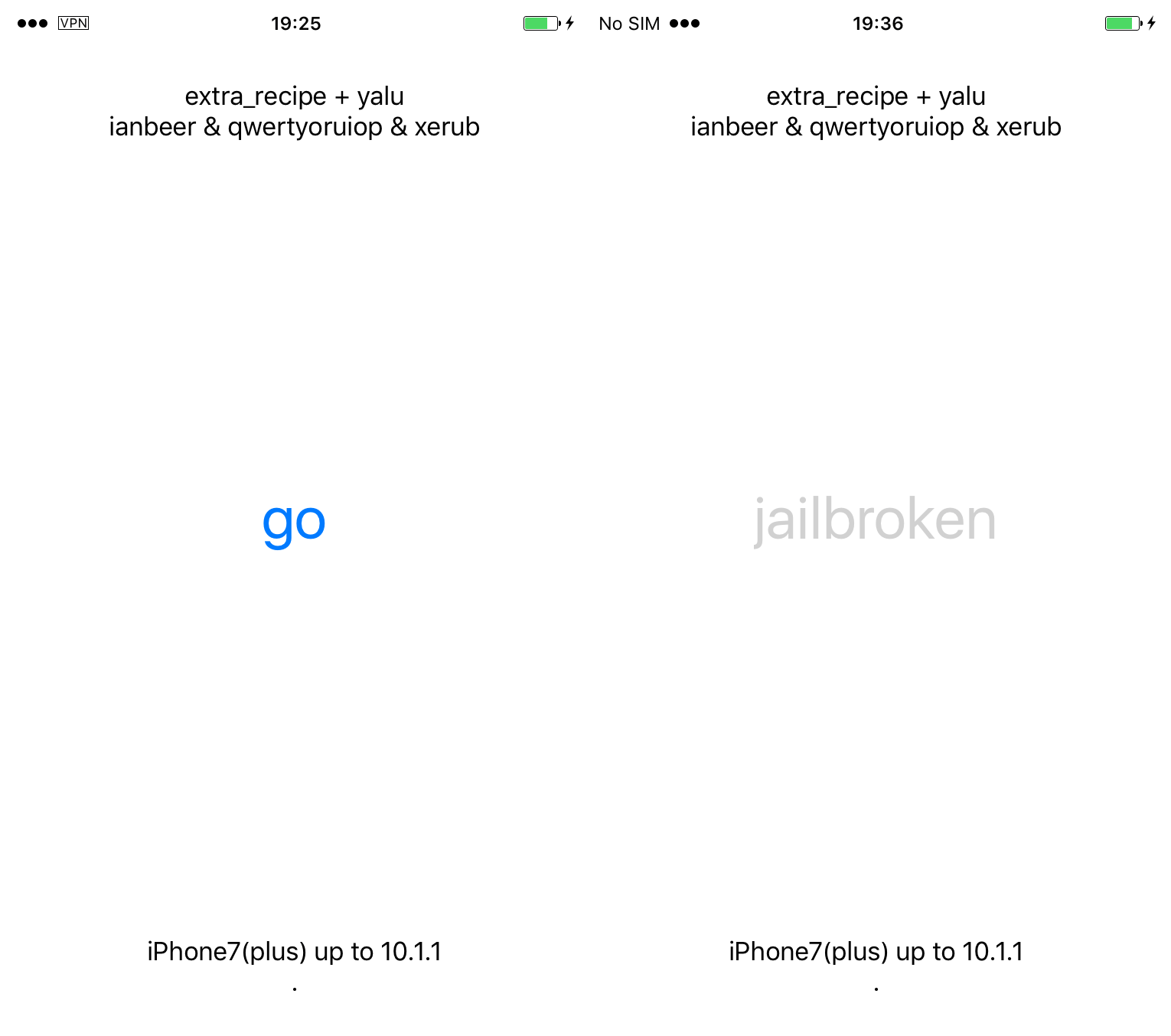
If you're an iPhone 7 or iPhone 7 Plus user on iOS 10.0.0-10.1.1, the time has come for you to switch from the mach_portal jailbreak to the newer, more stable extra_recipe. If you're a flagship user on iOS 10.1 or iOS 10.1.1 it's as easy as downloading the .ipa and sideloading it; you can follow our guide on the subject.

However, if you're on iOS 10.0.0-10.0.x, or if you have a device other than the iPhone 7(+), there isn't currently an .ipa available which supports you. For that reason, we'll show you how to build your own straight from the source code on GitHub and push it to your device, so you needn't wait to get the newest features and device support.

How to switch your jailbreak from mach_portal or Yalu to extra_recipe

If you're currently jailbroken with mach_portal for iOS 10.1(.1), you should switch over to the new extra_recipe jailbreak. It uses a different exploit from mach_portal, and boasts better stability. iPhone 7(+) users on iOS 10.0.0-10.0.3 can also get in on the fun, and some users of Yalu for 10.0.1-10.2 can make use of extra_recipe if they wish too. Follow our guide to see how to go about it.

Jailbreak tweaks of the week: Apace, SocialDownloader, TimeMover, & more…

It has been a busy week amid preparations for WWDC 2017, but that hasn't stopped the jailbreak community from hammering out jailbreak tweaks to improve the aesthetic and function of jailbroken iPhones and iPads.

In this piece, we'll talk about all of the jailbreak tweaks that were released throughout the past work week. We'll start first by going in detail with our favorite released, then we'll outline all of the rest afterwards.

AdvancedStatusTime lets you customize the Status Bar time format

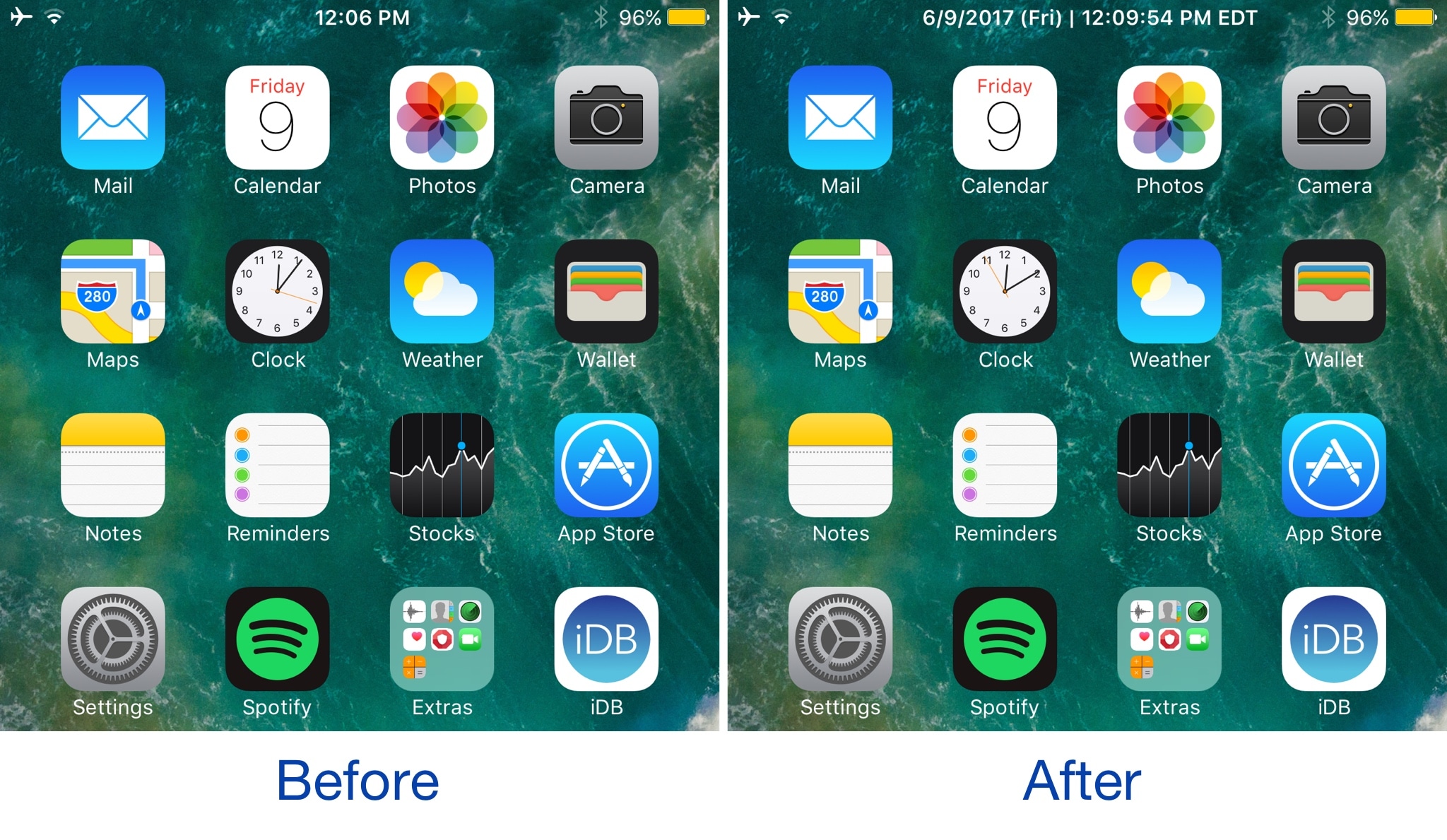
Your Status Bar is home to a digital clock that you can glance at throughout the day to keep track of time, but whether or not you like the way it’s formatted out of the box remains to be seen.

A new jailbreak tweak dubbed AdvancedStatusTime by iOS developer Maxwell Lang gives you a way to customize the time text string so that your time is displayed in the Status Bar how you want it to be.

TimeMover offers creative tools for moving and rotating your Lock screen clock

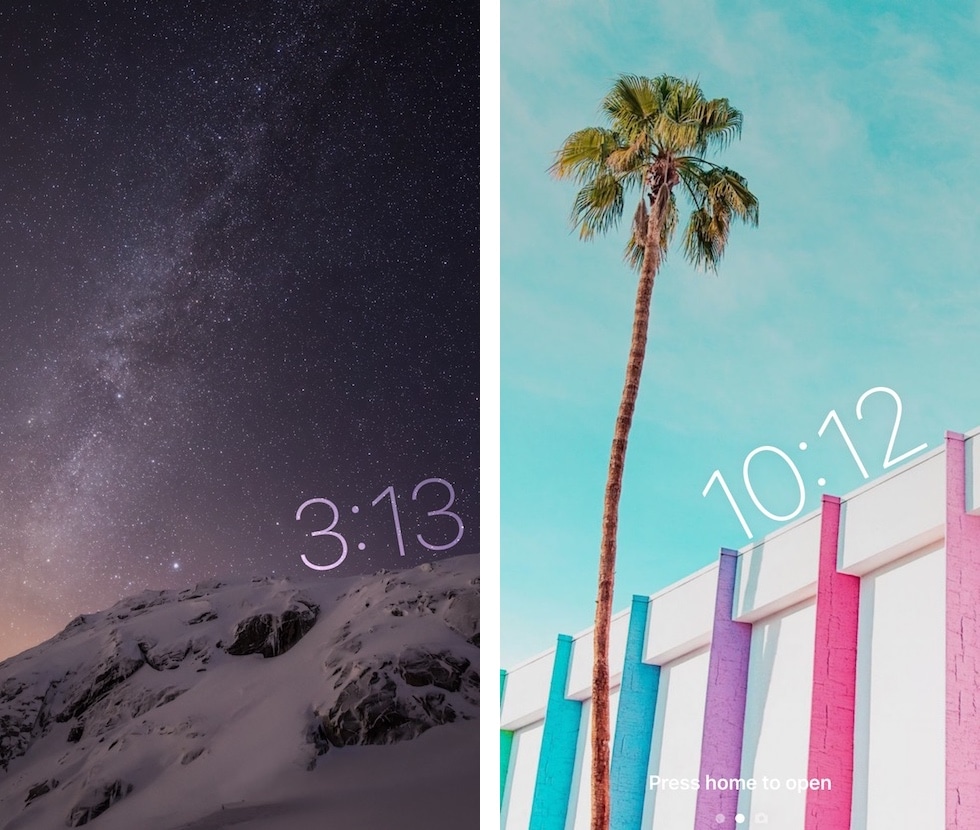
Depending on what kind of wallpaper you’re using on your Lock screen, a new jailbreak tweak dubbed TimeMover by iOS developer NeinZedd9 can help you re-orient your Lock screen clock to better match it.

Whether you want to move the time up or down or side-to-side slightly, or rotate it to follow the lines or effects appearing in your wallpaper, TimeMover has an intuitive tap and drag-based user interface for fine-tuning your Lock screen clock to match your unique setup.

AppLocker lets you secure apps with a password

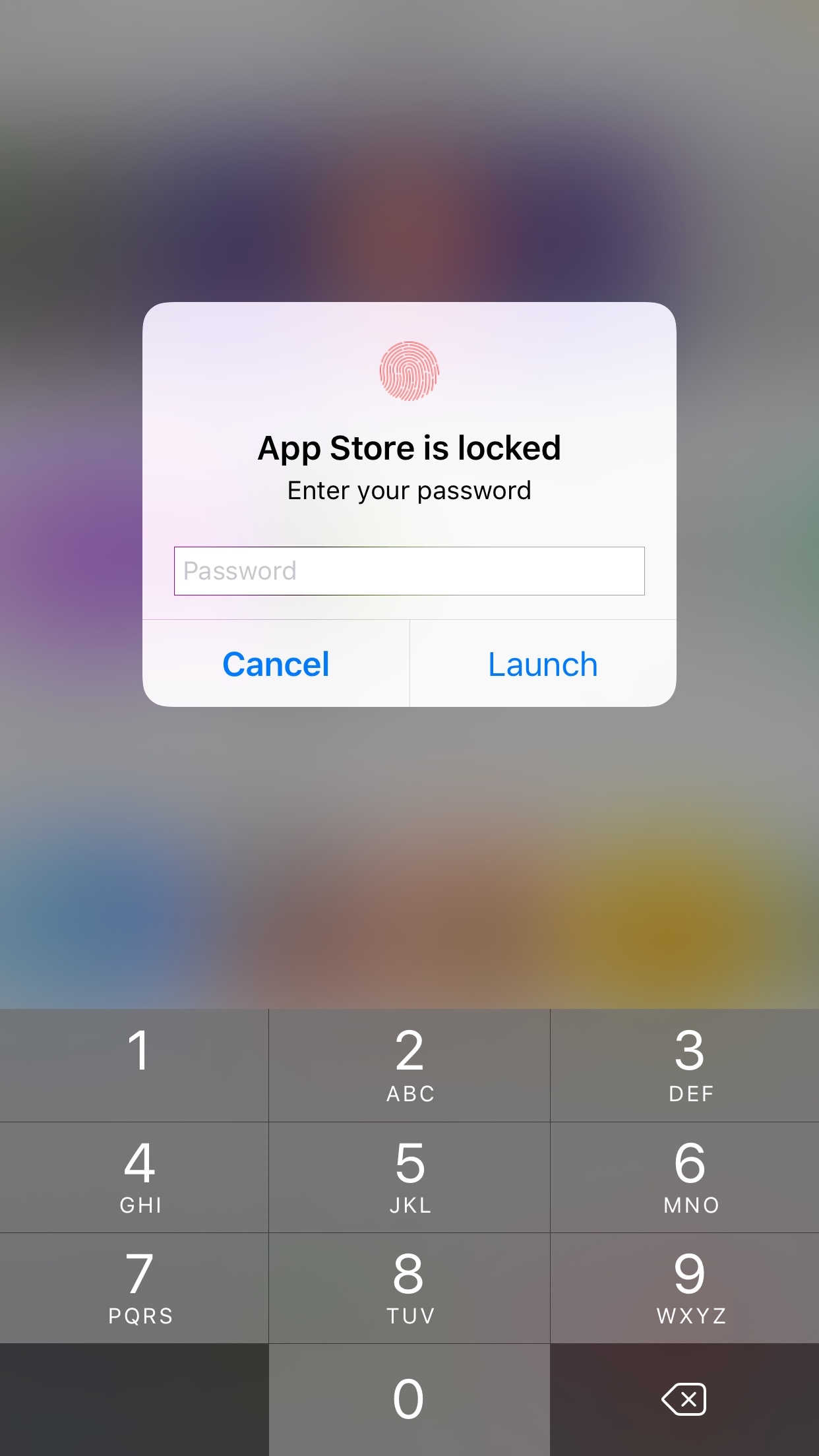
AppLocker by iOS developer Ori Kadosh, is one of the most popular app security jailbreak tweaks in Cydia, and it has been updated this week with full support for iOS 10.

AppLocker lets you create a password that you will use to access your apps; it's requested every time you launch an app, and if you can’t provide it, you can't use the app.

AirPods Next/Previous track controls also work on iOS 10

One of the little things in iOS 11 includes the ability to set up the AirPods double-tap action to skip forwards and backwards between tracks, cancelling the need to invoke Siri to change songs. As iDownloadBlog reader Harshit Yadav has discovered and shared with us, you can also get this next/previous track control functionality to work on your iPhone, iPad or iPod touch with iOS 10, here's how.

First of all, your AirPods must be running the firmware version 3.7.2 or later, which enables you to customize double taps independently for both the earbuds. To find out your AirPods current firmware version, go to Settings → General → About → AirPods on your iPhone.

Your AirPods must be connected to your iPhone to appear there.

TUTORIAL: How to install software updates for your AirPods

To ensure your AirPods have the latest available firmware, put both the earbuds inside their charging case, then close the case and connect it to a charger or a USB port on your computer. Your iPhone must be paired with your AirPods and connected to Wi-Fi in order for the firmware to download and install.

With the 3.7.2 firmware installed on your AirPods, do the following:

1) Connect your AirPods to an iOS device running iOS 11. This is very important that your AirPods be connected to an iOS 11 device. If not, the option to customize Left and Right ear will not appear.

2) Go to Settings → Bluetooth on your iOS 11 device.

3) Tap the “i” next to your AirPods.

4) Tap Left underneath the Double Tap on AirPod heading, then choose Previous Track from the list of double-tap actions for your left earbud.

5) Tap Right underneath the Double Tap on AirPod heading, then choose Next Track from the list of double-tap actions for your right earbud.

6) Close out the Settings app and play some music to verify that double-tapping either AirPod takes you to the next or previous track.

7) You're done.

With your AirPods updated to the firmware version 3.7.2 and the double-tap action set to next/previous track, you can now pair them back to an iOS 10 device and they will continue to work.

It's important to note that attempting to change your AirPods settings on iOS 10 will overwrite any changes made on your iOS 11 device, meaning you'll loose the next/previous track functionality.

Let us know in the comment section below how it went for you.