Learn how to use Markup tools in the Preview and Photos apps to annotate, highlight, add shapes, or draw on images without needing third-party apps.
How to mark up and annotate Photos on Mac
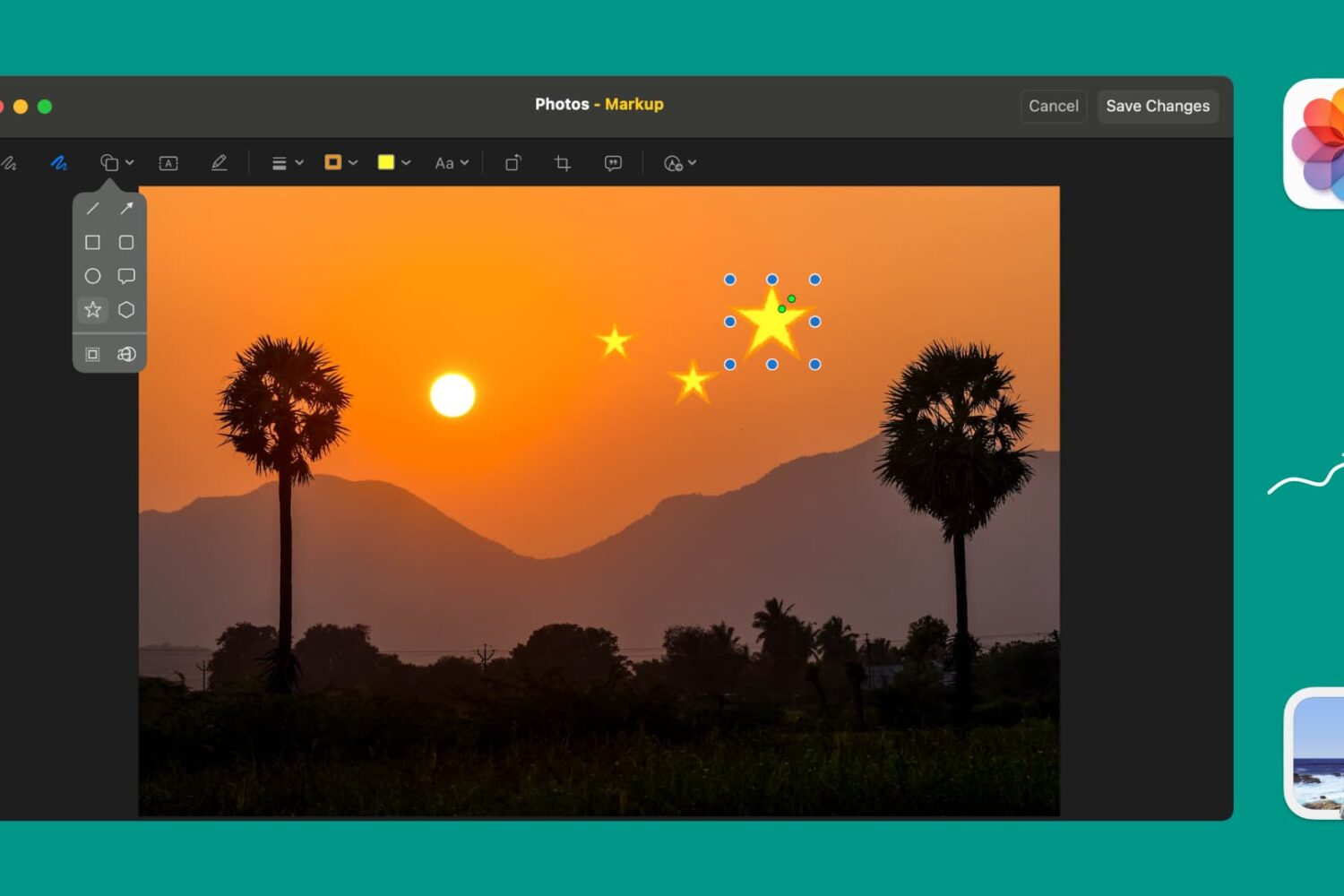
Learn how to use Markup tools in the Preview and Photos apps to annotate, highlight, add shapes, or draw on images without needing third-party apps.
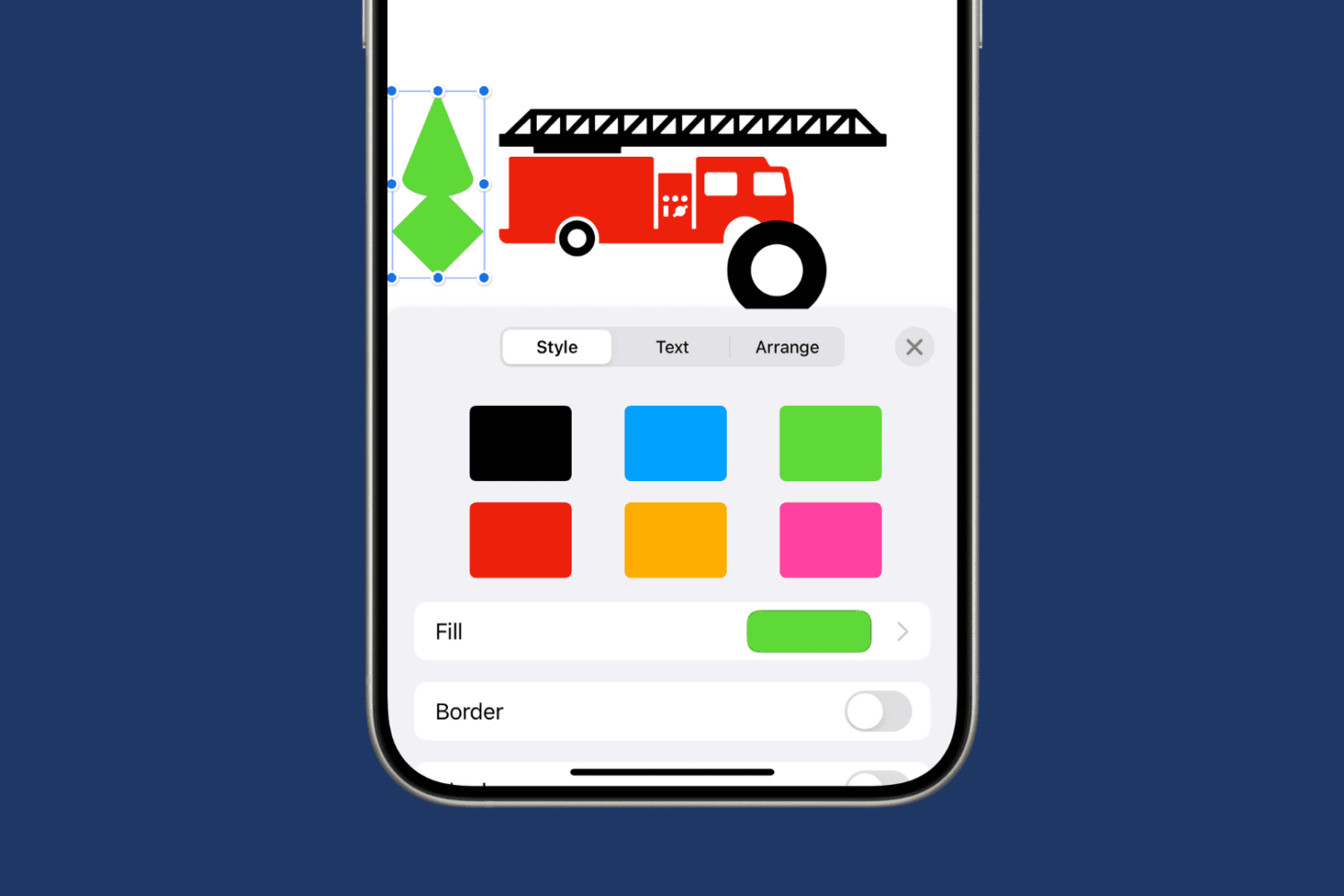
Learn how to merge multiple shapes into one or break up a complex shape into individual parts in Apple Pages, Numbers, and Keynote apps on your Mac, iPad, and iPhone.
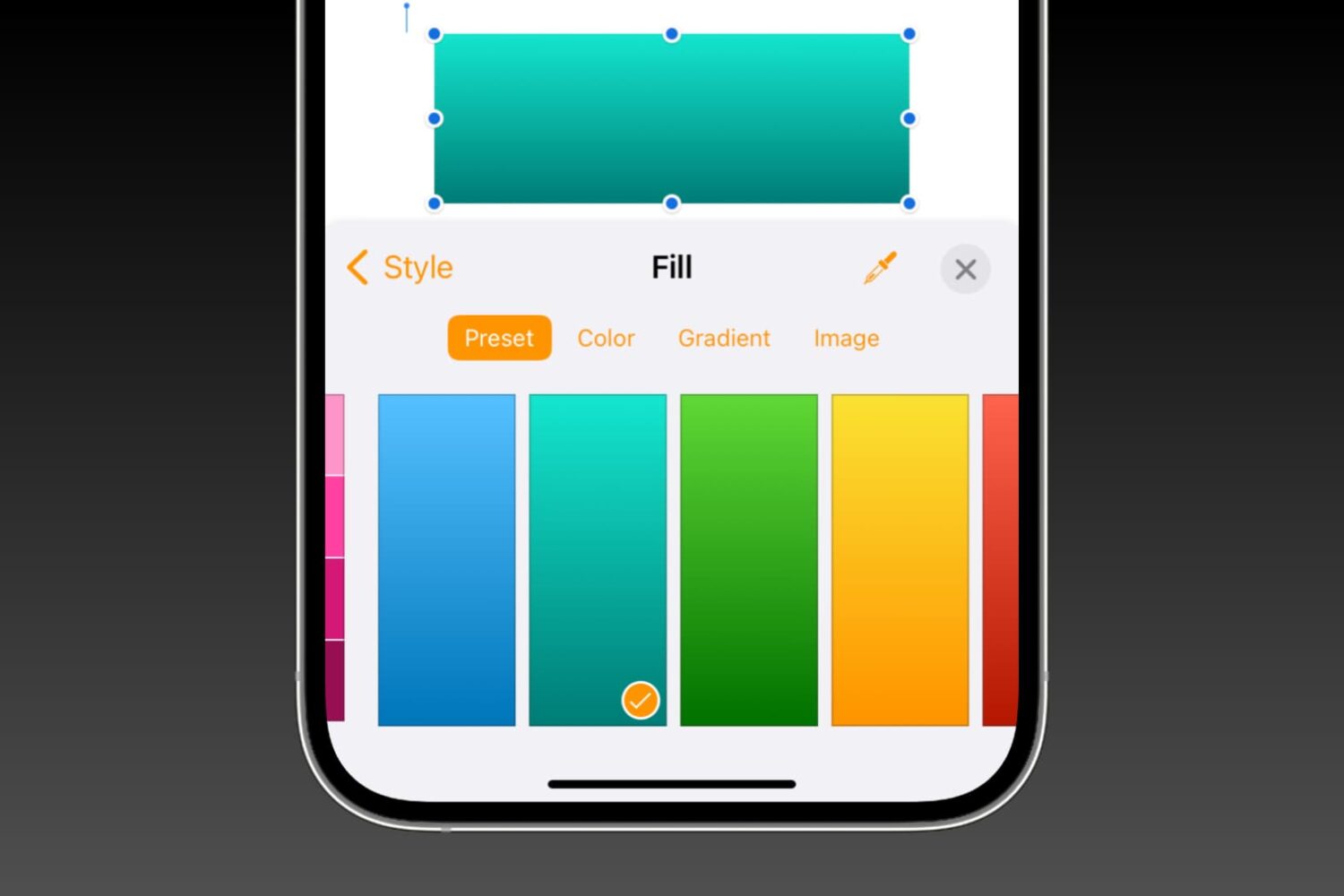
Learn how to fill shapes with specific colors, nifty gradients, or photos in the Pages, Numbers, and Keynote apps on Mac, iPhone, and iPad to make them more meaningful or beautify their appearance.

Learn how to watermark your document in the Apple Pages app on iPhone, iPad, and Mac with custom text like “confidential” or “private,” or an image like a brand logo.
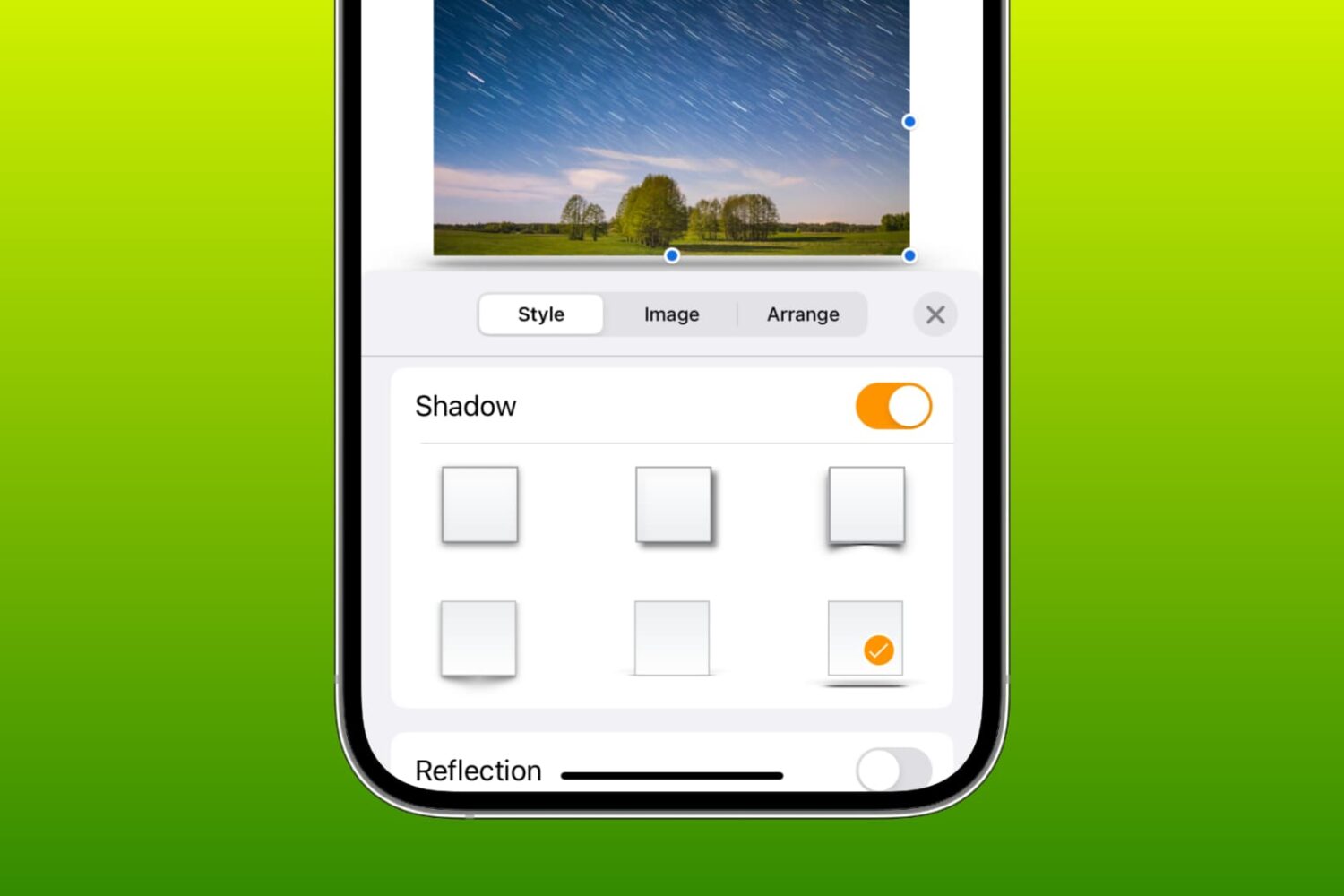
Learn how to add a shadow effect or reflection to a photo, text box, or shape in a Pages, Numbers, or Keynote document on your iPhone, iPad, or Mac.
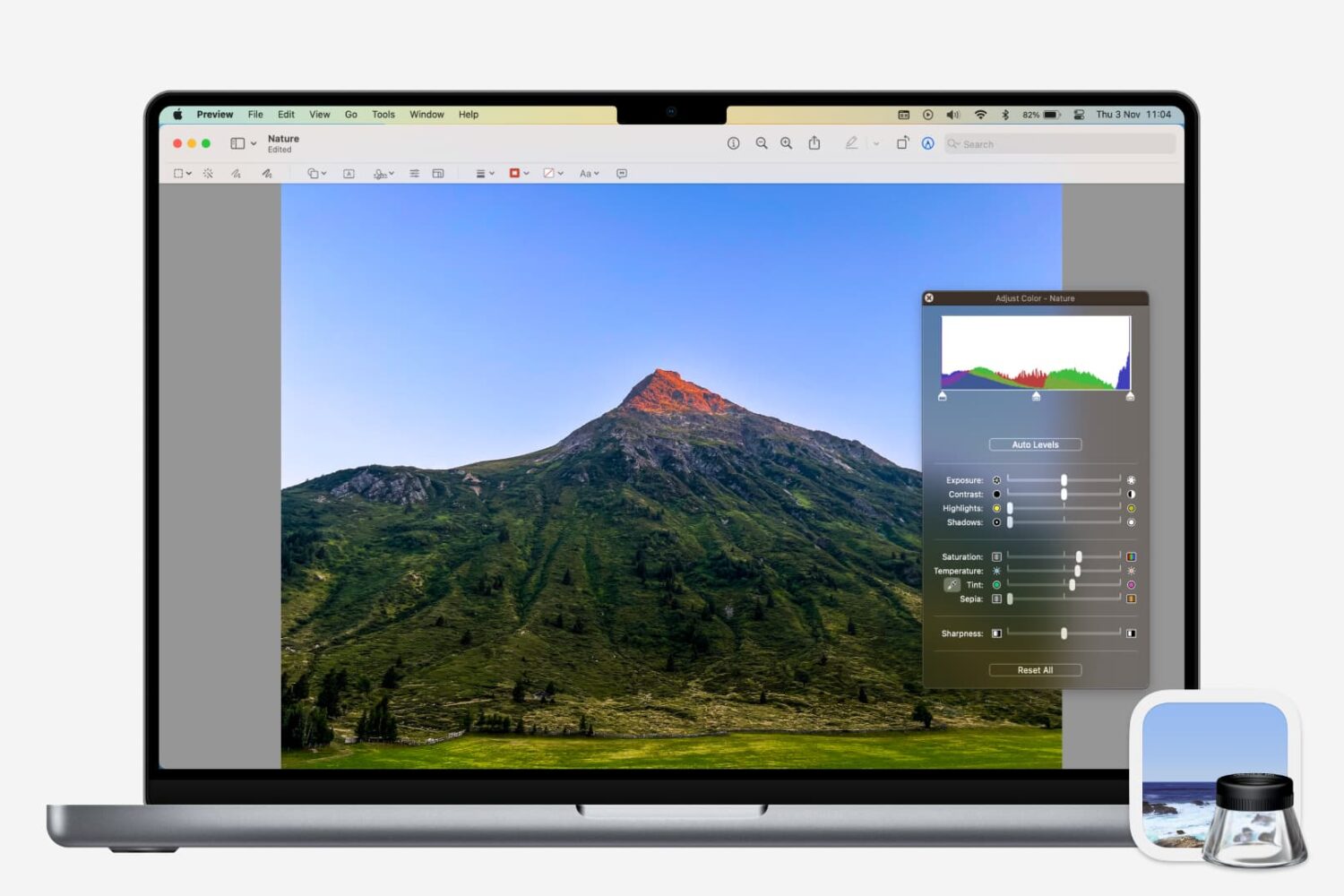
Learn how to adjust a photo’s color, contrast, saturation, sharpness, size, resolution, and more using the Preview app on your Mac.
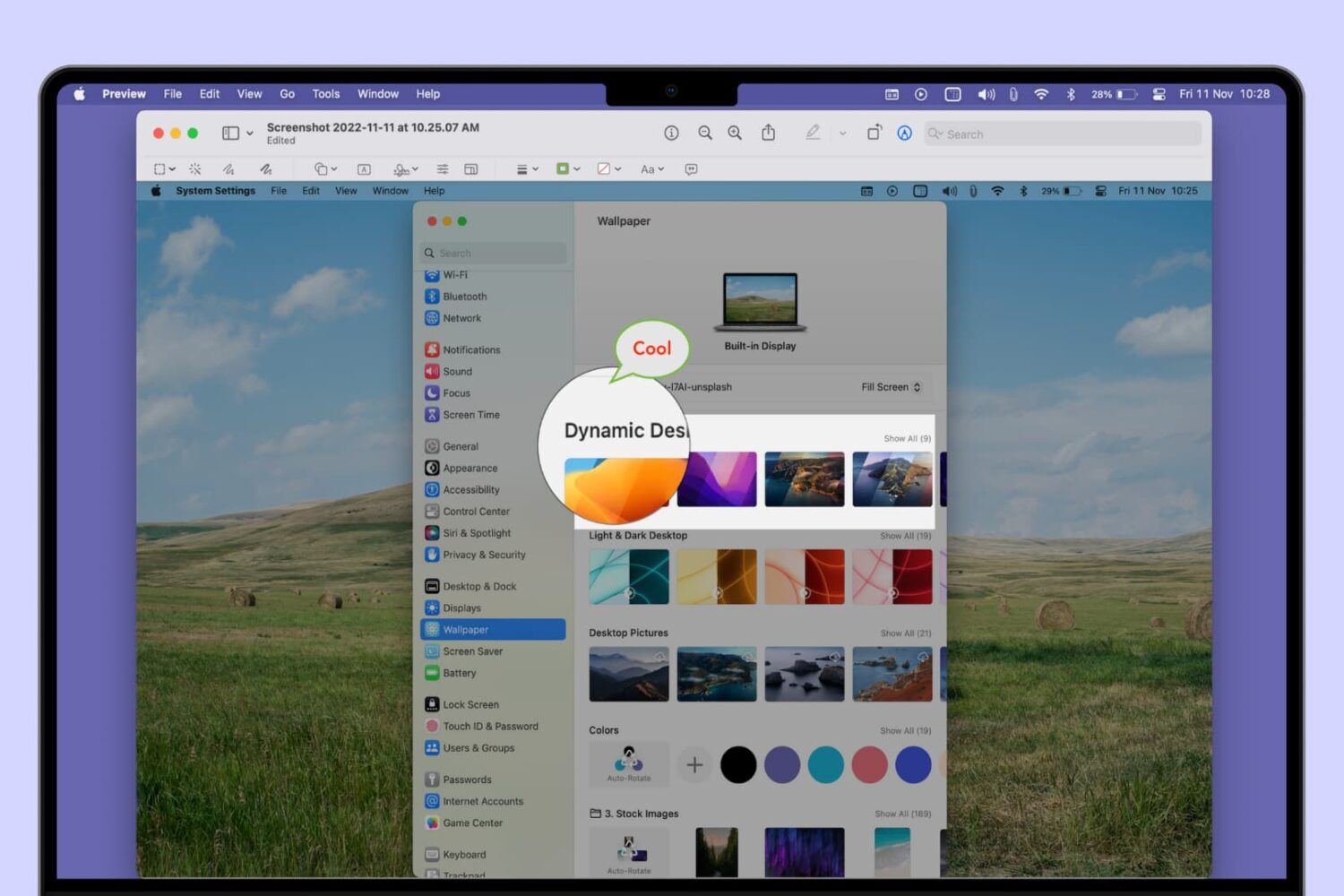
Learn how to add a mask, speech bubble, or magnify a part of a photo or screenshot using the built-in Apple Preview app on Mac.
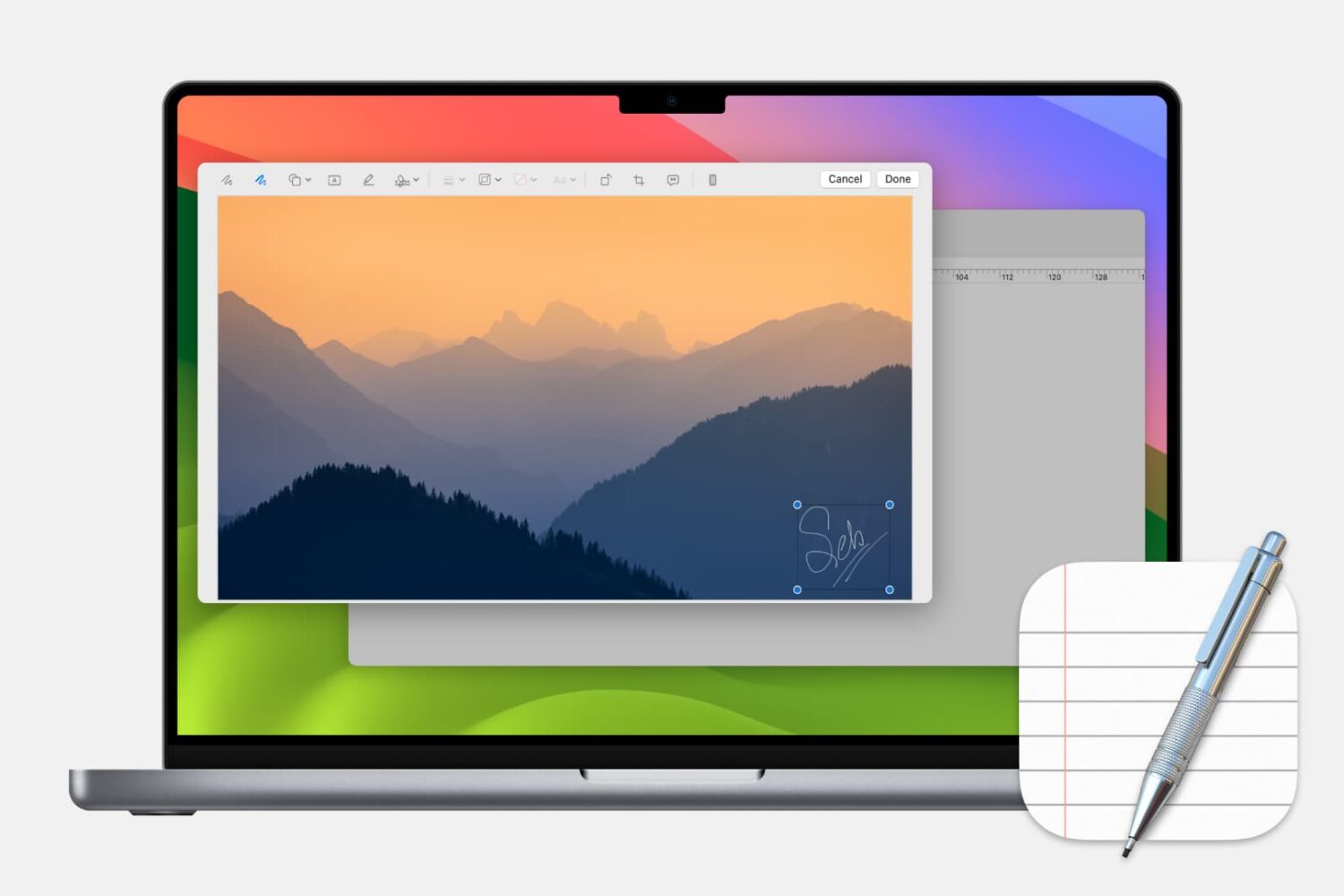
Learn how to add, edit, and annotate images in Apple’s built-in TextEdit app on your Mac to liven up a rich text document with some visuals.
Check out these three quick ways to get rid of image metadata on your Mac to boost your privacy.
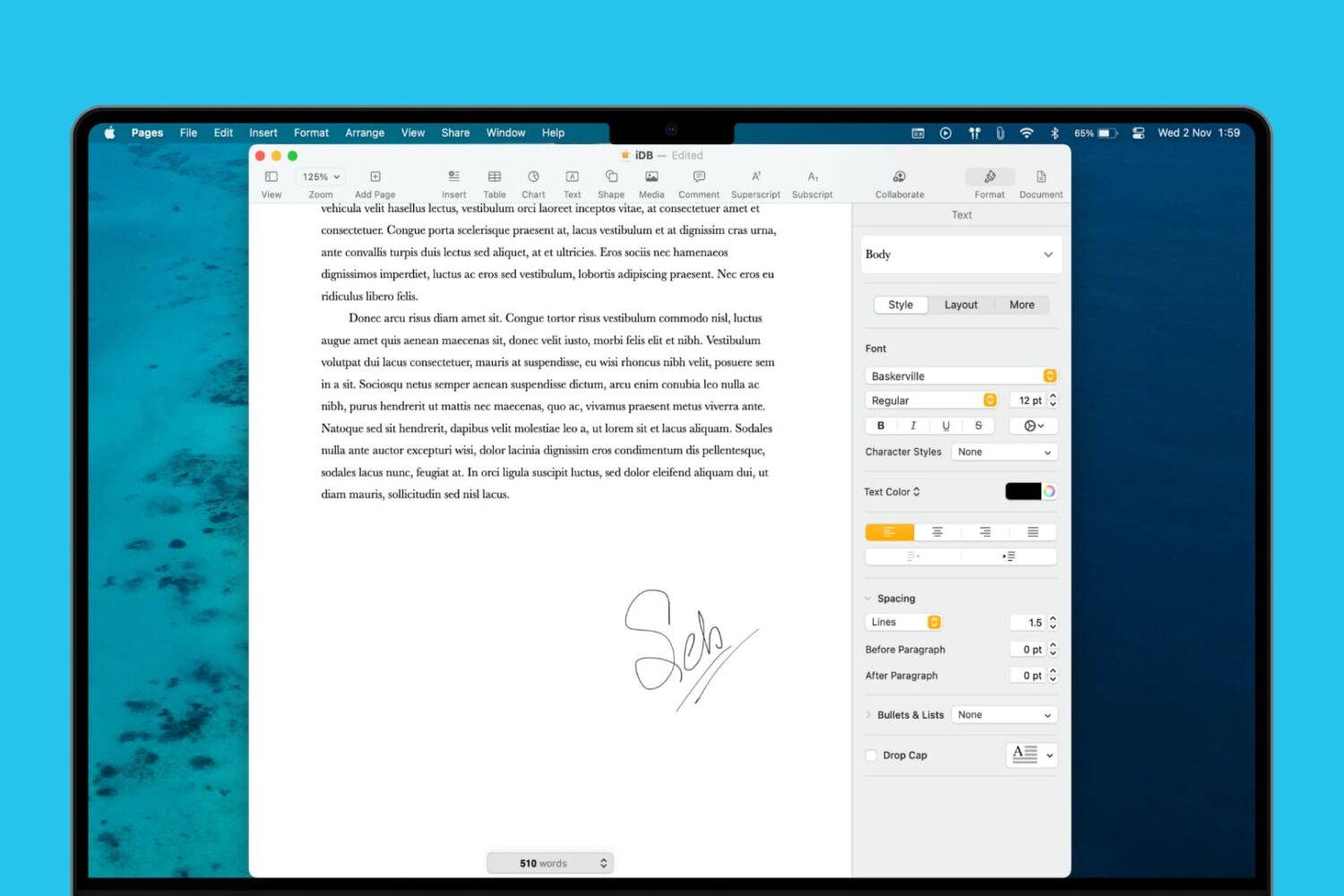
Learn how to add a signature to your document in the Apple Pages app on Mac, iPad, and iPhone to sign it digitally and provide approval, authorization, or legal validation.

Learn how to search for images and scans in the Notes app on iPhone and iPad to quickly find a photo or a document you’ve attached to a note.
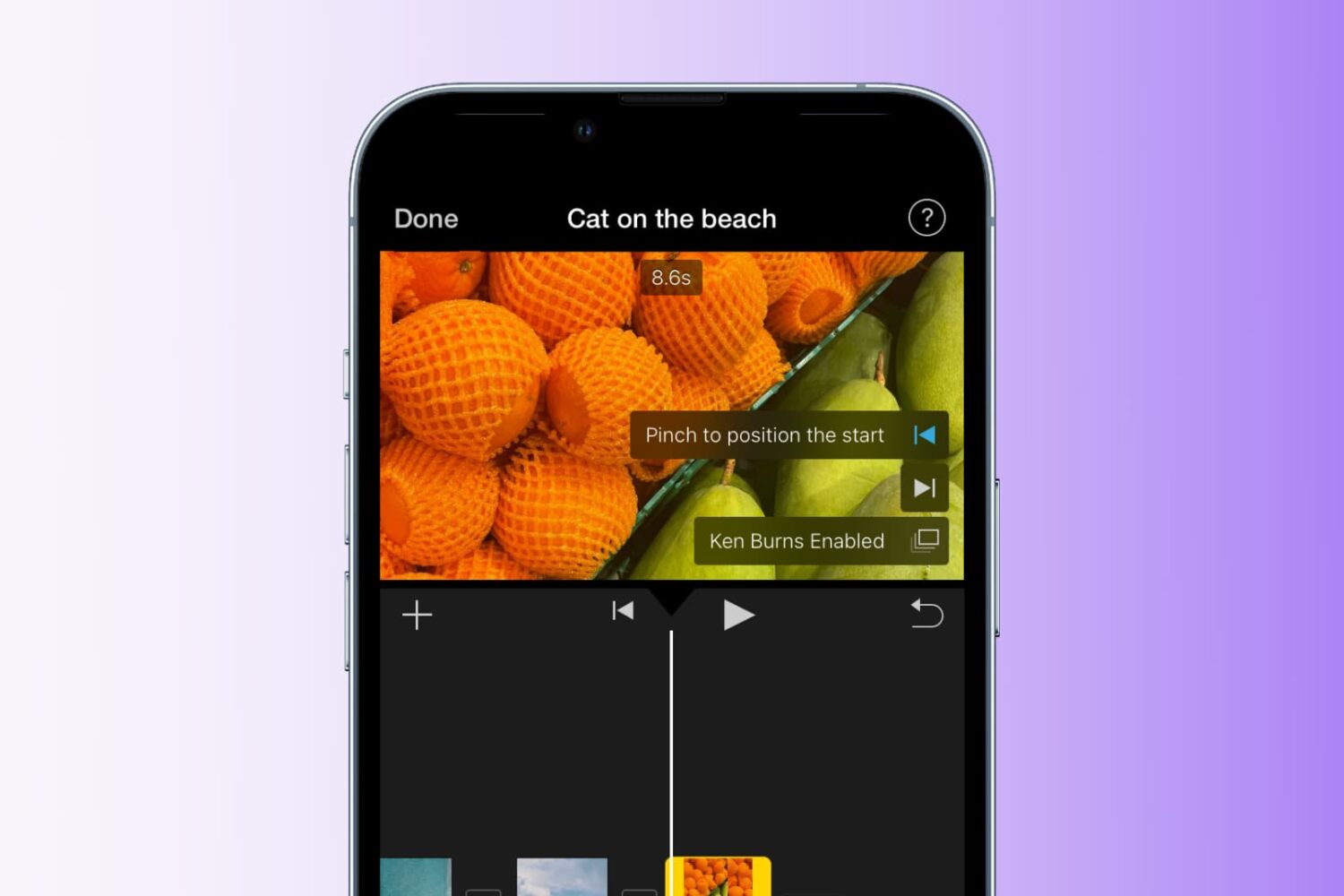
Learn how to add the Ken Burns effect to your images and video clips in iMovie to make them appear as though the camera is moving or zooming in and out, creating a beautiful cinematic effect.