How to

How to make third-party menu bar icons look better with dark mode on Mac

OS X Yosemite introduced a new dark mode option to change the tint color of both the menu bar and the dock in OS X. While I'm a big fan of dark mode, some of the third-party apps that I use have not been updated to play nice with dark mode. This results in menu bar icons that look weird with dark mode enabled, because they don't invert after toggling dark mode on.

If you're someone who always uses dark mode and never switches to regular mode, there is a way to force these menu bar icons to look better with dark mode enabled...

How to make Safari for Mac’s status bar more minimal and useful

I like my browsers minimal. Safari for Mac admittedly boasts an aesthetically pleasing, clutter-free interface. But if there's one thing I've always hated about Apple's browsers, it's that status bar at the bottom of the Safari window.

Though it conveniently lets you know where a URL will take you, once turned on it annoyingly just sits there whether you actually need it or not. I prefer Google's approach better: Chrome's status bar discreetly shows only when hovering over a URL.

Wouldn't it be great if Safari had a similar only-on-hover status bar? That's what Minimal Status Bar, a new browser extension by San Francisco-based developer Visnu Pitiyanuvath, does for you.

How to jailbreak iOS 8.2 beta 2 with TaiG for Windows

A few days ago, we posted our Mac jailbreak tutorial for iOS 8.2 beta 1 and 2. That tutorial used the PP Jailbreak tool for the Mac. For Windows users, things are slightly different. Windows users get to use the TaiG tool. At the end of the day, both tools are geared towards the same goal—allowing you to easily jailbreak iOS 8.2 beta 1 and 2.

Workflow is an amazing app, and this WordPress image uploading workflow shows why

Although I've long admired the iPad-centric work ethic of individuals like MacStories' Federico Viticci, I could never fully commit to working from my iPad due to the perceived amount of steps needed to get things done. Yes, it's possible, but I've always thought it was easier to work from my MacBook Pro.

With that said, I certainly admire anyone who can successfully pull it off, as Viticci has obviously done. There's even a slight bit of jealousy there because he's figured out well in advance how not to be ball-and-chained to a traditional desktop.

With iOS 8, a lot of that has changed. iOS is now more open than ever and users can do some powerful things with said openness. Case and point: Workflow—the automation app that opens up the door to automation newbs like myself. Yes, much automation could be done prior to Workflow—apps like Pythonista and Editorial proved as much—but Workflow is venturing into brand new territory. Not only is it arguably the most powerful automation tool available for iOS, it makes implementing automation accessible to mere mortals.

In this post, I'd like to show off one of the workflows that I'm extremely proud of. To be honest, this post is sort of a stealth-brag, but that's okay. When you see this workflow in action, you'll understand why.


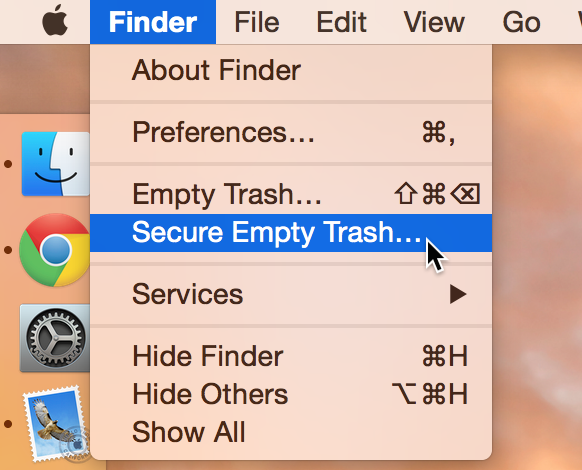
Empty Trash versus Secure Empty Trash – what’s the difference?

Did you know that there are actually two ways to empty the trash on your Mac? Perhaps you've seen both options before, but never gave it much thought. Just what is the deal with Empty Trash versus Secure Empty Trash? Which one should you use? By knowing what each empty trash command is capable of doing, you'll be able to make more informed future decisions with regard to handling your Mac's sanitation needs.

Podcasting basics part IV: recording, exporting and uploading

This is the second to last entry into my podcasting basics series. In part I, I talked about some of the preliminary steps needed before starting a podcast. In part II, I discussed the hardware that we use to record shows like Let’s Talk iOS and Let’s Talk Jailbreak. In part III, I broke down the software used. Now that you have a good idea of what hardware and software that we use, along with the basic overall methodology, let's talk about starting the actual recording.

How to get 100GB of free OneDrive storage

Microsoft's cloud storage thing called OneDrive has been on fire lately. The service has been generous with free space in the past few months. For starters, each account gets fifteen gigabytes of free storage and Office 365 subscribers get to enjoy unlimited storage as long as they continue paying their subscription. For some time now the Windows maker's been offering free OneDrive storage to US residents who've signed up for Bing Rewards program.

Starting today, this offer is now available globally so everyone can now get 100GB of free OnDrive storage for two years. Here's how you can claim your free storage.

How to disable the camera on your Mac

Every Mac that Apple ships, sans the Mac mini, comes with an iSight camera embedded in the bezel at the top of the display. If my memory serves me correctly, Apple's computers were one of the first to really popularize the standardization of built-in cameras.

I'm probably not alone when I say that I rarely, if ever, use my MacBook Pro's iSight camera. In fact, it's become more of a worry to me when thinking about the potential hacking and privacy concerns. I'm far from a tin foil hat wearer, but I have to be honest and admit that the thought has crossed my mind before... you know, the one where hackers view my iSight camera unbeknown to me.

With all of that said, wouldn't it be nice if you could disable your Mac camera with a simple software tweak? Inside, I'll show you how to do just that.

How to Cut and Paste files on Mac

Cut and Paste on Mac

It may not be obvious, but your Mac has the option to cut a file and paste it to a new location in Finder. In this tutorial, we’ll show you four different ways to use cut and paste files on a Mac.