How to

How to fix the ‘Redownload Unavailable’ error in the App Store

Let's face it; everyone experiences buyer's remorse from time to time, which results in a change of heart about a purchase. Then there are those occasions when you regret changing your mind about changing your mind. That's what recently happened to me after I requested an App Store refund for an app that I later realized I actually wanted and needed.

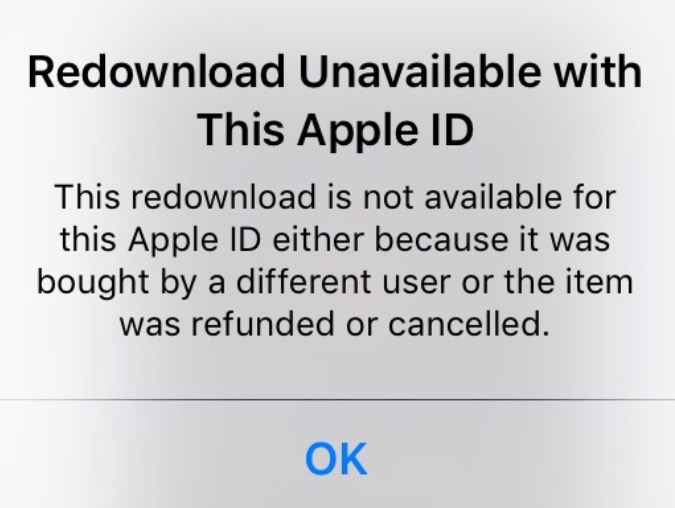
Oddly, I encountered a weird error telling me that since I had previously requested a refund for the app, I could no longer purchase it again. That makes no sense. Why would Apple not want to take my money just because I had requested a prior refund?

The error reads "This redownload is not available for this Apple ID either because it was bought by a different user or the item was refunded or cancelled."

Whatever the reason for the error, after searching Google, it's obvious that I'm not the first to encounter this issue. The good news is that fixing the Redownload Unavailable with This Apple ID error is very easy to do...


How to hide revines from users you follow

If you use Vine, sooner than later your feed will become polluted with reposts (revines, in Vine talk) from those you follow on the service. Besides, it's really annoying having to scroll through a hundred or more revines from a user before getting to one of their own clips.

Thankfully, reducing information overload on Vine isn't as hard as it sounds as the app lets you block revines from a person and show only their original posts.

In this tutorial, we'll teach you how to hide revines from anyone you follow on the service with just a few taps. This should help make your Vine experience a little more focused and less cluttered.

How to save Vine videos

Who knew 6-second-long looping video clips would turn out to be so much fun? If you're into short-form entertainment, there's probably no better place to get your daily fix of user-posted clips, some of which are quite interesting—I've seen whole how-tos compressed into six seconds—than Vine.

The problem is, both Vine the website and mobile app prohibit you from saving your favorite clips to your computer or mobile device. Thankfully, there are apps for that, too.

In this tutorial, you'll learn how to save Vine videos to your iPhone, iPod touch, iPad or Mac using a nifty little utility and a free of charge web app.

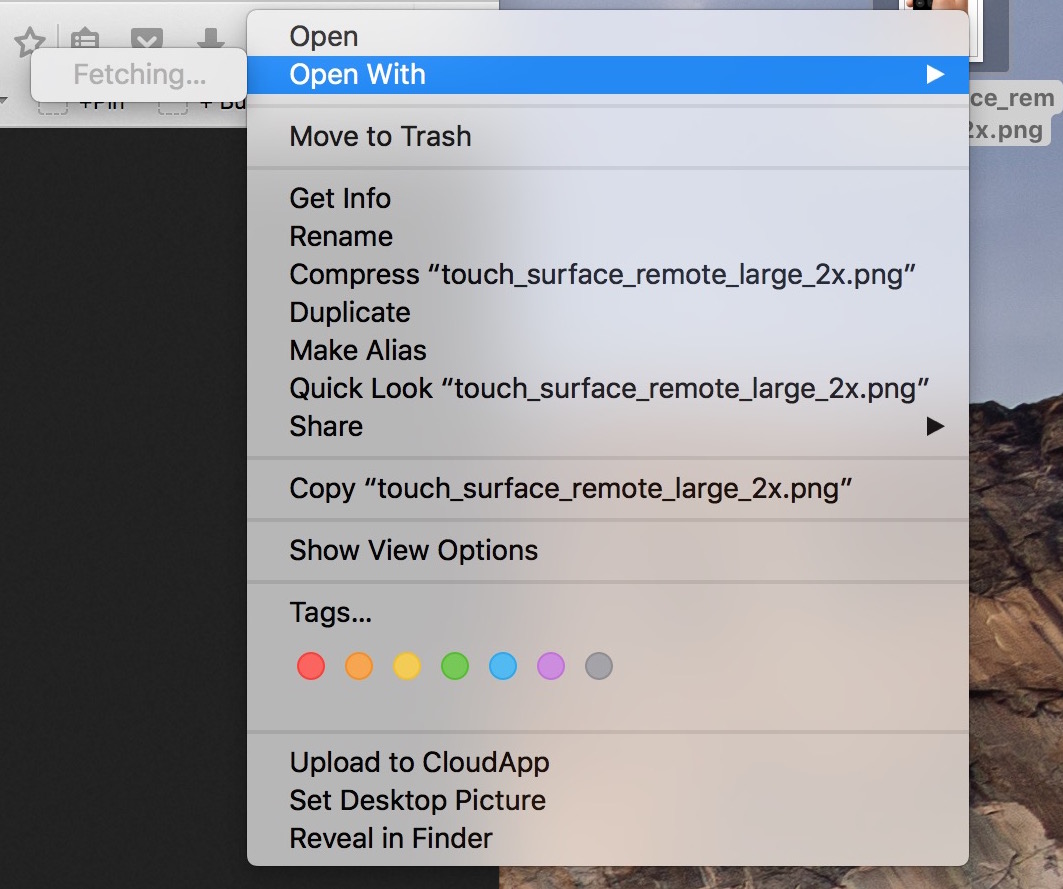
Fix “Fetching” delay when selecting “Open With” on Mac

In my mind, computers are always supposed to work the way they should. And because they are computers, I shouldn't have to wait for them to process basic tasks. That's all in my mind of course, because in reality, things don't always go the way they should.

A perfect example of that is the Open With menu you get when right clicking on a file. Sometimes, for no apparent reason, my iMac will spend several seconds "fetching" the applications that can be used to open that specific file type.

Like with most things computer-related, the fix is pretty simple.

How to quickly go back where you were after accidentally scrubbing on Apple TV remote

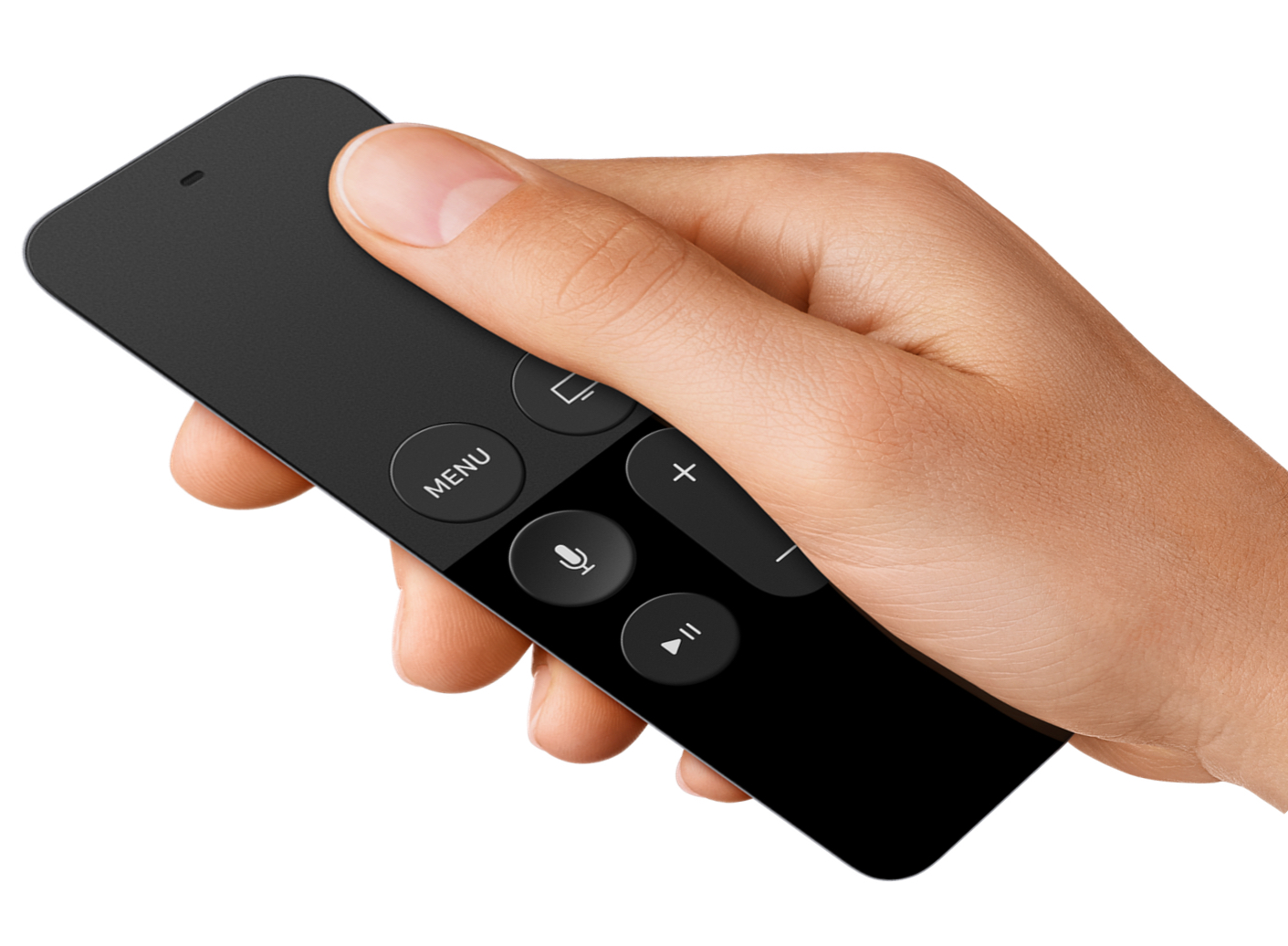
You're sitting on your couch watching a movie. You reach for the Siri remote to adjust the volume, and once again, you accidentally scrub forward or backward when your finger touches the Touch surface. Now you're struggling to scrub back where you were until you find the right spot.

If you own the new Apple TV, you have most likely faced this annoying situation several times. Thankfully, a quick press of a button can fix this problem and take you right back where you were before you accidentally scrubbed.

How to check your Apple Pencil battery level

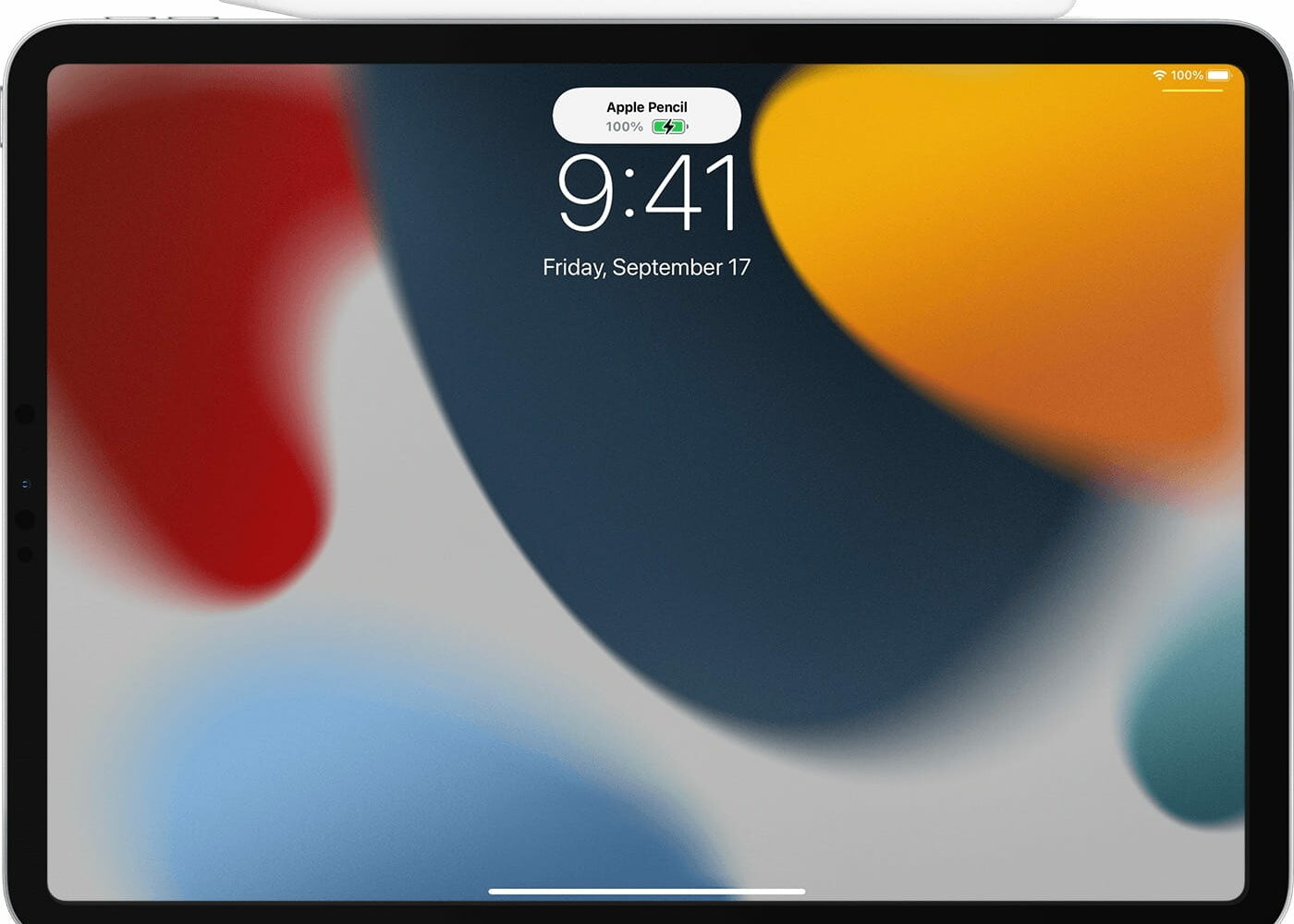
Apple Pencil 2 charging on iPad

How do you know when your Apple Pencil is charged? Or even yet, how do you know what the battery level of your Apple Pencil is?

Even though the Apple Pencil 1st generation and 2nd generation lack a battery status indicator to tell you how much charge you have left, there are ways to learn how much battery life is still there in the device.

This quick tutorial shows you how to check your Apple Pencil's battery status. We will detail methods for both Apple Pencil 1 and Apple Pencil 2.

7 tips to get rid of junk files and recover storage space on iPhone

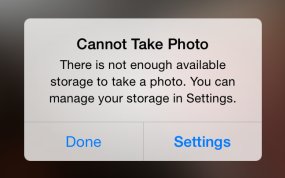
There's nothing worse than pulling an iPhone out of your pocket to capture that brief moment in life that will never repeat itself only to be met with a “storage almost full” message.

It's a sinking feeling so no wonder that most folks tend to immediately remove older photos.

But there are better ways to free up storage space on your device that don't necessarily involve deleting your precious memories. Faced with a low-storage prompt, your first order of business should be checking if apps you frequently use are gobbling up your storage by caching large amounts of data.

That's just the starters, as there're plenty of other space-saving techniques you should be employing on a regular basis. In this tutorial, you'll learn how to manually flush app caches, disable certain iOS features and flip the switches you never knew existed in order to remove as much of the cruft clogging up your iOS device as possible.