How to

How to start up your Mac in Internet Recovery Mode

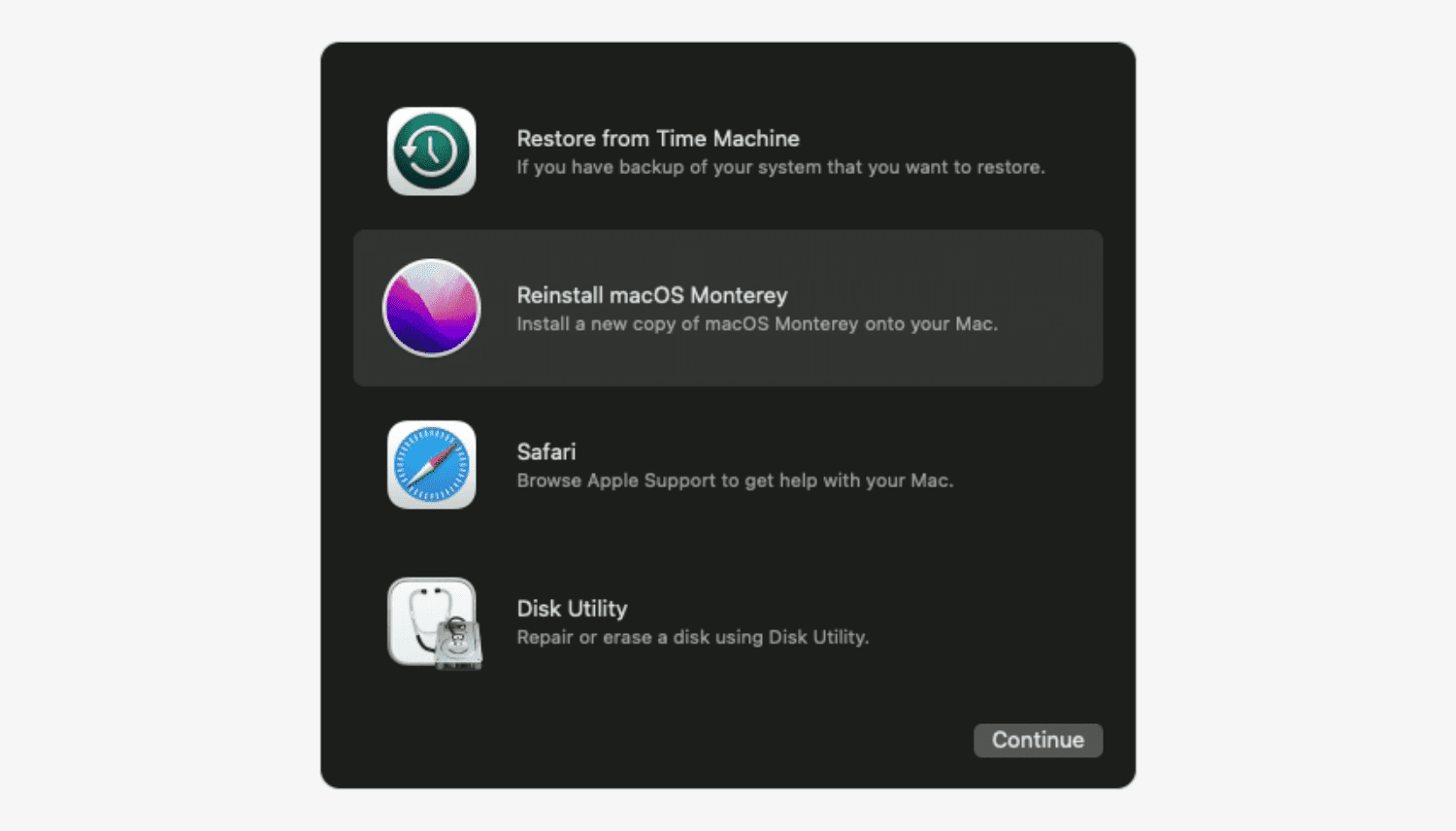
Internet Recovery Screen on Mac

In addition to the startup volume, which holds a bootable copy of the operating system along with your applications and data, your Mac's disk contains a hidden recovery partition that you can boot from in order to reinstall macOS, perform a quick check of connected disks, and more.

But what if the built-in recovery partition gets damaged, for instance? Enter Internet Recovery Mode (or macOS Recovery over the Internet), an Internet-based version of Recovery Mode found on Macs, which loads recovery tools from Apple's servers.

With Internet Recovery Mode, you can reinstall macOS and troubleshoot issues in the unfortunate scenario of your Mac's startup disk having become corrupted or completely unreadable.

In this tutorial, you'll learn everything about Internet Recovery Mode on Intel-based Macs and Macs with Apple silicon. You'll also see how to use it to your advantage if your disk encounters an issue or the startup drive has been replaced or erased.


Troubleshooting common software issues on Mac

It happens to the best of us – one day you're using an app that you really enjoy on your Mac, and the next, you start experiencing all kinds of problems with the same app. What's going on? Will it ever end?

Before you go calling support to resolve a problem for you, there are some easy troubleshooting steps you can take in macOS to quickly determine if the problem is going to require help or not.

We'll go through some of those troubleshooting steps with you right here in this tutorial.

How to start your Mac in Recovery Mode

macOS Recovery

Starting your Intel or Apple silicon Mac in Recovery Mode provides the tools you need to solve various problems. It is typically your last chance to repair the startup disk, reinstall macOS or restore from a backup after a fatal failure that prevents your Mac from starting up properly. In this tutorial, you'll learn how to enter Recovery Mode at boot time and use the built-in recovery tools to bring your Mac in perfect working condition.

How to identify the biggest space wasters on your Mac with DaisyDisk

You can free up a significant amount of storage space on your Mac if you clean up your Downloads folder on a regular basis, remove your old iPhoto library, erase Safari's browsing data and move both your iTunes library and the Photos library to an external hard drive, among other things.

But what about other files on your computer? With Daisy Disk by Software Ambience, one of Apple's Best of 2015 Mac apps, it's easy to identify the biggest storage hogs on your Mac.

The app makes the mundane takes of cleaning up the Mac's storage easy and fun by giving your a nice visual breakdown on your disk space in the form of an interactive heat map. In this tutorial, you'll learn how to reveal the biggest space wasters with DaisyDisk so you can remove them and free up some additional storage on your Mac.