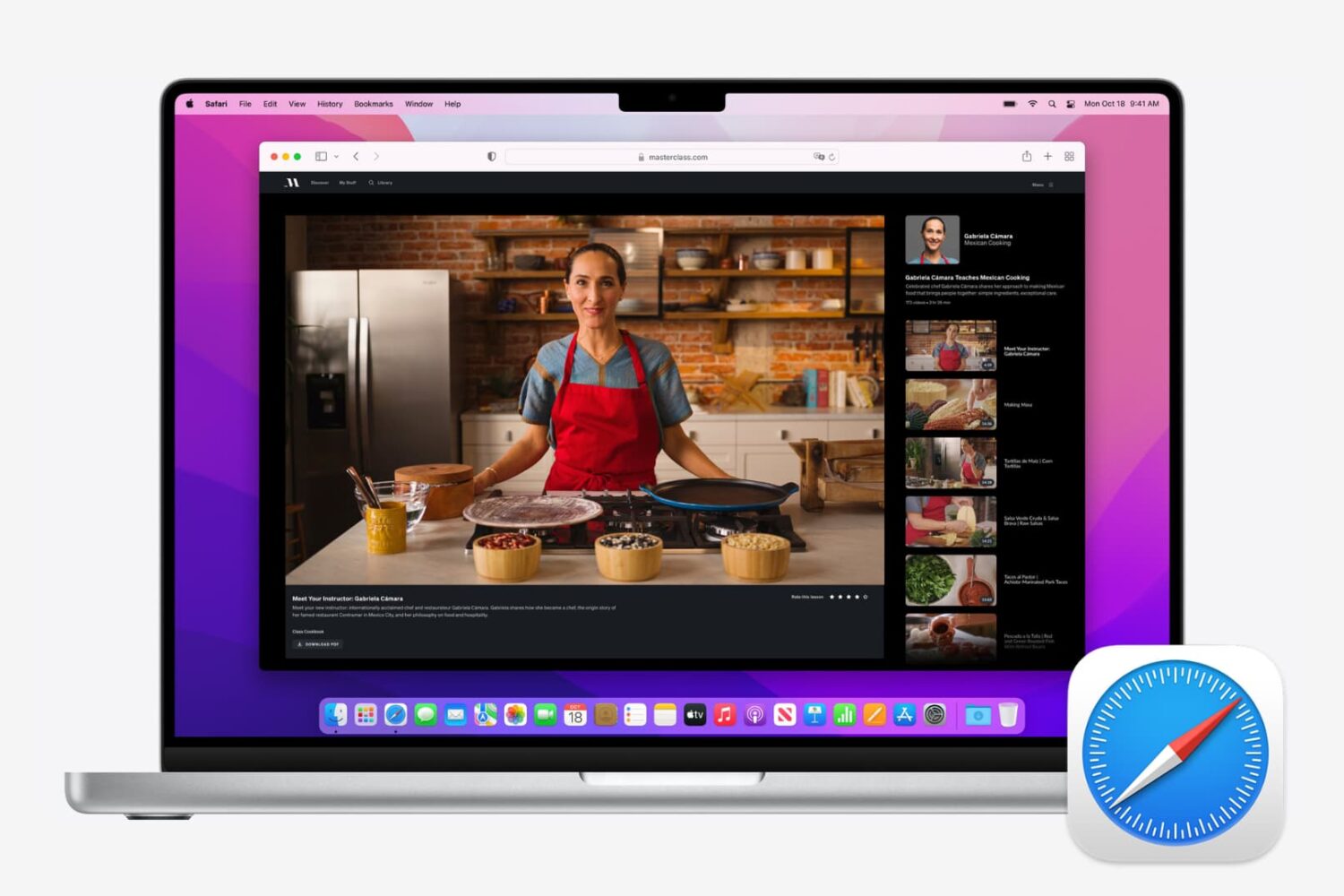
Find out how to use your Mac’s trackpad to quickly preview a website link in a small pop-up Safari window.
How to preview a link in Safari on Mac without opening a new tab
Find out how to use your Mac’s trackpad to quickly preview a website link in a small pop-up Safari window.
If you use Safari as your full-time browser on Mac, then you should learn some of the most important keyboard shortcuts to supercharge your workflow. In this post, we share a dozen must-have Safari shortcuts to power up your browsing experience.
Like pinned tabs, tab muting isn't a new idea, as it's been implemented in other web browsers in the past. But starting with OS X 10.11, Apple has brought native tab muting to the Safari browser.
The ability to mute tabs at will brings more control to the user. It's especially beneficial when encountering those annoying auto-playing advertisements.
In this video walkthrough, I'll show you how to use Safari tab muting, and explain its ins and outs.
Do you want to see what’s under the hood of the webpages you visit? Check out how to view a page’s source code on iPhone, iPad, and Mac.
I like my browsers minimal. Safari for Mac admittedly boasts an aesthetically pleasing, clutter-free interface. But if there's one thing I've always hated about Apple's browsers, it's that status bar at the bottom of the Safari window.
Though it conveniently lets you know where a URL will take you, once turned on it annoyingly just sits there whether you actually need it or not. I prefer Google's approach better: Chrome's status bar discreetly shows only when hovering over a URL.
Wouldn't it be great if Safari had a similar only-on-hover status bar? That's what Minimal Status Bar, a new browser extension by San Francisco-based developer Visnu Pitiyanuvath, does for you.
A month ago, Google launched a new iPhone app called Inbox, a different take on email which uses Sparrow-like gestures to help you achieve Inbox Zero nirvana and surface the most relevant items that tend to get lost in an avalanche of unwanted emails users get bombarded with.
Available on iOS, Android and Chrome, Inbox leaves fans of Apple's Safari browser in the dark. It's fortunate that there's a quick workaround to that, let me show you how.
Inbox is available free in the App Store.
Learn how to delete individual pages from your Safari history on iPhone, iPad, and Mac for increased privacy.
Learn how to sync Safari bookmarks between your iPhone, iPad and Mac for seamless access to your favorite websites wherever you browse.
Recently I ran into a problem that I found to be quite annoying. Flash video playback in Safari began suffering from major stuttering and choppiness. It was so bad that videos essentially became unwatchable while using Safari.
For someone who's constantly watching and editing video like me, this proved to be a big problem. I even pondered switching to Chrome for a bit, but quickly dismissed that thought and set out to find a solution to the problem.
Fortunately, the solution to fixing choppy video playback in Safari is an easy one. Have a look inside and we'll show you how.
Despite Apple's pretty handy password-saving and syncing feature in iOS Safari, I myself continue to prefer AgileBits' 1Password for iOS and OS X (our own Jeff is a recent convert, too). The reason is simple: 1Password allows me to save and sync just about any piece of information rather than just passwords and credit cards.
There's just one slight annoyance: to take advantage of 1Password's auto-fill feature for usernames and passwords, I must open a website in its built-in browser.
I generally tend to avoid the embedded web view in third-party apps and instead spend most of my mobile web browsing time in Safari. From now on, whenever you want to visit a website that requires a login, you can use this handy Safari bookmarklet to send the current tab to 1Password.
Though far from perfect, this removes some of the friction when visiting websites that require logins and auto-fill information kept in 1Password...
Remember the good old days, in iOS 5, when you could listen to a video's audio in the background on your device while multitasking? All you had to do was double tap the Home button, swipe to the left to reveal the iPod controls, and press Play.
But for some reason, Apple disabled this feature in iOS 6, leaving us without a native way to do things like listen to YouTube videos in Safari while texting or browsing Twitter. But the good news is, we've come across a fairly easy way to get it back...
For the most part, mobile Safari serves its purpose as the default web browser in iOS. But it's definitely not feature-packed. And to get more options, you typically have to either install a third party browser, or add a jailbreak tweak.
But OSXDaily points to a cool trick that makes adding a new feature to Safari as easy as creating a couple of bookmarklets. Have you ever wanted to quickly change the font size of a website on your iPhone or iPad? Well, here's how...