In this tutorial, we will show you how to customize the settings for VoiceOver announcements and hints on your Mac to fine-tune your experience.
How to customize announcements and hints for VoiceOver on Mac

In this tutorial, we will show you how to customize the settings for VoiceOver announcements and hints on your Mac to fine-tune your experience.

Maybe you just purchased your first Mac, or maybe you only perform certain tasks on it each day. In these situations, it can be difficult to find items you’re unfamiliar with when you need them. From big things like applications to small ones like the trash, we’ll help you find the most commonly looked-for items on your Mac.
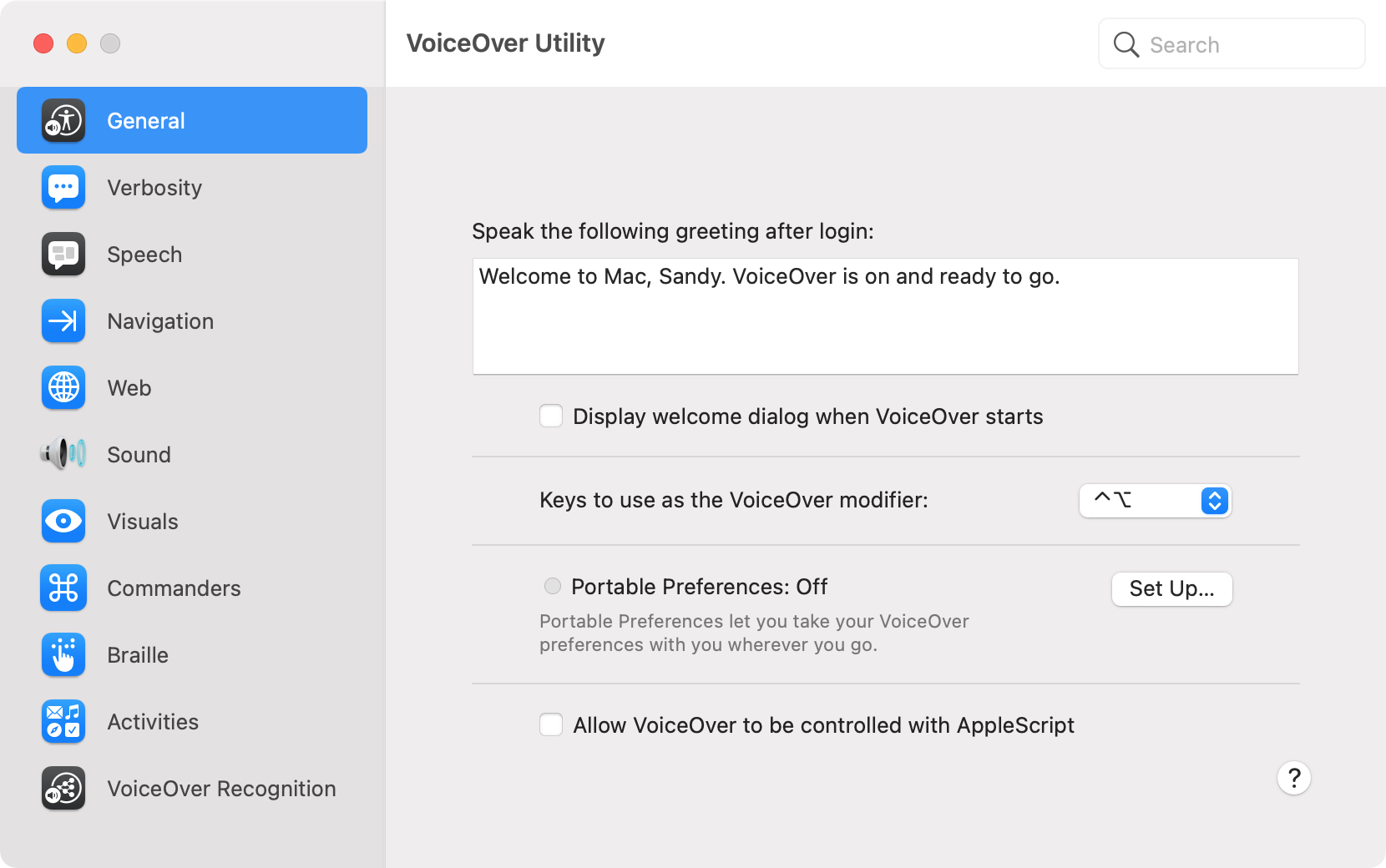
With VoiceOver on your Mac, you can perform tasks, take actions, and do everything you need to do while experiencing a visual impairment. We’ve walked you through the basics like turning VoiceOver on and off, setting up your modifier keys, and working with app windows.
Here, we’re going to explore customizing VoiceOver on your Mac with a tool called VoiceOver Utility. In this one handy spot, you can change the voice, magnify your cursor, and adjust the announcements you hear. And since many of our upcoming VoiceOver how-tos will direct you to this location, it’s good to become familiar with it. Ready? Here’s how to use VoiceOver Utility to customize VoiceOver on Mac.
Apple provides the enhanced Universal 2 binary feature to its developers who wish to ship macOS apps that pack in code for both Intel and Apple Silicon systems. In other words, a universal binary runs natively on both Apple M1 and Intel-based Mac computers because it contains executable code for both architectures. However, certain edge cases may justify running a native Apple Silicon app under Rosetta emulation, and we show you how it's done.
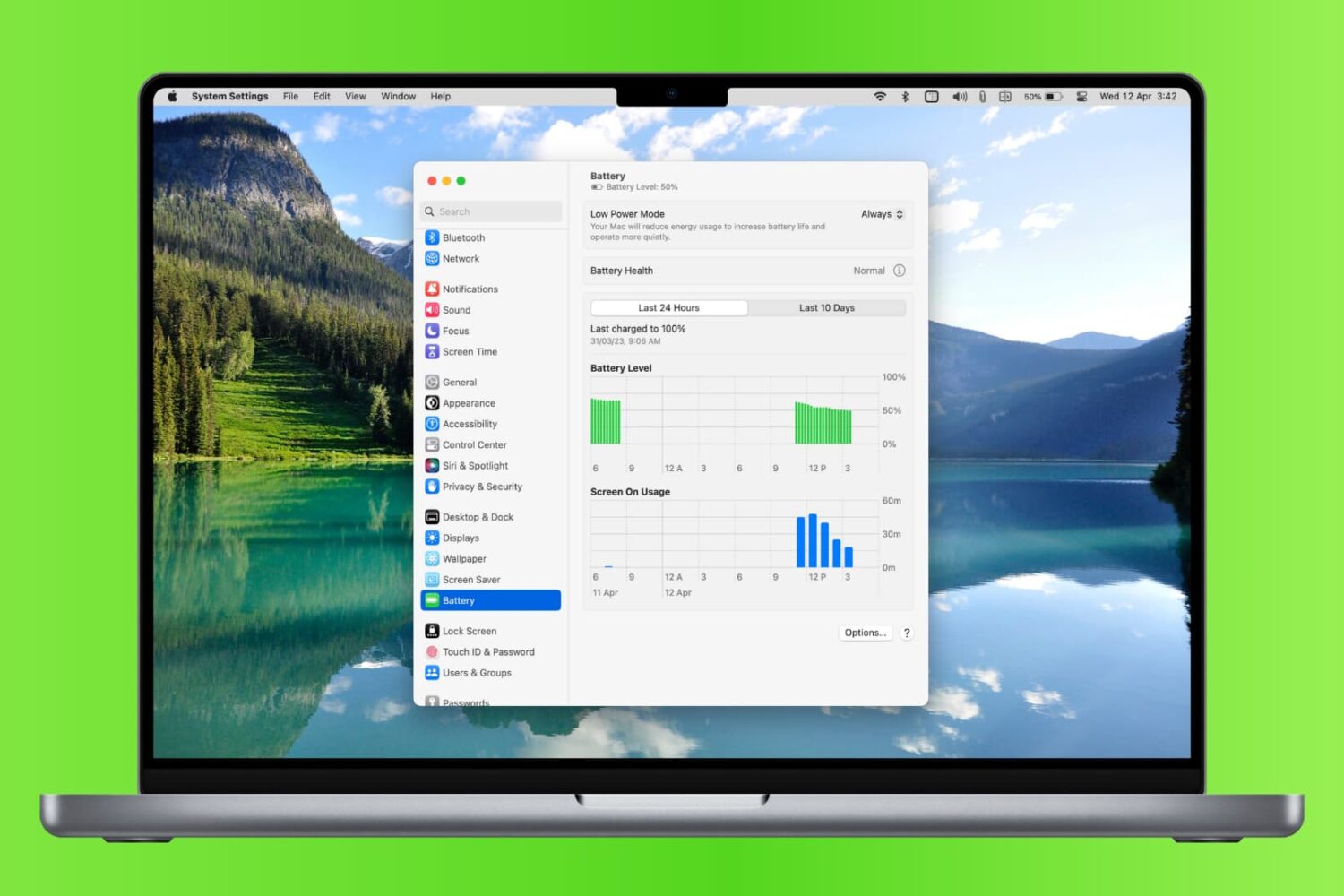
Learn how to check your MacBook’s battery usage history so you can compare charging accessories, view days with heavy use, and more.
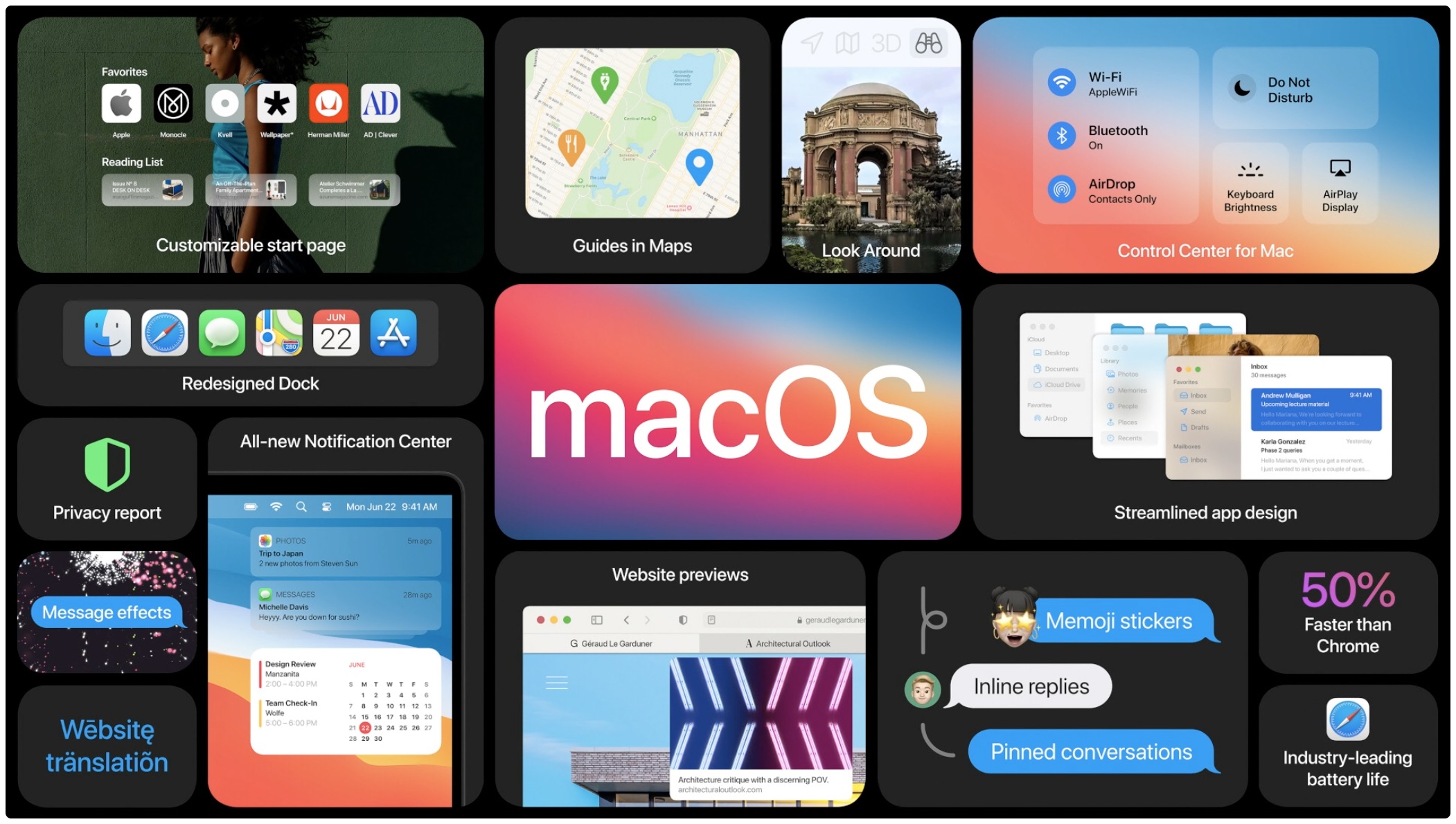
macOS Big Sur, Apple's latest software powering Macs, has been available for more than a week now. As some people have reported problems when trying to update their late-2013 or mid-2014 13-inch MacBook Pro notebook to Big Sur, Apple has now offered a fix.

Learn how to customize and use the Notification Center on your Mac so you can see the stacked notifications the way you like, interact with them, and work with macOS widgets.

Check out eleven tips for customizing your Mac’s top menu bar to personalize its look and increase your productivity.
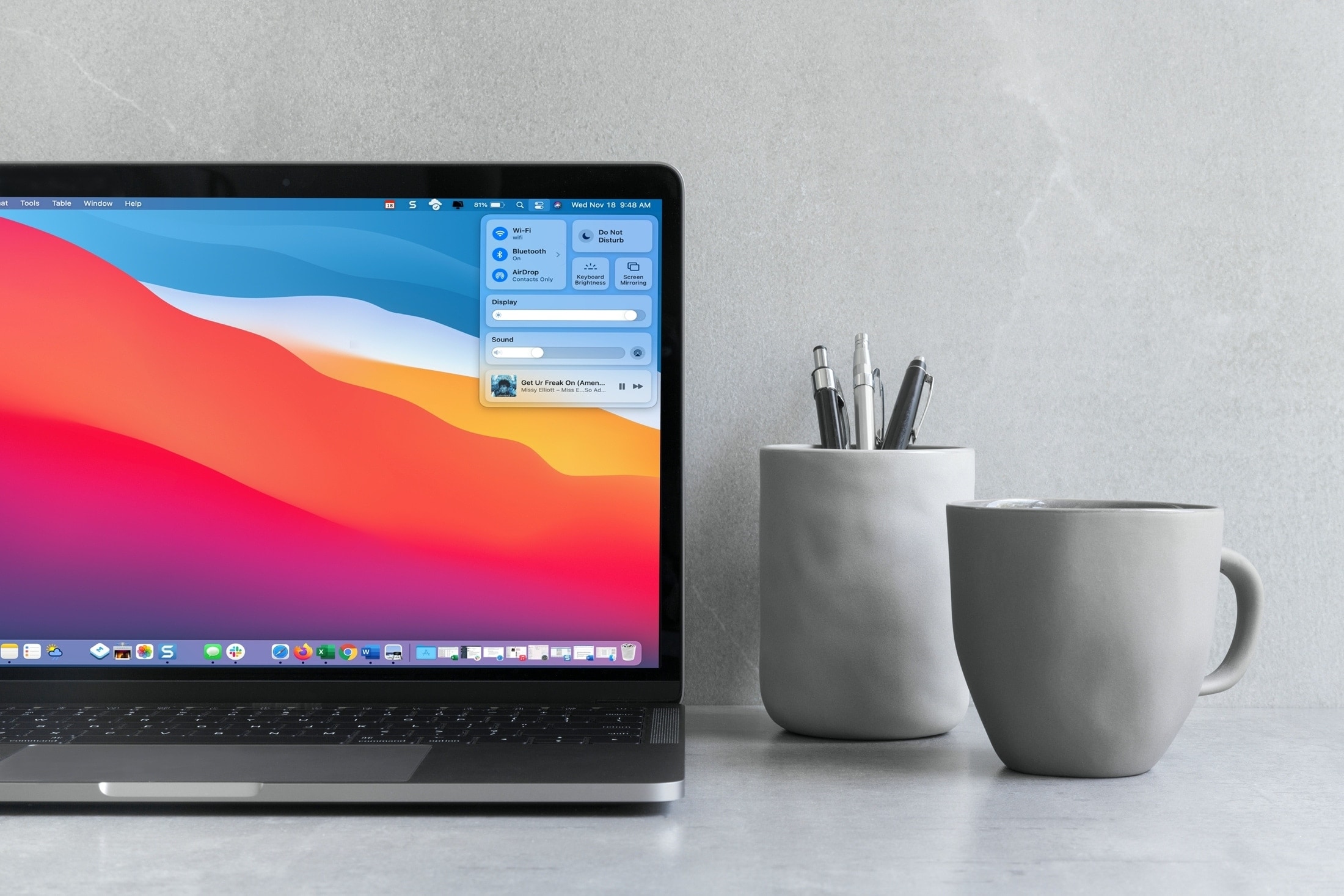
Your Mac comes with the Control Center feature that's similar to the iPhone and iPad's Control Center you already know and love. Follow along with this tutorial to learn how to use macOS Control Center, including how to customize it to your liking by adding or removing items.
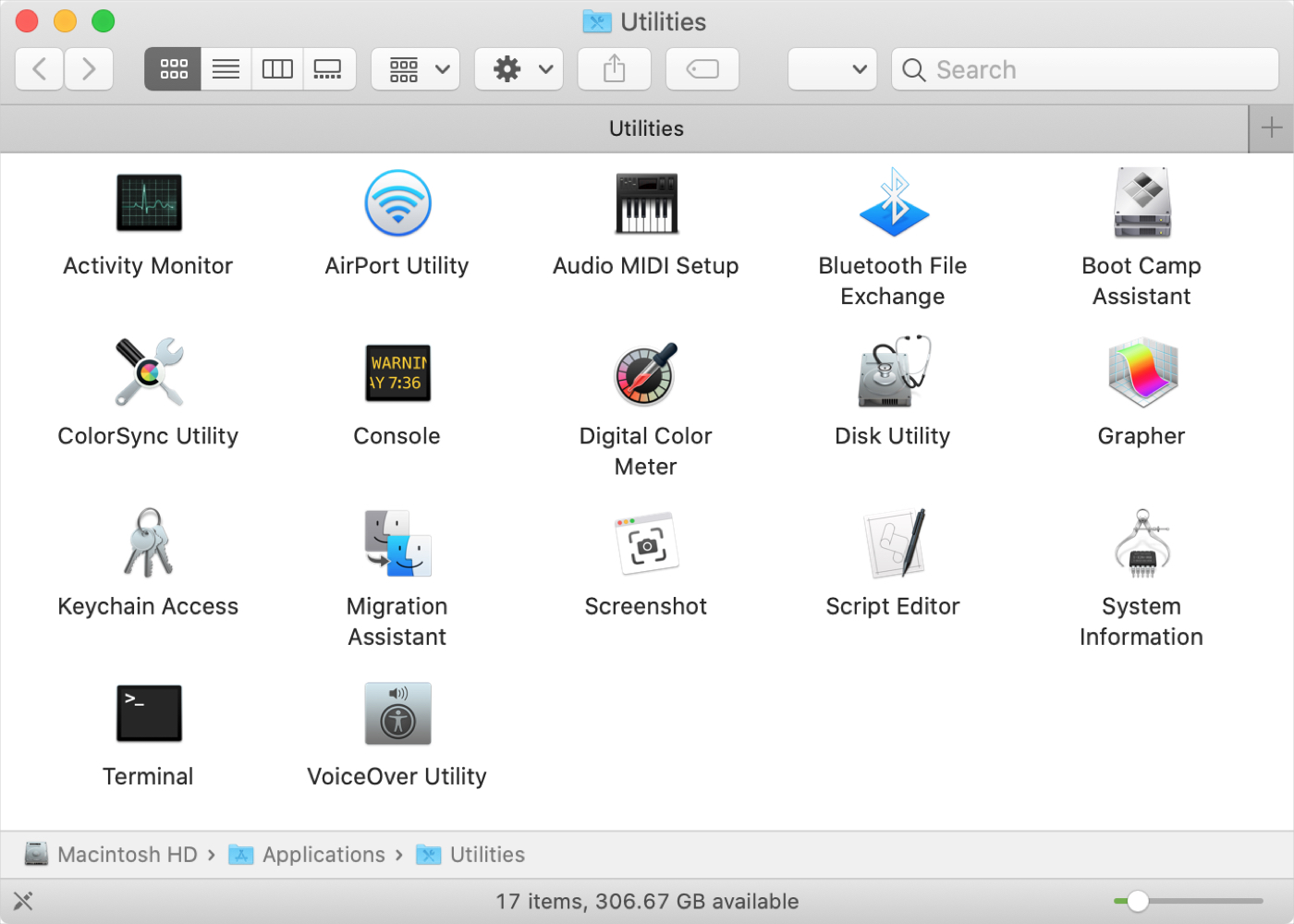
If you’ve just purchased your first Mac, and especially if you’re coming from Windows, you might be wondering about the Utilities folder. You may see the folder but have yet to open it or you might be looking for a specific tool and don’t realize it’s in that folder.
Whatever the case, we’re here with another in our New to Mac series to help you out! We’ll explain what’s in the Utilities folder and what each tool is for.

It’s one of those Mail features that’s easy to miss. It’s called Redirect, and it lets you send emails you’ve received to others without actually forwarding them. This is convenient for emails you receive by mistake, or that should be sent to someone else to handle.
When you redirect an email, it has no indication of it like it does when you forward a message. The person you redirect the email to receives it as if it came to them originally.