Guide

TinyUmbrella can now save local SHSH blobs from device, and that includes iOS 8.1.2
Semaphore has been on a roll lately, as shown by the release of yet another TinyUmbrella beta build, and this version contains a significant new feature. You now have the ability to save SHSH blobs directly from a local device. This means that if you're on a jailbreakable firmware like iOS 8.1.2, you can save the 8.1.2 blobs even though Apple is no longer signing that firmware version.

How to unlock the Apple Watch Activity app on iOS 8.2, no jailbreak required

A few days ago, we showed you a detailed walkthrough video of iOS 8.2's Activity App. Today, we'll show you how you can go hands-on with this brand new app.

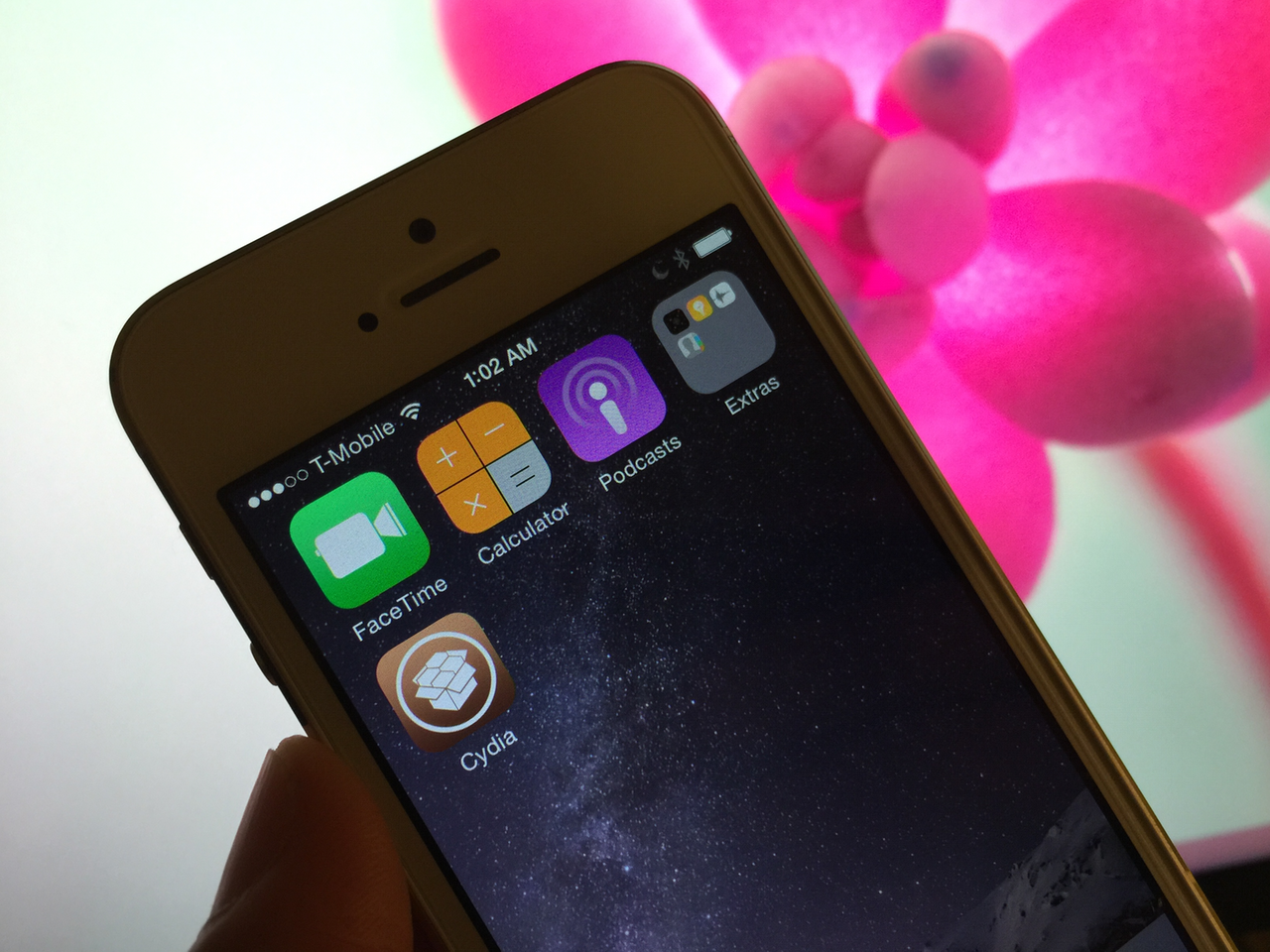
In the tutorial that follows, we'll walk you through each step needed to get the iOS 8.2 Apple Watch Activity app running on your iPhone today, even though the Apple Watch is still weeks from releasing. No jailbreak required.

How to create folder shortcuts on Mac

On Windows, you create shortcuts. On Mac? There's this little thing called aliases. Aliases are shortcuts that make it easier to find a file, folder, disk, or application. You can place aliases on your desktop, in the Dock, or anywhere else that's easy to find. In this tutorial, I'll show you two easy ways to create aliases on your Mac.

How to jailbreak iOS 8.2 beta 2 with TaiG for Windows

A few days ago, we posted our Mac jailbreak tutorial for iOS 8.2 beta 1 and 2. That tutorial used the PP Jailbreak tool for the Mac. For Windows users, things are slightly different. Windows users get to use the TaiG tool. At the end of the day, both tools are geared towards the same goal—allowing you to easily jailbreak iOS 8.2 beta 1 and 2.

Podcasting basics part IV: recording, exporting and uploading

This is the second to last entry into my podcasting basics series. In part I, I talked about some of the preliminary steps needed before starting a podcast. In part II, I discussed the hardware that we use to record shows like Let’s Talk iOS and Let’s Talk Jailbreak. In part III, I broke down the software used. Now that you have a good idea of what hardware and software that we use, along with the basic overall methodology, let's talk about starting the actual recording.

Podcasting basics part III: software

This is the third entry into my podcasting basics series. In part I, I discussed some of the preliminary steps needed before starting a podcast. In part II, I talked about the hardware that I personally use to record shows like Let's Talk iOS and Let's Talk Jailbreak.

After going through the preliminary conceptualizing and picking out the hardware that works for your particular scenario, it's time to mate the hardware with the right software. Software choices for producing podcasts can vary significantly, but I've come up with a formula that works for me.

Of course, your decision to use a piece of software may boil down to your particular needs. For example, if you're not a Mac user, then many, if not all of your software will differ. That being said, the basic recording techniques that I employ will more or less be the same, and can be used regardless of the software you decide on using. In this post, I break down the software that I use for recording and producing our podcasts.

Podcasting basics part II: location, voice, microphones and hardware

In the previous podcast basics post, we talked about some of the preliminary steps that need to be taken before proceeding with creating a podcast. Those steps involved finding the right subject, format, hosts, etc.

Now that you have a good idea about the subject you'd like to podcast about, the show format, the co-hosts, and the scheduling, it's time to start thinking about your podcast hardware. I like to include location as a part of the hardware, because the location where you record your podcasts can play a huge role in how the end product sounds.

In this post, I'll talk about what hardware I use for podcasting, along with other general recommendations on hardware. If you're still mulling about the subject, or co-hosts, then I urge you to read part I of this series; it covers the stuff you should consider before even getting started.

How to install Windows 10 Technical Preview on your Mac with VMware Fusion

The Windows 10 Technical Preview is now available for free download and trial, but just because you're on a Mac doesn't mean you have to be left out of the fun. Windows 10 brings new features to the table like Cortana voice assistant integration, improved multitasking, and more.

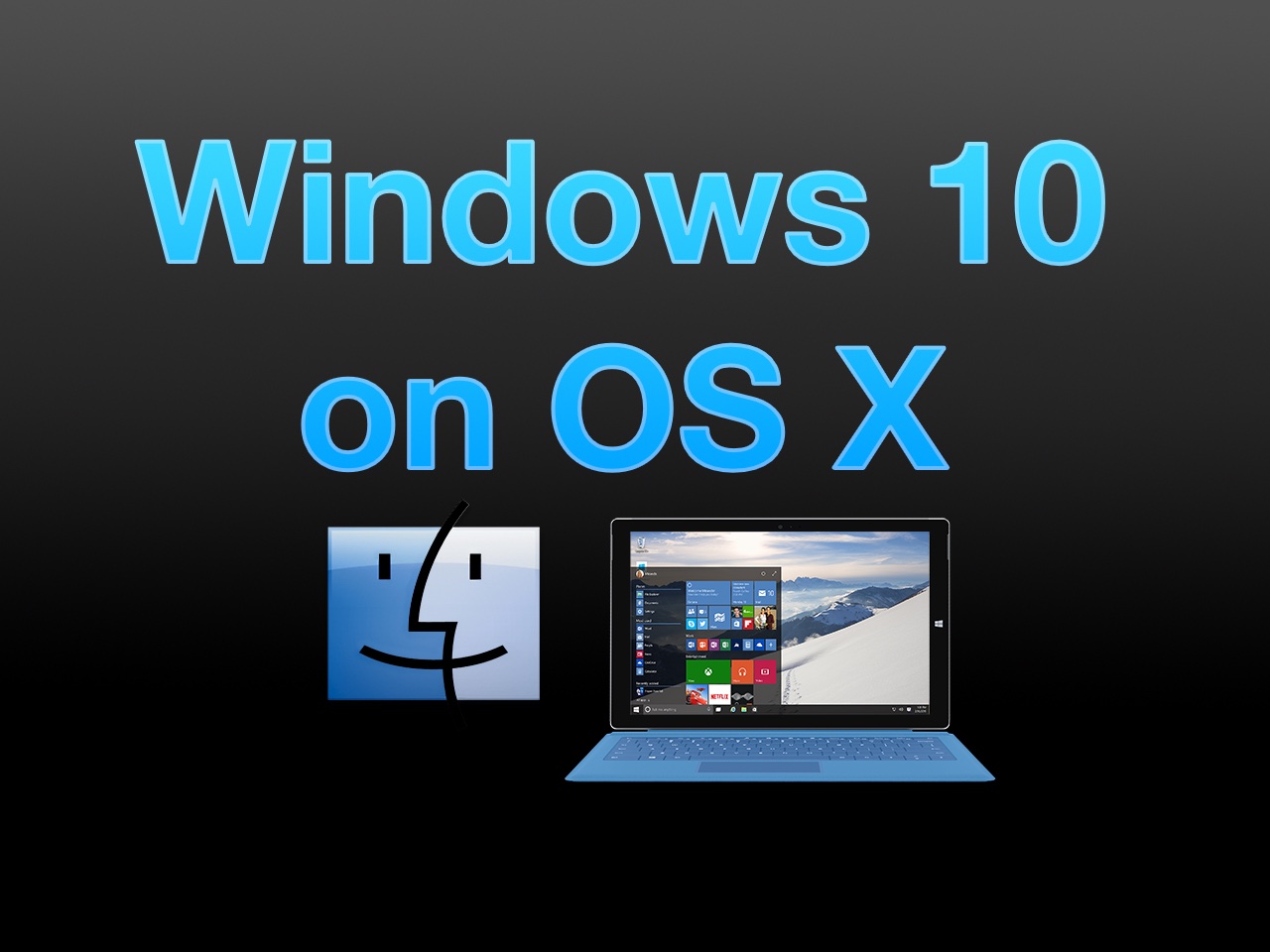
In this full tutorial, I'll show you how to install Windows 10 Technical Preview on your Mac using VMware Fusion. In the video walkthrough, I show you how to install Windows 10 on your Mac in less than 15 minutes.