Audio

iOS 11 brings lossless FLAC audio playback to iPhone and iPad

iOS 11 reportedly brings native support for lossless audio encoded in the popular FLAC format to iPhone, iPad and iPod touch. As discovered by Reddit users, Apple has included full playback support for FLAC audio files on iOS 11. iTunes and iOS 10 currently lack built-in support for the FLAC codec, though people can use a third-party app to enjoy FLAC audio.

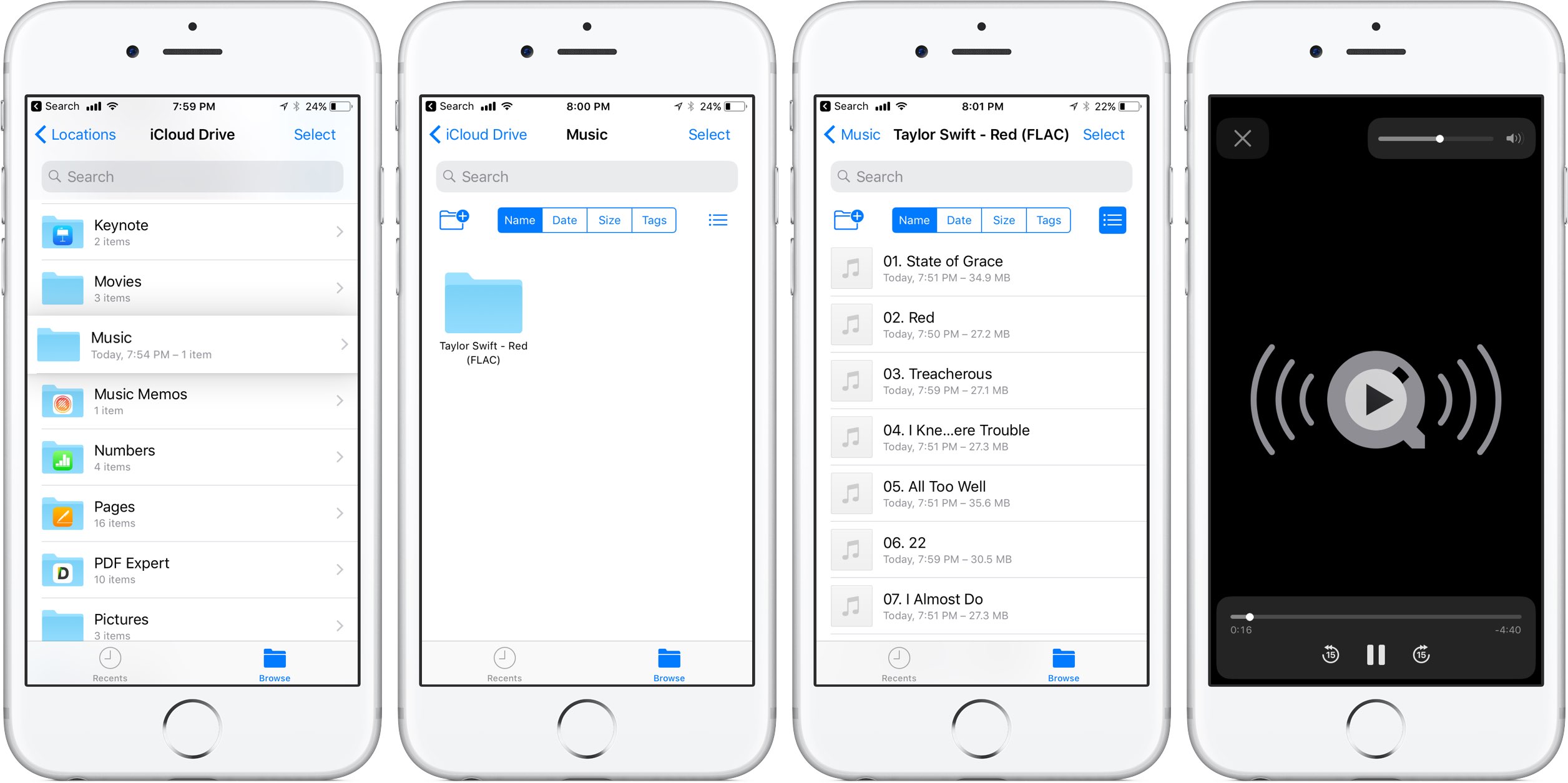
At this stage, only the new Files app has support for lossless playback of FLAC-encoded audio files. Of course, things could change in subsequent beats as Apple continues to refine iOS 11 ahead of its fall release, at which point iTunes could be updated with full playback support for the popular format.

As things currently stand, any FLAC files synced to an iOS device through iCloud Drive, Dropbox or Box can be played from within the Files app. FLAC files are currently unsupported via the Music app on iOS 11.

For what it's worth, I tried sending an FLAC audio file to my iOS 11-enabled iPhone through AirDrop, to no avail. My iPhone didn't know what to do with the file, putting up the standard prompt offering to download an app from App Store.

No matter how you look at it, this is a big win for music lovers and audiophiles.

The FLAC format bring the full quality of the original recording. FLAC, or Free Lossless Audio Codec, features lossless compression of digital audio which can reduce the size of the audio file to between 50 percent and 60 percent of its original size, without degrading audio quality of the original.

iOS 10 currently supports the AAC, Protected AAC, HE-AAC, MP3, MP3 VBR, Dolby Digital (AC-3), Dolby Digital Plus (E-AC-3), Audible (formats 2, 3, 4, Audible Enhanced Audio, AAX and AAX+), Apple Lossless, AIFF and WAV audio formats.

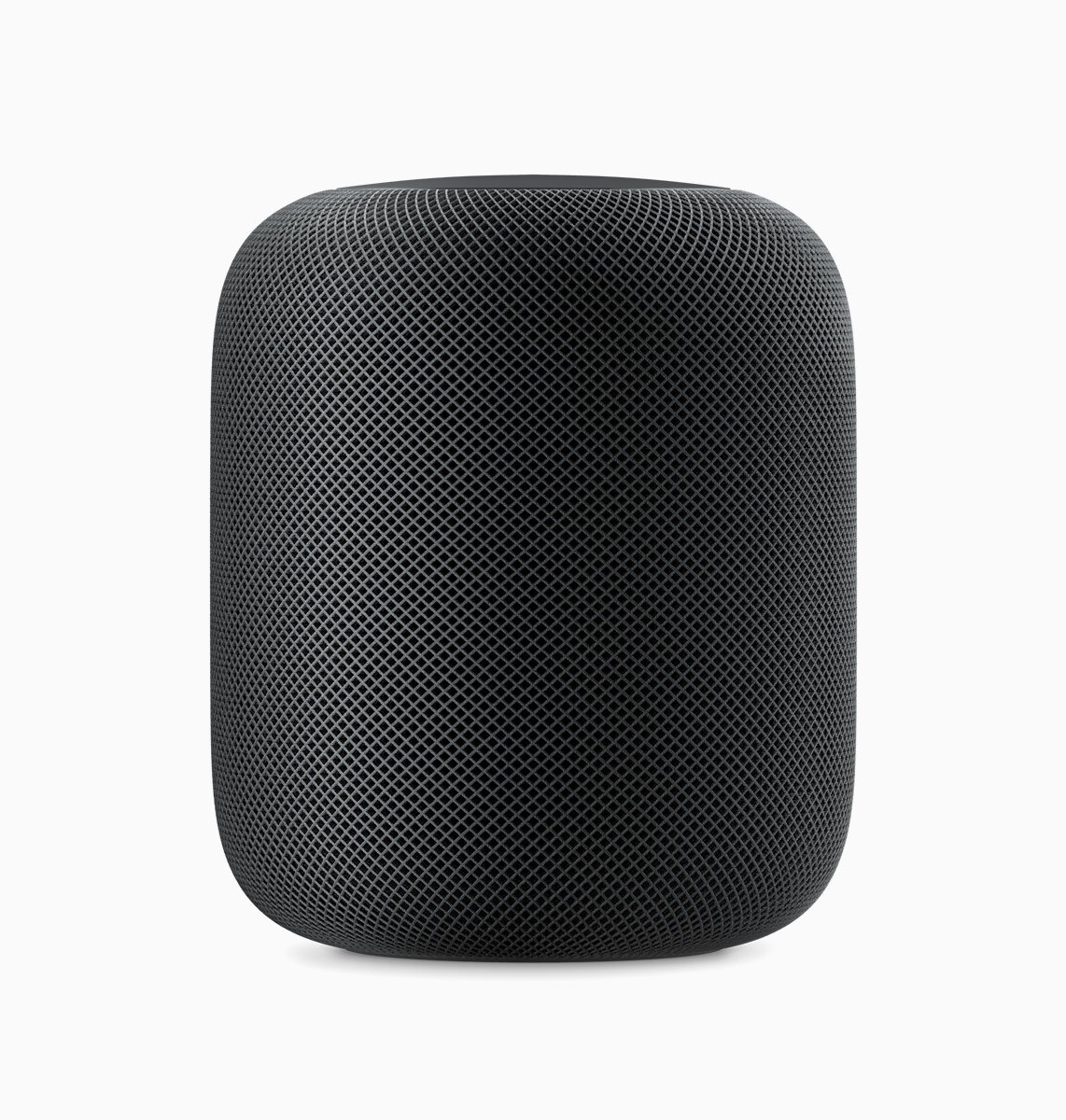
The ability to play lossless FLAC audio on an iPhone, iPad or iPod touch with iOS 11 could also signify that HomePod, Apple's upcoming smart speaker, may support high-quality FLAC audio.
AirPods Next/Previous track controls also work on iOS 10

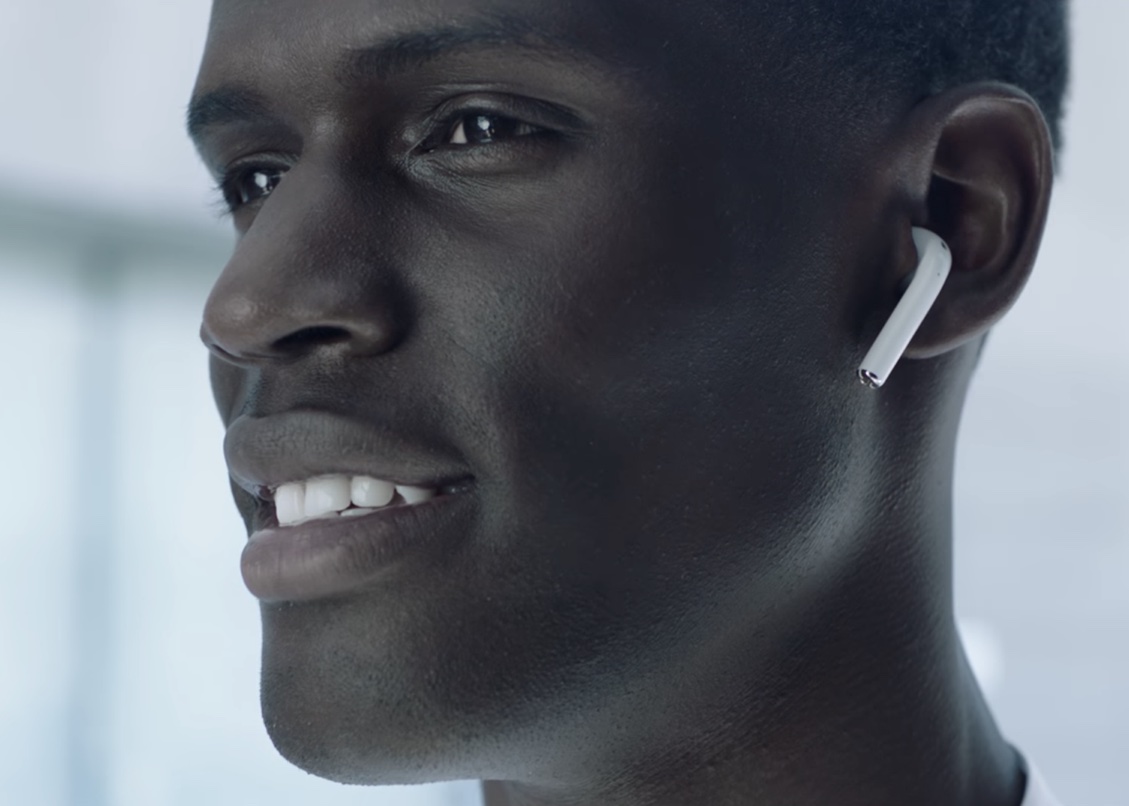
One of the little things in iOS 11 includes the ability to set up the AirPods double-tap action to skip forwards and backwards between tracks, cancelling the need to invoke Siri to change songs. As iDownloadBlog reader Harshit Yadav has discovered and shared with us, you can also get this next/previous track control functionality to work on your iPhone, iPad or iPod touch with iOS 10, here's how.

First of all, your AirPods must be running the firmware version 3.7.2 or later, which enables you to customize double taps independently for both the earbuds. To find out your AirPods current firmware version, go to Settings → General → About → AirPods on your iPhone.

Your AirPods must be connected to your iPhone to appear there.

TUTORIAL: How to install software updates for your AirPods

To ensure your AirPods have the latest available firmware, put both the earbuds inside their charging case, then close the case and connect it to a charger or a USB port on your computer. Your iPhone must be paired with your AirPods and connected to Wi-Fi in order for the firmware to download and install.

With the 3.7.2 firmware installed on your AirPods, do the following:

1) Connect your AirPods to an iOS device running iOS 11. This is very important that your AirPods be connected to an iOS 11 device. If not, the option to customize Left and Right ear will not appear.

2) Go to Settings → Bluetooth on your iOS 11 device.

3) Tap the “i” next to your AirPods.

4) Tap Left underneath the Double Tap on AirPod heading, then choose Previous Track from the list of double-tap actions for your left earbud.

5) Tap Right underneath the Double Tap on AirPod heading, then choose Next Track from the list of double-tap actions for your right earbud.

6) Close out the Settings app and play some music to verify that double-tapping either AirPod takes you to the next or previous track.

7) You're done.

With your AirPods updated to the firmware version 3.7.2 and the double-tap action set to next/previous track, you can now pair them back to an iOS 10 device and they will continue to work.

It's important to note that attempting to change your AirPods settings on iOS 10 will overwrite any changes made on your iOS 11 device, meaning you'll loose the next/previous track functionality.

Let us know in the comment section below how it went for you.

Meet HomePod, the new Apple speaker

Apple is taking a new responsibility in the world of delivering music to your home by unveiling the HomePod, a new wireless speaker and assistant for your house.

This intelligent new wireless speaker uses similar technology to what’s available in the AirPods, except it’s incredibly more advanced on both the software and hardware ends of things.

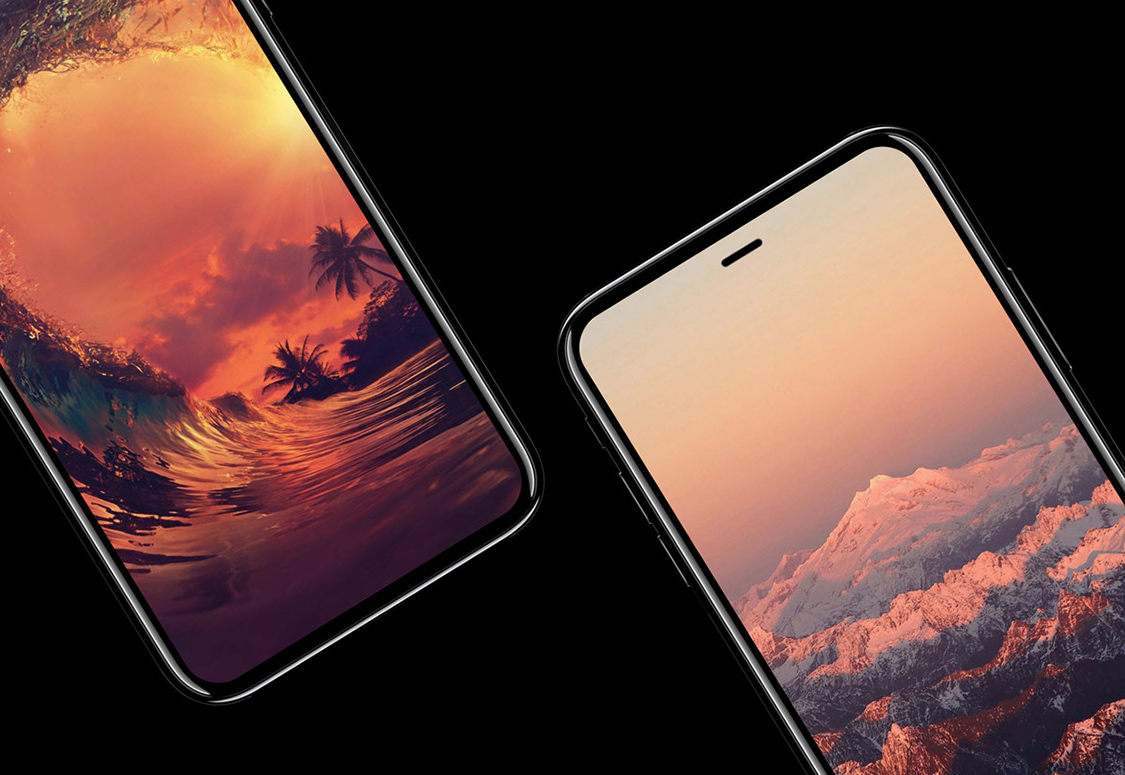
JPMorgan: iPhone 8 to bring enhanced stereo sound and waterproofing, ship with AirPods

JPMorgan analysts who track Apple's supply chain in the Asia-Pacific region, including Gokul Hariharan, shared a new research note this week. In it, the they predicted that the company's upcoming iPhone 8 will come outfitted with an enhanced earpiece sporting “further improvements” to stereo sound and waterproofing.

The note, obtained by MacRumors, does not specify what acoustical improvements Apple could introduce to iPhone 8's earpiece.

JPMorgan also made the prediction that AirPods could come as a free accessory with iPhone 8. If true, Apple's $159 wireless earbuds could replace the firm's $29 wired EarPods with Lightning connector that come in the box with current iPhone models.

https://www.youtube.com/watch?v=R17WDY3BIfo

Subscribe to iDownloadBlog on YouTube

The research note mentions other previously rumored iPhone 8 features, like an OLED display, a stainless steel and glass design, a faster A11 processor, a larger battery, wireless charging and enhanced cameras with new sensors for 3D mapping, 3D selfies, facial recognition, augmented reality capabilities and more.

The analysts estimate that iPhone 8 will be $75 to $80 more expensive to manufacture.

iPhone 7 became the first iPhone to feature stereo sound.

Rather than use two separate speakers at the bottom of the device, Apple has opted to combine a speaker unit at the bottom with the earpiece at the top to create “immersive stereo sound” delivering two times the audio output of iPhone 6s and increased dynamic range.

How Apple created Siri’s personality from Susan Bennett’s original voice work

Voice actress Susan Bennett revealed tidbits about becoming the voice of Siri in an interview with CNN back in October 2013.

In a new interview published Friday by Typeform, she offered some additional information about the origins of Apple's virtual assistant, provided an insight into how the process of recording Siri voices worked, why she passed on a five-year contractual offer from the iPhone maker and more.

Audio-only calls rolling on Google Duo

Google announced during its Spring event in São Paulo, Brazil that audio-only calls would be coming soon to Duo, its one-to-one video calling app for iOS and Android. Today, the company pushed a small update to Duo for iPhone that enables this feature (which first rolled out to users in Brazil) for everyone. Available free of charge on App Store, Google Duo version 9.1 brings out VoIP audio calling along with unspecified bug fixes and product improvements.

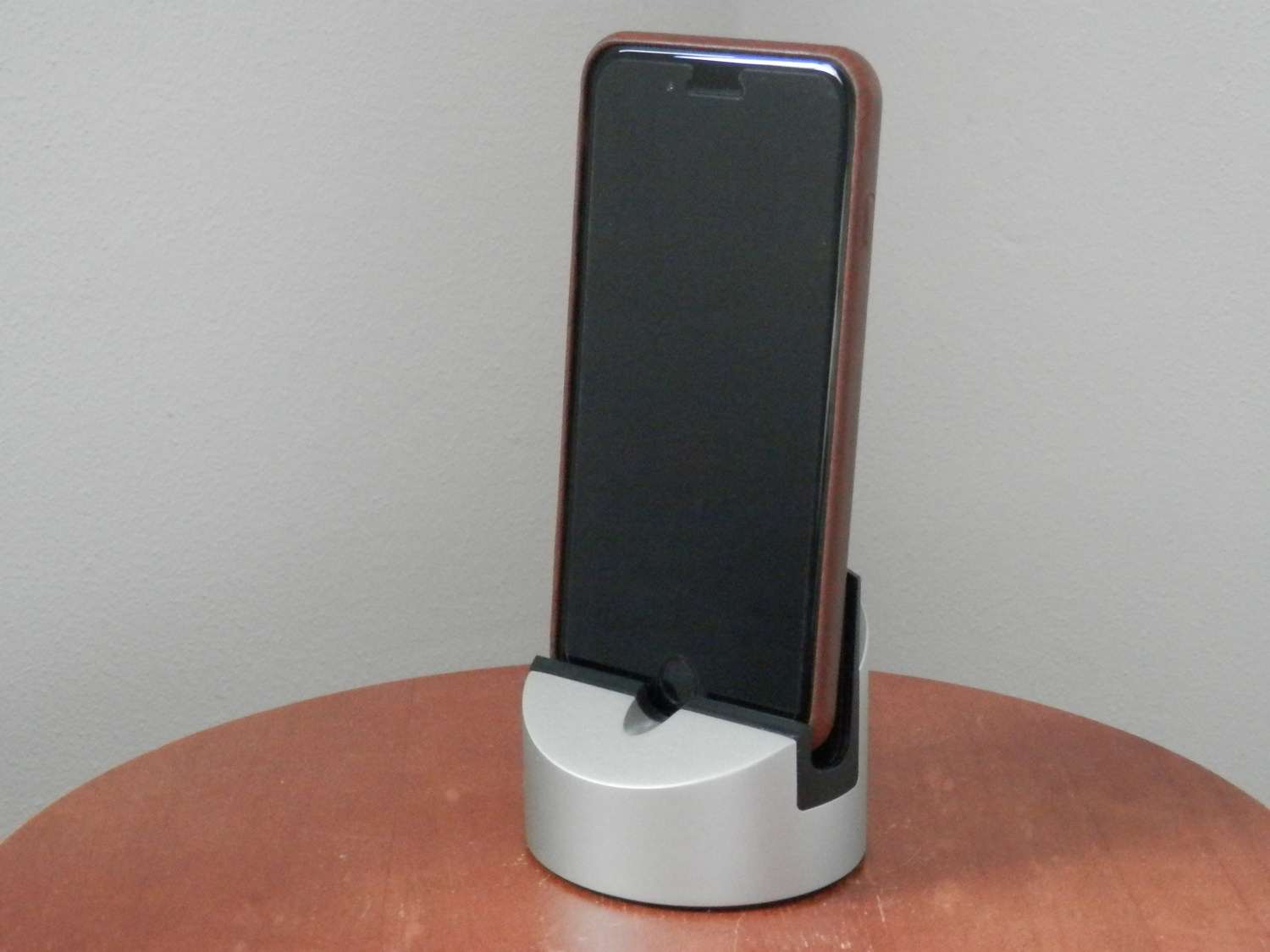
Gravitas iPhone dock by Henge Docks is both hefty and low key

I do a lot of work at my office desk at home, and for that reason alone, I have a love for things that help keep my work space uncluttered. One of the things I like to have that helps with that is a good quality dock that I can use to put my iPhone or iPad somewhere without it taking up much real estate where I’ll be putting my papers or elbows.

The Gravitas dock by Henge Docks is a good choice, and in this review, we’ll give you an up-close look at it.

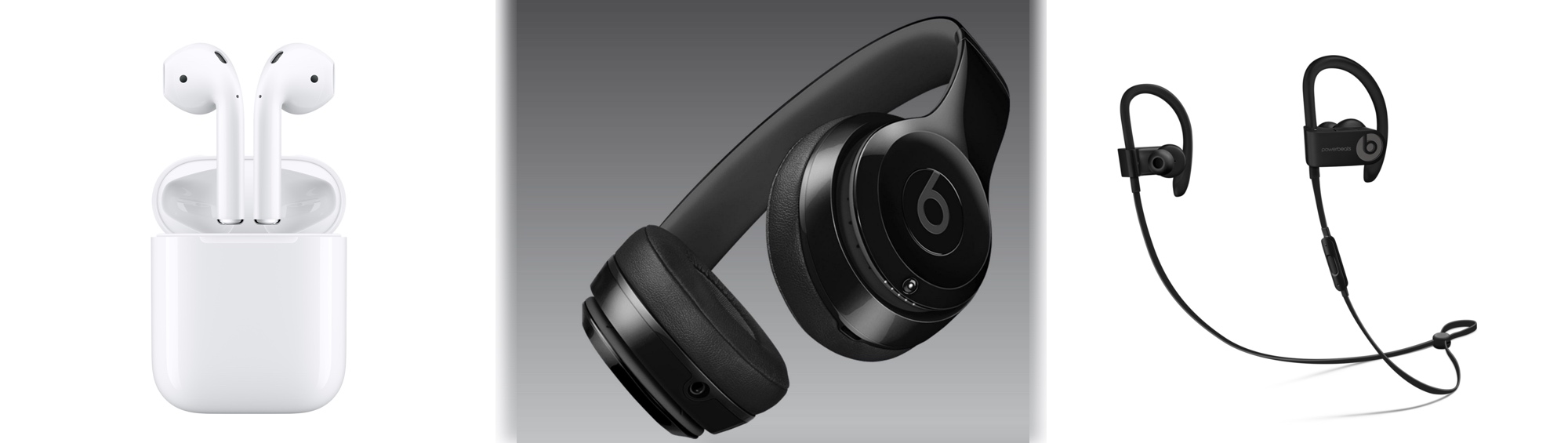
Which W1 chip-equipped audio device should you get?

Because Apple nixed the 3.5mm headphone jack from the bottom of the iPhone 7 and iPhone 7 Plus, you either have to use the supplied Lightning dongle for backwards compatibility with your 3.5mm audio accessories, or you have to kick it up to the new age with a pair of wireless or Lightning-enabled audio devices instead.

When you don’t want to be bothered with the issue of charging your device at the same time you're listening to audio with headphones or earbuds in, the obvious choice is to go wireless. While there are tons of options, only a few come with Apple’s brand new W1 chip, which supports the slick new Bluetooth pairing process. Among those are AirPods, Beats Solo3, and Powerbeats3.

If you’re in a predicament and can’t decide between the three then you should find this piece helpful, because I'll be comparing the strengths and weaknesses of each from a variety of angles.

How to convert music tracks to Audiobook in iTunes

Venturing into the depths of iTunes is no longer an activity for the faint-hearted, as Apple’s gold mine is famously becoming more convoluted with every update. It is by no means impossible to keep up with the changes, but staying on top of every small cosmetic shift does pose a decent challenge today.

As somebody very fond of the spoken word on iTunes, I can attest that this general rule holds true for audiobooks as well. So as I was fiddling around with some old school CDs the other day and trying to move audio files within my iTunes library to the Audiobooks tab, I noticed my old methods were already outdated again. If you’re not up to speed on iTunes, here’s a refresher on how to get your talking book to properly identify as Audiobooks inside the application, followed by an encore for CD enthusiasts with regard to joining tracks during import.