Yesterday we showed you how to get Hulu on your Apple TV. It worked well, but the method used had some costs involved.
Today, we'll show you how to get Hulu on your Apple TV completely free of charge. That's right, for zip, nada, zilch.
Learn how to master your Apple devices with our comprehensive tutorials. From iPhone and iPad to Mac, Apple Watch, AirPods, and more, our expert guides will help you unlock the full potential of your Apple products. Discover new features, tips, and tricks each day to enhance your user experience.

Yesterday we showed you how to get Hulu on your Apple TV. It worked well, but the method used had some costs involved.
Today, we'll show you how to get Hulu on your Apple TV completely free of charge. That's right, for zip, nada, zilch.

You've probably heard that rumors that an official Hulu app for the Apple TV is complete and ready to go, yet Apple is holding it back from being released. Apple is worried about Hulu+ eating into its iTunes sales, so the app has been placed on hold indefinitely.
For Hulu fans, that's quite disappointing, especially considering the service is available on pretty much every other platform known to man, including the iPad, and iPhone.
But there is a way to get Hulu running on the Apple TV right now. This guide will show you how to take advantage of the Seas0nPass jailbreak so that you can watch Hulu Plus on your Apple TV.

While this tip may seem a little trivial, it will most likely solve an annoyance that many of us have experienced when surfing the web on the iPad or iPhone.
When you're browsing in Safari and you accidentally close a tab, it can be a pain to try and find that URL again in your history or search recommendations. That's why there's a handy little option for opening recently closed tabs on iPhone and iPad.
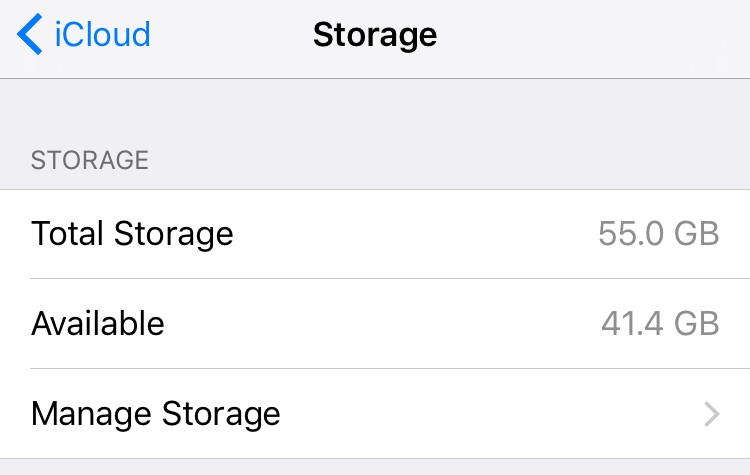
iCloud launched in October 2011 to much confusion amongst consumers. Apple's cloud-based storage service doesn't work like your typical drag-and-drop cloud software (Dropbox), leaving some folks wondering how to use it.
But never fear, iDB is here to show you how to make the most of your iCloud account. Today we are going to show you how to manage and/or delete your iCloud backup files from your iOS device in just a few easy steps.

If you've been paying attention to the jailbreak scene lately, then you've heard the warnings about preparing for Apple's next counter move against jailbreakers. The question is this: have you heeded it?
It's imperative that you update to iOS 5.0.1 now and save your SHSH blobs across all devices, including the iPhone 4S and iPad 2. That way, you can always downgrade to iOS 5.0.1 later, which means you will always have access to an untethered jailbreak.
We'll show you how to create a firmware file for your A4 devices that can always be jailbroken. We'll also tell you what to do to preserve the jailbreakability of your A5 devices as well. If you haven't done this yet, now is the time to act...

Now that pod2g's untether exploit has been made public, the benefits are now being felt in our living rooms. That's because the team at FireCore has updated their Seas0nPass Apple TV jailbreak tool to take advantage of the untether exploit.
Now you can enjoy all of the benefits of Apple's latest Apple TV update — which includes AirPlay mirroring — coupled with an untethered jailbreak that allows you to do all sorts of interesting things.
Check inside for the full tutorial...

A few days ago chpwn released Spire, a legal Siri port for the iPhone 4 and other devices. The release was met with much excitement, and likely just as much confusion. How does it work? Can it work with an existing Siri Proxy?
Getting Spire working on your non-iPhone 4S device may seem daunting, but it's actually fairly straight forward, especially if you've successfully followed our Siri Proxy tutorial in the past. The Spire setup pretty much involves the same steps needed to get Siri Proxy working, with a few notable differences thrown in.
Check inside as I show you how to get Siri running on your iPhone 4 using Spire. This should also work for other devices, like the fourth-generation iPod touch...

Those of you who have used the untethered jailbreak for iOS 5.0.1 might have encountered an issue where iBooks crashes every time you try to launch the application.
This problem isn't new. Apple introduced this awhile back as a way to fight jailbreaking. Fortunately, we already have a fix for it. It's quick, simple, and it should solve all your issues with iBooks...
Today, as we're sure you're aware of, the untethered jailbreak for iOS 5.0.1 was released. Tools like RedSn0w and packages like Corona were released to take advantage of pod2g's untethered exploit.
If you've had an iPhone 4 since launch, then it's entirely possible that you've preserved your baseband up until now for unlocking and resale value.
If your primary concern is preserving your baseband for an UltraSn0w unlock, then you'll be happy to hear that PwnageTool is back, and it packs full iOS 5.0.1 compatibility in tow...
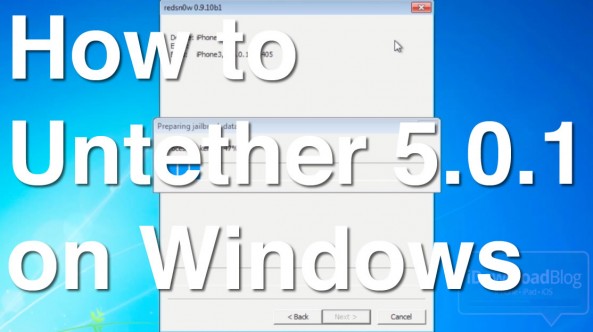
Jailbreaking iOS 5.0.1 is about as easy as it can get on both Mac and Windows, but Windows users might encounter a couple of hiccups along the way if you're not careful.
The main thing to remember is that RedSn0w works best on Windows when you use XP Compatibility Mode and run it as an Administrator. By following those handy suggestions, the jailbreak process on Windows is just as easy as it is on the Mac.
Check inside for a video tutorial that shows how to perform an iOS 5.0.1 untethered jailbreak on a Windows 7 machine...

By now you've probably read our earlier report that there is finally an untethered jailbreak for iOS 5.0.1. This is thanks to the amazing work of iOS hacker pod2g, but also thanks to GeoHot, who found some of these exploits a while back.
As we mentioned in our previous post, there are two ways to untether iOS 5.0.1. If you're already jailbroken, you may want to use Corona Untether 5.0.1. If, however, you're still running a stock iOS 5.0.1 version, then this RedSn0w tutorial is for you...
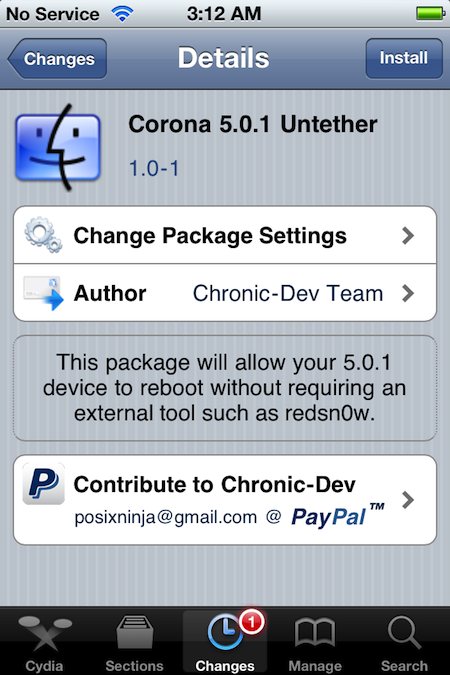
After weeks of anticipation, the iOS 5.0.1 untethered jailbreak is finally here, compliments of pod2g, the Chronic Dev Team, and the Dev Team. As we explained a little earlier today, you currently have two ways to untether.
Depending on your situation, you can either run the latest version of RedSn0w, or if you're already jailbroken, you can use the Cydia package called Corona Untether 5.0.1 to do the job. The latter is what we'll focus on in this post...