Learn about all the ways to turn off unhelpful website notifications that you get via the Google Chrome browser on your Mac.
How to disable website notifications from Google Chrome on Mac

Learn how to master your Apple devices with our comprehensive tutorials. From iPhone and iPad to Mac, Apple Watch, AirPods, and more, our expert guides will help you unlock the full potential of your Apple products. Discover new features, tips, and tricks each day to enhance your user experience.
Learn about all the ways to turn off unhelpful website notifications that you get via the Google Chrome browser on your Mac.

If you have a kid, you know the internet can be a wild place for them to hang around. I've experienced first hand when my two year old daughter was casually watching cartoons on YouTube and ended up watching a guy shout in Russian while shooting an assault rifle.
iTunes, to a lesser extend, can be a similar place. Apps, books, movies, TV shows and podcasts can contain material that could be shocking to a younger audience. Thankfully, there is some simple things you can do to set up iTunes parental control. In this post we're going to show you how.

I recently found out there is a feature in iTunes that allows you to set up an allowance for someone to have access to a pre-determined amount of money to spend each month in the iTunes Store, App Store, or iBooks Store.
A perfect illustration of this feature would be the case where parents would be able to set up an allowance for their kids. This way, kids have access to a credit they can spend each month, either on apps, movies, musics, books, etc.
In this post, I will show you how to set up an iTunes allowance so you can send a monthly iTunes Store credit to anyone...

Recently I ran into a problem that I found to be quite annoying. Flash video playback in Safari began suffering from major stuttering and choppiness. It was so bad that videos essentially became unwatchable while using Safari.
For someone who's constantly watching and editing video like me, this proved to be a big problem. I even pondered switching to Chrome for a bit, but quickly dismissed that thought and set out to find a solution to the problem.
Fortunately, the solution to fixing choppy video playback in Safari is an easy one. Have a look inside and we'll show you how.

Here are three ways to delete apps on your iPhone. While you may be familiar with one of the methods, the other two might be new to you.
The Music app is a stock application that comes preinstalled on all iOS devices. It's the primary way for playing music on the iPhone, iPod touch, and iPad. With iOS 7.0, a new feature was baked into the stock Music app called iTunes Radio. iTunes Radio is an ad-supported service that allows users to browse more than 250 curated stations. Users can also create and build their own stations, which feature Pandora-like customization over time.
The stock Music app has endured significant changes over the past few years. The Music app was once exclusively relegated to the iPod touch, with iPhone models offering an "iPod" app as a means to play music and watch videos. Eventually, with the advent of iOS 5, the iPod app was broken-up into separate Music and Video apps for the iPhone line, unifying the stock Music app presence across all iOS hardware.
While there are many ways to play music via third-party apps on iOS, the stock Music app is the only music application that's closely integrated with iTunes and allows you to use the iTunes Match iCloud-hosting service. There may be benefits to other apps like Spotify, but no app is as tightly intertwined with the rest of iOS as the stock Music app. With that in mind, please take a look inside, as we break down the many facets of this ever-growing and ever-changing stock application.

Learn how to easily export your Mac contacts for easy sharing and backup purposes in this comprehensive guide.

Learn how to remove the GPS location data from your photos directly from your iPhone or iPad to prevent accidentally disclosing it when you send it to someone via email, AirDrop, and more.

Unlock a wealth of information hidden within your iPhone photos, including EXIF and GPS data, by learning how to view their metadata.
Siri is a personal assistant feature found on the iPhone, iPad and iPod touch, that allows you to use your voice to control your device. You can use Siri to send messages, emails, tweets, and more. You can also use Siri to get movie showtimes, sports scores and times, make dinner reservations, etc.
The great thing about Siri is that it doesn't require you to look at your device's screen in order to interface with it. And Siri is smart enough to consider your location along with the context of your commands and conversations. By doing so, Siri can respond intelligently to your requests.
Inside, we'll teach you some of the history of Siri and show you some of its basic usage features. We'll then present to you with an exhaustive list of voice commands, and discuss Siri's dictation features. Check inside for all of the details...
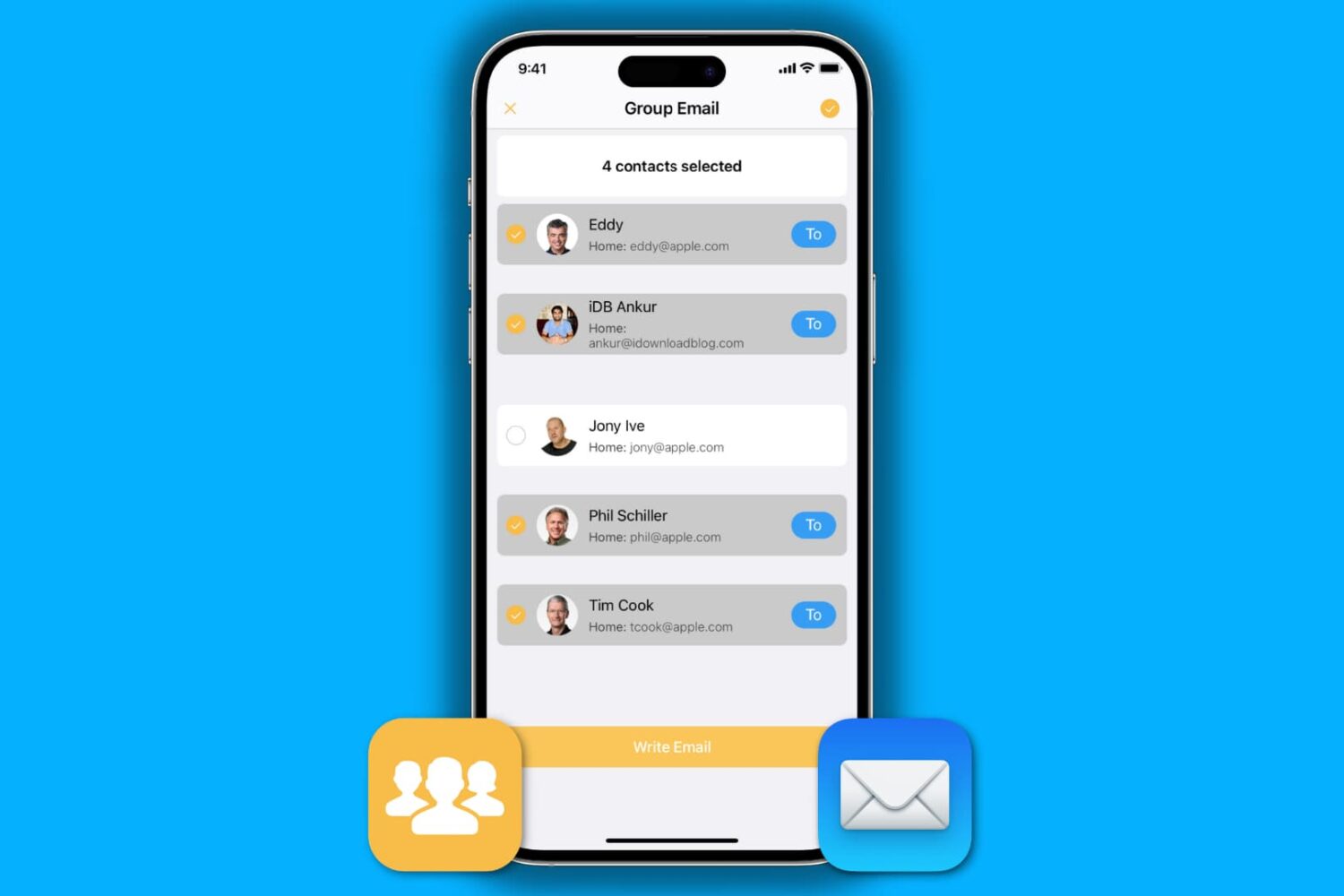
We recently published a post about how to send a group email from your Mac, so we figured we would have a similar one about sending group emails on iPhone as well. Of course, some of you may think it's easy to send a group email on your iPhone. Just fire up the Mail app, and add every contact you want to send the email to.
That sure works, but it's not very practical, especially if you want to send a group email on a regular basis to 20 contacts, for example. We do have a better solution to offer, and in this post, we will show you how to send a group email from iPhone.