In this simple tutorial, we’ll show you how to view and clear the history of commands typed into the Terminal app of your Mac.
How to view and clear Terminal command history on Mac

Learn how to master your Apple devices with our comprehensive tutorials. From iPhone and iPad to Mac, Apple Watch, AirPods, and more, our expert guides will help you unlock the full potential of your Apple products. Discover new features, tips, and tricks each day to enhance your user experience.
In this simple tutorial, we’ll show you how to view and clear the history of commands typed into the Terminal app of your Mac.

The infamous startup tone that the Mac is known for when you turn it on isn't just a sound, but is actually a very important part of your Mac's boot up process.
Unless your volume is turned all the way down, not hearing your startup tone at the time you power on your Mac may indicate a problem with your machine. Additionally, unusual startup tone sequences are also indicative of a problem with your Mac and will require troubleshooting to resolve.
In this piece, we'll attempt to outline what all the different scenarios of the Mac startup sounds mean to give you better understanding of what to do should you ever end up in a situation where your Mac's startup tone doesn't sound right.

If you're like me, then you probably have a hard time focusing on what needs to be done and you often multitask with fun activities when you should be focusing on homework or work. For example, instead of writing those essays due for your next class or finishing work, you might be playing around on Facebook with your friends or watching YouTube videos.
If you're the unproductive or procrastinating type, then a useful OS X app called Focus could be just what you need to stop getting distracted by social media and other fun websites.
Focus will help ensure that you only stick to the task at hand when you need to work or complete homework, and in this piece, we'll show you how it works.
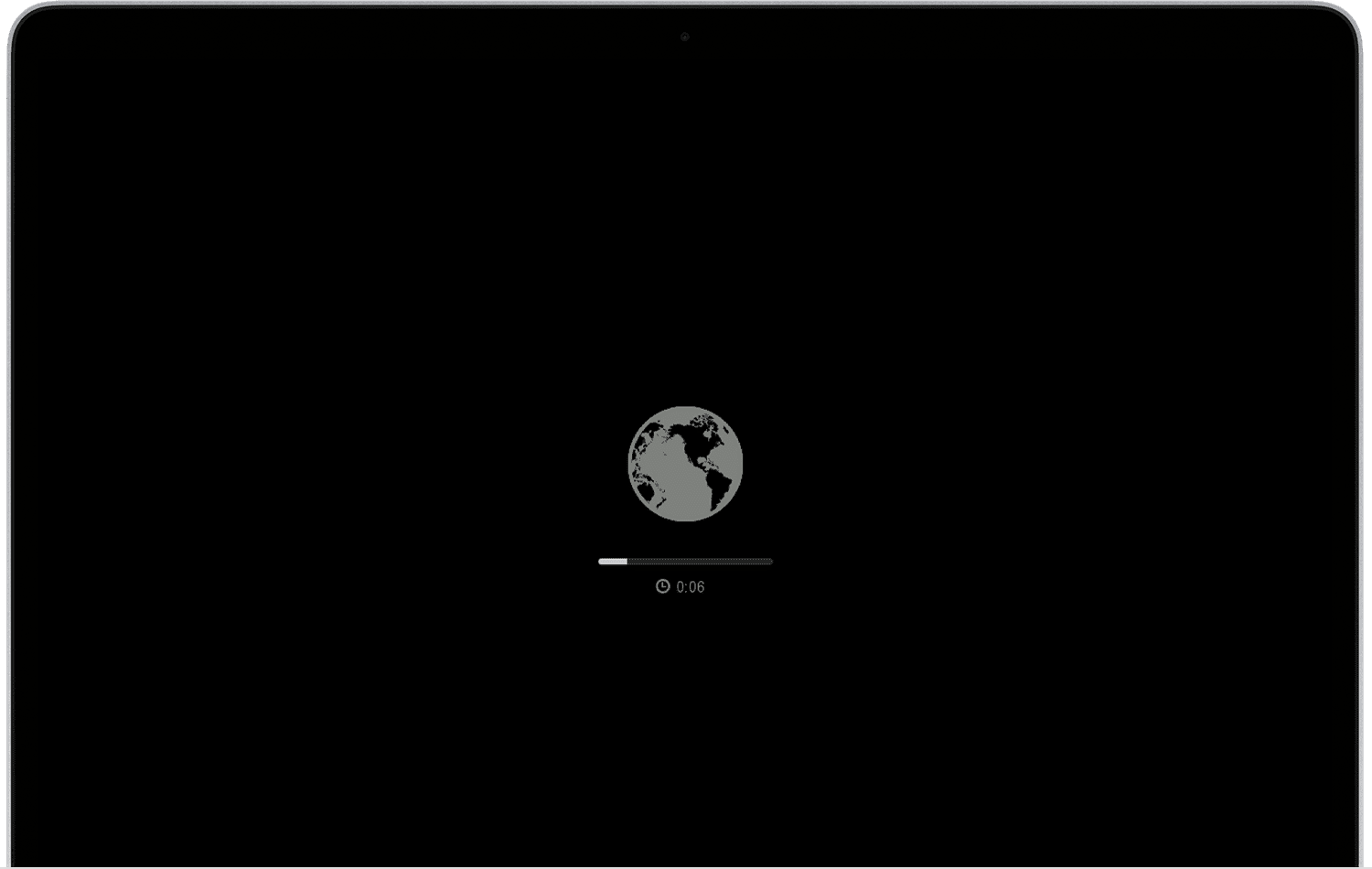
In addition to the startup volume, which holds a bootable copy of the operating system along with your applications and data, your Mac's disk contains a hidden recovery partition that you can boot from in order to reinstall macOS, perform a quick check of connected disks, and more.
But what if the built-in recovery partition gets damaged, for instance? Enter Internet Recovery Mode (or macOS Recovery over the Internet), an Internet-based version of Recovery Mode found on Macs, which loads recovery tools from Apple's servers.
With Internet Recovery Mode, you can reinstall macOS and troubleshoot issues in the unfortunate scenario of your Mac's startup disk having become corrupted or completely unreadable.
In this tutorial, you'll learn everything about Internet Recovery Mode on Intel-based Macs and Macs with Apple silicon. You'll also see how to use it to your advantage if your disk encounters an issue or the startup drive has been replaced or erased.

Do you love your current screen saver on Mac and want to use it as the desktop wallpaper? This tutorial shows you how to do that using System Settings and Terminal.

It happens to the best of us – one day you're using an app that you really enjoy on your Mac, and the next, you start experiencing all kinds of problems with the same app. What's going on? Will it ever end?
Before you go calling support to resolve a problem for you, there are some easy troubleshooting steps you can take in macOS to quickly determine if the problem is going to require help or not.
We'll go through some of those troubleshooting steps with you right here in this tutorial.
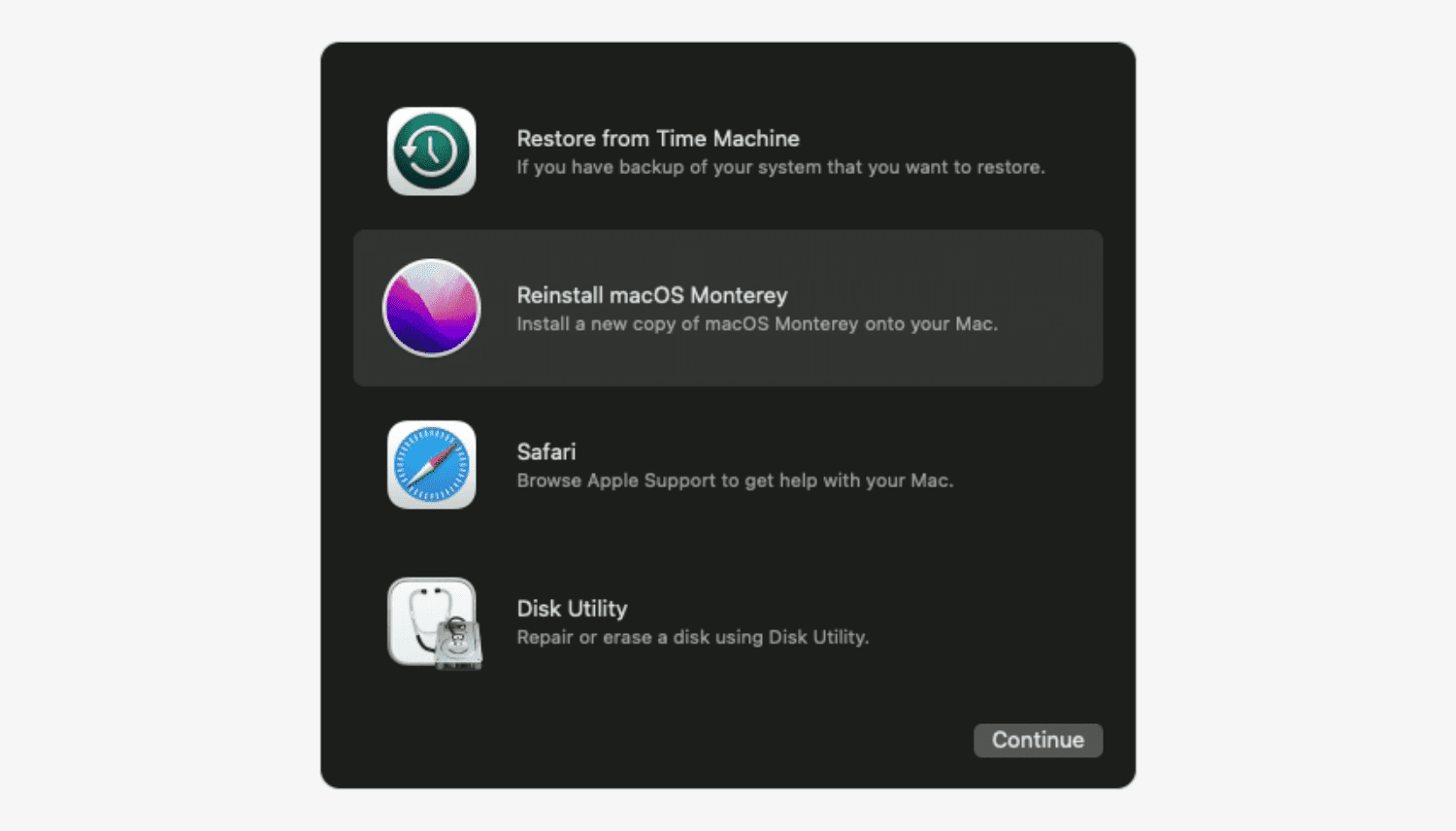
Starting your Intel or Apple silicon Mac in Recovery Mode provides the tools you need to solve various problems. It is typically your last chance to repair the startup disk, reinstall macOS or restore from a backup after a fatal failure that prevents your Mac from starting up properly. In this tutorial, you'll learn how to enter Recovery Mode at boot time and use the built-in recovery tools to bring your Mac in perfect working condition.

Learn how to stop your iPhone from vibrating when you receive a notification, a text message, or a call, even when muted in silent mode, to reduce distractions.
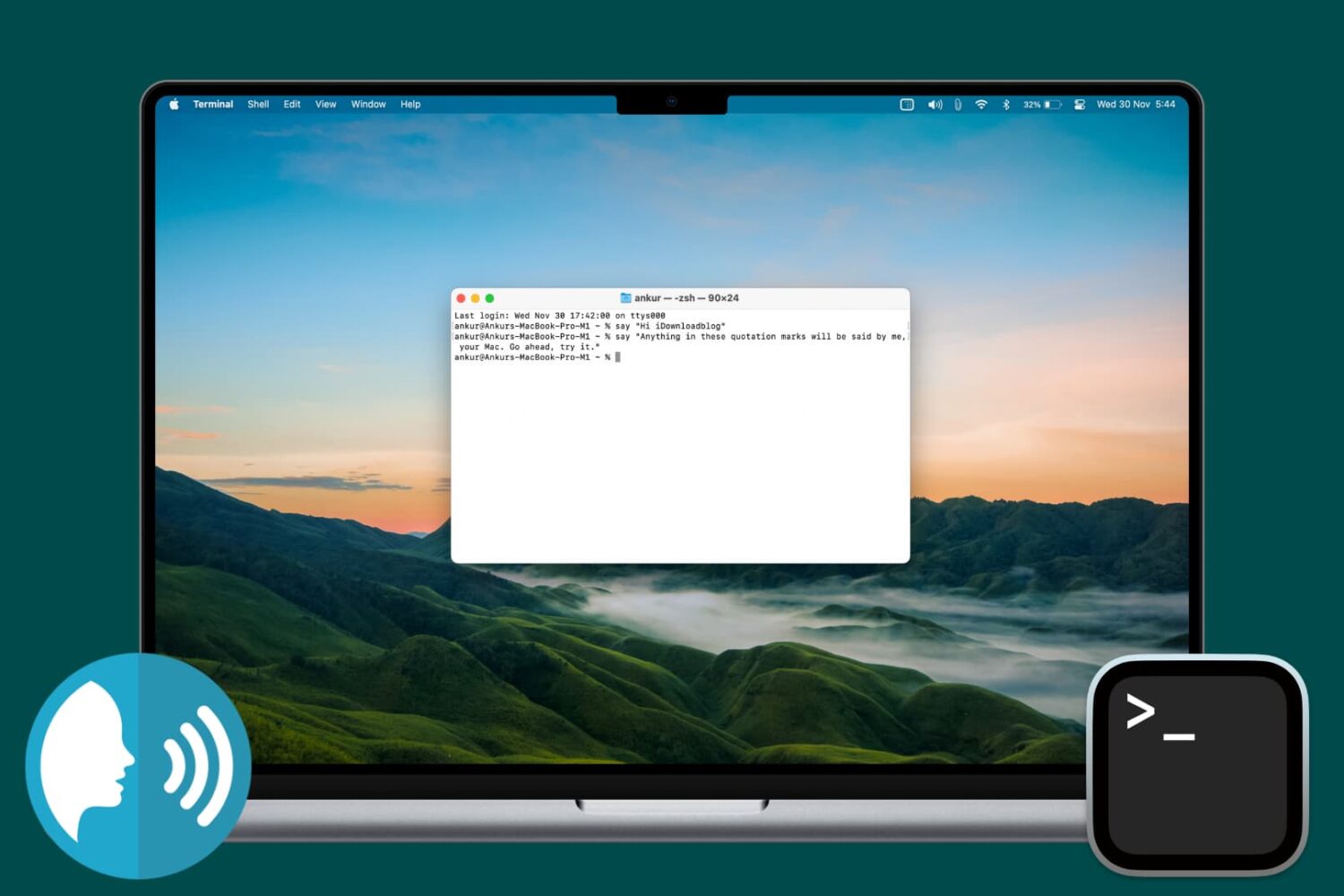
Find out how to make your Mac speak anything you want using the Terminal app that comes preinstalled on every macOS computer.

In this tutorial, you will learn about the most important System Settings (previously called System Preferences) shortcuts and see how to leverage them to make the most of this essential app on your Mac.

In this tutorial, we'll show you how to change the frequency your Mac looks for software updates and notifies you of them so you can stay up to date with the latest bug fixes, security improvements, and new features.

You can free up a significant amount of storage space on your Mac if you clean up your Downloads folder on a regular basis, remove your old iPhoto library, erase Safari's browsing data and move both your iTunes library and the Photos library to an external hard drive, among other things.
But what about other files on your computer? With Daisy Disk by Software Ambience, one of Apple's Best of 2015 Mac apps, it's easy to identify the biggest storage hogs on your Mac.
The app makes the mundane takes of cleaning up the Mac's storage easy and fun by giving your a nice visual breakdown on your disk space in the form of an interactive heat map. In this tutorial, you'll learn how to reveal the biggest space wasters with DaisyDisk so you can remove them and free up some additional storage on your Mac.