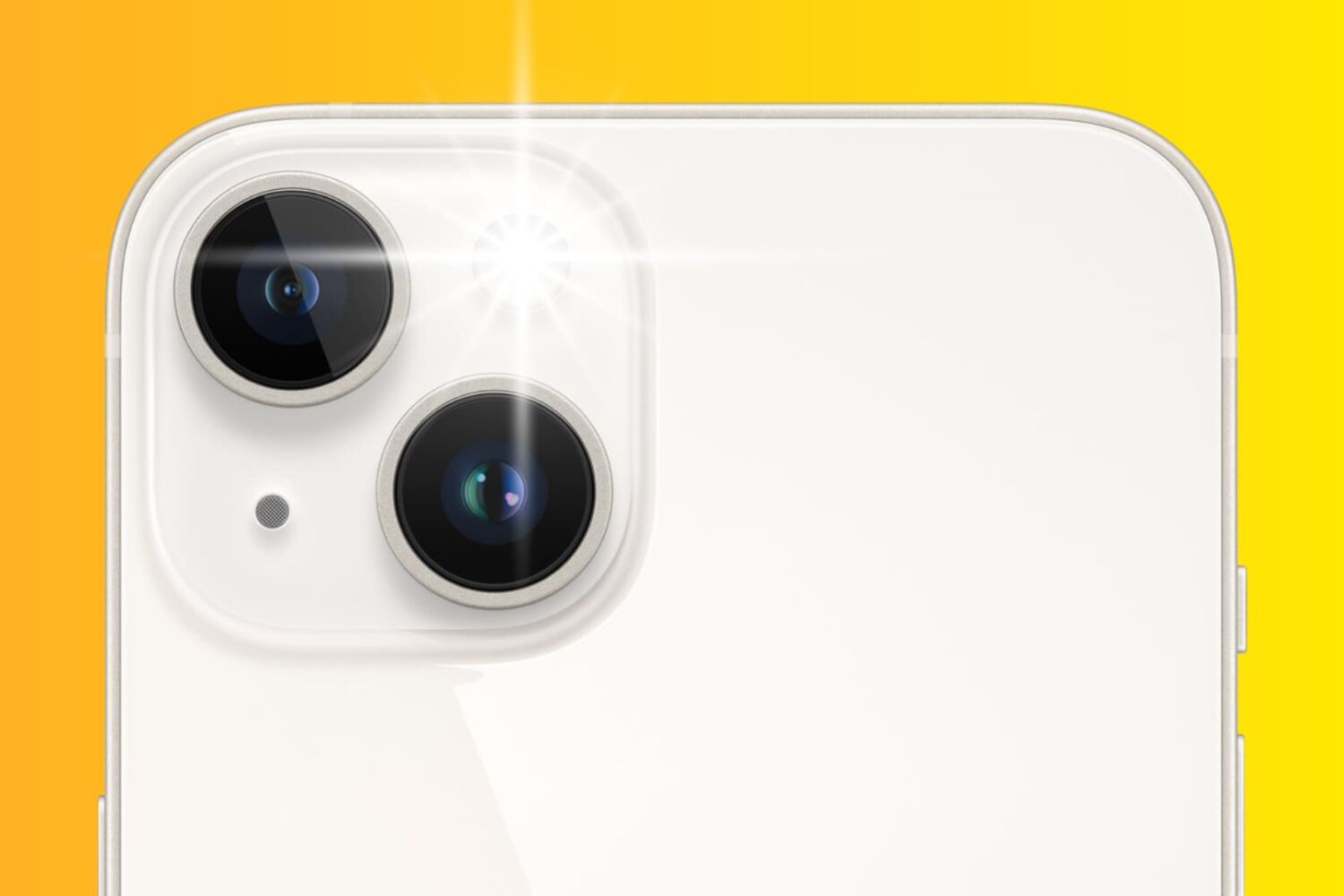
Learn how using the flash during the day can bring vibrancy to your iPhone photography in this insightful guide.
iPhone photography tip: Use flash during the day to make your photos more vivid
Learn how to master your Apple devices with our comprehensive tutorials. From iPhone and iPad to Mac, Apple Watch, AirPods, and more, our expert guides will help you unlock the full potential of your Apple products. Discover new features, tips, and tricks each day to enhance your user experience.
Learn how using the flash during the day can bring vibrancy to your iPhone photography in this insightful guide.

In this brief tutorial, we'll show you how simple it is to go live with a friend on Instagram for a cool hangout session.

Learn how to compress files on your iPhone or iPad, so they take less space. And extract ZIP archives to access the items inside, without using any third-party apps.

While the notion of perspective in photography might appear obvious, some of us may not have contemplated how it can profoundly alter a photograph. In this post, we offer a few brief examples to ponder when selecting the optimal angle for capturing your photos.

In this quick tutorial, we will show you how to delete the Touch Bar data from your MacBook using a short Terminal command.

AirPlay is integrated into multiple Smart TVs from major brands like Samsung, Sony, LG, Vizio, making it effortless to mirror your iPhone, iPad, or Mac to the bigger TV screen. But if your smart TV doesn't have AirPlay built-in, here's how to wirelessly mirror your iPhone and iPad to it using a third-party app.
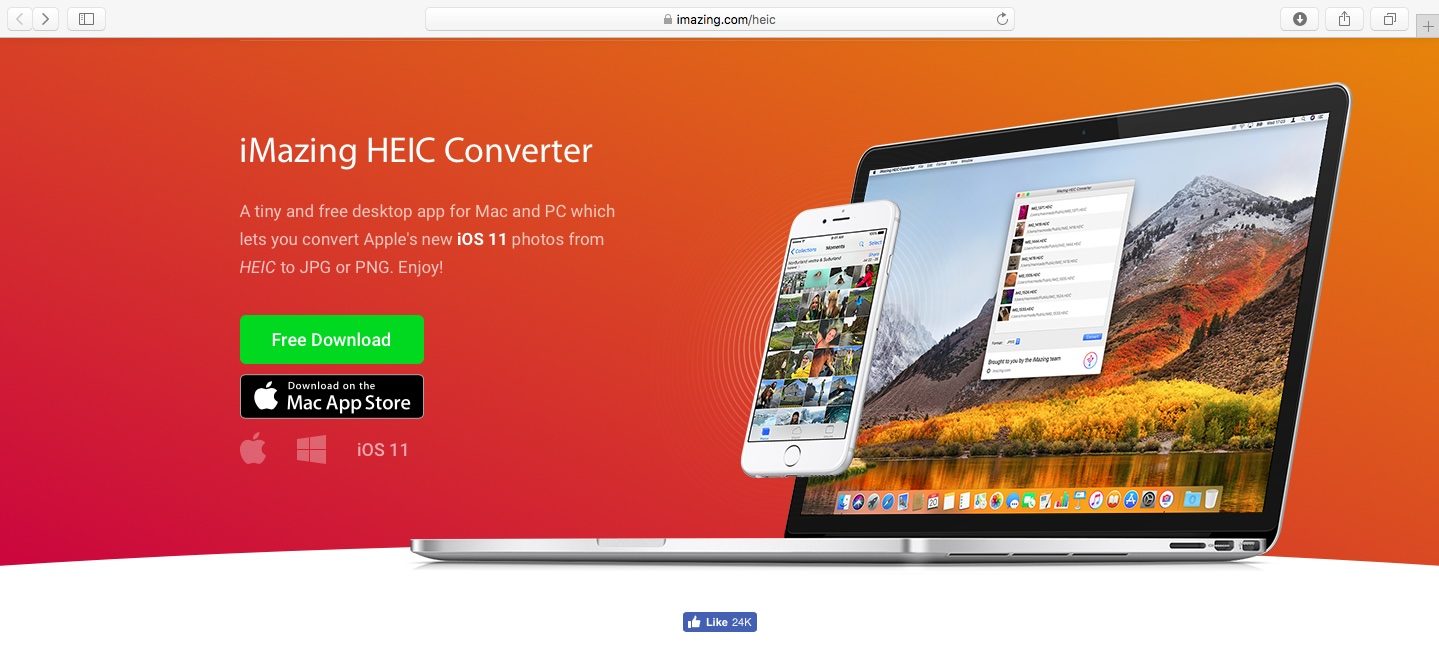
As you might know, Apple with iOS 11 and macOS High Sierra introduced a new space-saving image file format, called High Efficiency Image File Format (HEIF).
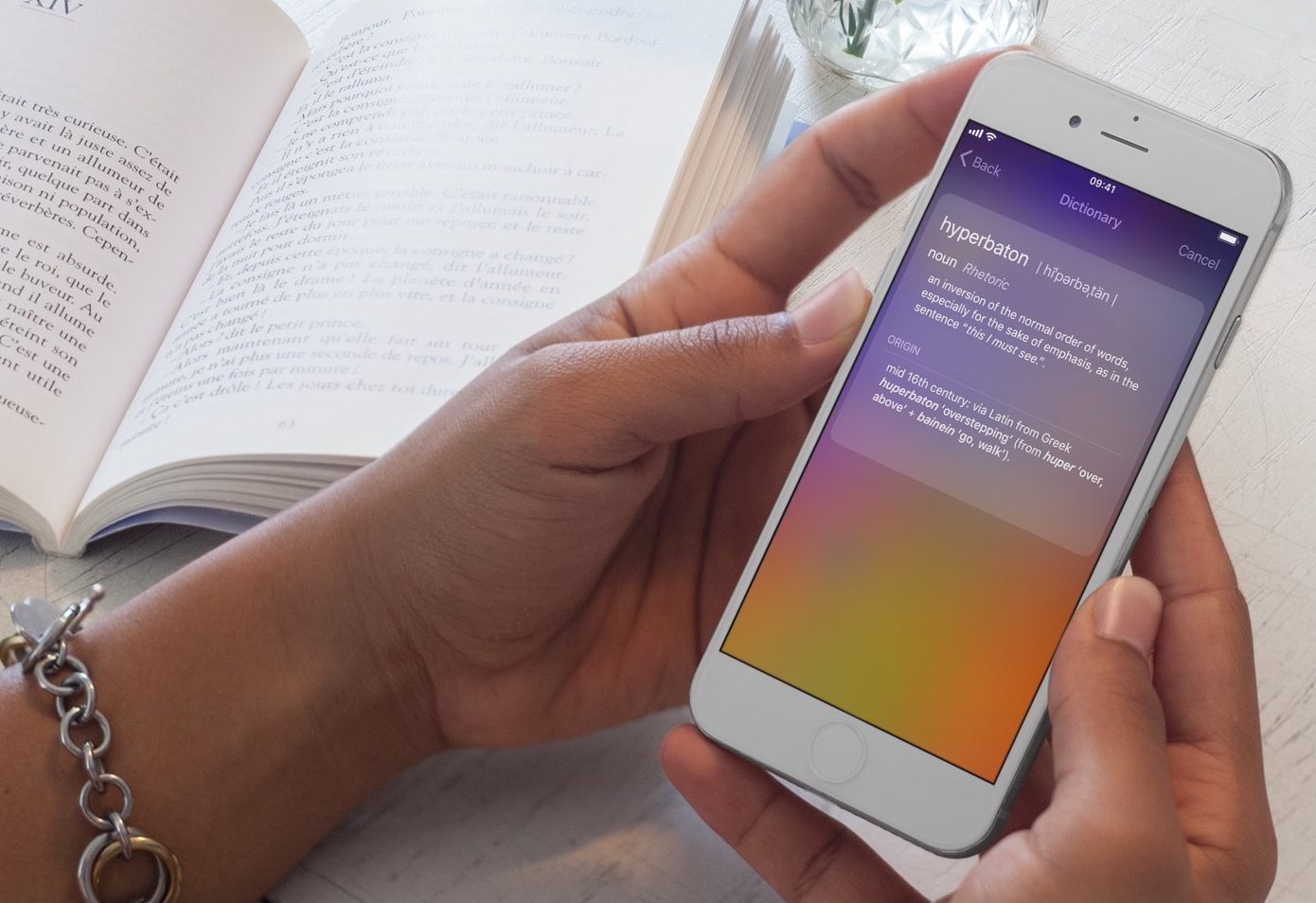
Your iPhone and iPad come with built-in features that allow you to look up word definitions without the need for third-party apps or services. In this guide, we will show you two ways you can use your iPhone or iPad to define words.
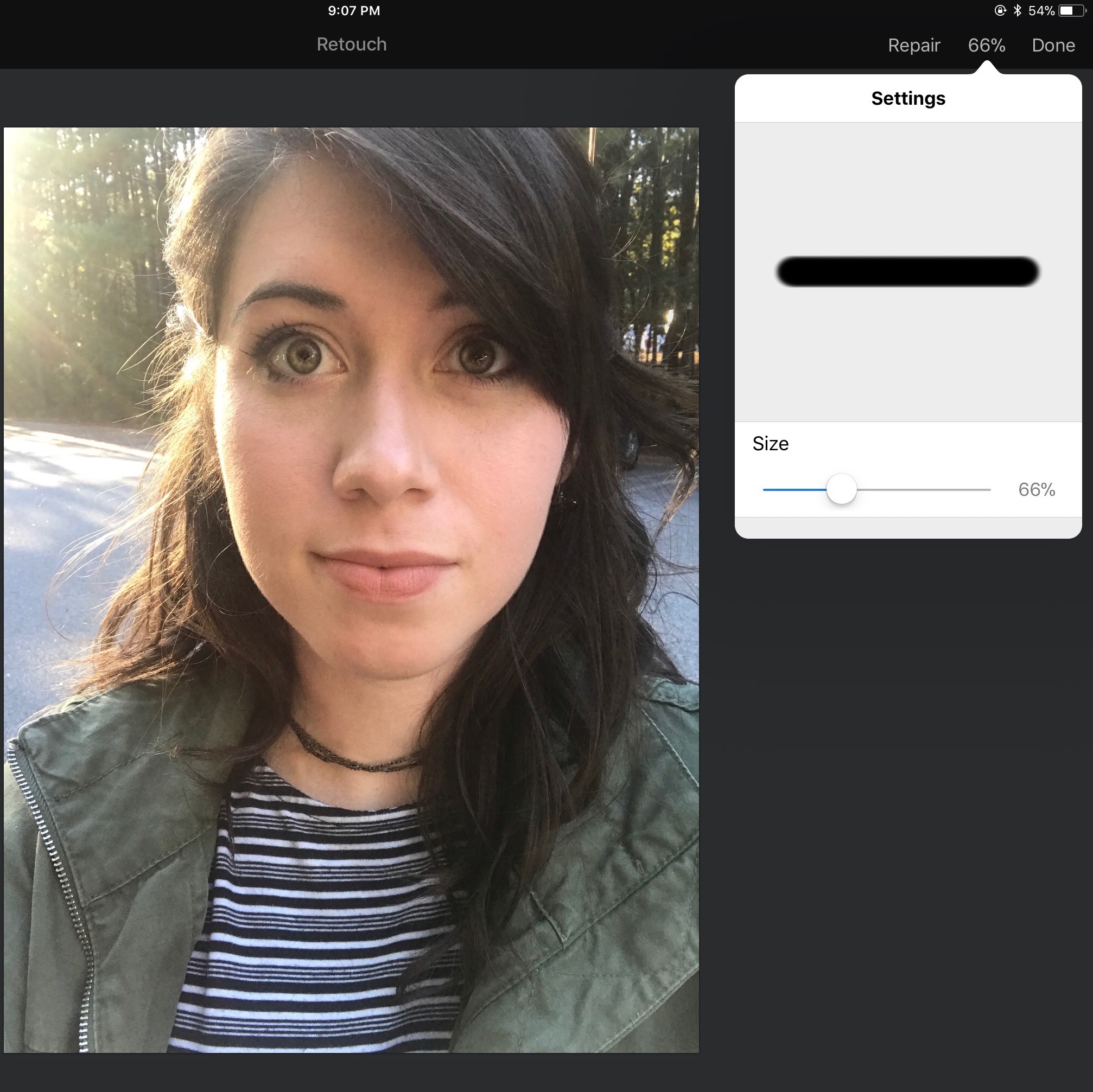
Pixelmator is a powerful and extremely useful image editor for both Mac and iOS. While its features and applications are numerous, one of its most common and easy to use is the ability to remove facial blemishes via the retouch brush.

Find out how to use the Snapchat group chat feature on your iPhone or Android phone to text and talk with multiple friends at the same time.
Learn how to convert or save documents created in the Apple Pages app as Word files on your Mac, iPhone, and iPad for cross-platform compatibility with Windows.

If you want to hide your phone number when calling someone on your iPhone, you have a handful of options available to you. In this post, we'll go over these options and show you how to hide your caller ID and call someone without showing your number.