Learn how to stop sharing your location with apps and services, or selectively choose the ones with which you’d like to share by adjusting the Location Services settings on your iPhone or iPad.
How to stop sharing your location with apps on iPhone
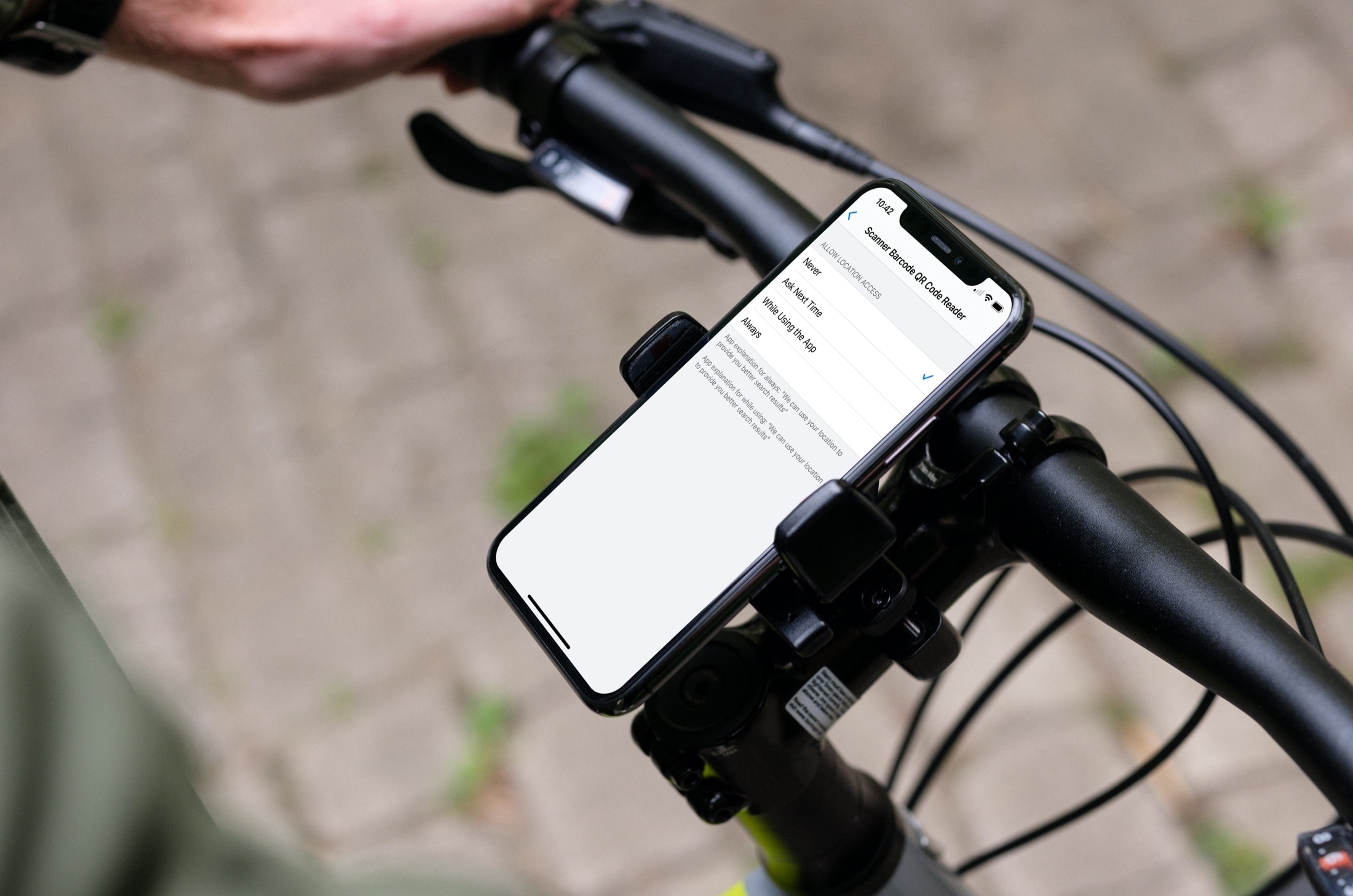
Learn how to stop sharing your location with apps and services, or selectively choose the ones with which you’d like to share by adjusting the Location Services settings on your iPhone or iPad.
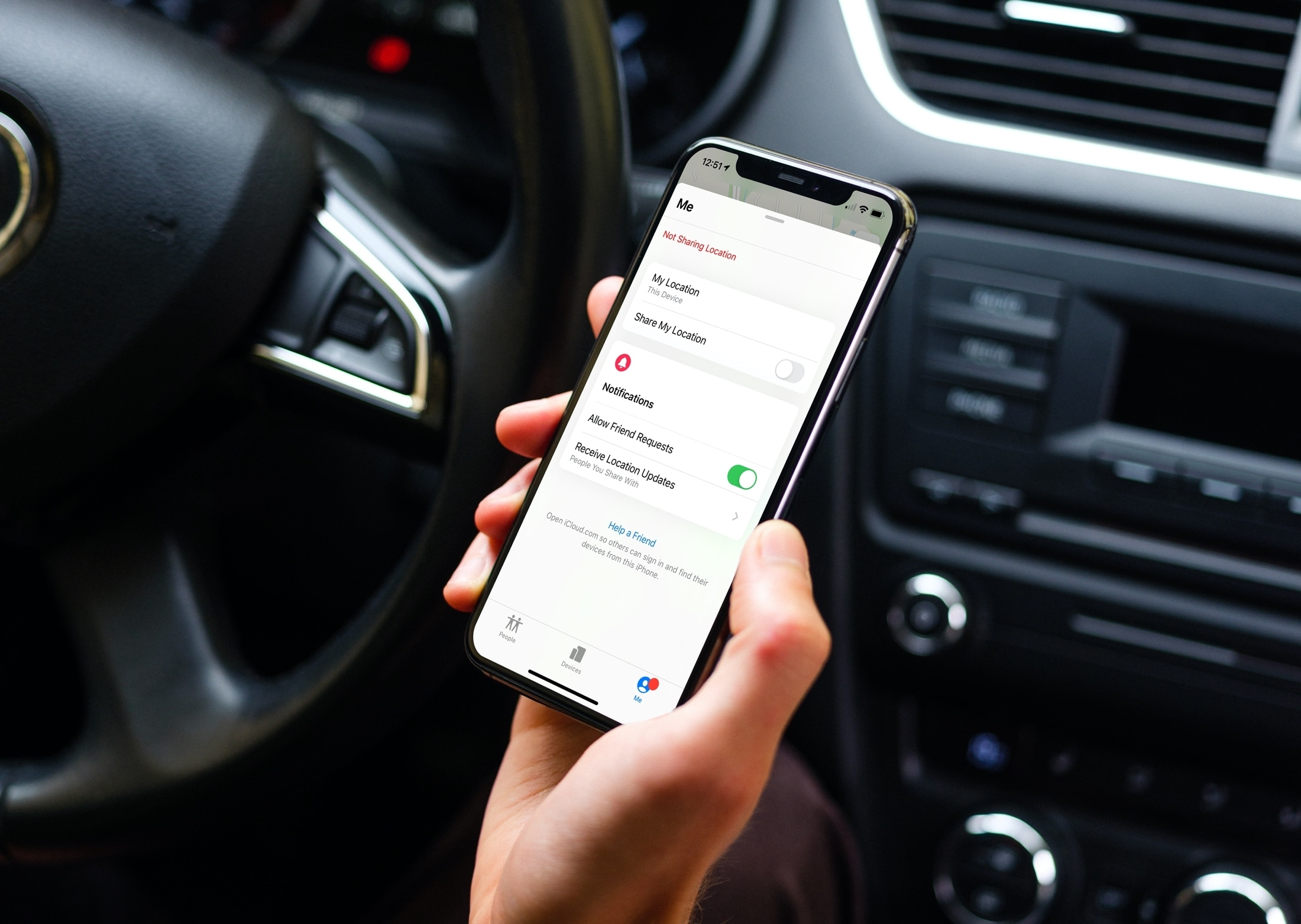
Learn how to stop sharing your location on iPhone with everyone or specific people, and increase your privacy.
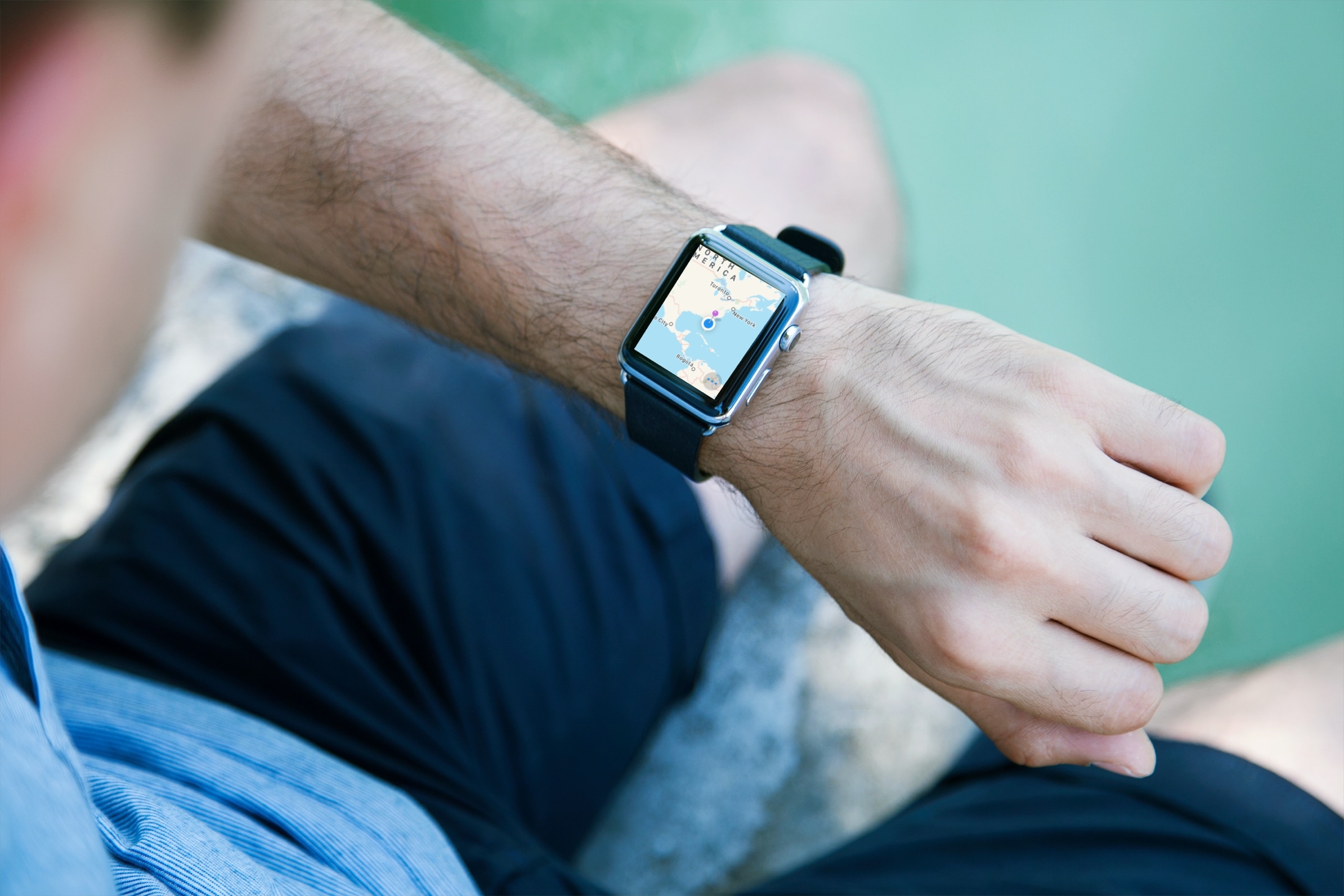
Check out these tips for making the most of the built-in Apple Maps app on your Apple Watch so you can do much more than get just the directions on the wrist.
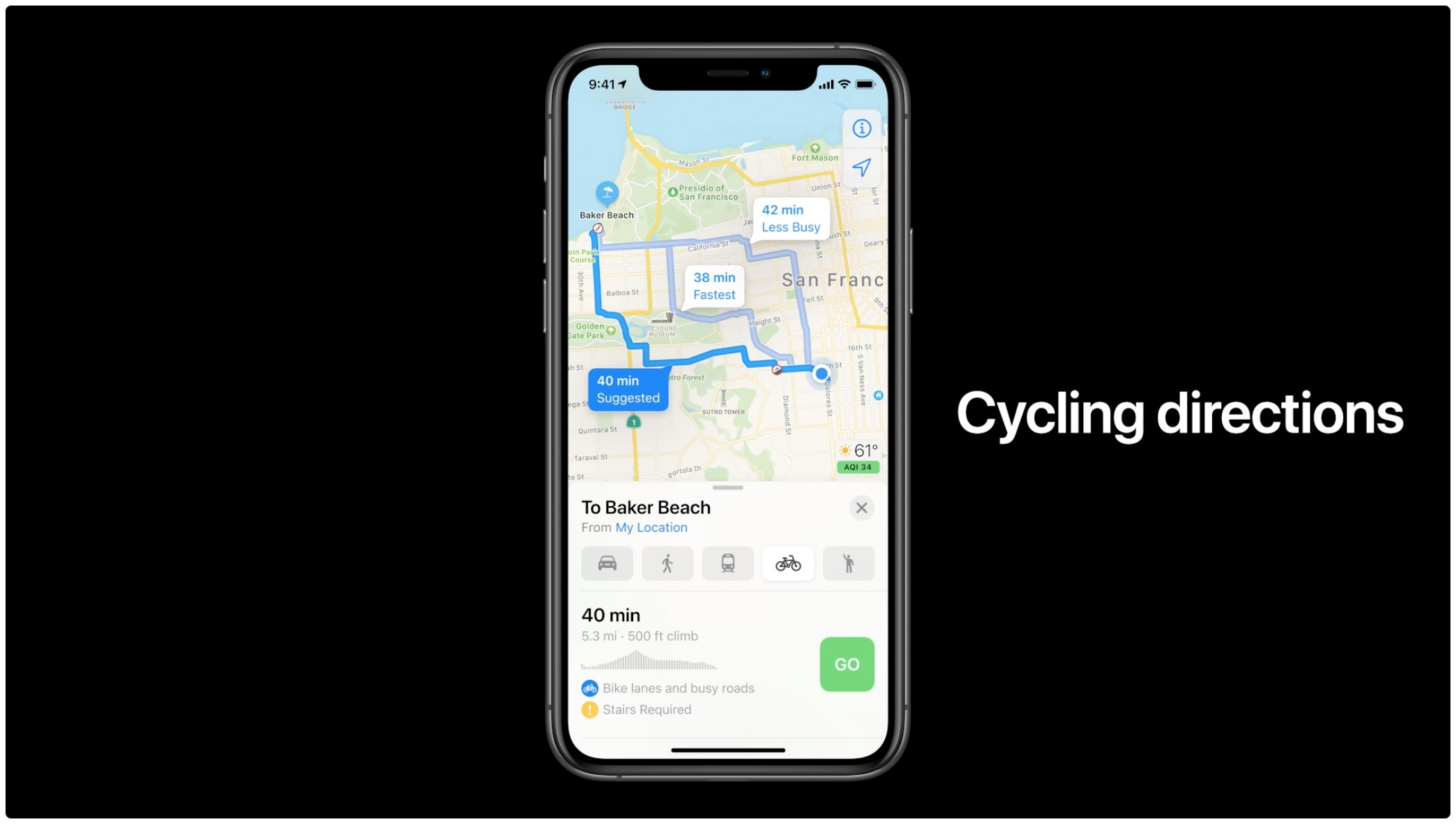
Learn how to get cycling directions in Apple Maps on iPhone, iPad, and Apple Watch to see turns, elevation changes, bike lanes, and more along the route.

Some Apple Watch customers recently reported missing GPS mapping data when capturing their workouts in the Workout app on watchOS 7. Others have complained about excess battery drain after updating to the latest watchOS software. Apple has now released a new support document to acknowledge these and other issues, proposing a fix.
The Apple Maps electric vehicle routing feature helps environmentally-conscious drivers plan trips with supported electric cars by automatically adding charging stops along their routes. With it, an iOS device offers to route you to the nearest charging station when your charge gets too low. Follow along with us to learn how to set up and use electric vehicle routing in Maps.
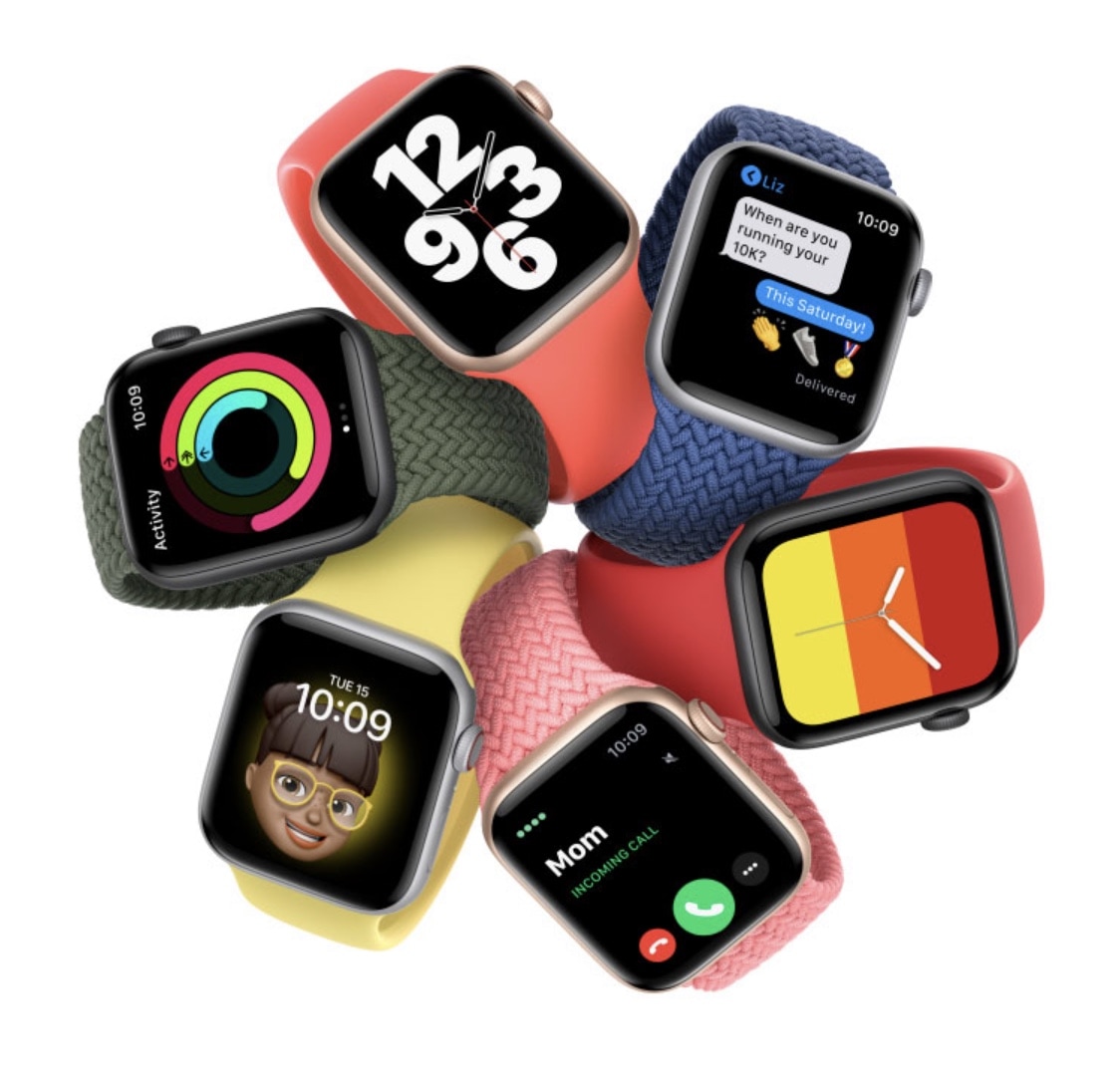
Apple released the watchOS 7 software update last week and some Apple Watch owners are now reporting problems such as missing GPS mapping data when using the built-in Workout app to record specific workouts that track distance covered.
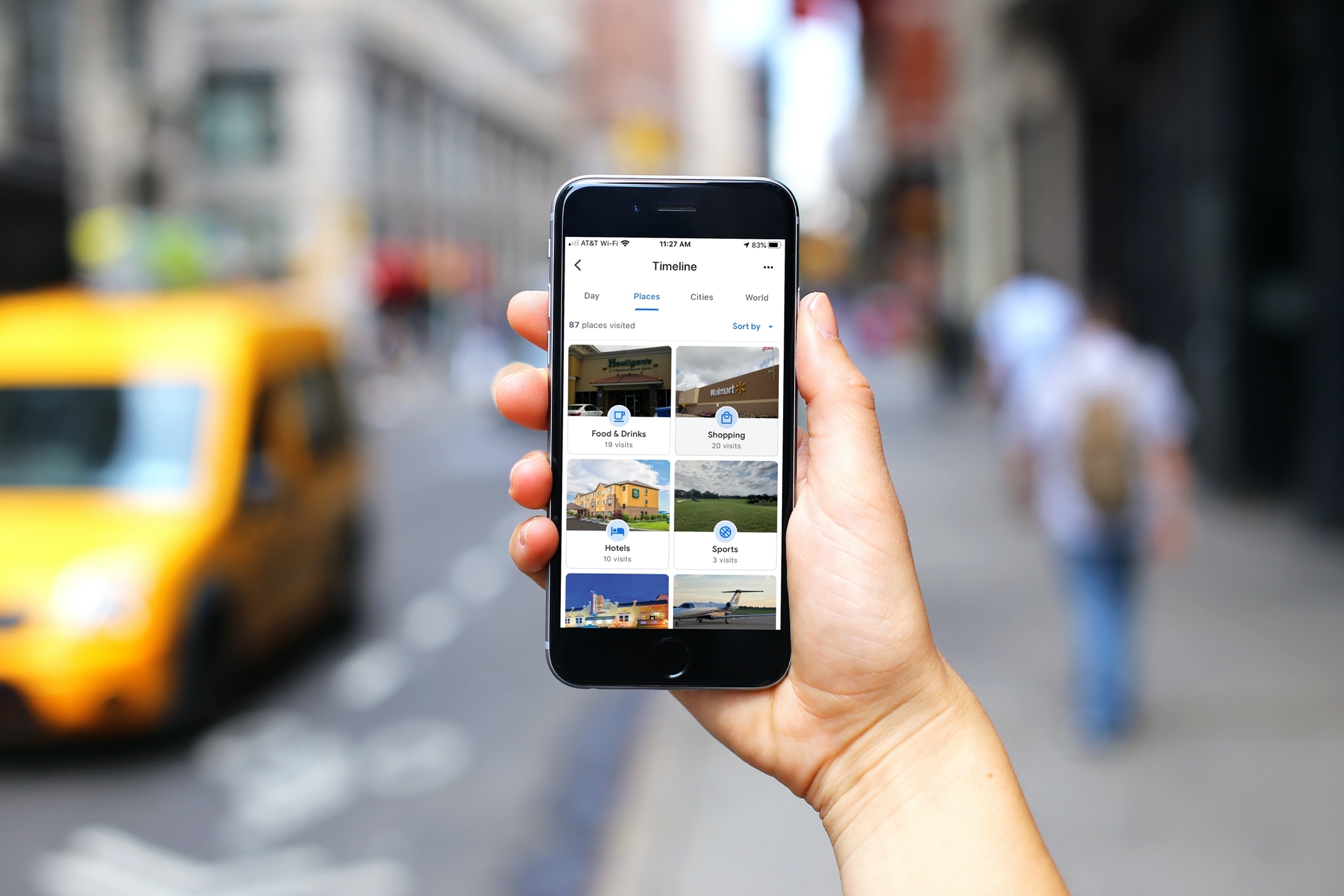
In this tutorial, we will show you how to view your Google Maps Timeline on your iPhone, iPad, and computer to go through your past travels. We will also explain how this information can be useful to you.
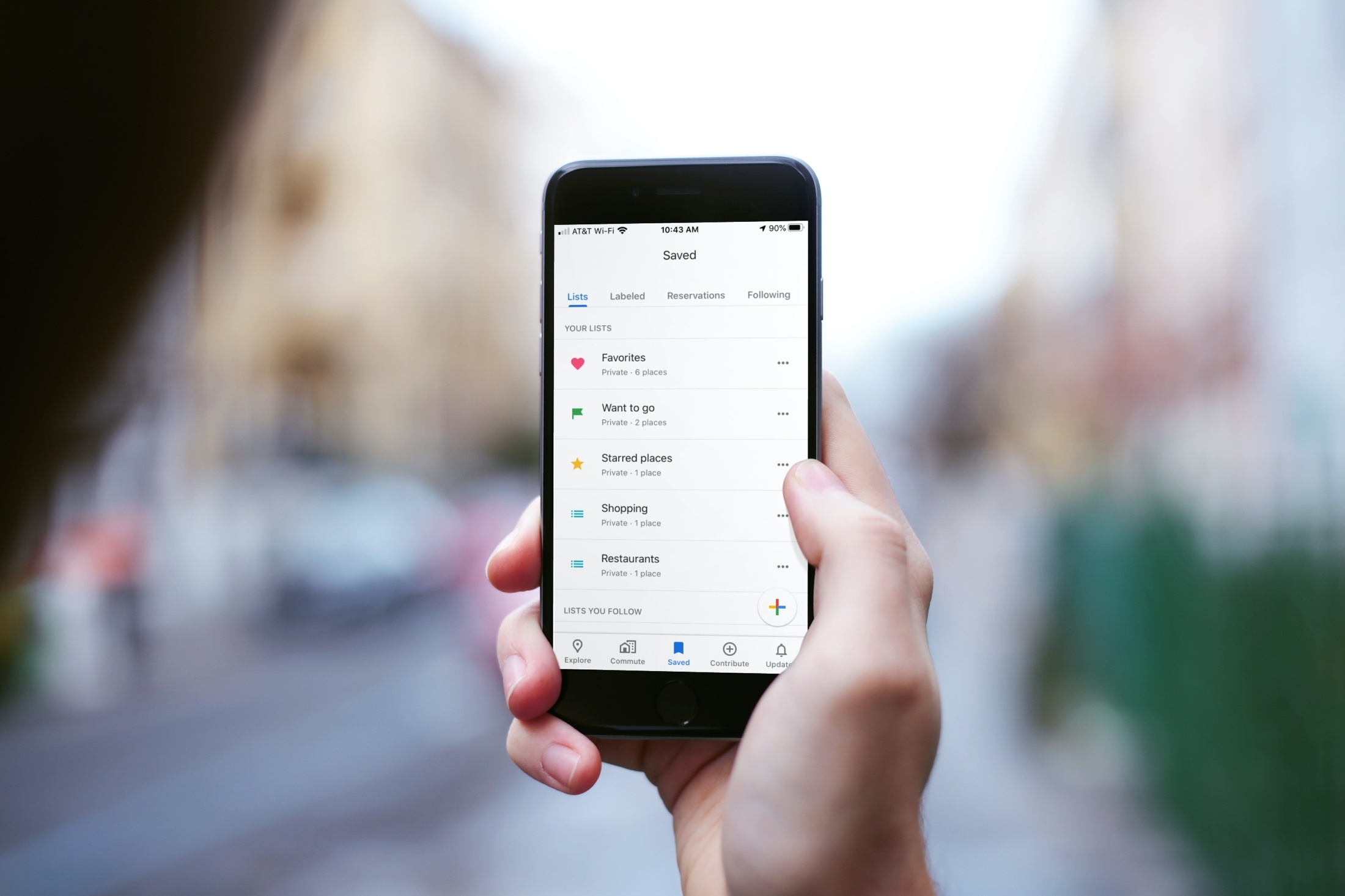
Learn how to use the List feature in Google Maps on your iPhone to keep track of your favorite spots or those you want to visit.
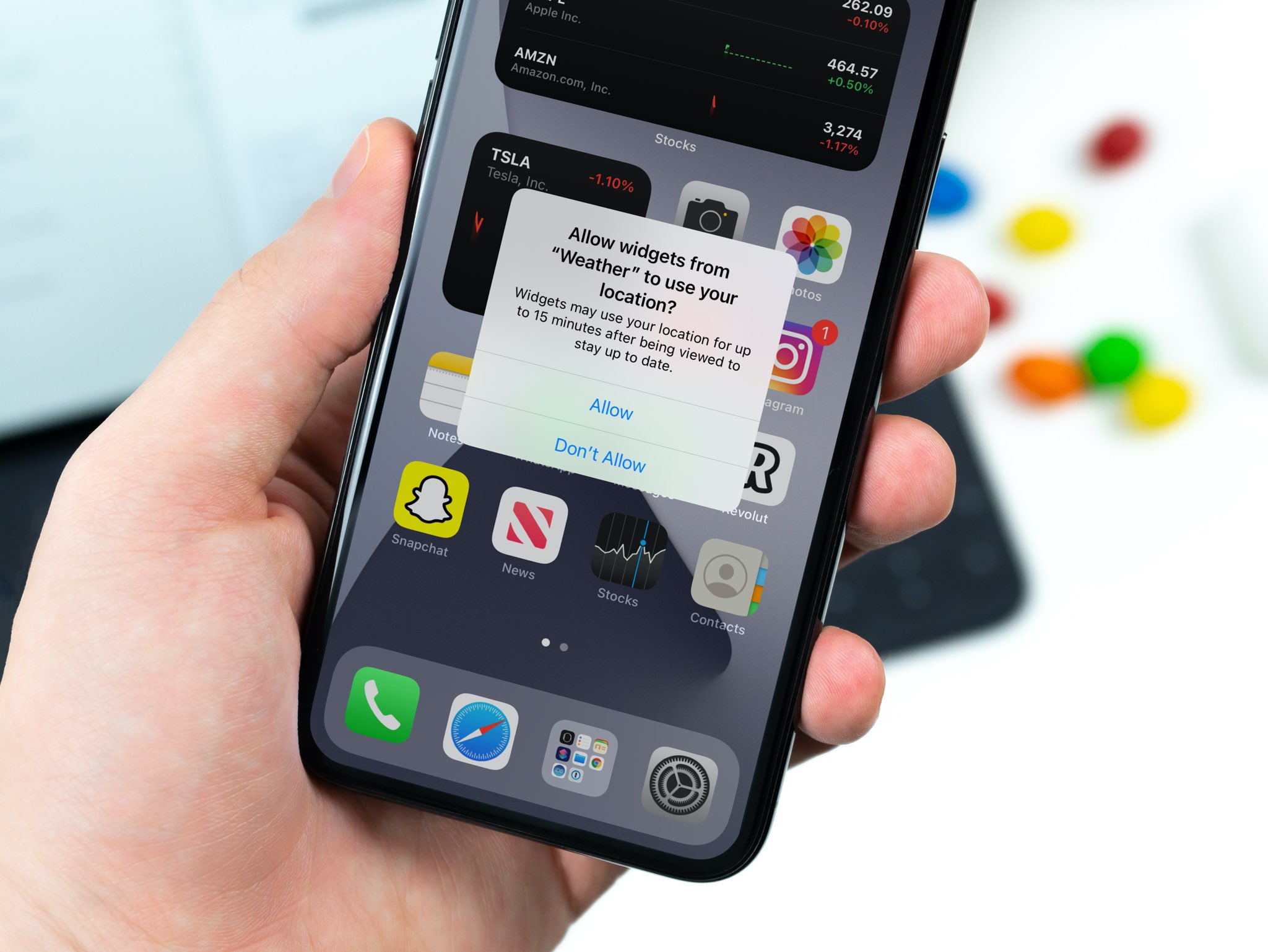
Learn how to adjust location access for widgets on your iPhone and iPad and selectively revoke access to your GPS coordinates for a bit more privacy.

Learn how to improve your online privacy by sharing only your approximate location with apps that request it.
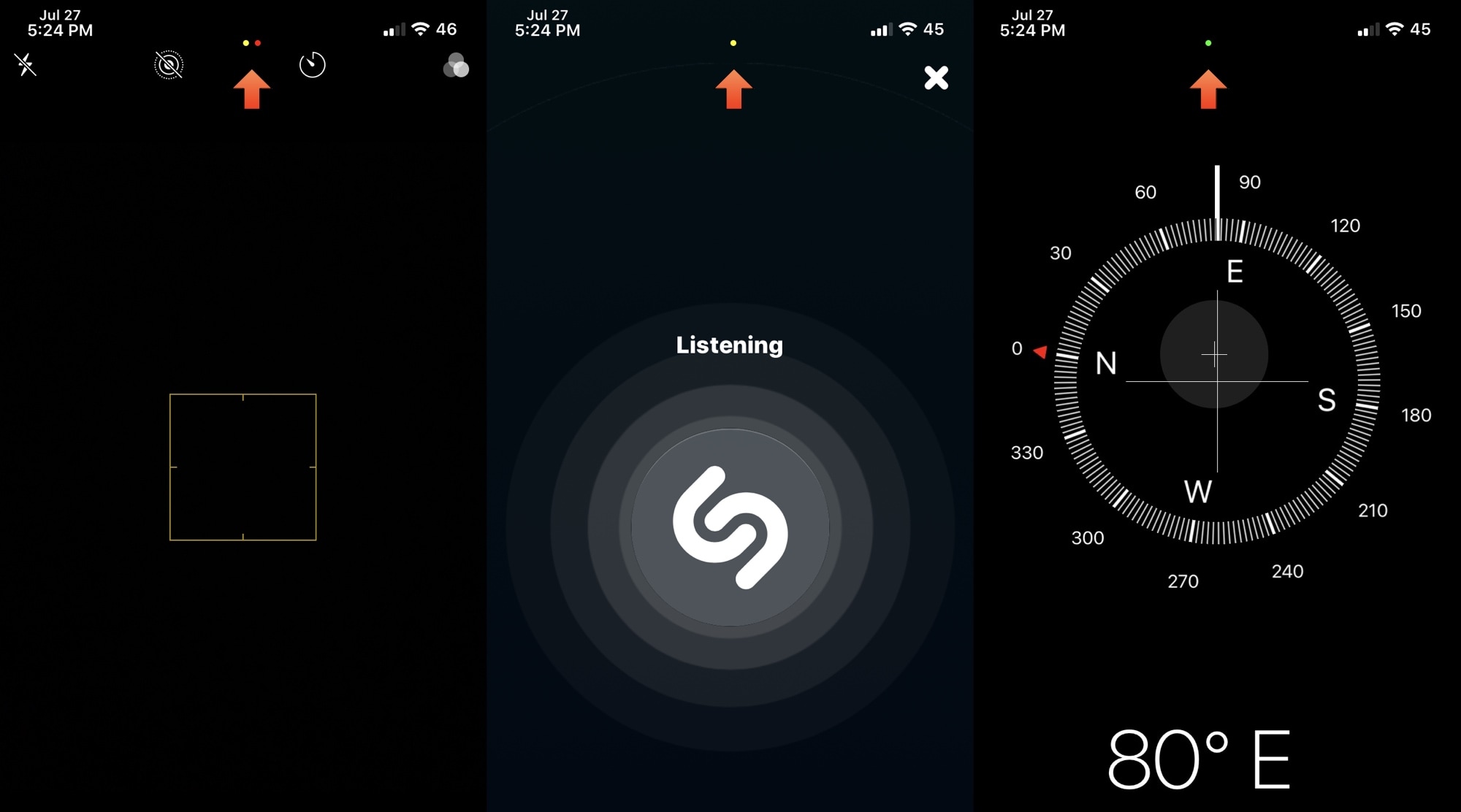
When iOS & iPadOS 14 are released this Fall, the software updates will introduce a bevy of useful new features to the iPhone and iPad platforms. Perhaps one of the most intriguing features that seemed to slip under the radar are the new privacy-centric indicator dots that appear the top of the display when an app or service begins accessing your handset’s camera, location, or microphone.
This particular feature was so highly sought after that even the Android community quickly developed a way to port this feature to their handsets. Unfortunately for those running iOS & iPadOS 13 or earlier, a similar solution wasn’t available – at least not until now, thanks to a new and free jailbreak tweak release dubbed Quorra by iOS developer Lightmann.