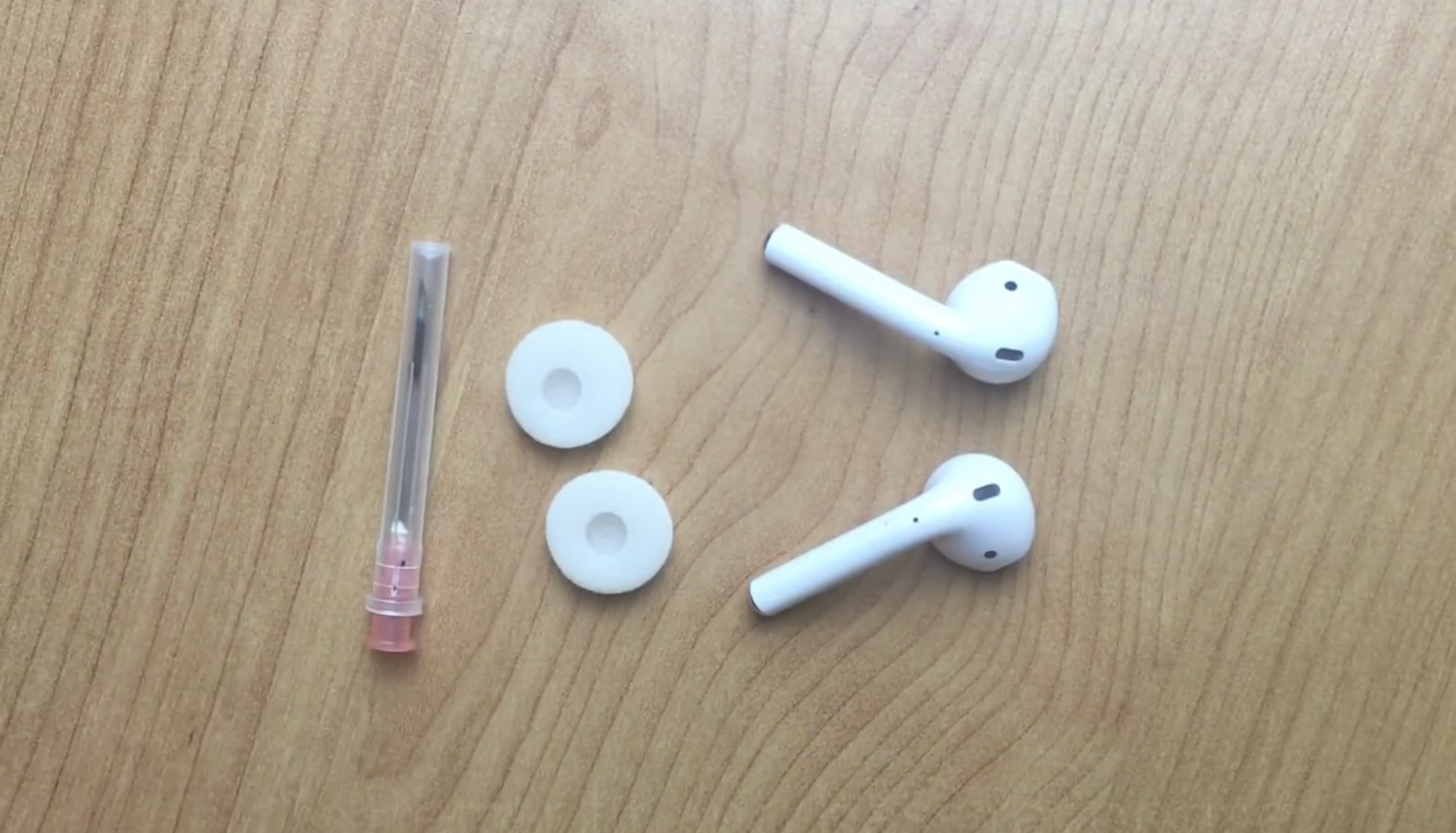
AirPods have been out around a year now. While customer satisfaction is high and they received rave reviews, the only mark against them is the lack of true audiophile-level audio.
This nifty hack can improve the audio quality of your AirPods
Stay up-to-date on the latest AirPods news and learn how to get the most out of your AirPods with our comprehensive tutorials and guides. Discover new features, troubleshooting tips, and more!
AirPods have been out around a year now. While customer satisfaction is high and they received rave reviews, the only mark against them is the lack of true audiophile-level audio.
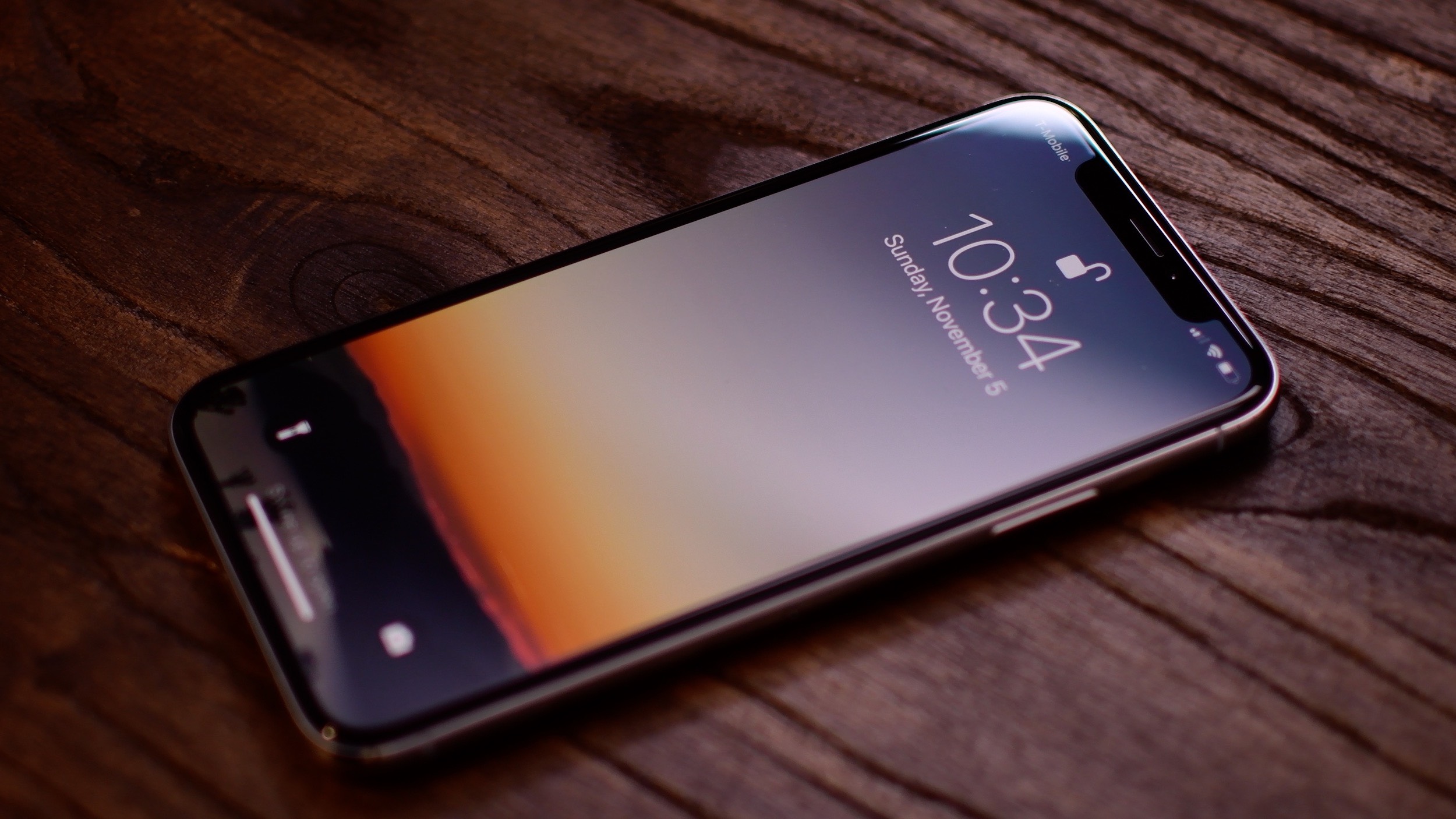
I’ve only had the iPhone X for about a week, but I began a full-blown accessory scavenger hunt long before I had the new handset in my grasp.
In this piece, I’ll outline some of what I think are the best accessories to use with the iPhone X.
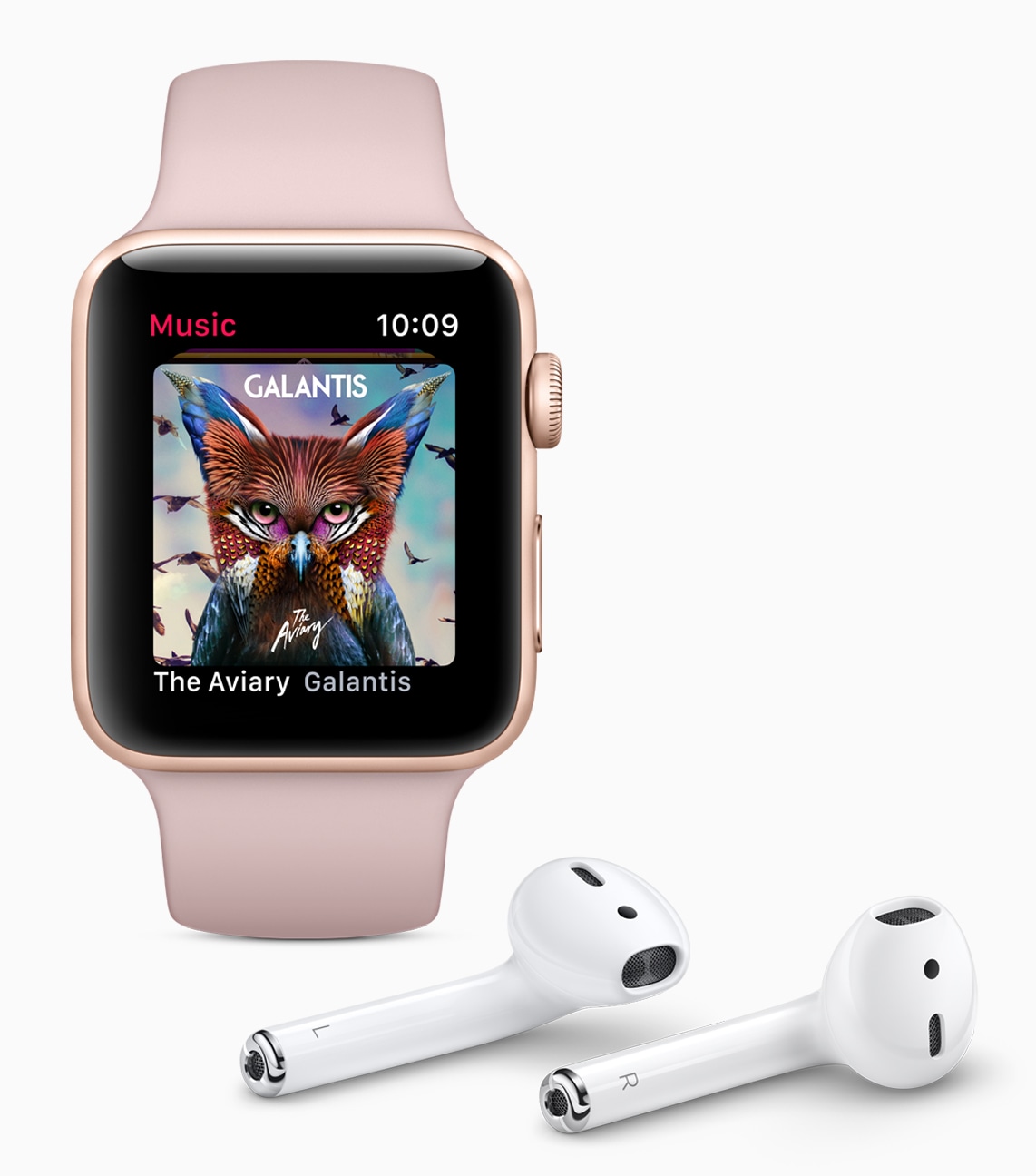
AirPods have definitely become an unexpectedly popular Apple product.
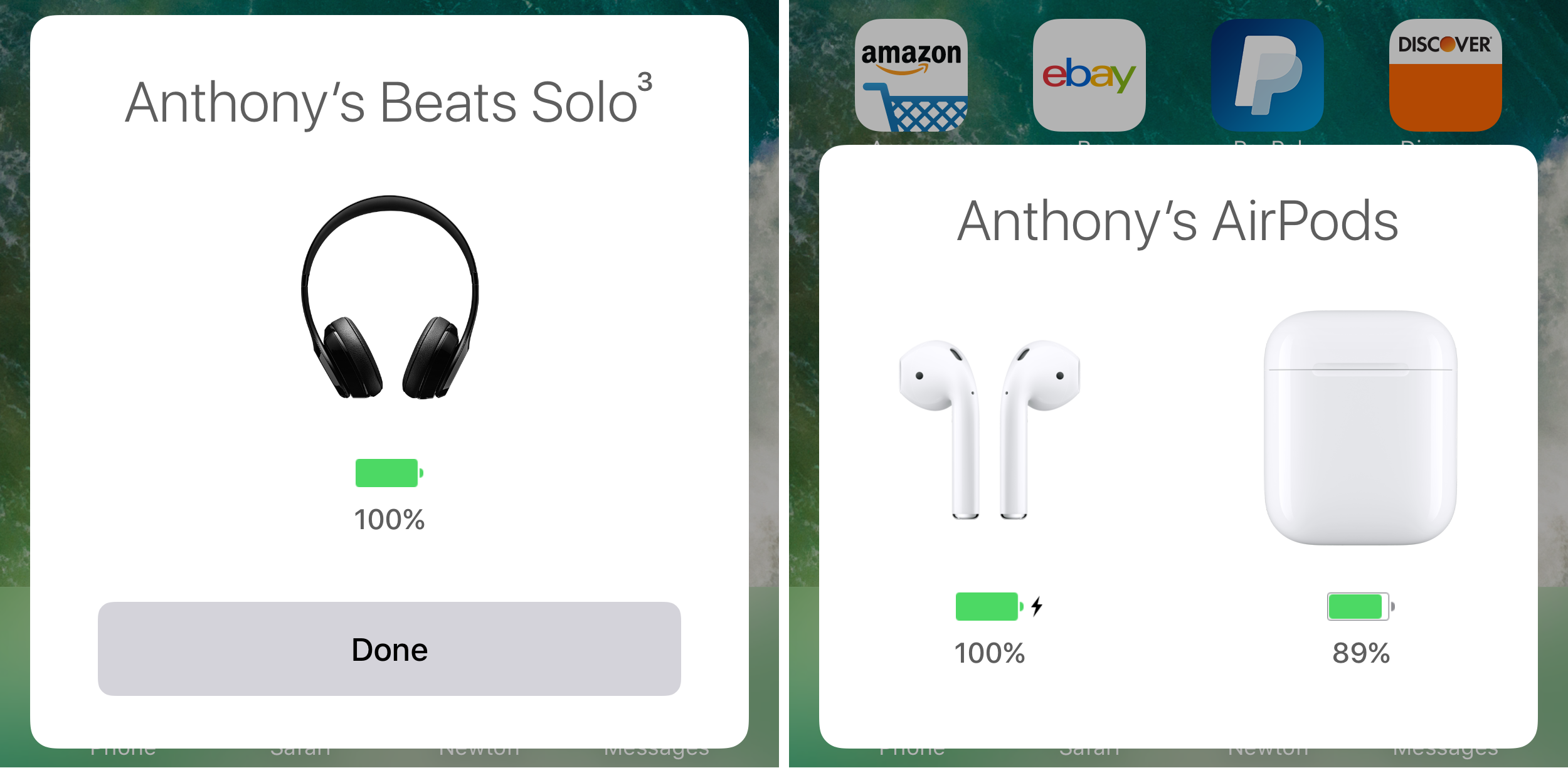
Apple made waves with the introduction of their own proprietary W1 chip. This cutting edge chip is used in AirPods, as well as several versions of Beats headphones. It offers superior range, audio quality, and a dead simple pairing process. Now, Android has their own version, known as Fast Pair.
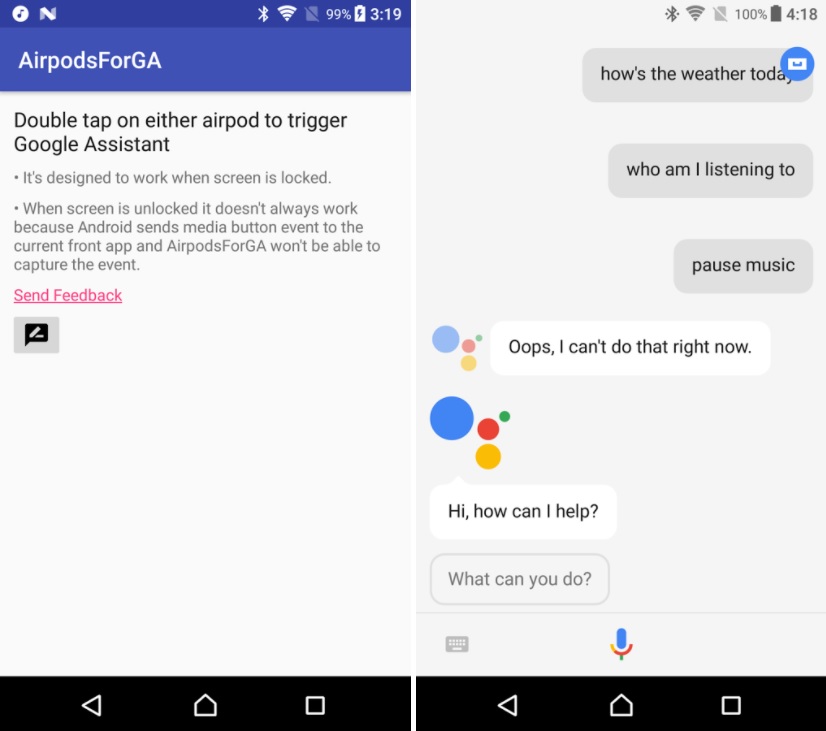
AirPods allow you to easily summon Siri just by double-tapping either earbud, and you can optionally assign other actions to each earpiece with specific controls such as Play, Pause, Next Track, Previous Track and more.
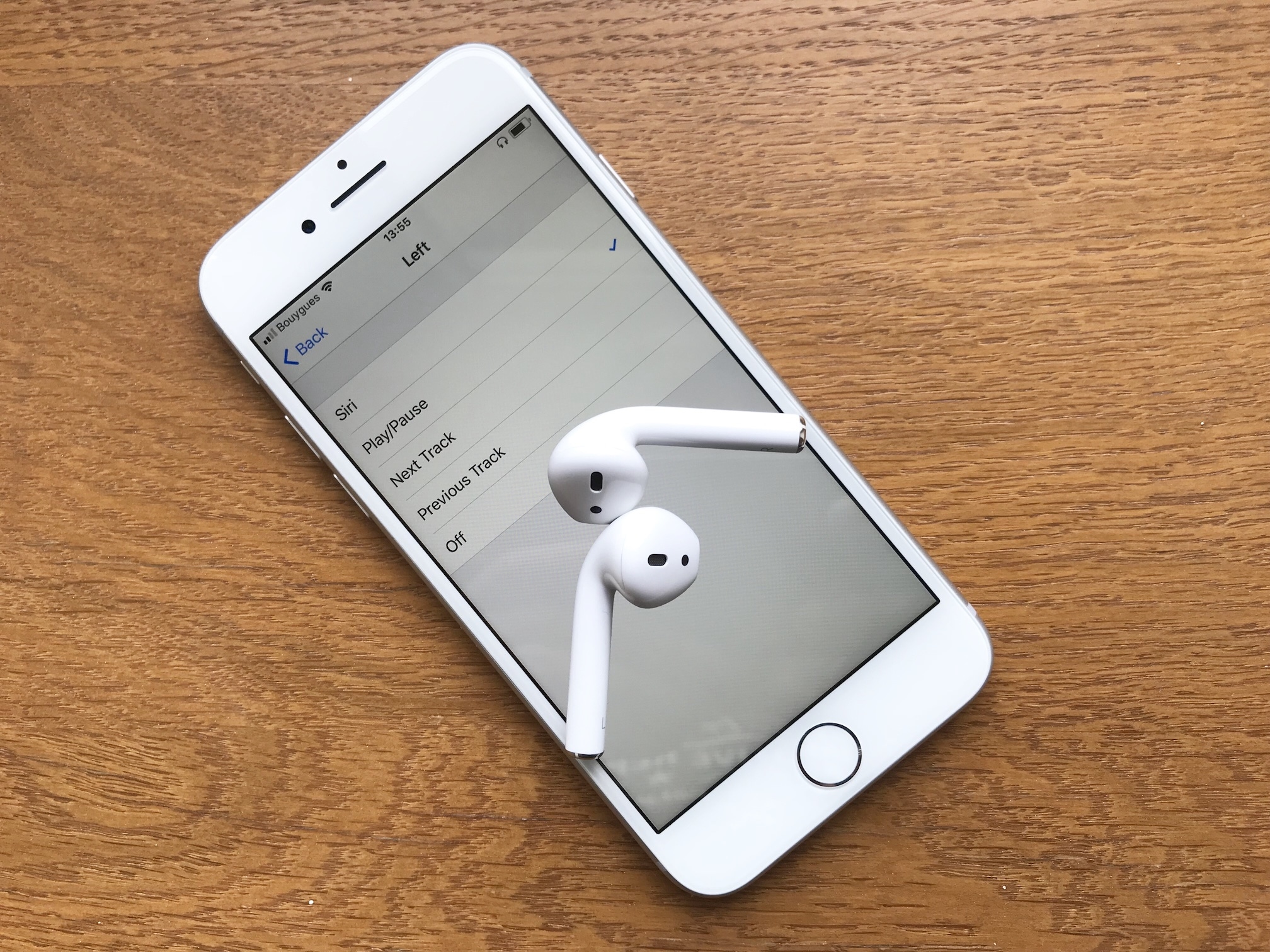
Until iOS 11, you could only choose between activating Siri, or Play/Pause media when double-tapping either the left or right AirPod. But with the release of iOS 11, Apple gave AirPods users a few more options as to what a double-tap gesture can do. Indeed, we have a couple more controls available, and we can also choose specific controls for both the left and right AirPod.
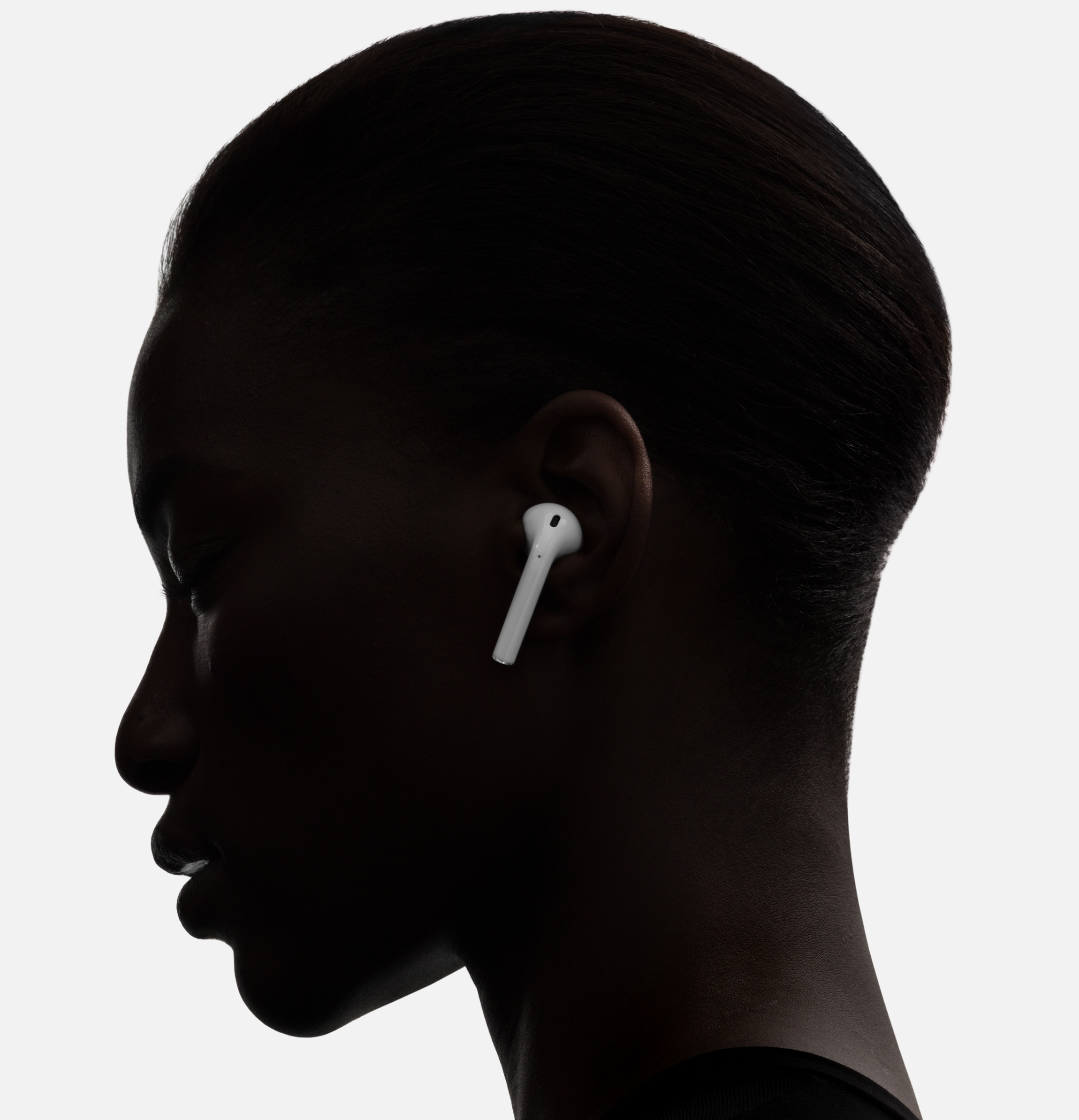
Apple didn't discuss its wireless earbuds at Tuesday's event beyond announcing an AirPods wireless charging case that, however, was not on display for the press.
A leaked iOS 11 Golden Master release candidate reveals that Apple's internal hardware identification number for AirPods has been bumped from “AirPods1,1” to “AirPods1,2”, which indicates that a minor revision is in the works and probably slated for release soon.
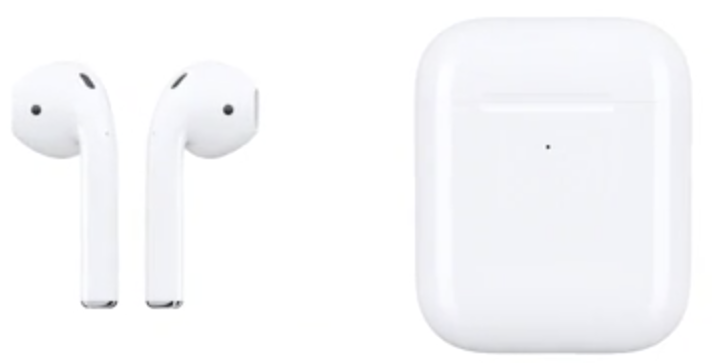
Of all the updates we expected for Tuesday's iPhone 8 event, AirPods weren't on many people's lists. Thanks to the iOS 11 GM build leaked to 9to5Mac, we now have a good idea that Apple will be releasing a minor refresh to the world's most popular Bluetooth earbuds.

Designed by former Pebble creator Eric Migicovsky, PodCase is a brand new Kickstarter project that aims to make juicing up your wireless Apple earbuds a little easier by integrating an AirPod charger directly into an iPhone case.
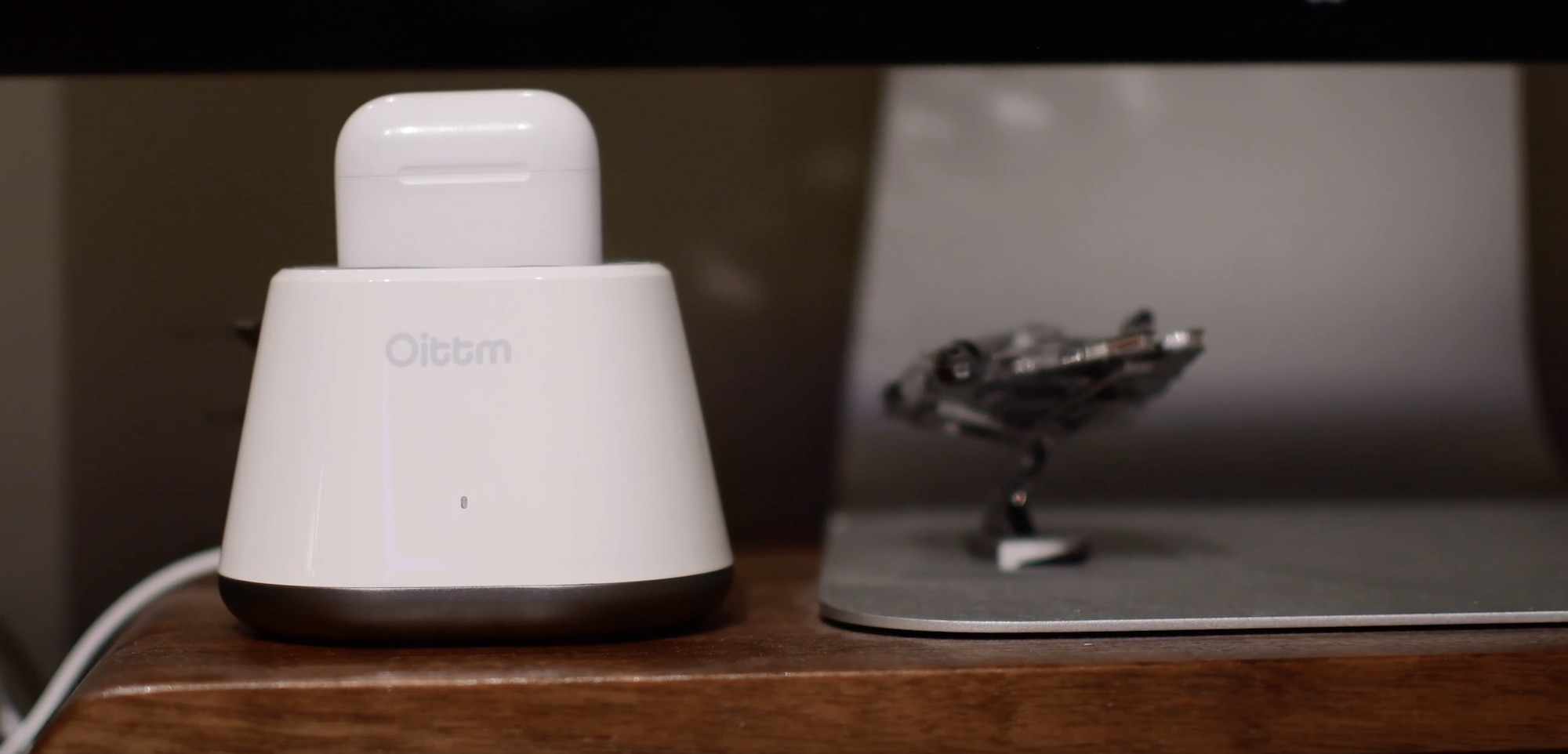
The ecosystem of third-party accessories has always been vast. You can find nearly anything you'd need for almost any Apple product. One thing I didn't expect to see a lot of accessories for? AirPods.
There isn't a limit to what accessory makers will come up with, because as it turns out, you can by an Apple MFi-certified charging dock for your AirPods: the Oittm Charging Station for AirPods.