Tutorials

About XPS files and how to open them on a Mac

XPS files are essentially like Microsoft's version of a PDF file. They're easy to create and open on a Windows PC, but when it comes to macOS users, XPS files are anything but plug and play.

In this piece, we'll talk about XPS files and what they're used for, and then we'll touch on how to open XPS files on a Mac easily and for free without having to download any software.


How to delete recent Apple Music searches from your iPhone

Apple Music, which is Apple's own answer to the music-streaming industry, is a great place to easily search for a song you want to listen to and then play it on demand.

The only problem is, Apple Music keeps a running history of the songs you search for.

So now when you have your co-pilot in the passenger seat of your car choose a new song for you (because we know you don't use your iPhone and drive at the same time!) he's going to laugh at you because of the last time you felt like jamming out to some really embarrassing music.

Well fret not; in this tutorial, we'll show you how you can delete recent searches from the Apple Music app on your iOS device.

How to stop your iPhone from vibrating when your alarm rings

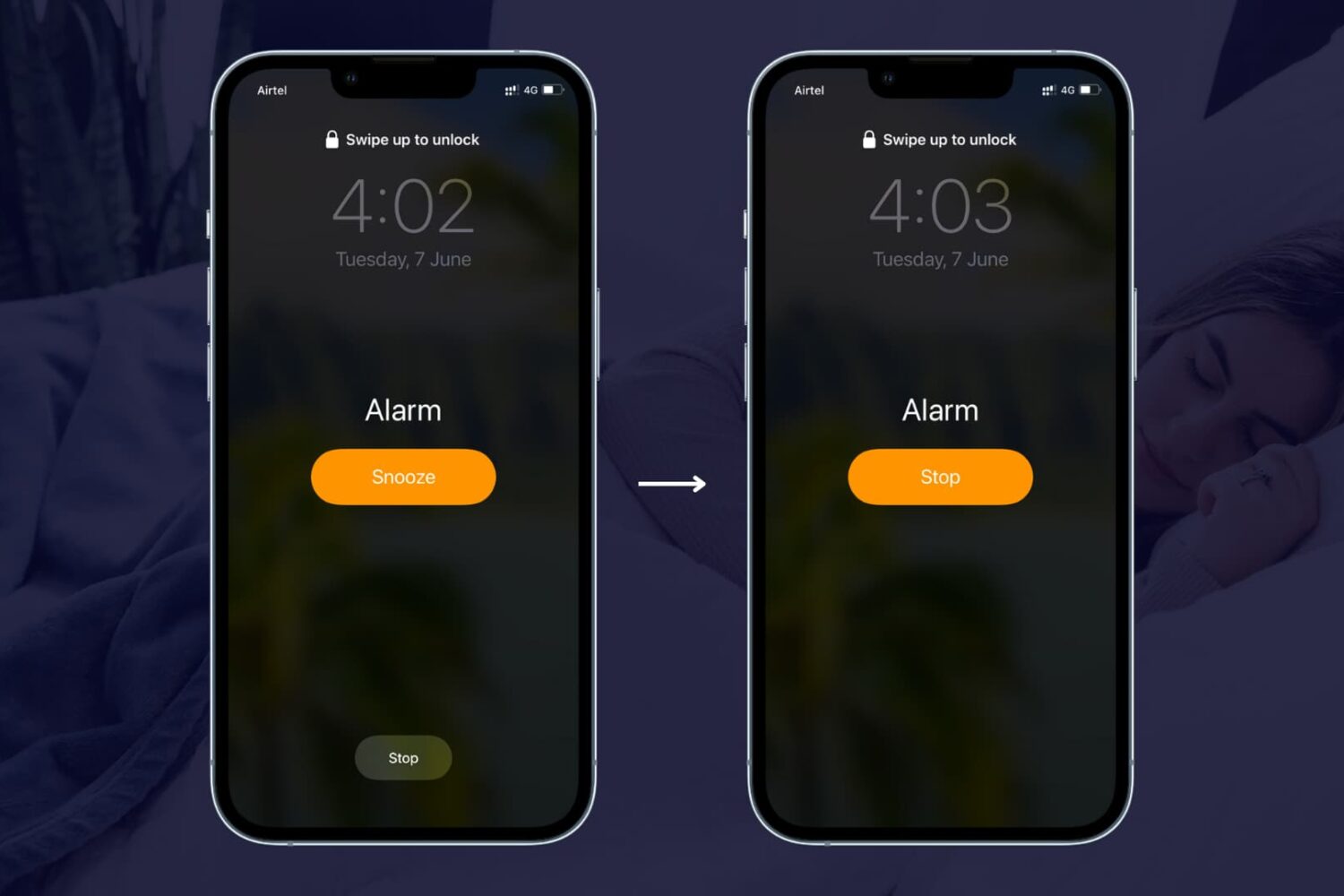
By default, any time you set an alarm on your iPhone, it'll vibrate when the alarm goes off. For some people, this is a good way to help get woken up, but for others it's a waste of battery and can be completely annoying to hear that loud vibration on the night stand.

In this tutorial, intended for iPhone users only, we'll be showing you how you can set up an alarm so that your iPhone doesn't vibrate when it goes off.

How to take a timed screenshot on Mac

Chances are, you're probably so accustomed to taking screenshots on your Mac with the stroke of a few keyboard keys that you didn't even know you could take a timed screenshot. In this tutorial, we'll show you how you can set your Mac up to take a timed screenshot, which depending on the situation, can be very useful.

Pop-ups in Safari on your Mac? Here’s what to do

I hate pop-ups, and chances are, you probably do too. They're not only a nuisance, but most of the time they're also designed to get in your way to purposely try and scam you and get you to click on malicious material.

Safari in macOS comes with anti-pop-up measures, but those with malicious intent are always coming up with ways to get around those measures.

In this post, we'll talk about what you can do in a scenario when you get these annoying pop-up messages on your Mac and why you might be getting them.

Can’t sync your iPhone or iPad with iTunes? Try resetting your Lockdown folder

Those who use iTunes on a regular basis to keep their iOS devices in sync with one another are probably familiar with the problems that can arise from using the software, whether it's on a Mac or a PC.

If you're having problems while trying to sync or back up your iOS devices, the problem could very much be with your computer's Lockdown folder, and resetting it could resolve the problem.

In this tutorial, we'll show you how to reset your iTunes Lockdown folder.

What to do if you can’t make or receive FaceTime calls iPhone or iPad

Have you ever received one of those annoying messages that basically tells you FaceTime is having problems on your iPhone, iPod touch, or iPad? They can be incredibly annoying, but usually they're easy problems to fix.

In this piece, we'll talk about why you might be getting FaceTime errors on your iOS device and walk you through some ways to correct the problem.

How to repost Instagram photos, videos, and stories on iPhone

Repost photo to Instagram

The Instagram app lacks the option to repost Instagram photos, videos, and stories natively, so people usually screenshot photos to post them as their own. This works fine as a workaround but requires extra steps, such as cropping the screenshot. Maybe more importantly, it generates photos of poor quality.

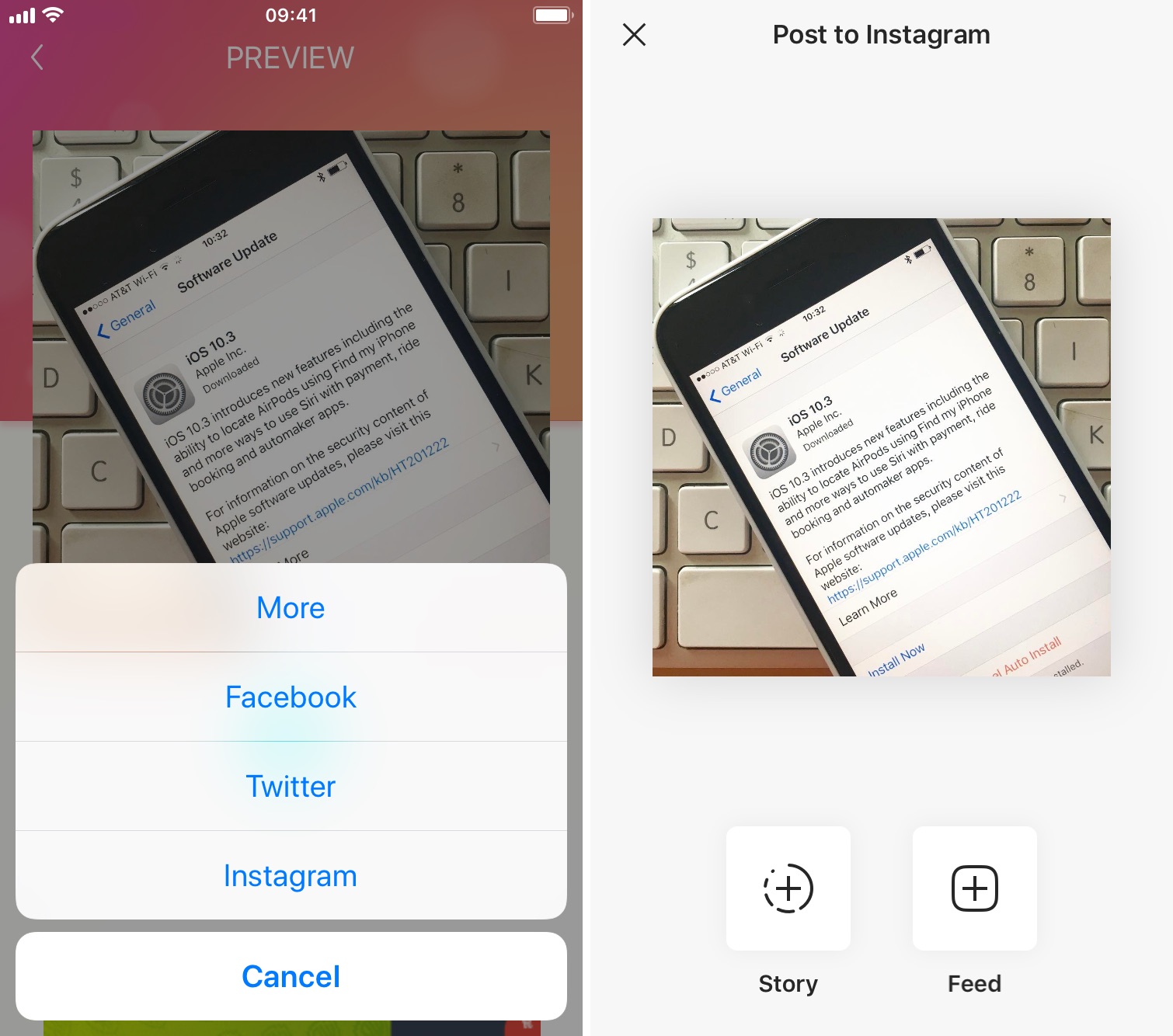
Reposting, also known as regramming, is quite a common practice, even though the Instagram application doesn't provide a way to easily do that. As a result, you must use third-party applications. In this post, we will show you how to repost Instagram photos, videos, and stories from your iPhone using an app we developed ourselves called Reposter for Instagram.