Sébastien Page

Sebastien is the Founder and Editor in Chief of iDB. Once a BlackBerry user, Sebastien instantly fell in love with the iPhone when it was first announced in 2007. Shortly after, he decided to start sharing his knowledge of the iPhone and its nascent ecosystem, which led to the creation of this blog. Sebastien currently owns 14 iPhones, 4 iPads, a MacBook Pro with Touch Bar, a MacBook Air, 2 Apple Watches, 3 Apple TVs, countless HomePods and AirTags as well as a few pairs of AirPods.

It was a good week for jailbreak tweaks

As I'm preparing this list, I can't help but think it's been a pretty good week for jailbreak tweaks. None of them qualify as groundbreaking or life-changing, but many of them do add these small modifications that make jailbreaking so appealing to me.

And as I am entering my fourth week without a jailbreak on my main device, I have come to really miss these little gems that are very subtle, yet incredibly useful for day to day usage. 

The many things Apple Watch can do on its own when connected to Wi-Fi

iPhone and Apple Watch work hand in hand, and while the former can be used on its own without losing any of its abilities, the latter will need to be paired with an iPhone in order to be used to its fullest. With that said, Apple Watch doesn't always need to be paired to an iPhone to be useful, as there are many things the wearable can do on its own. In a previous post, we highlighted a few things Apple Watch can do without its paired iPhone, including tracking workouts, playing music, being used to make purchases with Apple Pay, and more.

One of the most underrated features of Apple Watch is its ability to connect to known Wi-Fi networks, independently of its paired iPhone. It means that if you've ever been connected to a specific Wi-Fi network on your iPhone and Apple Watch, your Apple Watch will remember that network, even if its paired iPhone is nowhere nearby, giving you limited access to the web.

In this post, I will show you a few things you can do on Apple Watch when it is connected to a known Wi-Fi network, even if it's currently not paired with your iPhone. Granted, these are mostly known Siri-based queries, but to my surprise, you can do more than just inquire about the weather.
Hey Siri, will you please let me talk back to you?

Siri has come a long way since it was first introduced along the iPhone 4s and iOS 5 back in 2011. The assistant has gotten smarter, wittier, and all around more helpful, at least on the iPhone, because in my experience,  it's a completely different animal on Apple Watch.

To be fair, I'm not so much complaining about actual voice dictation on Apple Watch. Besides a few missteps that were most likely due to my strong French accent, dictation has been very reliable on Apple Watch. What hasn't though, is to getting Siri to activate, whether it is hands-free or by using the Digital Crown. And when I do get it to work, not being able to interact with Siri with interactive voice commands is also a source of frustration. Allow me to explain.

Apple Watch cases: a look at the Spigen lineup

Using a case on iPhone or iPad is a no brainer for many people because they are devices that are subject to accidental damages, including slipping out of your hand and hitting the concrete floor, or getting scratched while in your pocket. If using a case on these devices makes lots of sense, there is, at first look, less incentive to use a case on Apple Watch.

But that's just at first look though, because after talking to a few of my friends that do have a more active lifestyle than I do, most seemed to agree that, should they own an Apple Watch, they would likely use a case on it to not only protect the device from the elements, but also to protect it from their own inflicted damages.

My friend Guy, for example, works with his hands and handles tools all day. Using an Apple Watch without a case is not even an option if he wants to keep it intact. So is the case for my friend Kelsey who works out a lot and is worried she might accidentally hit the watch and scratch it on one of the many workout equipments she uses. Whatever your use case might be, if you have a need for extra protection, you might want to take a look at this selection of Apple Watch cases by Spigen.

Scott Forstall and Apple: no hard feelings, really

In an interview with the Wall Street Journal about his new role as a Broadway producer, Scott Forstall had few but nice things to say about Apple:

Asked about the split, Mr. Forstall said he was “so proud of the thousands of people I worked with [at Apple] and with whom I remain friends. I am delighted that they continue to turn out great and beloved products.”

The whole interview is an interesting read, along as you care about either Scott Forstall or musicals in general.

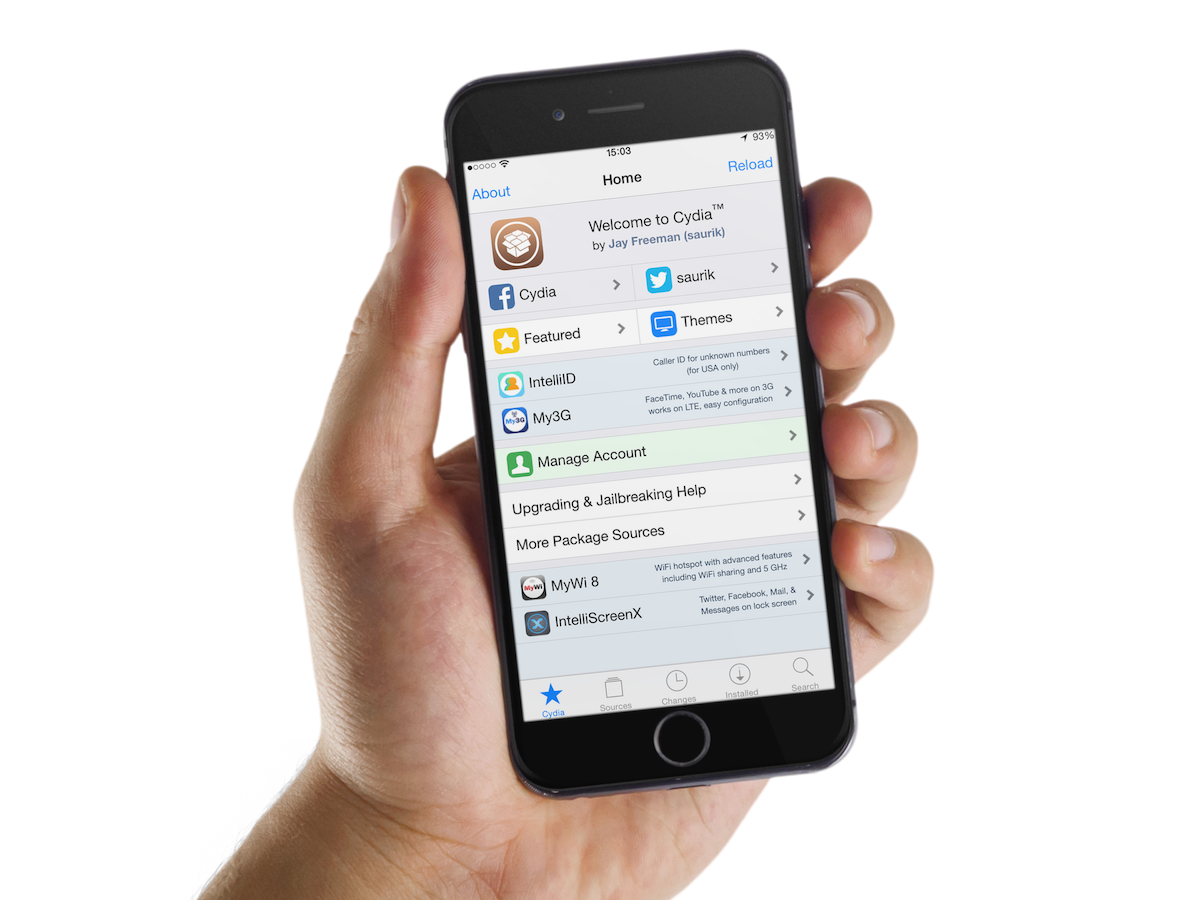
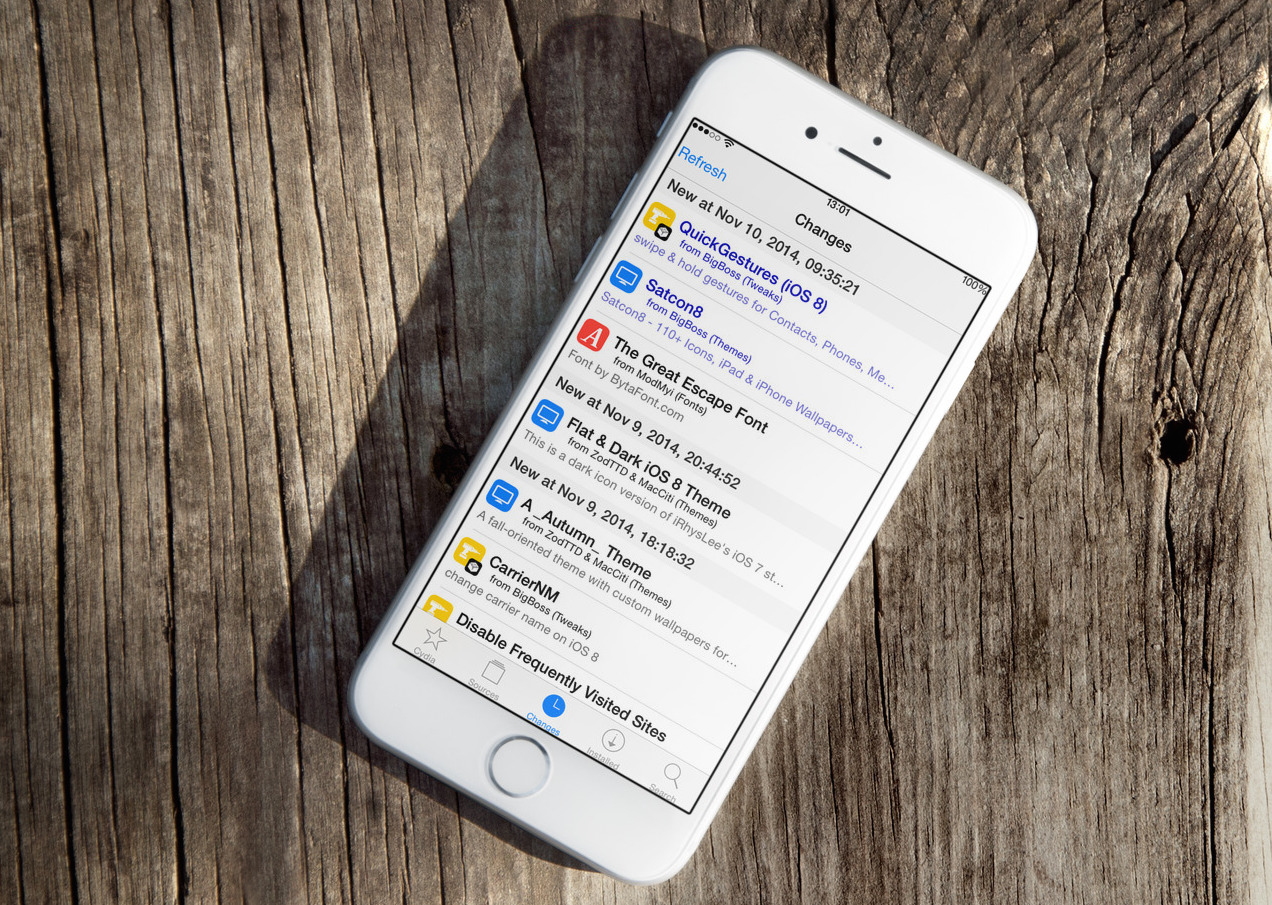
Jailbreak tweaks of the week: Andrios, AppRun, NotiAction, and more

Like every Sunday, we bring you a roundup of all the tweaks that were released on Cydia during the week that just passed, so you don't have to scroll through dozens of font packages to find the one tweak that's worth your time.

A couple interesting tweaks were released this week, my favorite being Andrios. A very well made tweak, if you ask me. But that's not the only one. We have about a dozen of them here on this list.

How to quickly dismiss an autocorrect suggestion on Mac

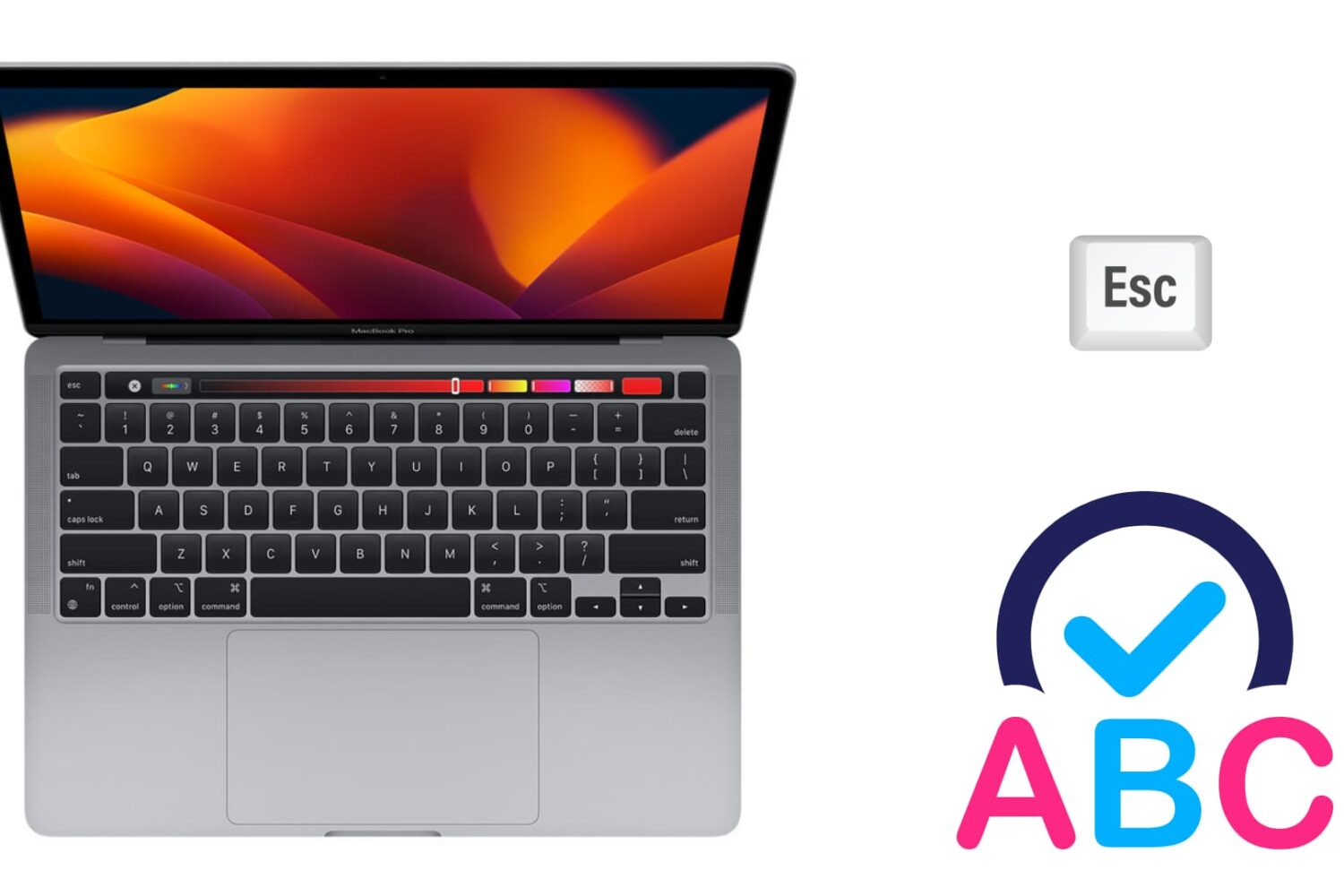
Image to illustrate autocorrect on Mac

There are two ways to dismiss an autocorrect suggestion. There is the obvious one, which lets you use your mouse pointer to reject the autocorrection, and there is a keyboard shortcut that's actually much quicker to use, especially when you're currently typing.

In this brief post, we will show you how to swiftly ignore the autocorrect suggestion on your Mac using an easily accessible keyboard action.

How to transfer your music to a new computer using iTunes Match

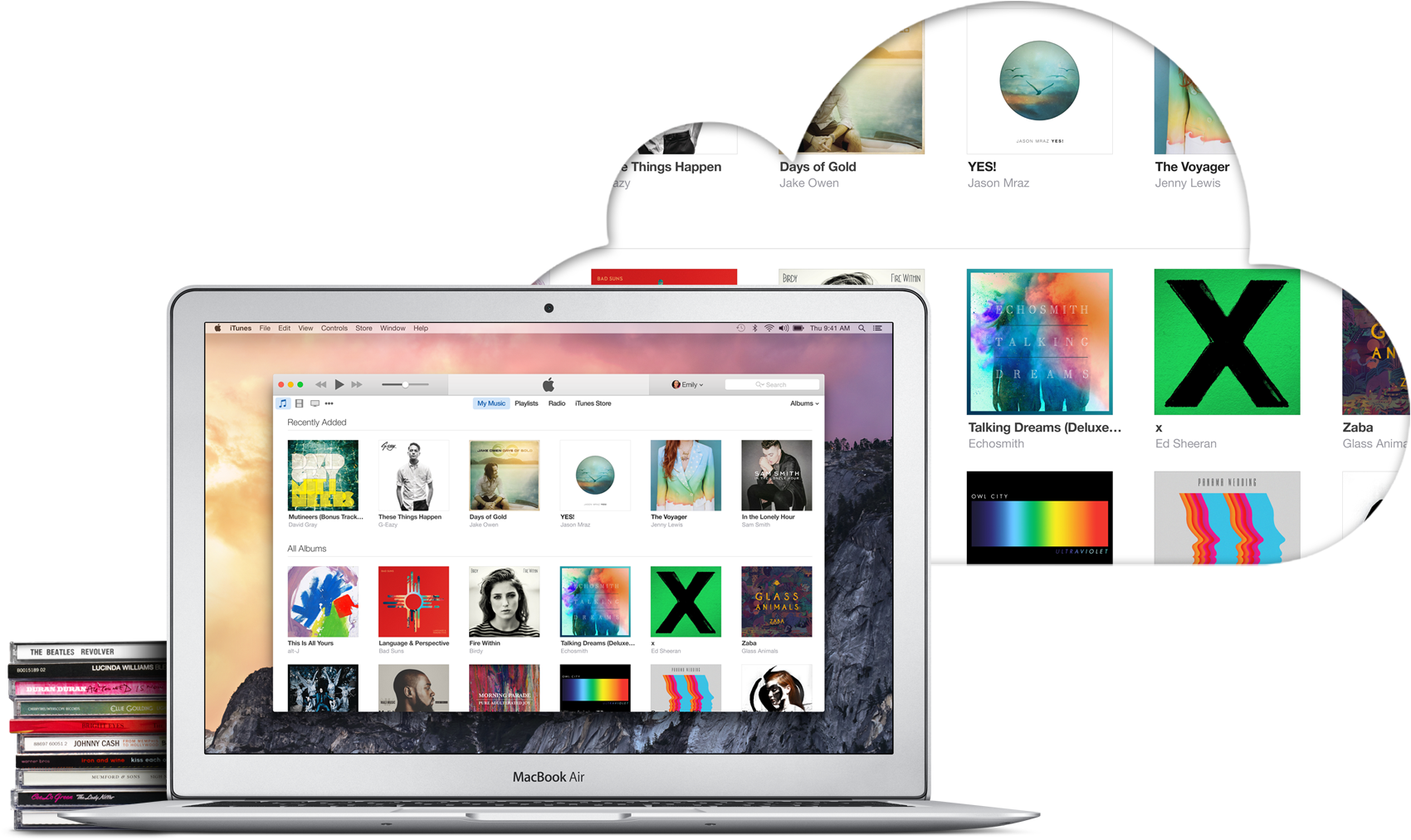
iTunes Match is a paid service from Apple that allows you to store all your music in iCloud, regardless of where it originated from. For example, it could be music imported from CDs, downloaded from online music stores, or even music that was downloaded in ways that go against copyright laws. In short, iTunes Match matches or uploads all your music to iCloud so you can stream or download it from any of your Apple devices, including Mac, iPhone, and Apple TV.

With that said, iTunes Match offers an easy way to move your iTunes library to a new computer without having to deal with transferring files from one hard drive to the other. In this post, I will show you how to transfer your iTunes library to a new computer using iTunes Match.

How to transfer your iTunes library to a new computer

The best thing about getting a new computer is that, well, you're getting a brand new computer. It's exciting to have a shiny new toy to play with, making you wonder how you could have been using that old machine for so long.

To me though, the major downside of getting a new computer is that you have to set it all up from scratch. I'm not going to lie; some of that is part of the fun, but it can also be stressful and time consuming. Take migrating your iTunes library to your new computer for example. There is nothing really fun in that, and if you have a large library, it could take hours.

In this post, I will show you how to move your iTunes library to a new computer. Unfortunately I won't be able to save you time or stress, but at least, you'll have simple instructions on how to do transfer all your iTunes songs, albums, album covers, and playlists to a brand new computer.