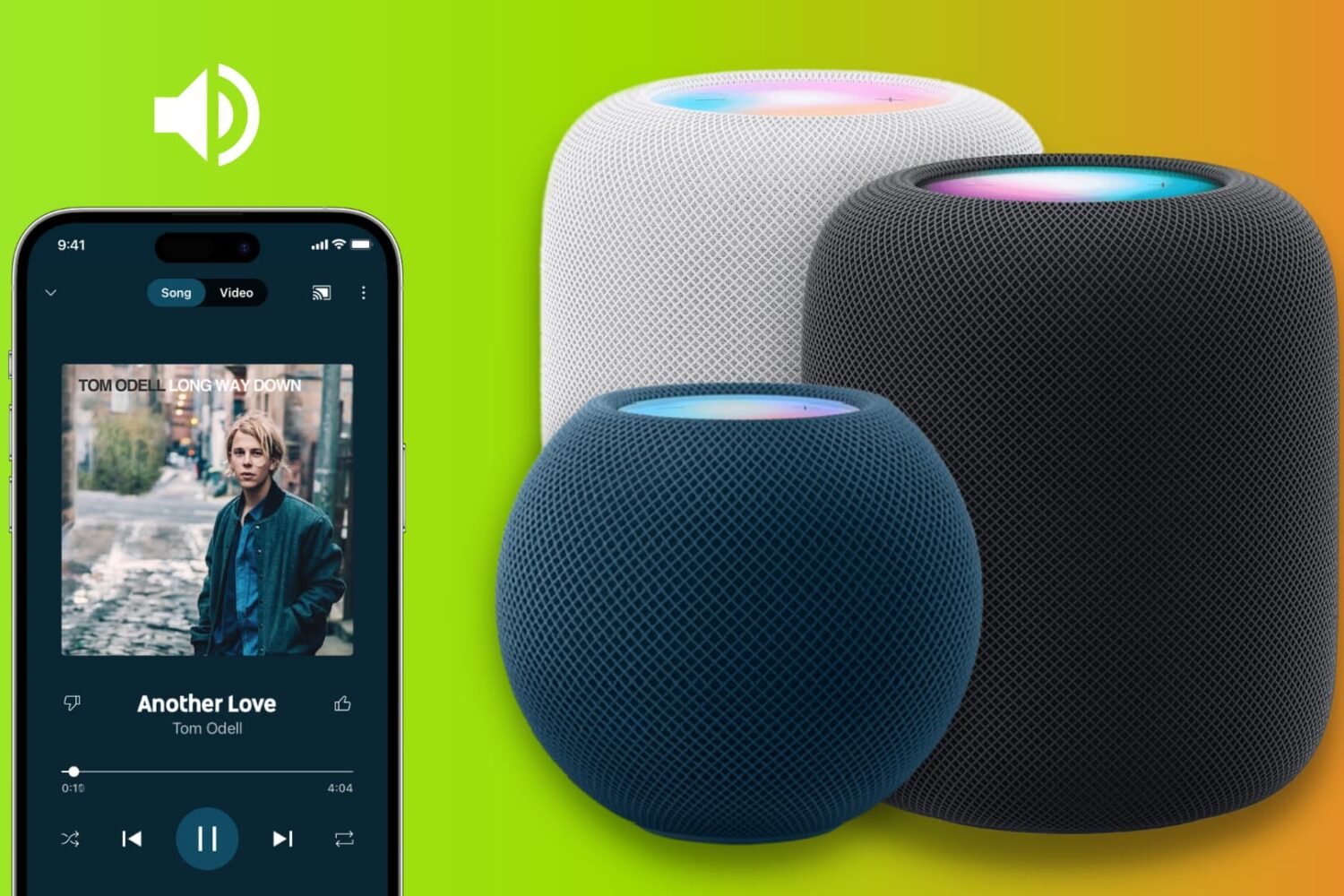
Learn how to play soothing sounds of nature or relaxing white noise right on your iPhone, iPad, or Mac without downloading extra third-party apps.
How to use iPhone, iPad, or Mac as a white noise machine
Learn how to play soothing sounds of nature or relaxing white noise right on your iPhone, iPad, or Mac without downloading extra third-party apps.
In this tutorial, we’ll show you how to set vibrating alarms and timers on your iPhone, which won’t play a sound but only vibrate.
Learn what to do if your iPhone or iPad won’t charge even though you have plugged it into a power adapter correctly.
In this step-by-step tutorial, we’ll show you how to download videos from Google Drive to your iPhone’s Photos and Files apps.
Learn how to cancel an in-progress app update on your iPhone or iPad if you’ve changed your mind and no longer want the new version.
In this tutorial, we’ll show you the best ways to transfer photos, videos, PDFs, and more between a Mac and an Android phone.
Try these troubleshooting solutions if your iPhone or iPad is restarting randomly on its own, and fix this annoying problem once and for all.
In this tutorial, we show you how to use two or more WhatsApp accounts on your iPhone or computer for seamless communication across your personal and business contacts.
Learn how to change the WhatsApp privacy settings to stop anyone using the app from seeing your profile picture, status, last seen, and more.
CarPlay is available on every iPhone 5 and newer models running iOS 7.1 or later. It lets you enjoy music, receive notifications, run navigation, use Siri, have Siri read messages, and more, all from your car’s dashboard screen.
Depending on your car manufacturer and model, you can use either wireless or wired CarPlay. If you’re having trouble getting CarPlay to work with your iPhone or if it’s not functioning properly, this troubleshooting guide offers several solutions to resolve any CarPlay issues between your iPhone and your car.
Stickies are great for quickly jotting down a short sentence or to-do item. I like having a few sticky notes on my iPhone Home Screen as it makes them always visible and forces my attention. I don't have to go inside any app to see them, which surprisingly often results in finishing the job mentioned in those sticky notes on time.
If you feel the same or want to try it out, here's how to add, edit, and use sticky notes on your iPhone or iPad Home Screen and Lock Screen.
In this step-by-step tutorial, we'll show you how to set your iPhone or iPad to never stay in Low Power Mode and explain why you might want to do so