Learn how to change the default audio and subtitle languages on your Apple TV and in the TV app across iPhone, iPad, Mac, and Windows PC.
About Apple TV audio and subtitle languages
Audio: By default, videos play in their original audio language.
Subtitles: If the video is in a different language than the default language of your Apple TV, subtitles will automatically use the default Apple TV language set in Settings > General > Apple TV Languages.
You have two options to watch videos and read subtitles in another language:
- Change the audio and subtitles language on the video player screen.
- Change the audio and subtitle language systemwide in tvOS.
When watching a one-off video, it’s a better idea to use the subtitles and audio buttons on the video player for adjusting your audio and subtitle languages.
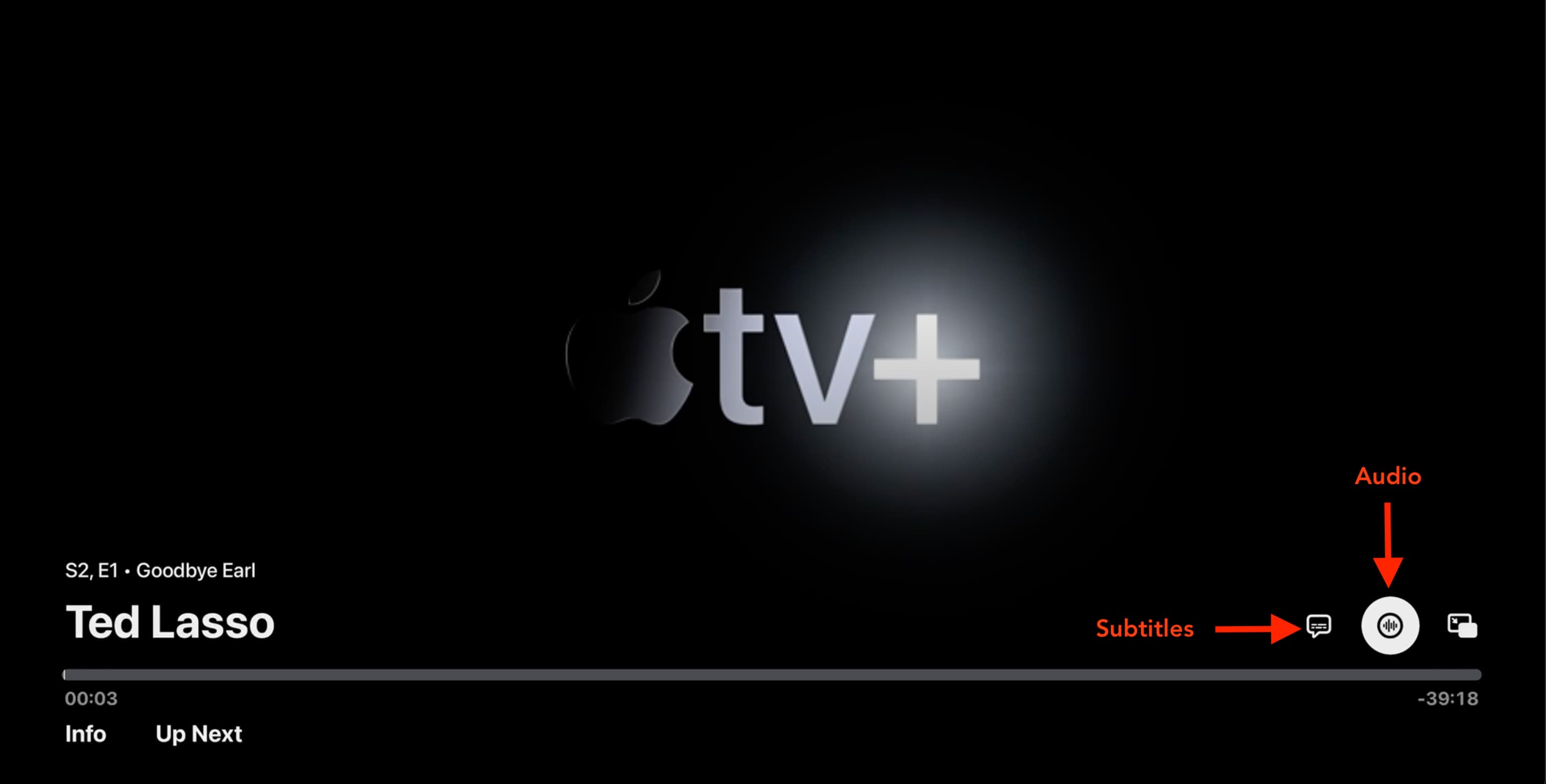
To always watch shows and movies in a specific language, changing the default audio and subtitle settings in tvOS will do the trick. Doing so will prompt the operating system to automatically play videos in your preferred audio language (if available) and display the subtitles in your designated subtitle language.
Set the default audio language on Apple TV
- Open the Settings app on your Apple TV running tvOS 27 or later.
- Scroll down and select Apps.
- Select TV under the App Settings heading.
- Scroll down, select Audio Language, and then select a preffered audio language from the list.

If your Apple TV is running an older version of tvOS, follow these steps instead:
- Open the Settings app on your Apple TV.
- Select Video and Audio.
- Scroll down and select Audio Language.
- Pick any audio language you want (except Auto).
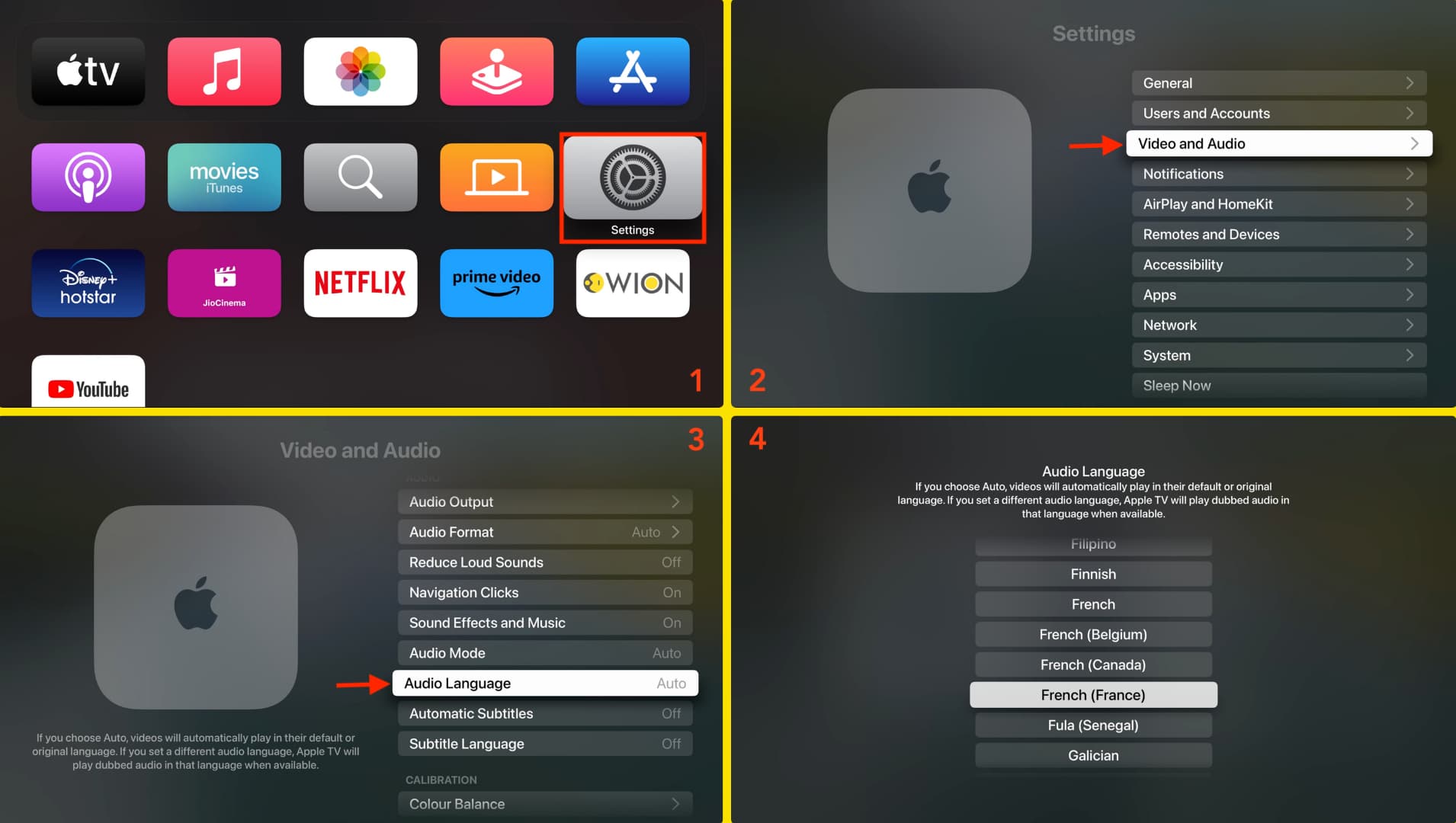
Your Apple TV will now play videos in the dubbed audio language set in step 4.
Set the default subtitle language on Apple TV
tvOS 27 seems to have removed this option, but you can set a default subtitle language on older versions of tvOS by following these steps:
- Open the Settings app and select Video and Audio.
- Scroll down and click Subtitle Language.
- Select the language to show video subtitles in.

Important:
- A video must have embedded audio and subtitles to match your chosen languages. For instance, if you set the audio and subtitles language to French, but the show you’re watching doesn’t have French audio and subtitles, it will play in its original language instead. Go to a show page to see which languages are supported.
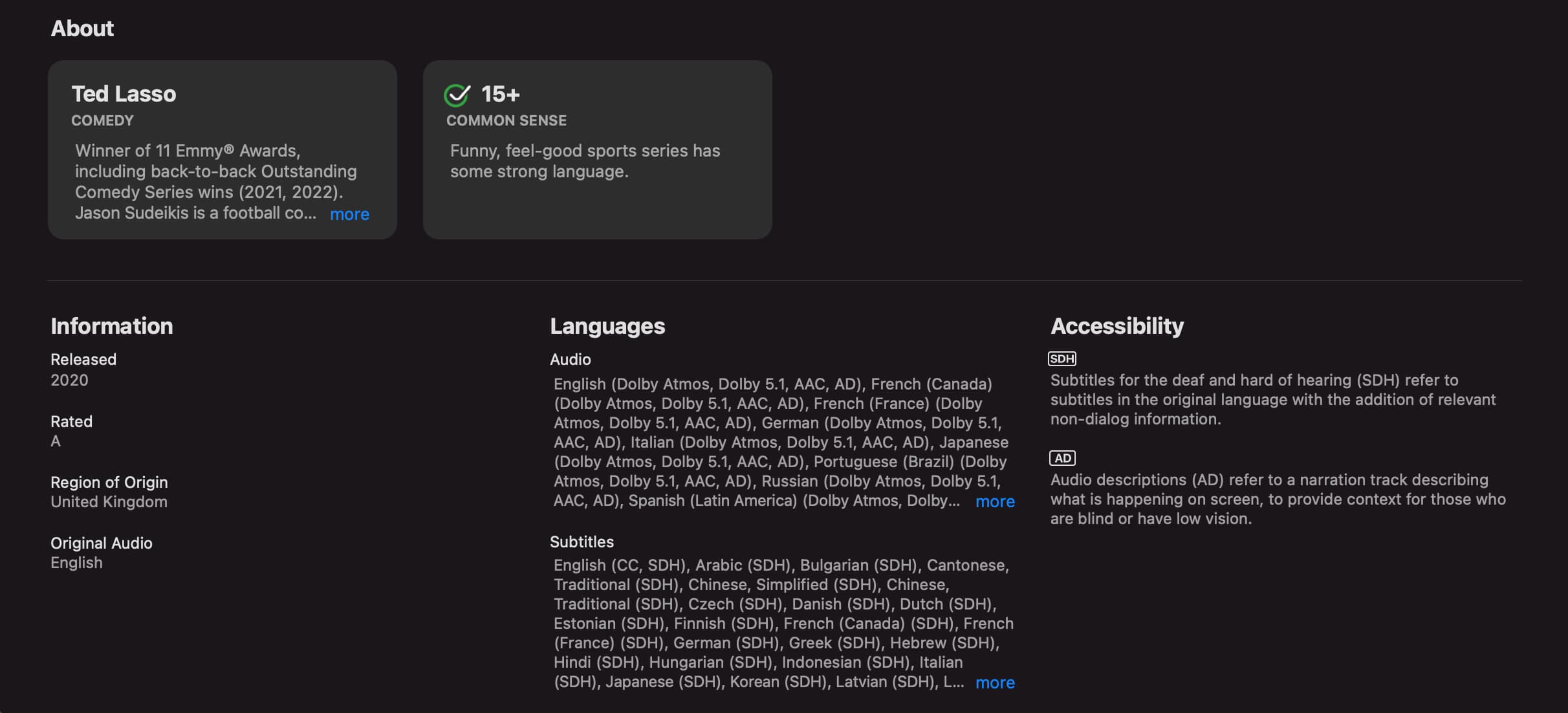
- Your preferred audio and subtitle languages work in the built-in TV, iTunes, and Movie Store apps. Some third-party streaming apps may also honor your settings, but don’t count on it, as many don’t because they have custom video players.
- Video trailers and previews often have English-only subtitles and audio tracks. As such, movie trailers may not match your preferred audio and subtitle languages.
Tip: To turn off subtitles across tvOS, turn off Show for Different Languages and select Off for Subtitle Language.
Change the default audio language for the built-in TV app
Follow the steps below to change the default audio language for videos and shows in the TV app on your iPhone, iPad, computer, or smart TV.
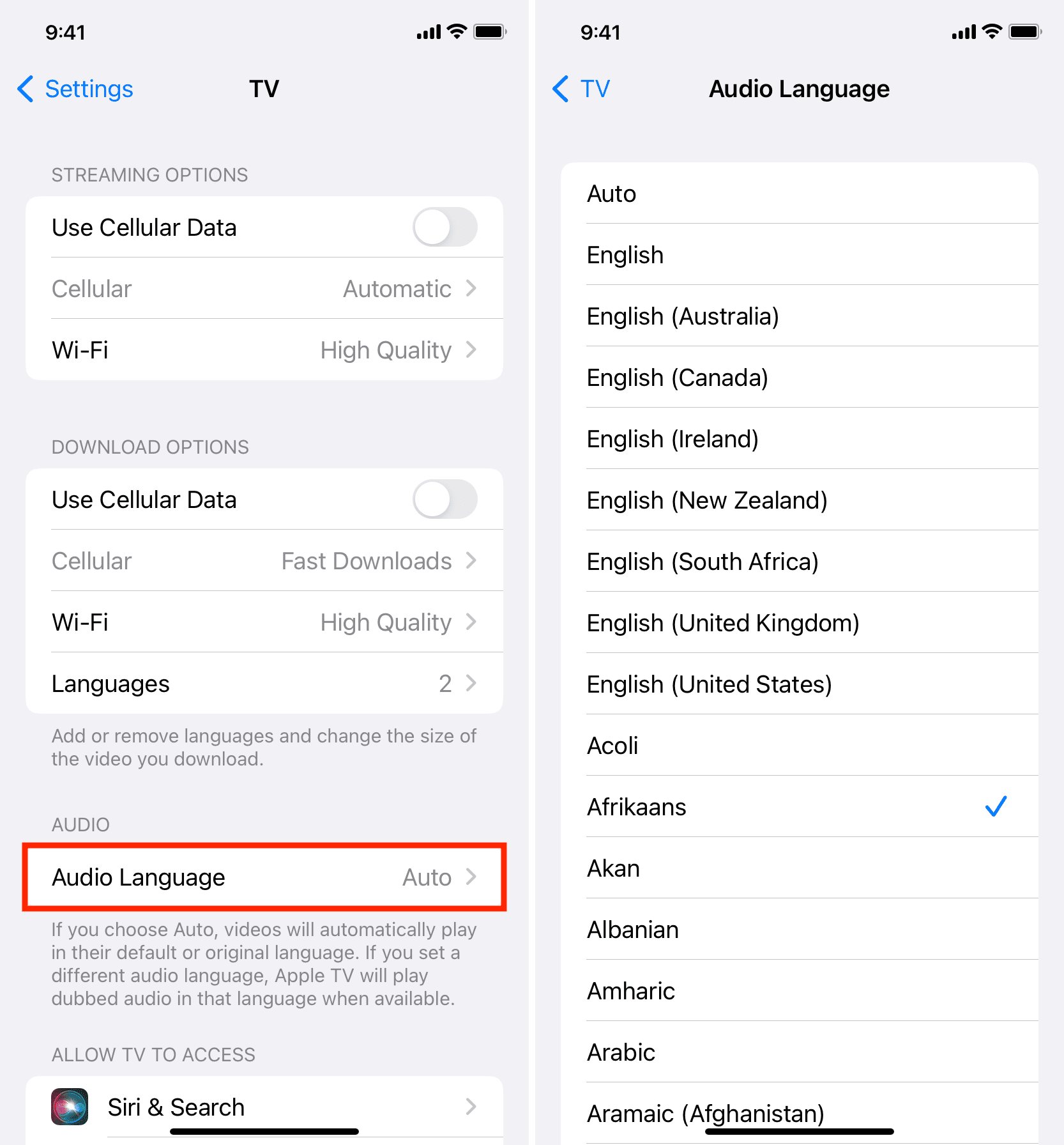
iPhone or iPad
- Open the Settings app.
- Tap Apps at the bottom.
- Select the TV app.
- Tap Audio Language and pick your desired language.
Mac
- Launch the Apple TV app and click TV > Settings from the menu bar.
- Go to the Playback tab.
- Set Audio Language to your liking and click OK.

Windows PC
I could not find the default Audio Language option in the settings for the Apple TV app on Windows. However, you can use the subtitle and audio buttons on the video player to change them on the fly.

Check out next: