In this quick guide, we show you how to stream Apple Music and Spotify at the best possible audio quality, covering everything from settings to equipment to best practices.
Whether you’re a casual listener or an audiophile, this guide will help you get the most out of your streaming experience.
Increase audio quality on Apple Music
Lossless Audio offers the best possible sound quality because data is not compressed and, therefore, retains all of the original audio quality. Lossless audio also comes with a lot of strings attached, but more on that below.
On iPhone and iPad
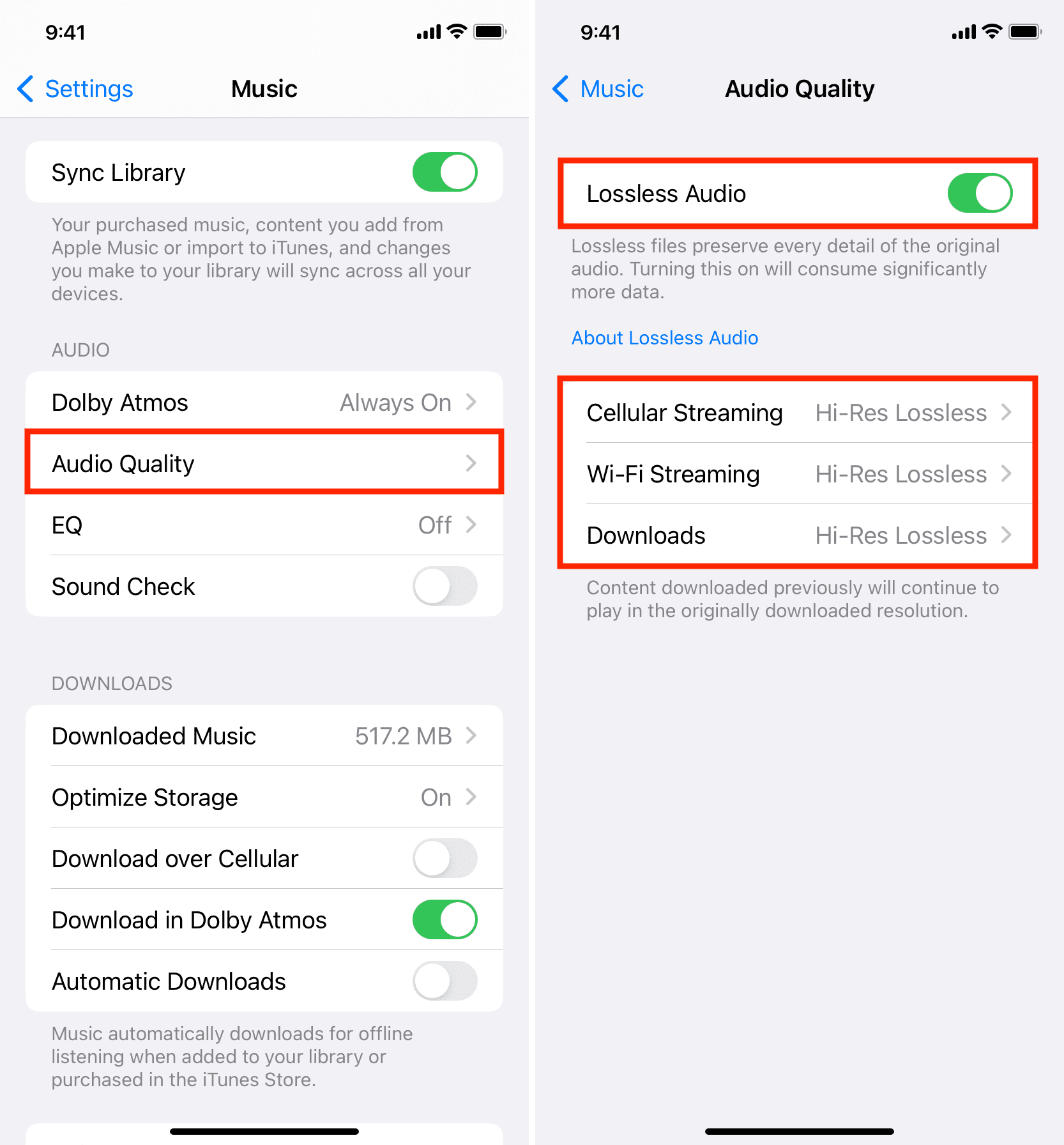
- Open iOS Settings, tap Apps at the bottom, then choose Music.
- Scroll down to the Audio section and choose the Audio Quality option.
- Turn on Lossless Audio, which preserves every detail of the original recording.
- Next, choose 5G & Wi-Fi Streaming and select Hi-Res Lossless. You’ll see a prompt, saying you need an external digital-to-analog converter (DAC) (and appropriate dongles) to play content in Hi-Res Lossless, which offers full audio resolution. If you don’t have a DAC, you can still choose this codec by tapping Continue in Hi-Res Lossless or go a different route and select Lossless.
- For the same audio quality over cellular data, go back, tap Cellular Streaming, then select Hi-Res Lossless.
- Optionally, you can increase the quality of Apple Music downloads by going to the previous screen, then choosing Downloads > Hi-Res Lossless.
On Mac
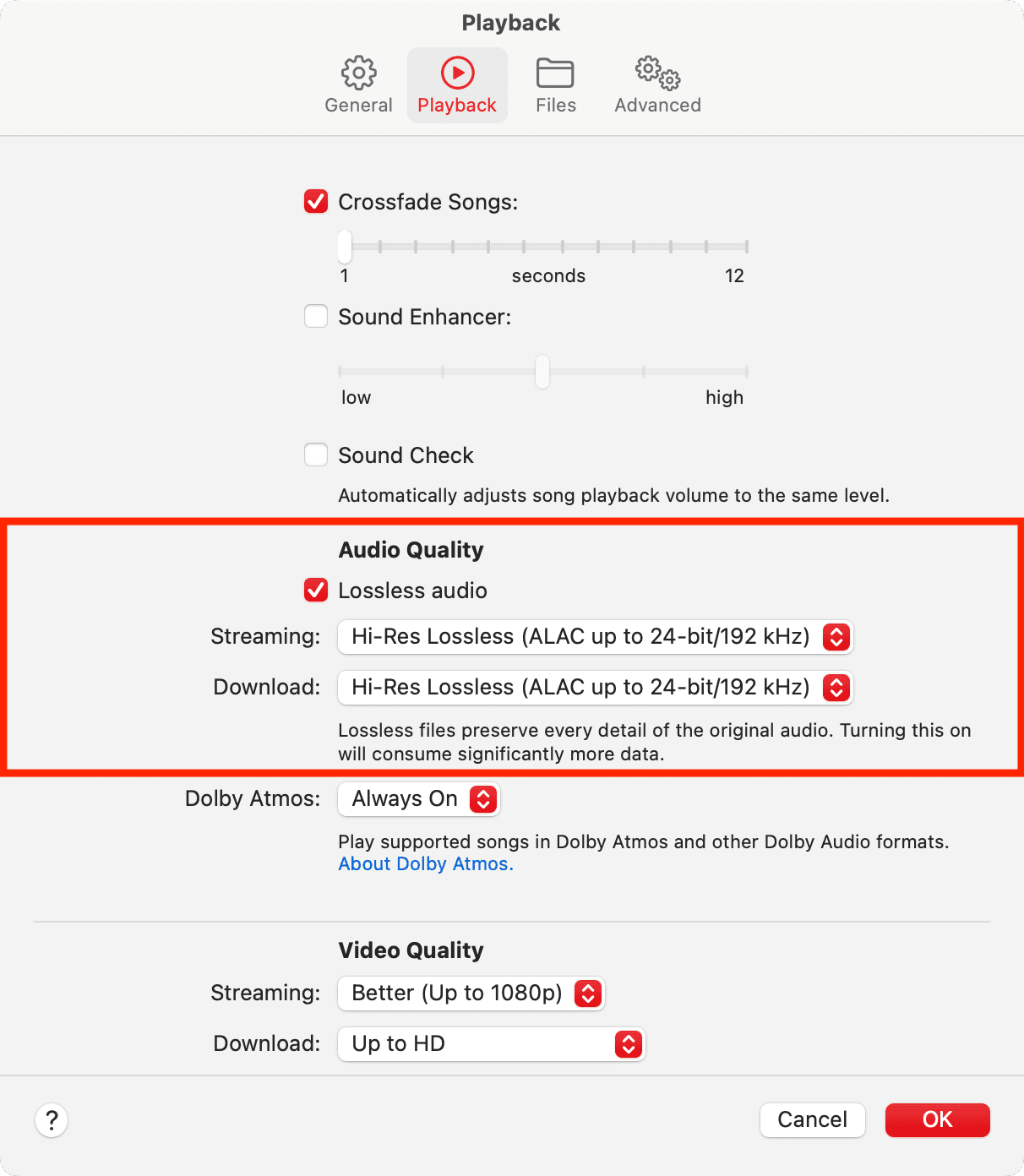
- Open the Music app and click Music > Settings from the top menu bar.
- Go to the Playback tab.
- Under Audio Quality, check the box for Enable Lossless Audio or Lossless audio.
- Click the drop-down menu next to Streaming and select Hi-Res Lossless (ALAC up to 24-bit/192 kHz) > Continue in Hi-Res Lossless.
- Now click the drop-down menu next to Download and choose Hi-Res Lossless (ALAC up to 24-bit/192 kHz) from the menu.
- Click OK to save the changes.
The limitations of Hi-Res Lossless Audio on Apple Music
- Apple Music subscription is required for lossless audio.
- Lossless audio consumes more storage and bandwidth than other audio files.
- Hi-Res Lossless is limited to select songs and albums.
- Downloaded songs will play in their current quality, but you can delete and re-download them in Hi-Res Lossless.
- Final audio quality depends on factors such as your internet speed and headphone/speaker quality.
- Bluetooth connections aren’t lossless. No AirPods models play lossless audio from iPhone, iPad, or Mac except AirPods Max when connected via USB‑C cable.
- The Hi-Res Lossless Audio setting requires a digital-to-analog converter (DAC)
- You can stream lossless audio directly on HomePod.
- Make sure to set Dolby Atmos to Always On for spatial audio.
Improve music quality on Spotify
- Open the Spotify app and tap your profile photo from the top left.
- Tap Settings and privacy.
- Select Media quality from the list of menu items.
- Set Wi-Fi streaming quality, Cellular streaming quality, and Download quality to Lossless. If you don’t have a premium subscription, select High instead.

If you also use Spotify on Mac, open the app and follow these steps:
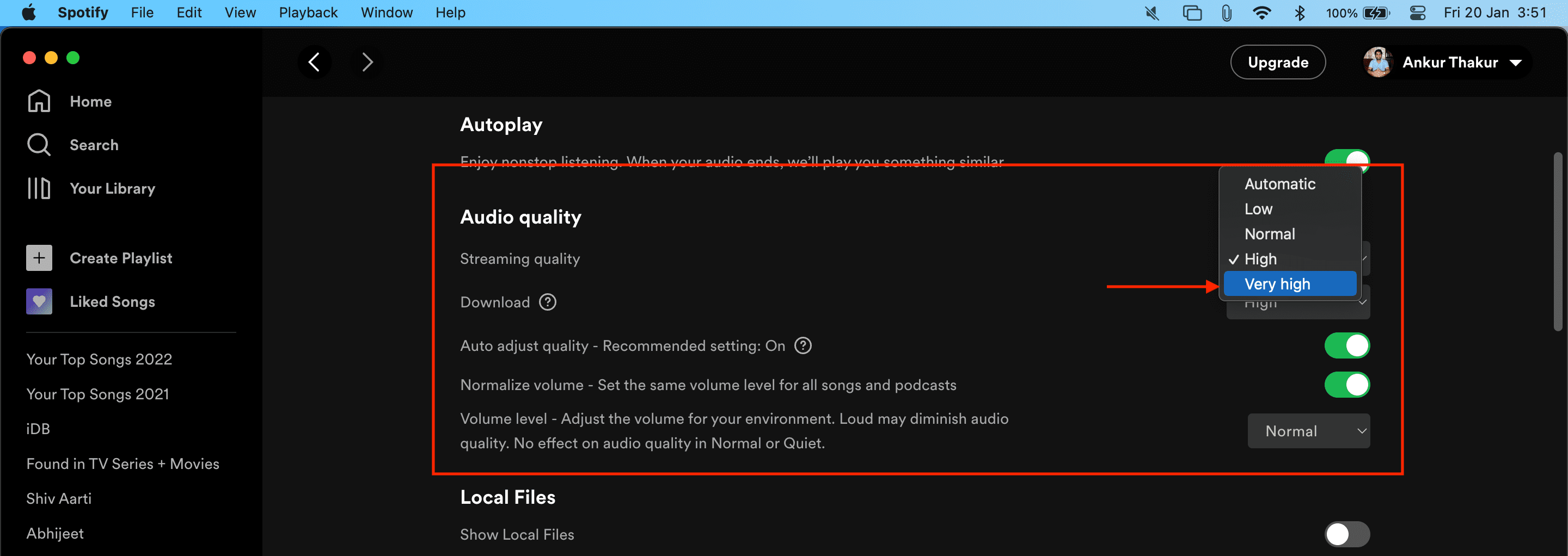
- Click Spotify > Settings from the top menu bar.
- Scroll down to the Audio quality section, click the drop-down menu next to Streaming quality or Download, and select the best option.
- Optionally, turn off the switch next to Auto adjust quality to dynamically adjust quality based on network conditions. This setting will force higher audio quality on a good connection, but may lead to some interruptions if the connection gets slow.
- If the switch next to Normalize volume is green, be sure the drop-down below is set to Normal or Quiet. The Loud setting may reduce audio quality.
Get a good pair of headphones or speakers
Aside from owning an iPhone, iPad, or Mac, you absolutely need quality headphones or good speakers to fully enjoy songs available in the Hi-Res Lossless codec. You can get a pair of AirPods Pro or AirPods Max, or a couple of new HomePods (for creating a stereo pair). Alternatively, research products from other companies, like Sony, Bose, Sennheiser, etc.