Learn how to view the Wi-Fi password for the network your iPhone or iPad is currently connected to or has ever joined in the past.
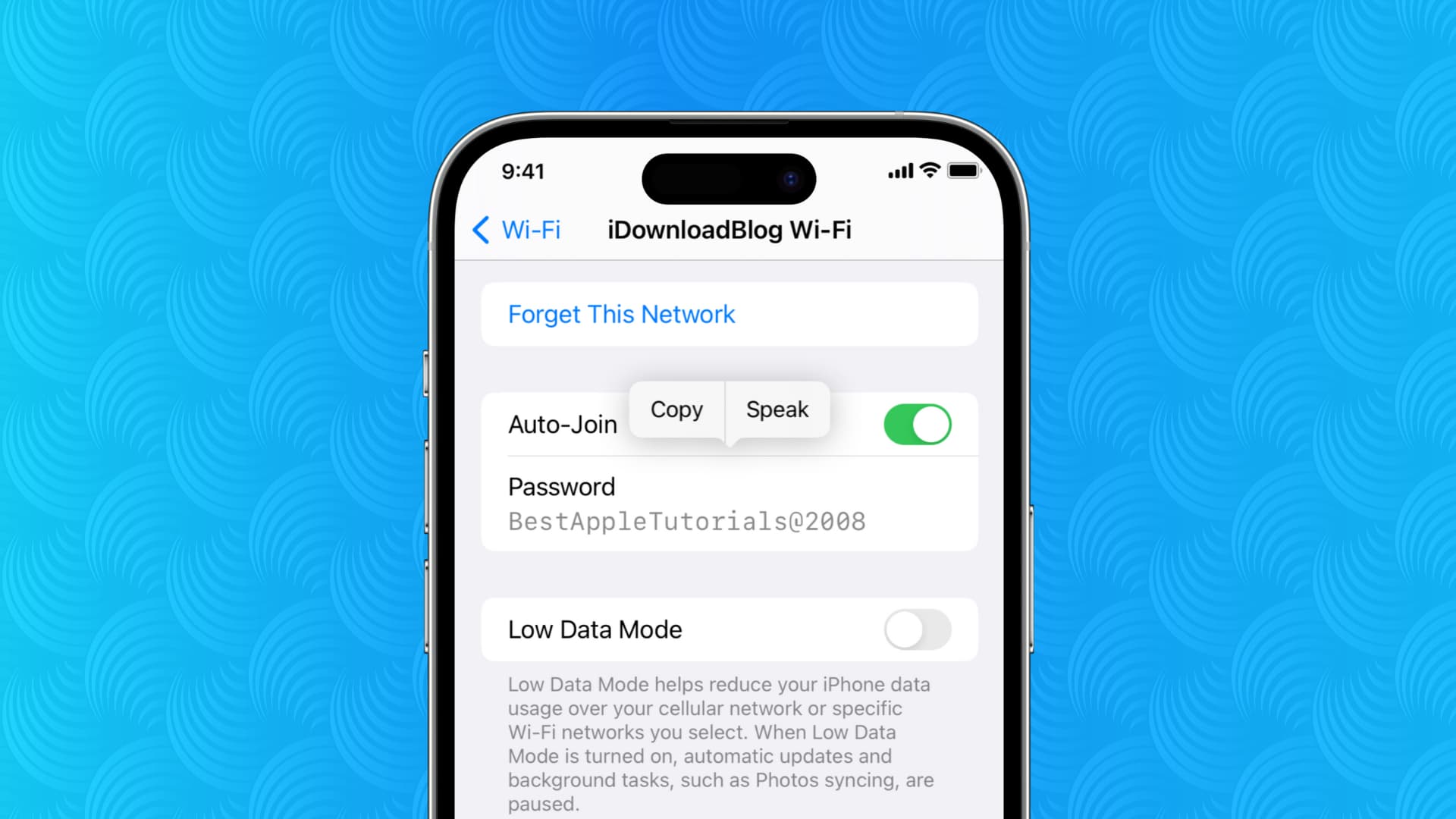
Like macOS, iOS makes it very easy to view the password for current or past Wi-Fi networks. So, if you can’t remember your Wi-Fi password, you can view and copy it in just a few steps.
But before you begin, make sure your device is running the latest version of iOS or iPadOS.
See the Wi-Fi password in the iOS Settings app
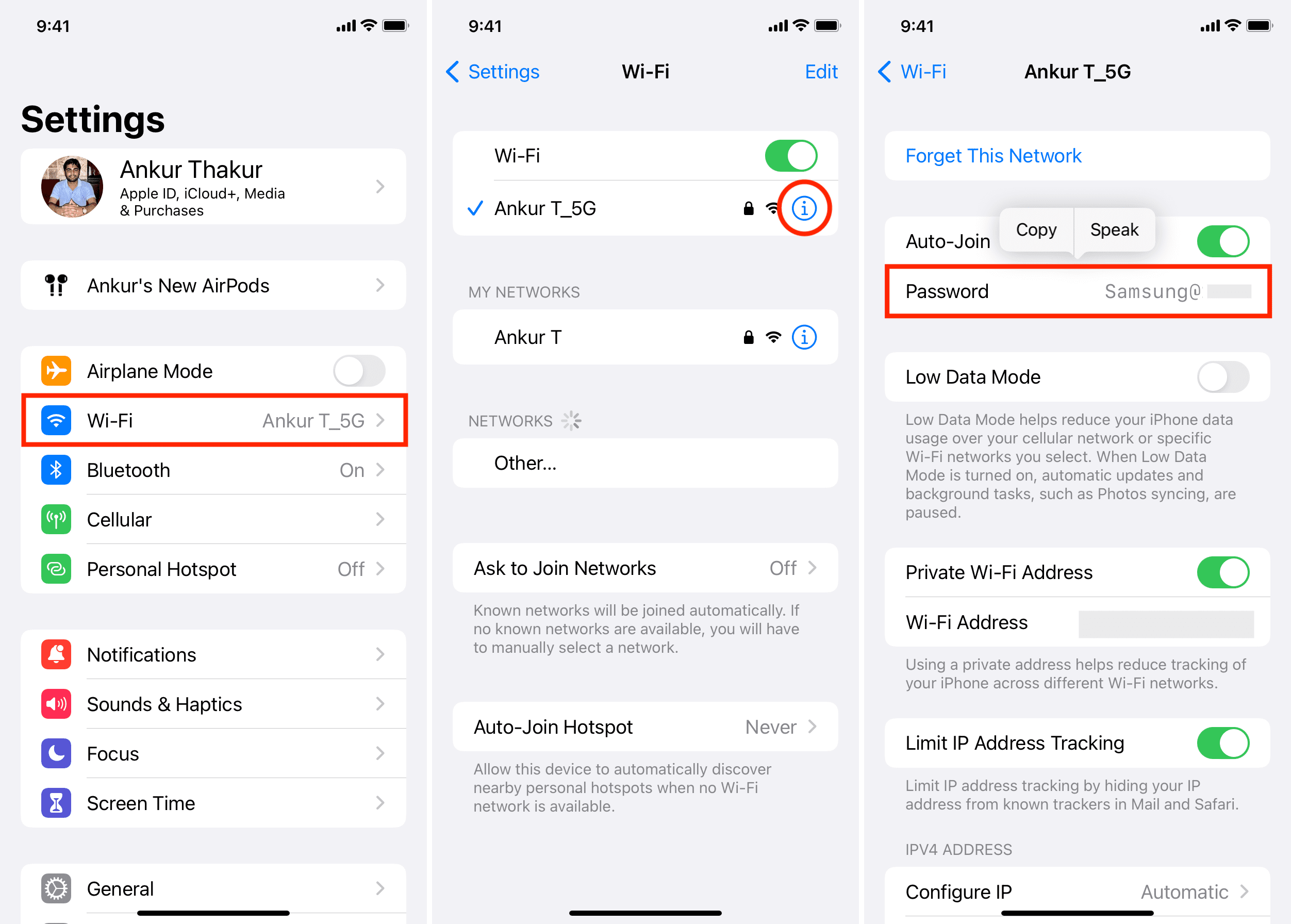
1) Open the Settings app and tap Wi-Fi.
2) To see the password of the Wi-Fi network you’re currently connected to or a known network currently available, tap the info button ⓘ next to it. To see the Wi-Fi password of networks you have connected to previously but aren’t in their range, tap the Edit button at the top, then the info button ⓘ.
3) Tap the Password field and authenticate via Face ID or Touch ID to see this Wi-Fi network’s password. You can copy it from here. If you don’t see the Password option, that means this network didn’t have one or you connected it a long while back and the password is no longer saved.
See the Wi-Fi password in the Apple Passwords app
In addition to the Settings app, you can also use the Passwords app to see all Wi-Fi passwords in one spot.
1) Open the Passwords app and tap the Wi-Fi tile.
2) Select the Wi-Fi network.
3) Tap the Password field to reveal it. If your iPhone is running an older iOS version, you can also tap the share button to view the Wi-Fi password in the Share Sheet.

On a related note: