Learn how to change the mouse and trackpad pointer color on your Mac to customize its appearance and make it easier to see on the screen.

If you’re reading this article on your Mac, you’ll notice that the macOS pointer is black and white by default. This color combination is suitable for most people. However, there are two main reasons why you might want to change the color of your mouse pointer:
- For accessibility reasons: If you’re visually impaired and cannot discern the black and white pointer of your mouse very well.
- For aesthetic reasons: You simply want to change things up and add some color to your screen.
Set your mouse and trackpad pointer to any other color
- Open System Settings and select Accessibility from the left sidebar.
- Select Display under the Vision section.
- Scroll down to the Pointer section and change the Pointer outline color and Pointer fill color.

The steps are similar, even if you’re on a Mac running an older version of macOS, such as macOS Monterey. Just select Display from the left side of the Accessibility pane in System Preferences.
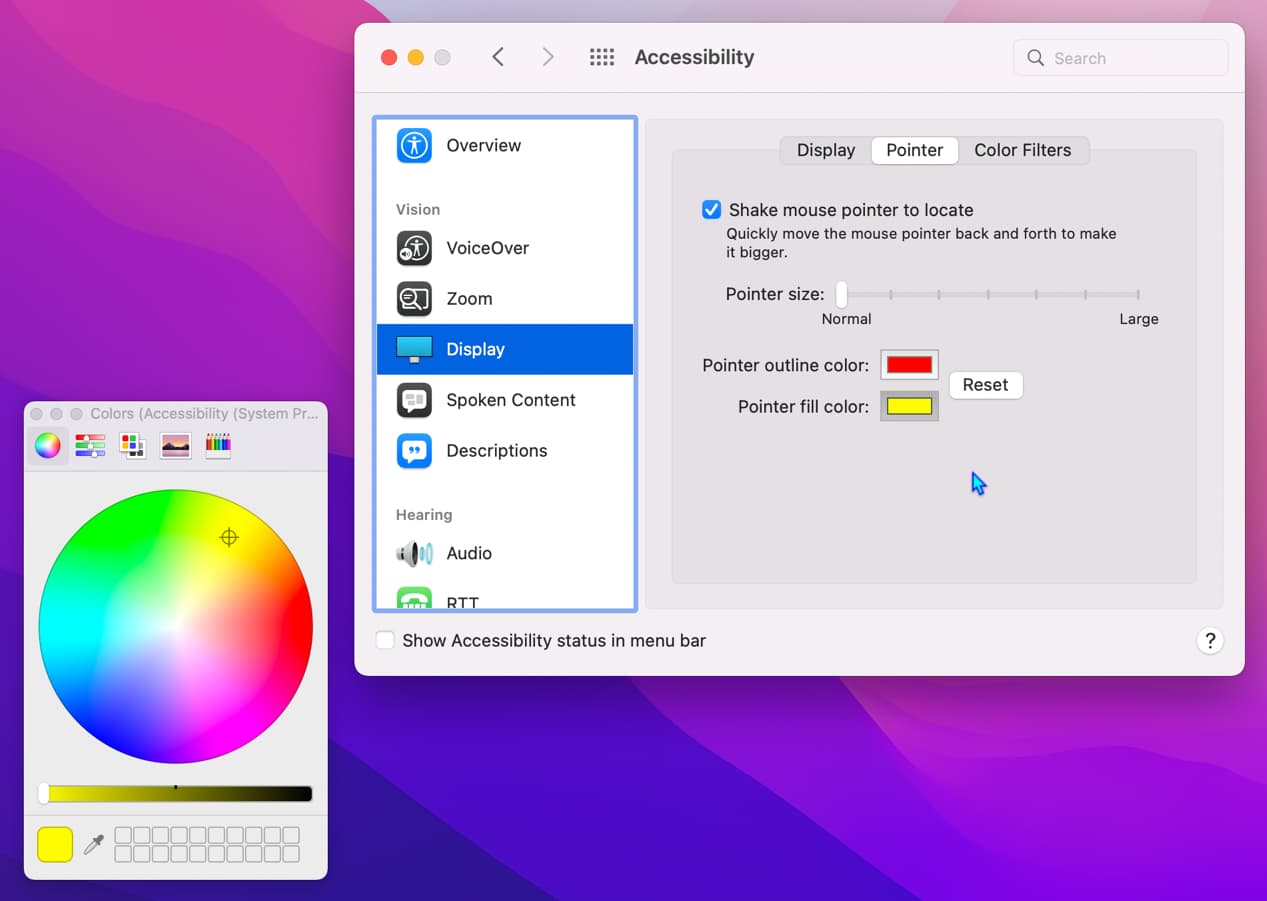
You’ll see the cursor color change in real time. Use the various buttons and sliders on the small color palette window to choose from millions of colors.
If desired, you can increase the pointer size to see everything properly. And once you’re happy with your pointer’s overall color scheme, close System Settings/Preferences.
This is how you can personalize your Mac’s cursor color. If you ever want to go back to the default black-white pointer color, follow the same steps and hit the Reset Colors button.
More on Mac’s pointer: