Learn how to disable FaceTime eye correction, which simulates direct gaze even when you’re not looking straight at the iPhone’s camera.
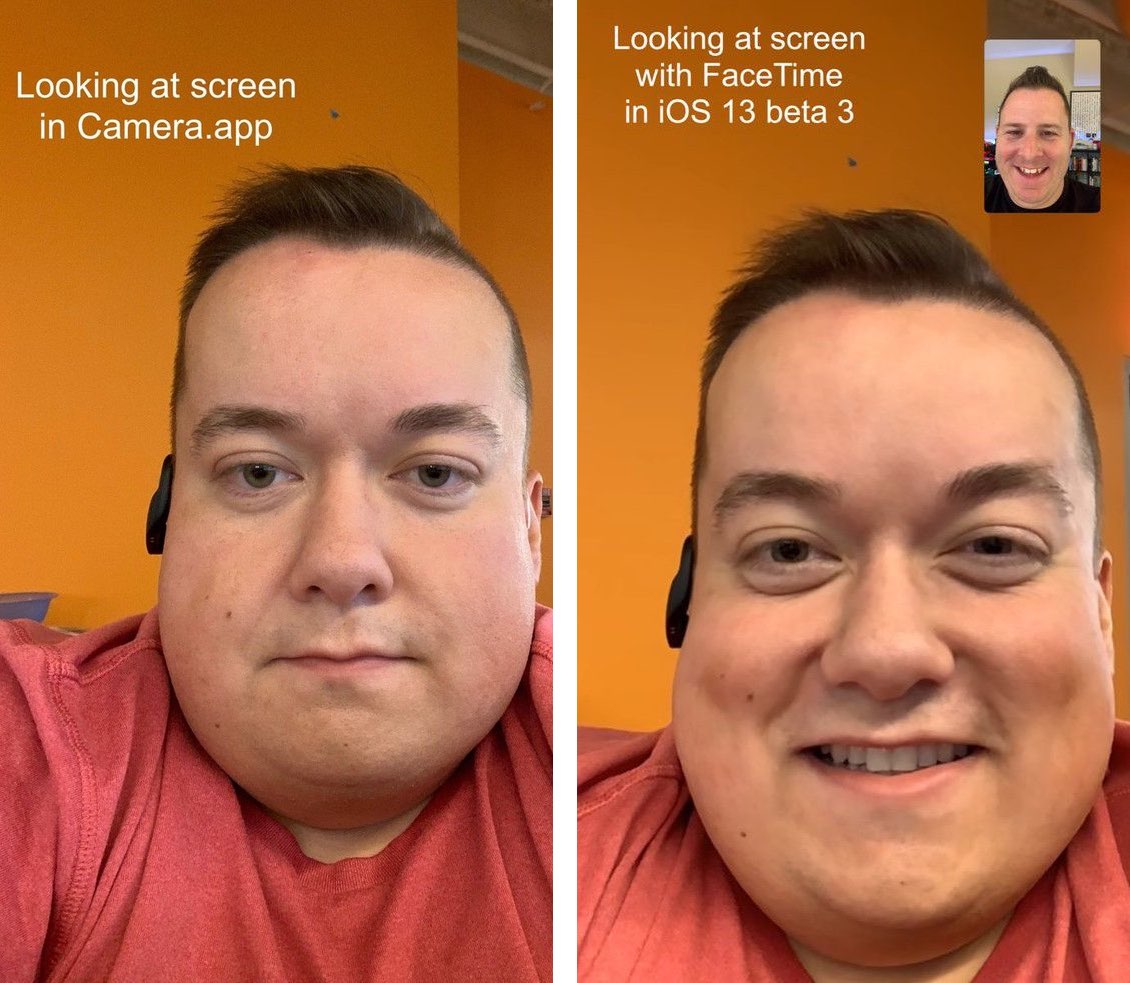
Many people don’t intentionally avoid eye contact during video calls; it’s often because the iPhone’s front-facing camera sits above the top edge of the display instead of on the long edge, as on recent iPads.
It’s in human nature to look the person you’re chatting with in the eyes, but we often stare at our device screen instead. Looking sideways or staring at the person’s chin or mouth isn’t good video-calling netiquette, so don’t do it.
Realistic eye contact on FaceTime
FaceTime has a neat trick on the iPhone XS and newer that makes it seem as if you’re staring directly at the camera, even when you’re really looking off to the side of the screen. It uses computer vision to adjust your gaze in real time, resulting in more natural video calls. Eye contact correction on FaceTime works only on iPhone and isn’t available on iPad or Mac.
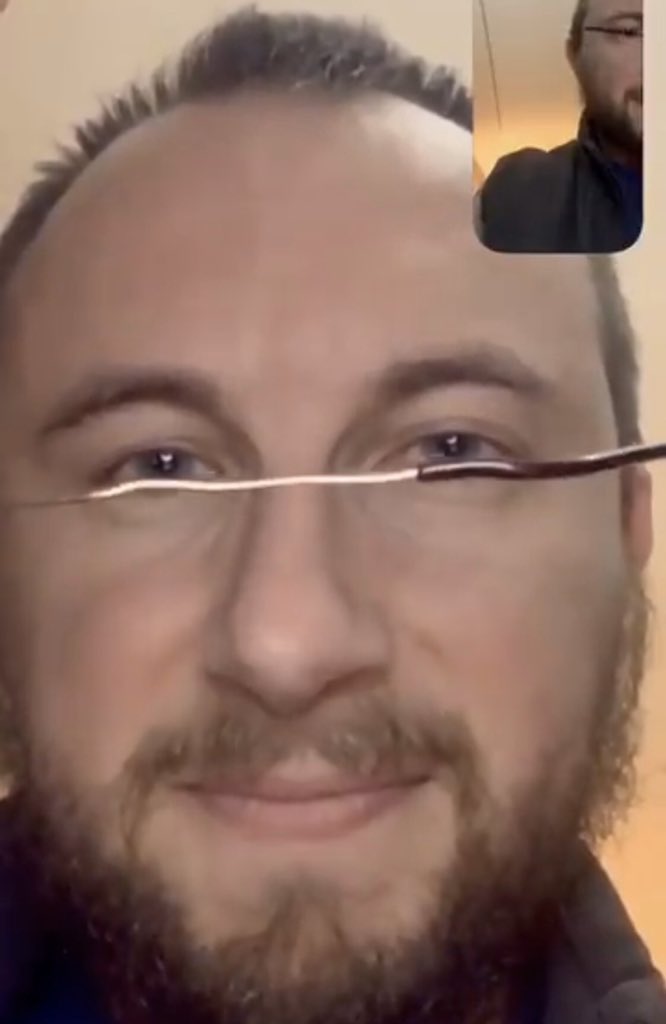
Realistic eye contact improves video-call intimacy, but some folks may prefer to disable this feature because of occasional video artifacts, like the slight warping of the line across the eyes and nose, which is more pronounced when wearing glasses. Dave Schukin shared a short animation showcasing the unwanted warp effect, and another one showing the effect when wearing sunglasses.
Disable FaceTime Eye Contact correction
FaceTime Eye Contact correction is turned on by default on the iPhone. If you find it spooky or disconcerting, here’s how to turn it off:
- Open the iOS Settings app.
- Tap Apps at the bottom of the screen.
- Select FaceTime from the list of applications.
- Turn off the Eye Contact switch to disable eye contact correction.

Of course, leave it turned on if simulated eye contact on FaceTime works well for you.
More on FaceTime: