Learn how to embed a video in your Keynote presentation to enhance your slides and offer an immersive visual experience.
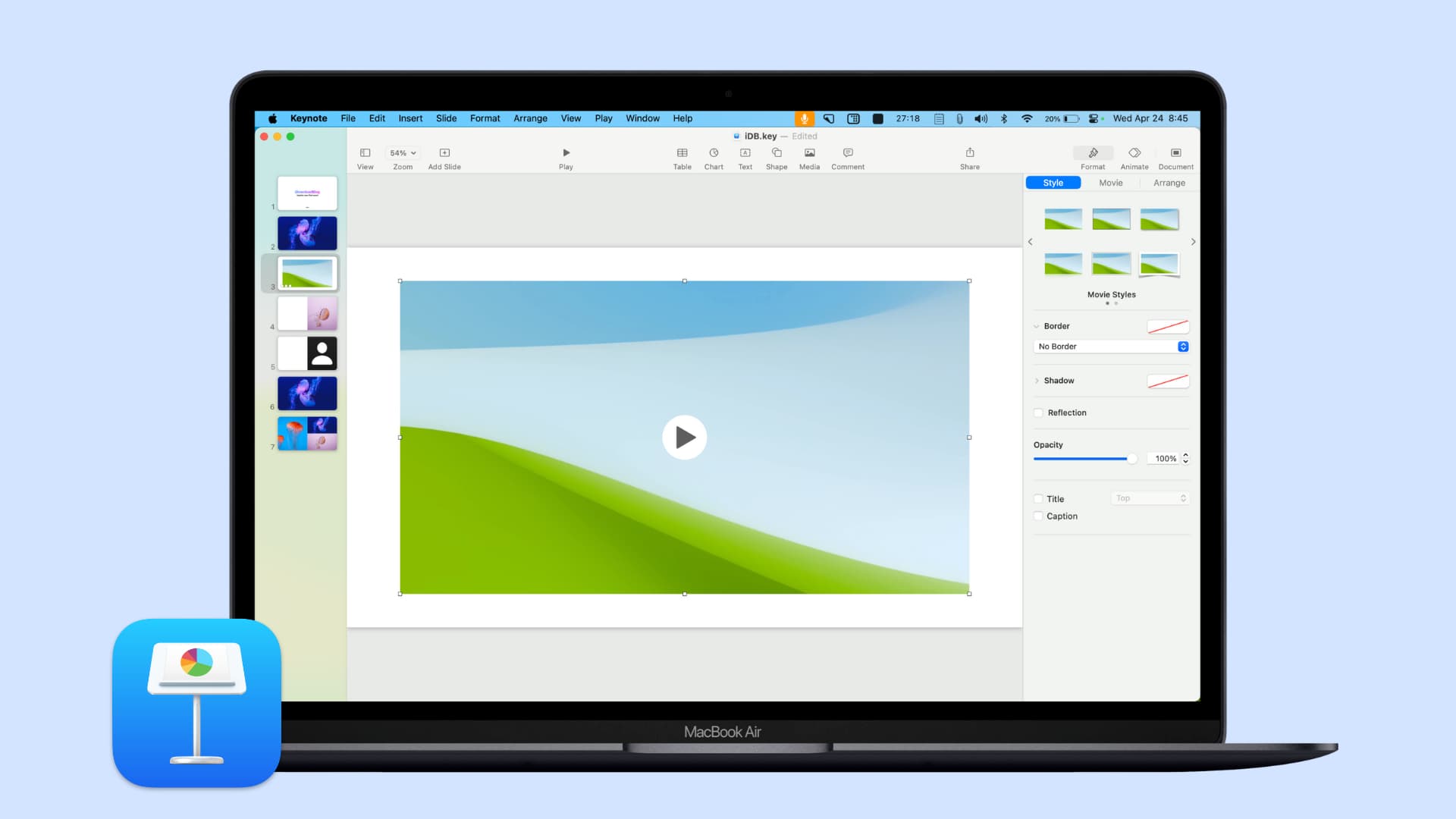
Do you have a video that would make the perfect addition to your Keynote presentation? It could be a video of how to use a new product you’re introducing or one of the construction progress for your new business location.
For your next Keynote slideshow, we’ll show you how to embed a video to make your presentation stand out.
Embed a video in Keynote on Mac
1) Open your slideshow in Keynote on your Mac and select a slide or add a new one.
2) Click the attachment button in the toolbar and select ‘Choose Photos or Video’ to select a video from the media gallery or use the Choose File to select a video from Finder.

3) Click the video you want, and it will pop right onto the slide.

Keep in mind that if you create a self-playing presentation with a delay for the slides that’s less time than the video length, the video will be cut short.
To avoid this, head to the slide containing the video and change the timing for that particular slide to accommodate the length of your video.
Note: You can also click Insert in the top menu and add a web video (such as one from YouTube) or a Live Video.
Format your video
Once you embed your video into the slide, you can make some adjustments if you like. Make sure the video is selected, and click the Format button on the top right, and then go to the Movie tab.

- Adjust the volume.
- Expand Edit Movie to trim or move the poster frame.
- Choose to repeat (loop) the video.
- Start the video on click.
- Add a description to the video.
If you want to resize the video, just drag in or out from one of its corners. To move it, click and drag.
Embed a video in Keynote on iPhone or iPad
1) Open your slideshow in Keynote on your iPhone or iPad and select a slide or add a new one.
2) Tap the browse button at the top and then go to the attachment tab at the end. From here, tap Choose Photo or Video, then select a video to add to your presentation.

Just like on Mac, you can format your video in Keynote on iOS with the same types of adjustments. Tap the Format button (paintbrush icon) at the top, select Movie, and then make your changes at the bottom. You can also drag to move or resize the video.

Adding a video to your Keynote presentation is a great way to enhance your slideshow with pictures and sound that get your point across more effectively.
Check out next: How to add links to a webpage, slide, email, or phone number in a Keynote slide