In this tutorial, we’ll show you how to adjust the refresh rate of your MacBook screen or external display for smoother visuals and reduced eye strain.
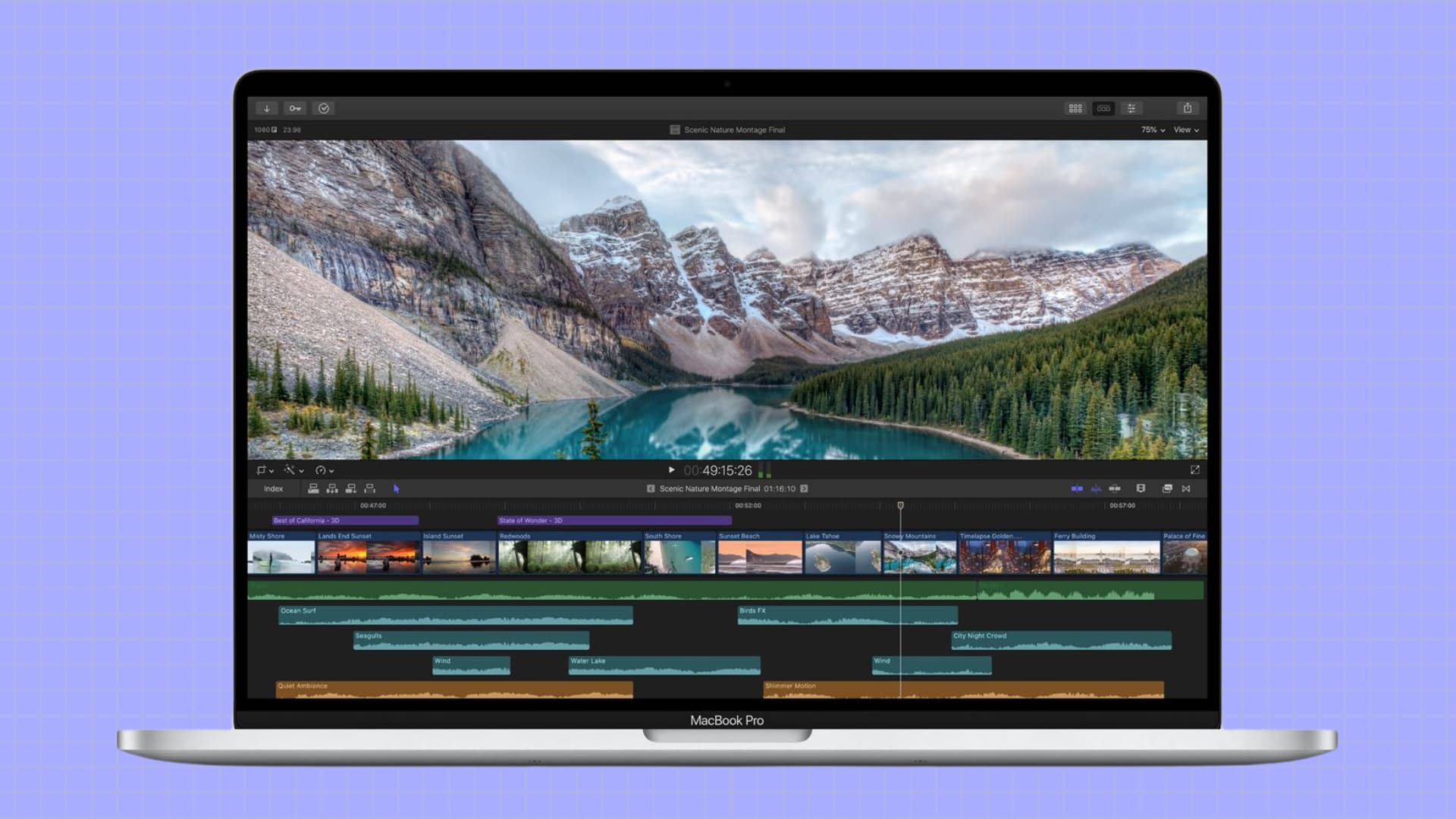
If you edit videos on your Mac, you have the option to change the refresh rate, so it matches your display to the frame rate of the video you’re viewing or editing.
Before we get to it, a quick reminder: “refresh rate” denotes the number of times a display is redrawn each second, expressed in Hertz (Hz). Most notebook displays refresh 60 times per second, or 60 Hertz. But some Macs and external monitors can go up to 120Hz, as well as make it easy to switch between several screen refresh rates.
Supported Macs
As a general rule of thumb, if you see the “Refresh Rate” option in Mac’s System Settings, that means you have the option to pick a different refresh rate.
If we talk about specifics, all 14-inch and 16-inch MacBook Pro models with Apple silicon chips have ProMotion displays that can adapt their refresh rate up to 120Hz. You can easily change the refresh rate on these.
Secondly, the 16-inch MacBook Pro launched in 2019 was the first Mac that allowed you to select a different refresh rate.
Lastly, if you connect your Mac to Apple’s Pro Display XDR or other supported third-party monitors, you’ll get the option to pick an available refresh rate.
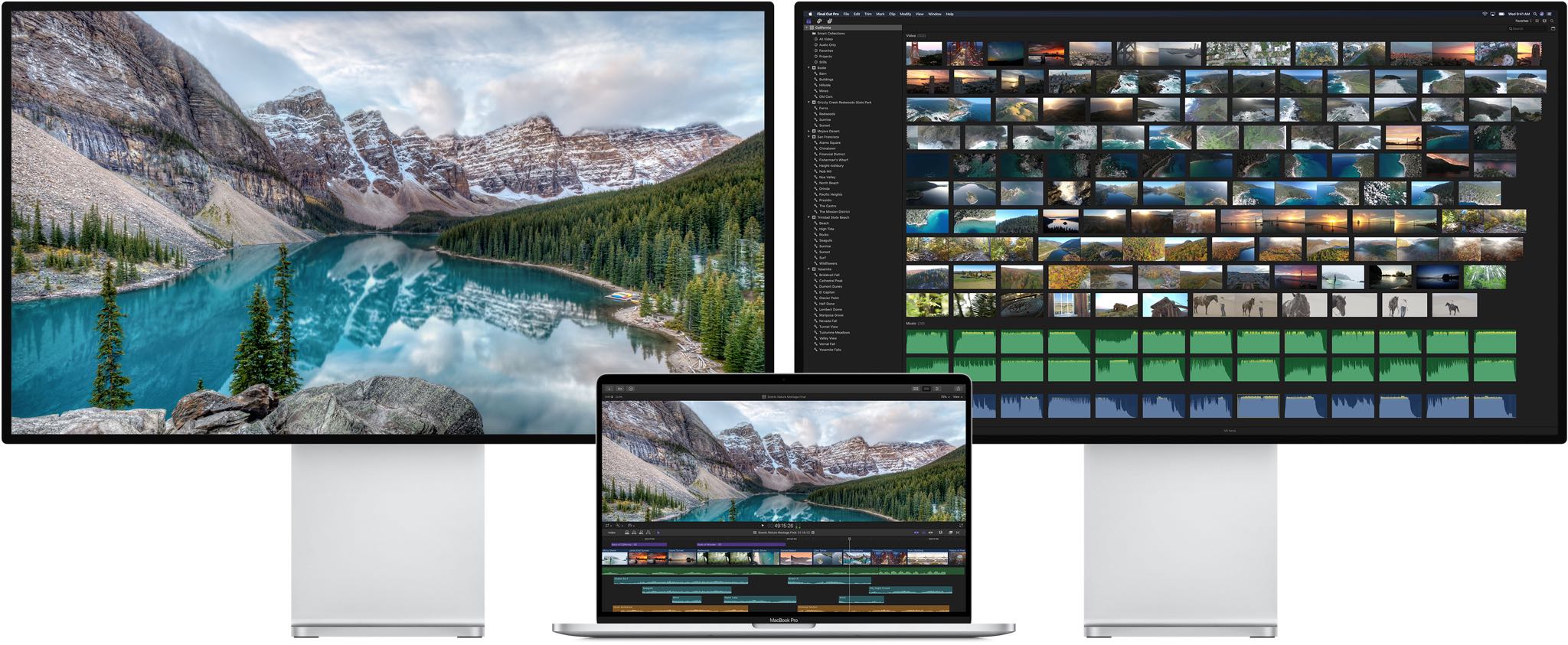
Available refresh rates
This depends on the screen or monitor you are using. That said, here are some of the available refresh rate options on a compatible Mac:
- 120Hz (ProMotion)
- 60Hz
- 59.94Hz
- 50Hz
- 48Hz
- 47.95Hz
- Variable (40-60 Hertz)
- 60 Hertz
- 50 Hertz
- 30 Hertz
- 25 Hertz
- 24 Hertz

Apple advises selecting a refresh rate that divides evenly into the frame rate of content at hand — i.e., if the content you’re viewing is displayed at 24 frames per second, choosing the 48 Hertz refresh rate ensures the display refreshes twice per frame of your content.
Keep in mind that even though a higher refresh rate results in a smoother picture and animations, it does so at the expense of resource utilization and your notebook’s battery life.
Change the screen refresh rate on Mac
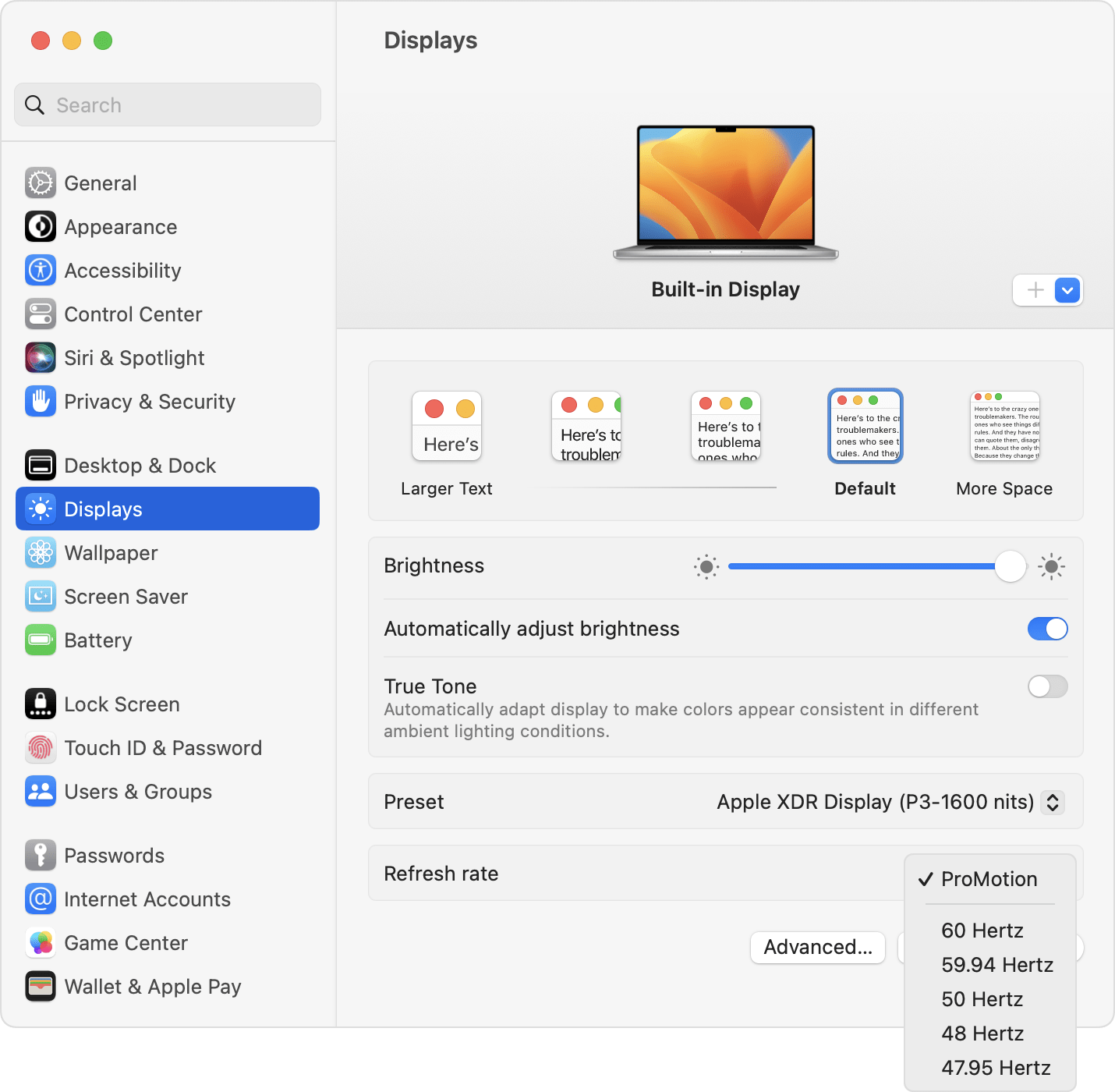
- Open System Settings or System Preferences.
- Select Displays.
- Click the Refresh Rate drop-down menu and select ProMotion, 60 Hertz, or another option.
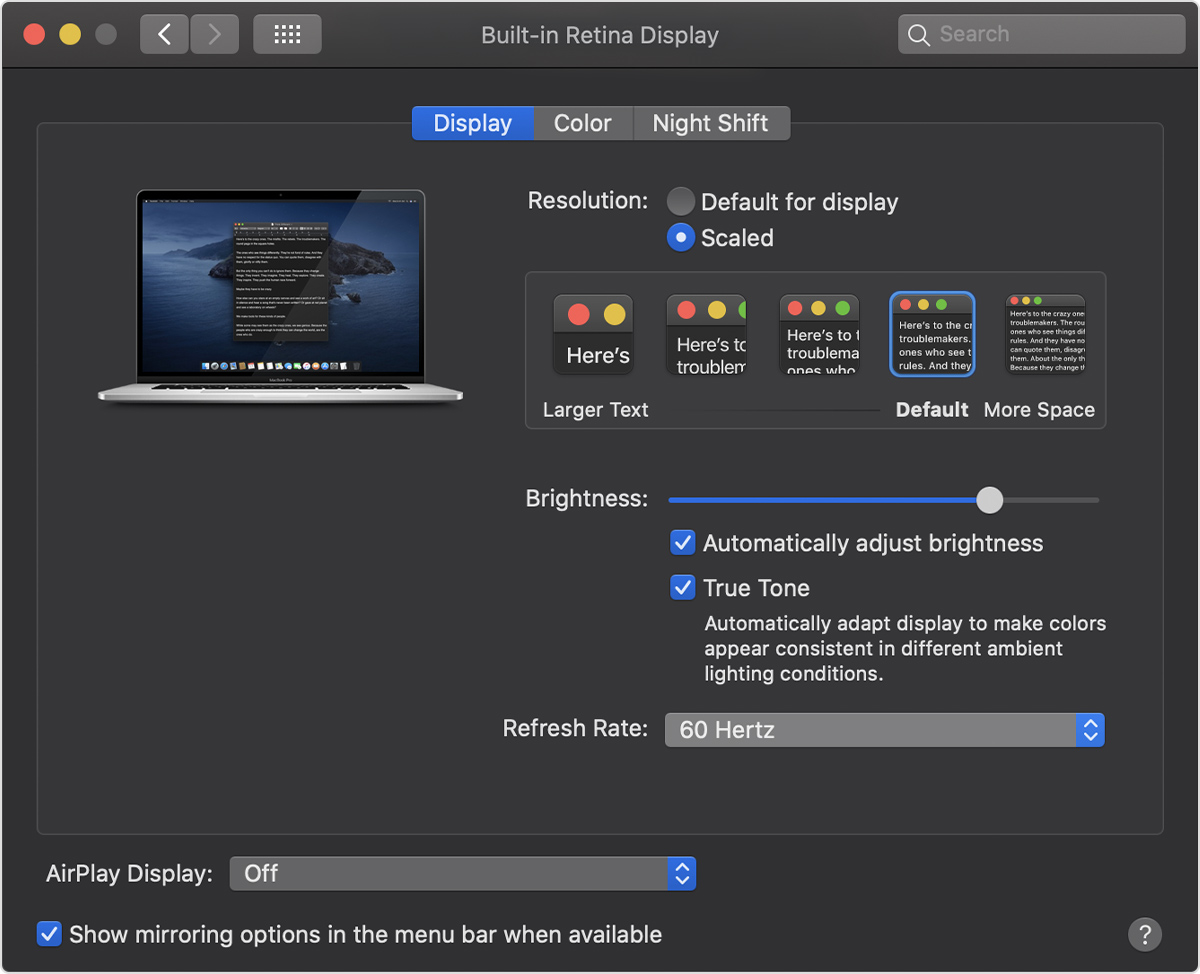
If your Mac is running macOS Big Sur and macOS Catalina, follow these steps instead:
- Open System Preferences and select Displays.
- Press and hold the Option key and select the Scaled button.
- Doing so forces the Refresh Rate pop-up menu to appear. Click it and choose a refresh rate.
While we’re on the topic of choosing a screen refresh rate, it would also be helpful if you take a moment to learn about Adaptive Sync.
On a related note: