Learn how to set up and customize subtitles and captions on your iPhone, iPad, Mac, and Apple TV to better enjoy your favorite shows and movies if you’re deaf or cannot hear properly.
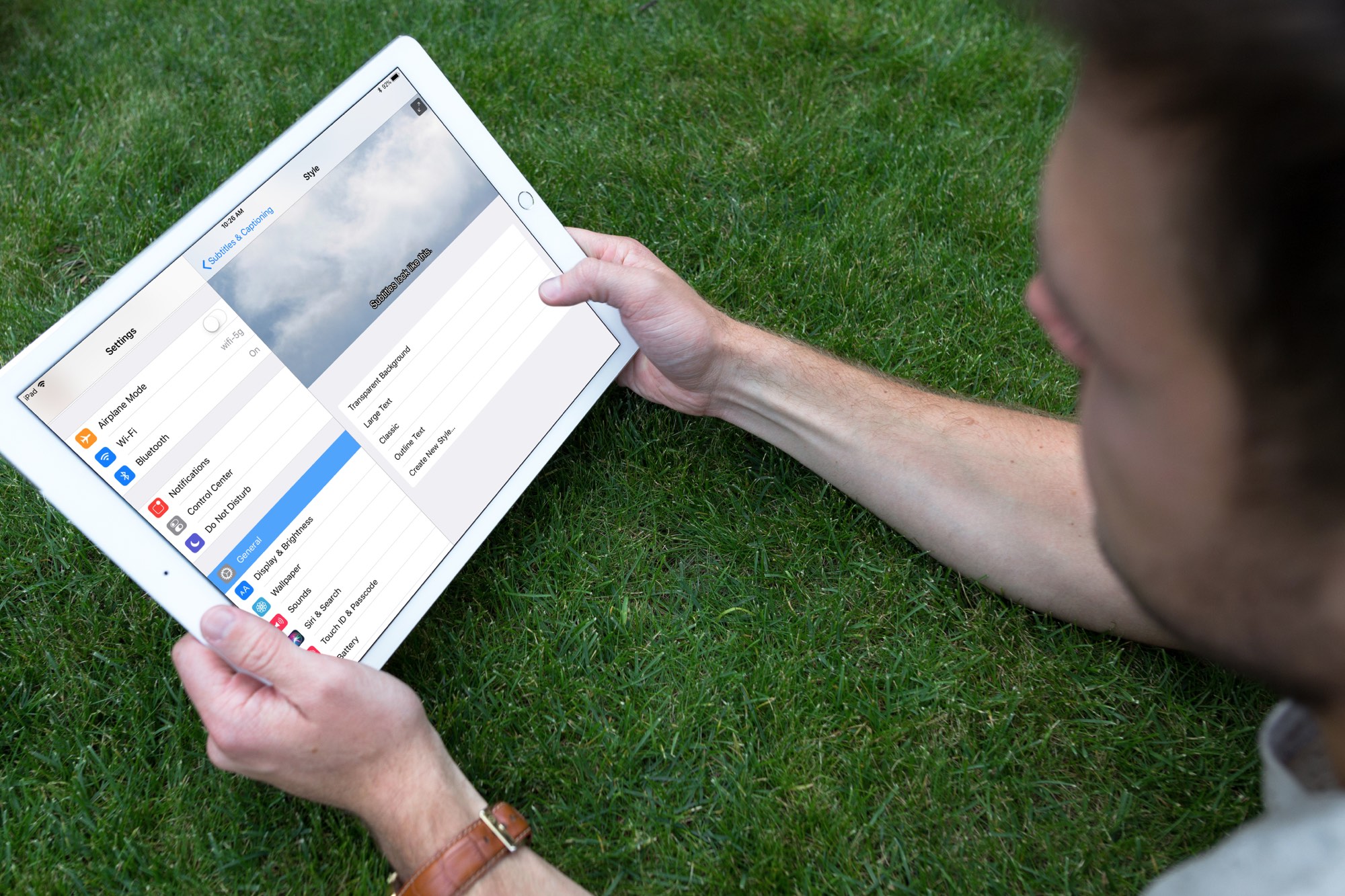
After enabling this feature on your Apple device, subtitles for the Deaf or Hard-of-Hearing (SDH) or closed captions (CC) will be used instead of standard subtitles. But remember that not all movies, TV shows, and video content have SDH or CC.
Enable subtitles and captions
iOS and tvOS
- Open the Settings app on your iPhone, iPad, or Apple TV, and select Accessibility.
- Scroll down to the Hearing heading and select Subtitles and Captioning.
- From here, turn on Closed Captions + SDH.
- Below that, pick Style to customize your subtitle and captioning display.

macOS
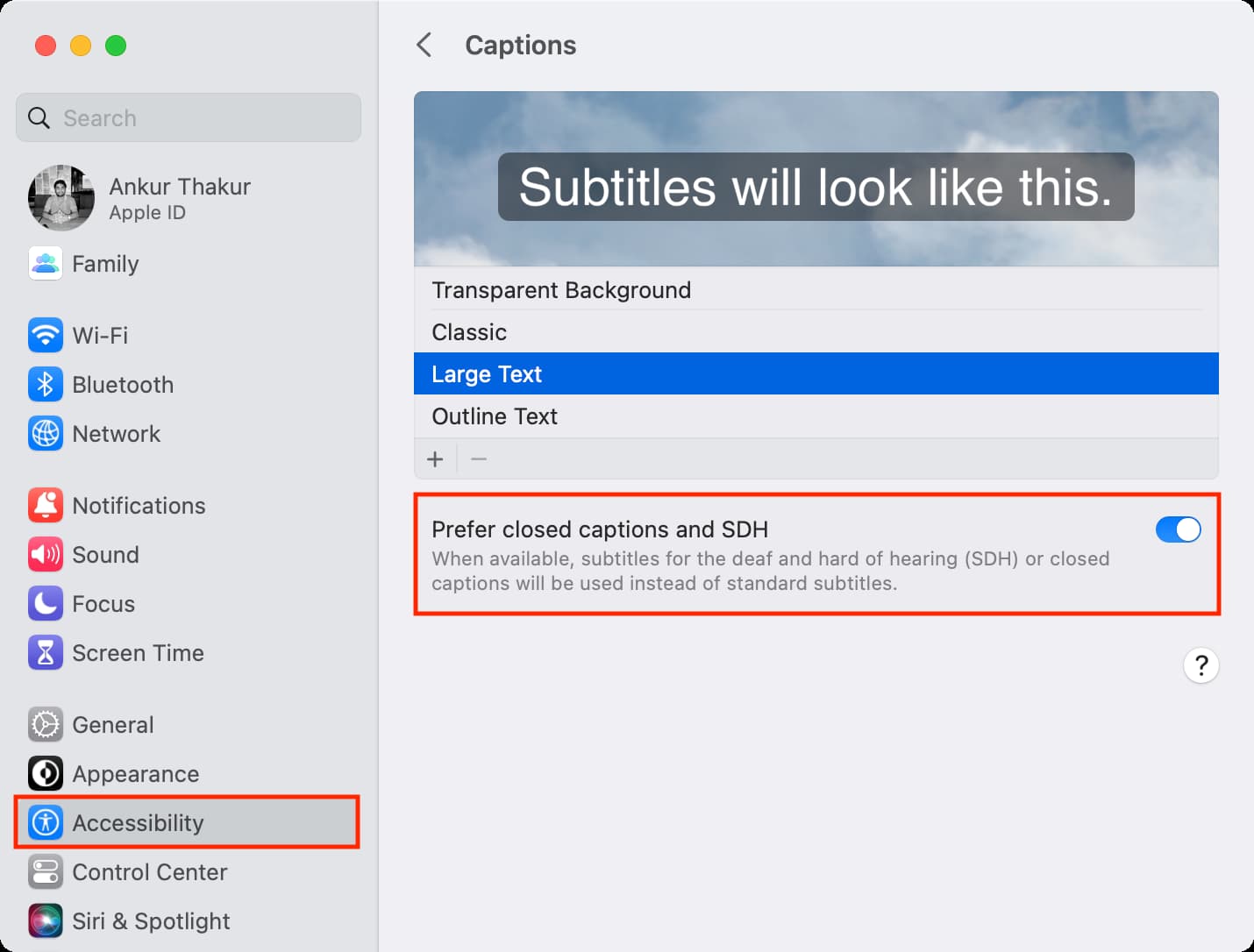
- Open System Settings or System Preferences and go to Accessibility > Captions.
- Select your caption style from the top, then enable Prefer closed captions and SDH.
Customize the subtitles and captions
On each device, you have the same options for how subtitles and captions are displayed. By selecting the options one by one, you can see how they will look.
- Transparent Background
- Large Text
- Classic
- Outline Text
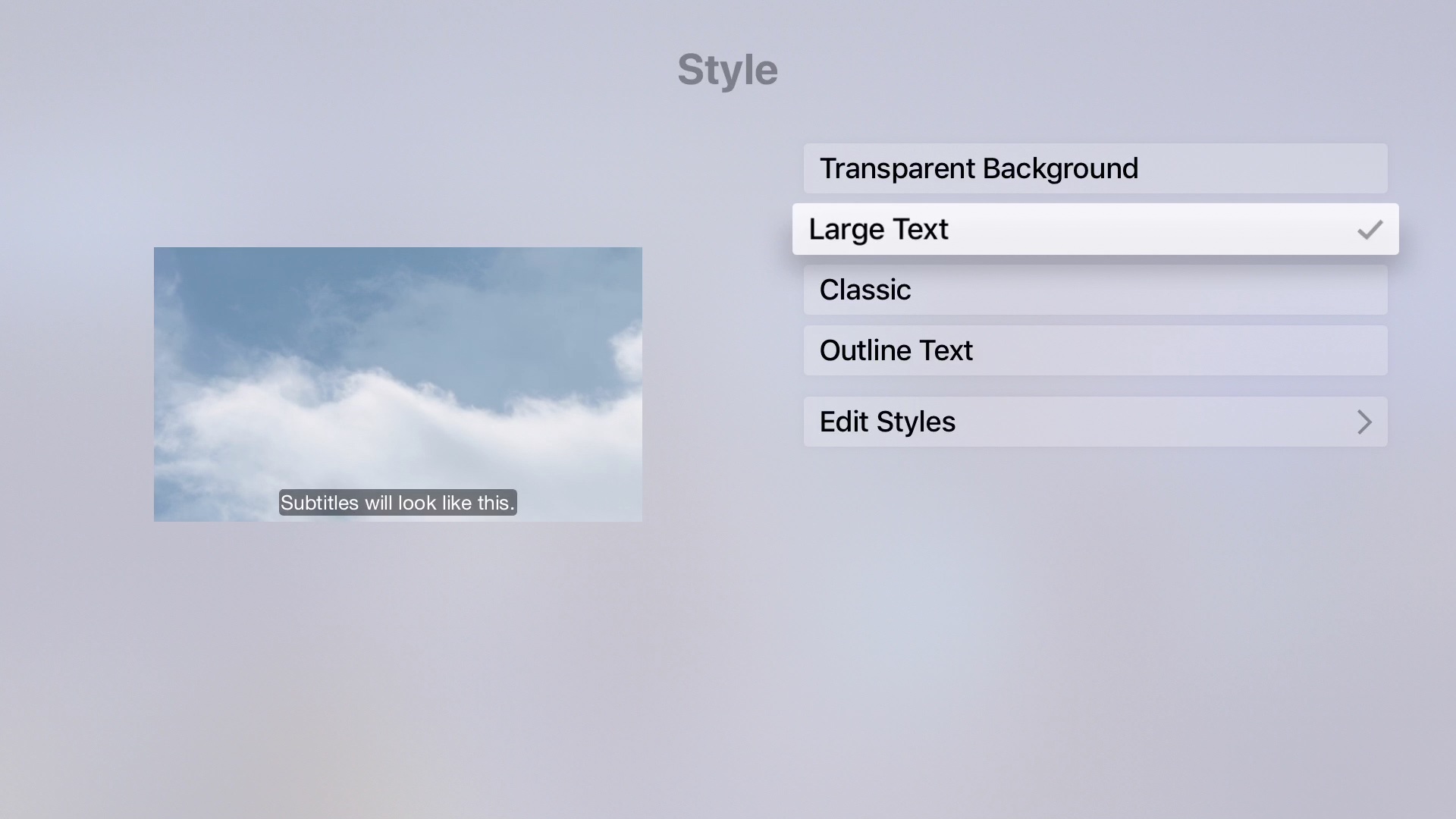
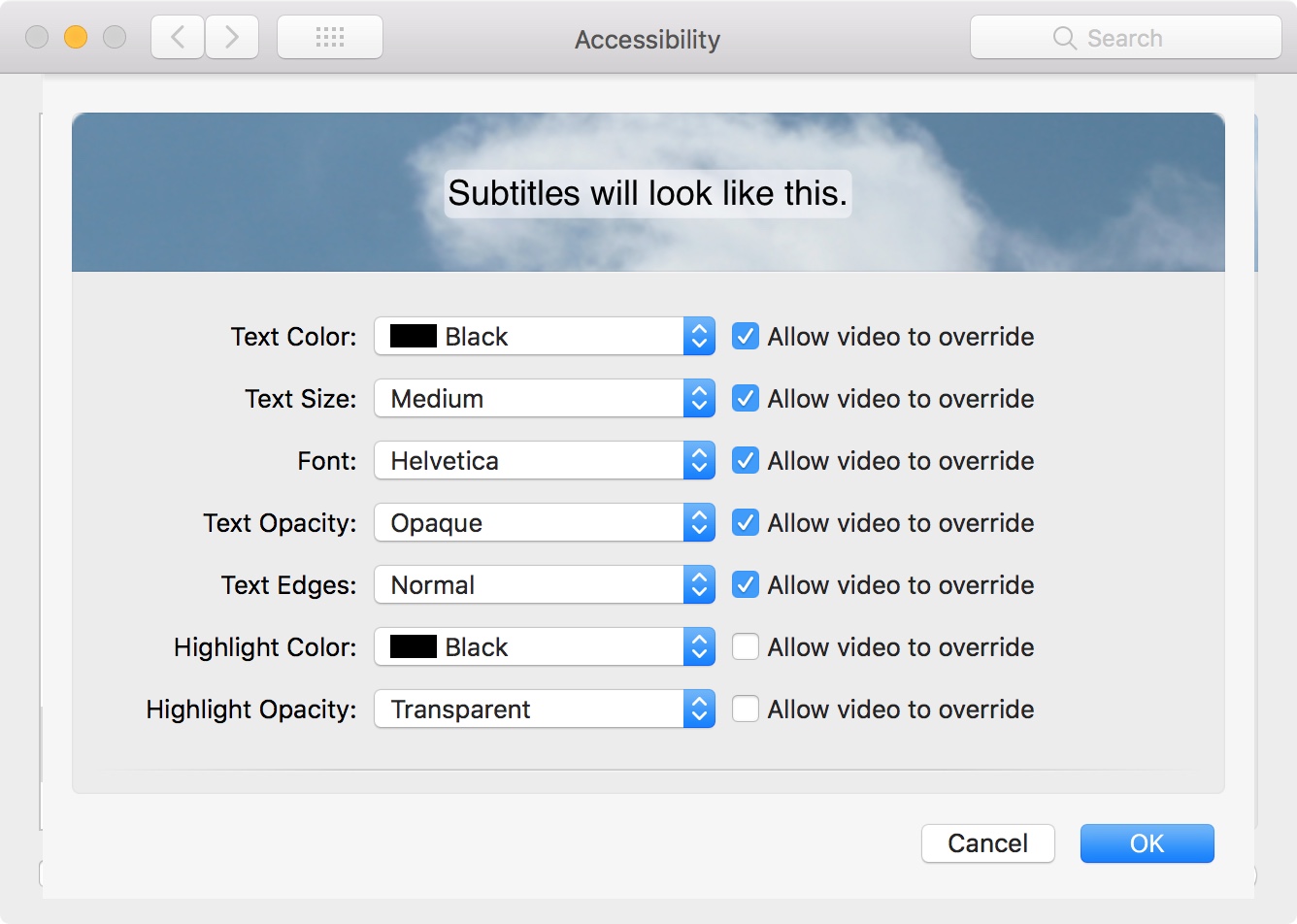
You can also create your own Style. On iPhone or iPad, select Create New Style. On Apple TV, click Edit Styles. And, on Mac, click the plus button.
Then, enter a Description or Style Name, depending on your device. You can choose the background color and opacity, text color and size, font style, and highlight and edge colors. This is a great way to adjust the subtitles and captioning exactly as you need or want them.
You can then select your saved, custom-made style from the list. Plus, you can edit or delete the styles that you create.
If you need or want to use subtitles and captioning when watching your favorite shows or videos, then the flexibility you have on your devices is awesome. You can get just the right look to make your viewing time more pleasurable.
If you have subtitles or captioning enabled on apps like YouTube and Netflix, the appearance you customize will apply to those apps as well.
Also, check out: