Learn how to use the Find My app or iCloud on your iPhone, iPad, or Mac to locate your lost AirPods. We’ll also show you how to make your AirPods play a high-pitched sound or use AirTag-like precision tracking to find them and their charging case.
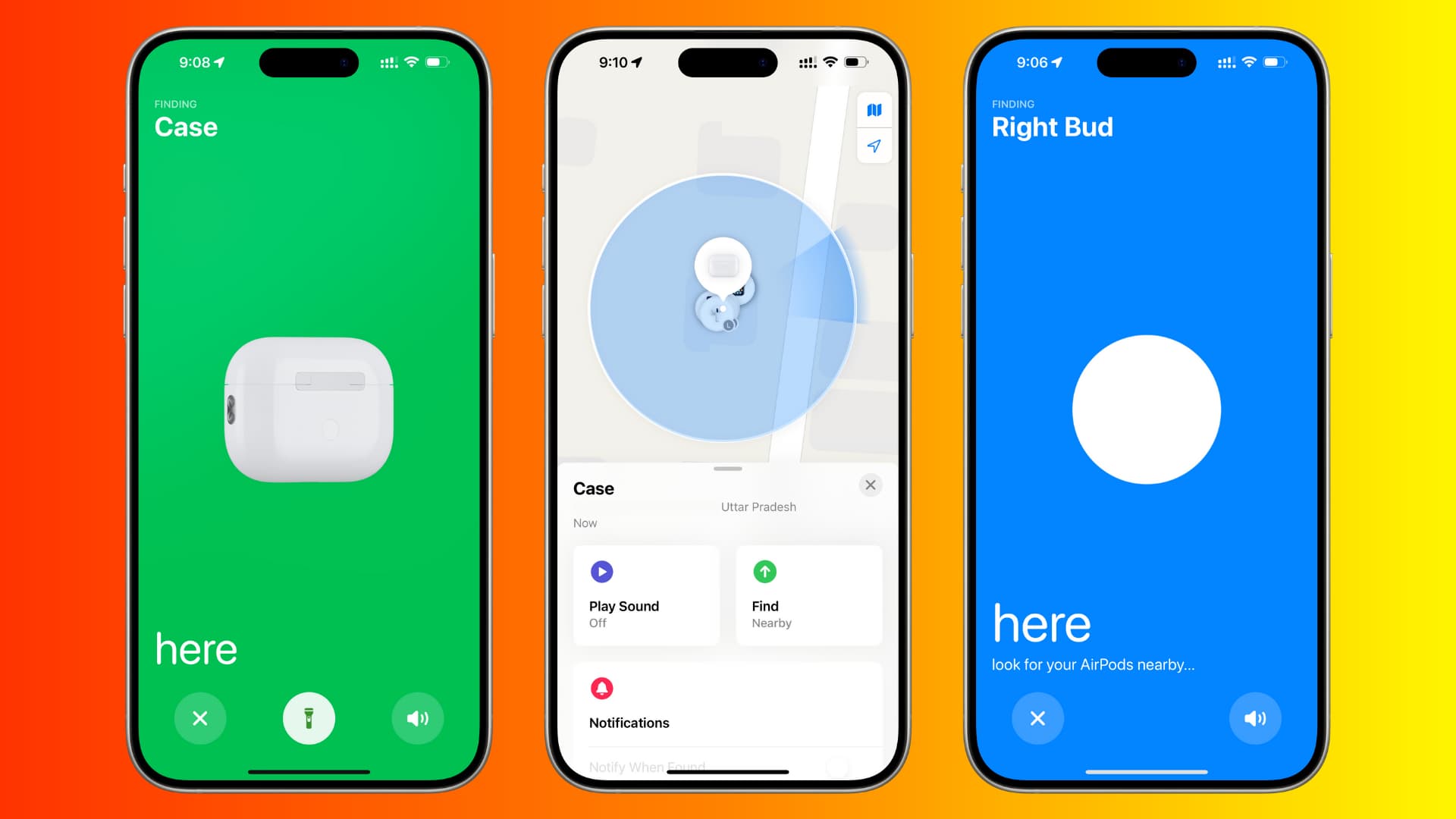
Like other Apple devices, your AirPods are also tied to your Apple Account and appear in the Find My app and iCloud website. This can help you locate missing pods by showing their live or last-known location and playing a sound. With newer models like the AirPods Pro 2nd generation, you can also get step-by-step guidance to find the precise location of each bud or charging case.
All these features are very handy if you misplaced your AirPods or just let one slip between the couch cushions and are having a hard time finding it.
Note: You can also use these steps to find your newer Beats earphones and headphones, as Beats is owned by Apple and shares technology with AirPods.
See the location of your missing AirPods
This works with all AirPods models.
Using Find My app
- Open the Find My app on your iPhone, iPad, or Mac.
- Tap Devices.
- Select your AirPods from the list of devices you own. Note that if you have an AirPod Pro 2nd generation or newer, you can select the charging case, left bud, or right bud if the AirPod(s) are not in the case.
- You’ll now see the AirPods or charging case location on the map. Zoom in on the map to know where they are. You can also use the directions button to open Apple Maps and navigate to the spot where your AirPods are. The directions title is replaced with the Find tile if your AirPods are nearby (more on it below).

Note: You may not see the location if your lost AirPods are discharged or out of range of the paired iPhone or other Find My Network Apple devices. In these cases, Find My will show you the last known location of your AirPods or display “No location found” or “Offline.” You can’t do much, but in case your lost AirPods come back online, you’ll get a notification on your devices.
Using iCloud
If you cannot use the Find My app on your iPhone, iPad, or Mac or the Find Devices app on your Apple Watch, you have the option to use iCloud on a phone or computer browser.
- Visit iCloud.com/find and sign in with your Apple ID email and password.
- Select your AirPods from the All Devices section.
- You can now see the location of your AirPods on the map.

Play sound on your AirPods to find them
This works with all AirPods models.
Imagine you have misplaced your AirPods somewhere in your bed or office. In this case, you can use the Find My app or iCloud to play a loud sound on the buds to locate them.
- Select your missing AirPod(s) in the Find My app or iCloud web. If you have an AirPods Pro 2nd generation or later or AirPods 4 with ANC, you can select where you want to play the sound: Case, Left Bud, or Right Bud. Yes! The charging case has its own speaker!
- Tap Play Sound.
- Now, listen carefully to locate them. The sound will eventually get louder, helping you find the AirPods. If you still can’t, and the sound stops, you can play it again.

Note:
- You’ll see the ‘Sound Pending’ message if the missing AirPods are offline. In this case, the sound will play the next time they connect to a device.
- If you have misplaced both AirPods at different locations and you find one, keep it in the charging case, then play a sound on the other one that’s still missing.
Use Precision Finding to locate your AirPods
- This method works with AirPod Pro 2nd generation and newer.
- You also need an iPhone 11 or newer (excluding iPhone SE 2nd and 3rd generations). It won’t work if you use the Find My app on your older iPhone, iPad, or Mac, as these devices don’t have the Ultra-Wideband chip for Precision Finding.
Imagine you have misplaced your AirPods Pro in another room, but you don’t know that. In this case, your iPhone can guide you where to walk to find them. It’s much like how you use Find My to locate an item attached to an AirTag.
- Open the Find My app on your iPhone.
- Tap Devices and select your AirPods. If buds are out of the case, select the case for now.
- Tap Find Nearby.
- Now, move around and help your iPhone establish a connection with your AirPods or charging case. Once it establishes a link, your iPhone can guide you to the location of the missing item. You can also play a sound from this screen, or if it’s dark, you’ll see an option to turn on the iPhone flashlight to find your missing AirPods and the charging case.

You can also use the above steps to find an individual AirPod, but it’s not Precision Finding per se. You won’t see arrows and directions on where to walk (because, unlike the charging case, AirPods themselves don’t have the Ultra Wideband chip). But you’ll get general instructions to look nearby or look somewhere within reach.

Can you lock your AirPods to prevent them from being used by a thief?
You can remotely lock your iPhone, iPad, or Mac using Find My or iCloud, and it will prevent the thief from using the device. Even if they erase and restore the device, Activation Lock will prevent them from setting it up for use. However, AirPods don’t have this feature. The thief can just reset AirPods without a phone or computer and then pair them with their Apple or non-Apple device.
How finding AirPods works
Because your AirPods are connected to your device via Bluetooth, it’s very likely that when they disconnect from your iPhone, your iPhone will log the GPS location where that disconnection happened. This is actually similar to a feature that automatically logs the location of your car if it’s connected via CarPlay or Bluetooth to your iPhone when you turn off the car.
The location where the AirPods and iPhone were “last seen together” can offer a high probability that your AirPods are still there unless, of course, someone stole them and left with them.
Secondly, AirPods (3rd generation), AirPods Pro (all generations), and AirPods Max can also take advantage of Apple’s Find My Network, provided you enabled Find My Network on your iPhone, iPad, or Mac where you had paired your AirPods. Find My Network uses all participating Apple devices of other people to securely relay the location of your missing device to you.