Wouldn’t it be nice if you could just turn on your Mac and start using it without having to log in to it all the time? If you’re someone who doesn’t need Fort Knox-like security to keep people from getting into your computer, then you can set up your Mac to log in to your account automatically when you turn it on, and we’ll show you how to do that.
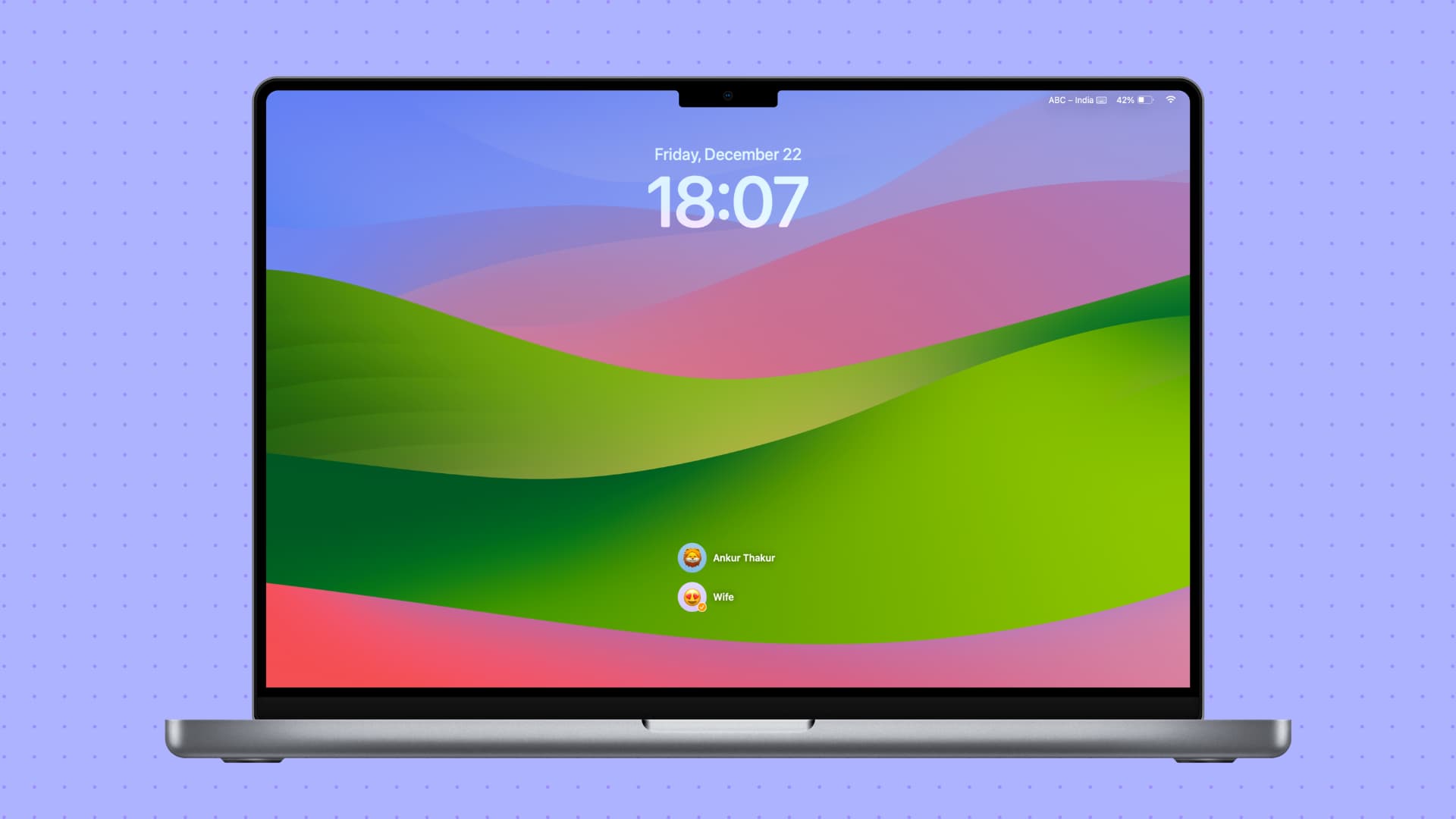
Assuming there’s no one in your household who’s actively trying to gain access to your computer all the time, configuring your Mac this way can increase the convenience of using your computer.
This configuration works best for people who live alone or don’t live with nosy roommates or family members, as it does reduce the security of your system. It’s not recommended for people who need to keep the files on their computer secure, so keep that in mind.
Important: If you set your Mac to auto-login, you won’t be able to use Touch ID and Apple Pay on it.
Note: If all you want to do is log in without a password to use the computer temporarily, then turn on the optional Guest account feature. Downloaded files and everything else are automatically wiped when you end Guest mode.
Set your Mac to auto-login when you switch it on
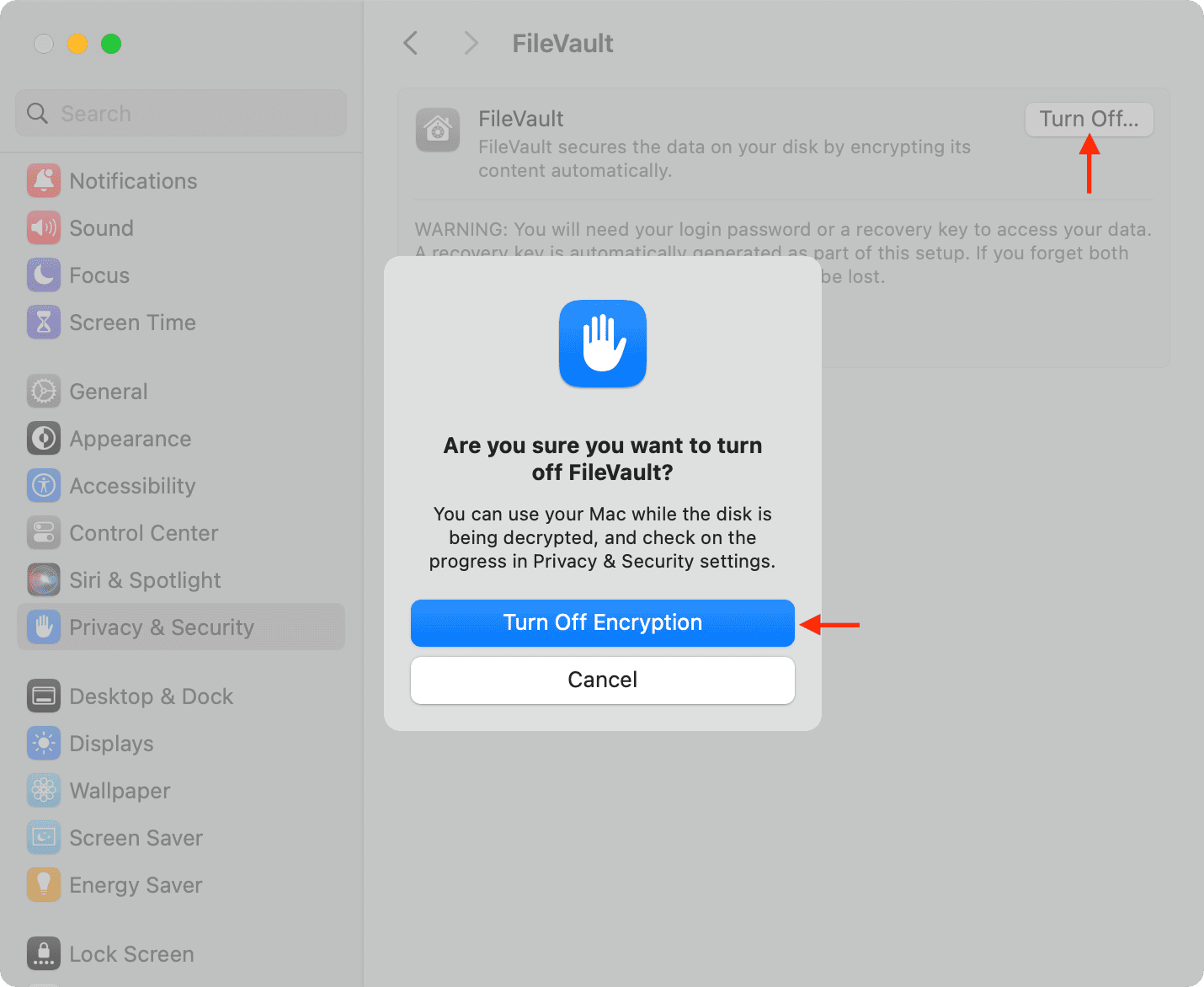
1) You’ll have to turn off FileVault to activate auto-login. So open System Settings and click Privacy & Security. Scroll down, and if FileVault is on, turn it off. Then, enter your Mac’s admin password and click “Turn Off Encryption.”
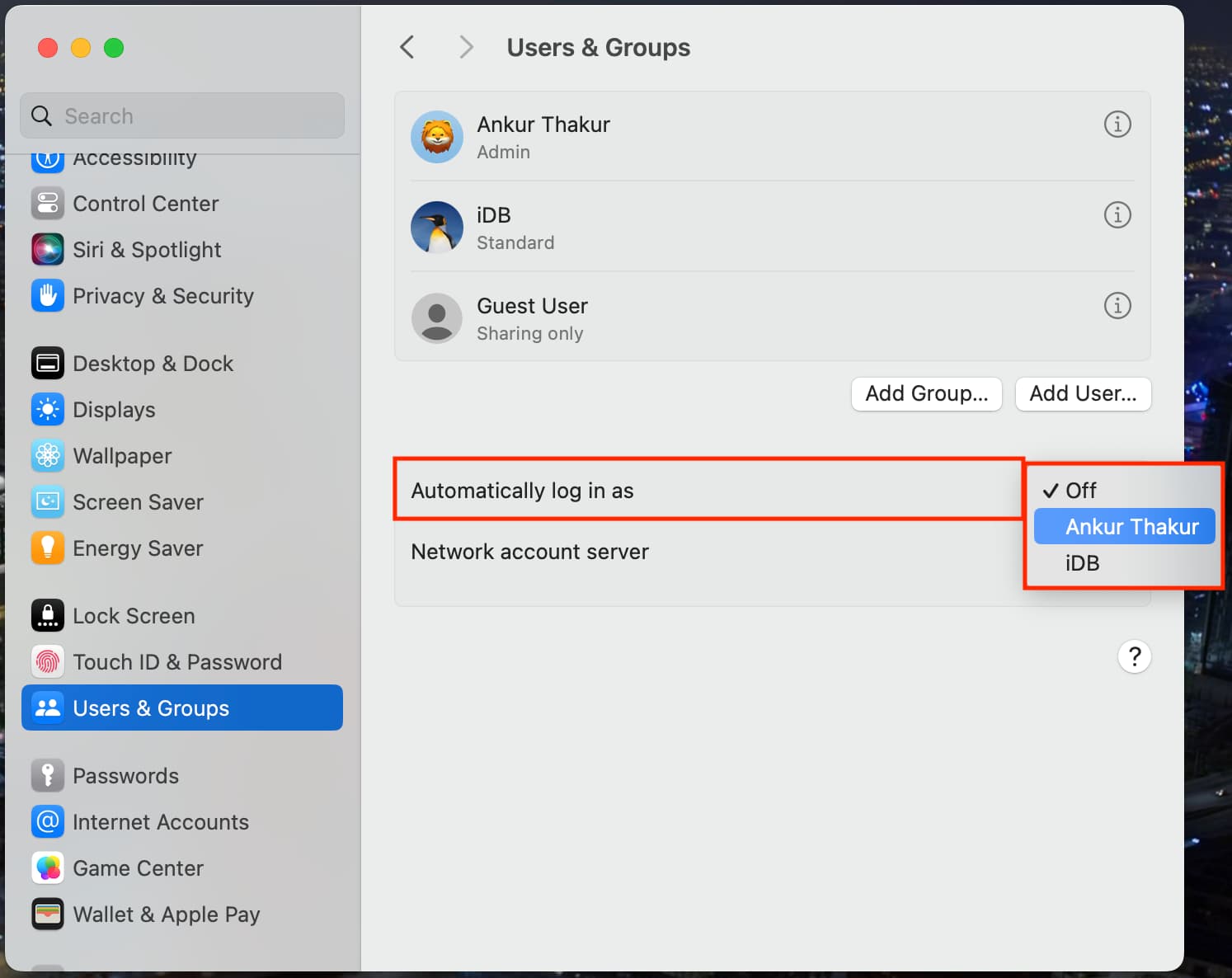
2) Once FileVault is off, go to Users & Groups in System Settings.
3) Click the drop-down menu next to ‘Automatically log in as’ and select one of the users.
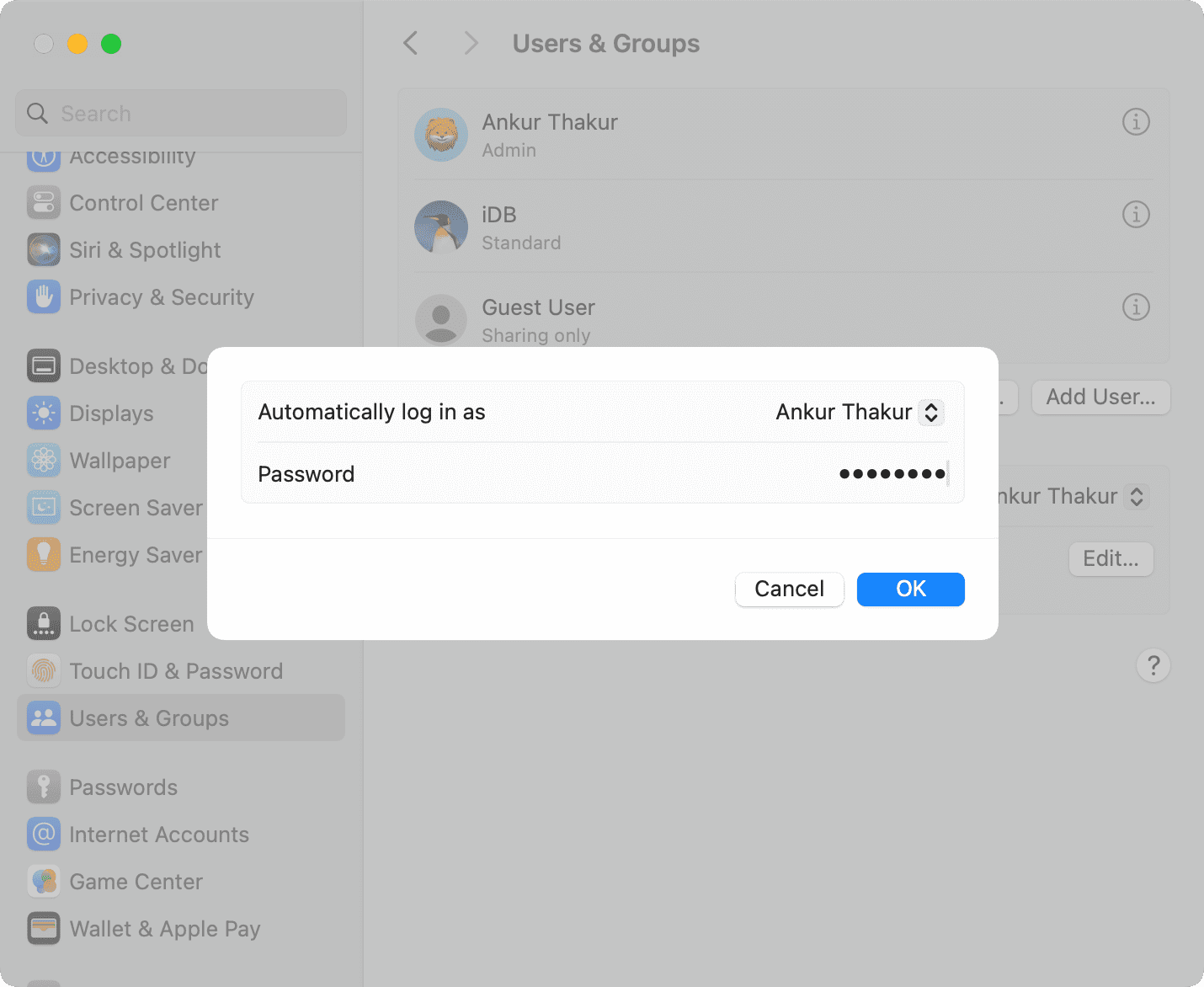
4) Enter your Mac’s admin password, followed by entering the chosen account’s password that you want to use for auto-login.
5) Now, go through the consequences of auto-logging, which says, “Turning on automatic login will disable Touch ID and remove any Apple Pay cards from this Mac.” Click Continue if you want to proceed with auto-login.
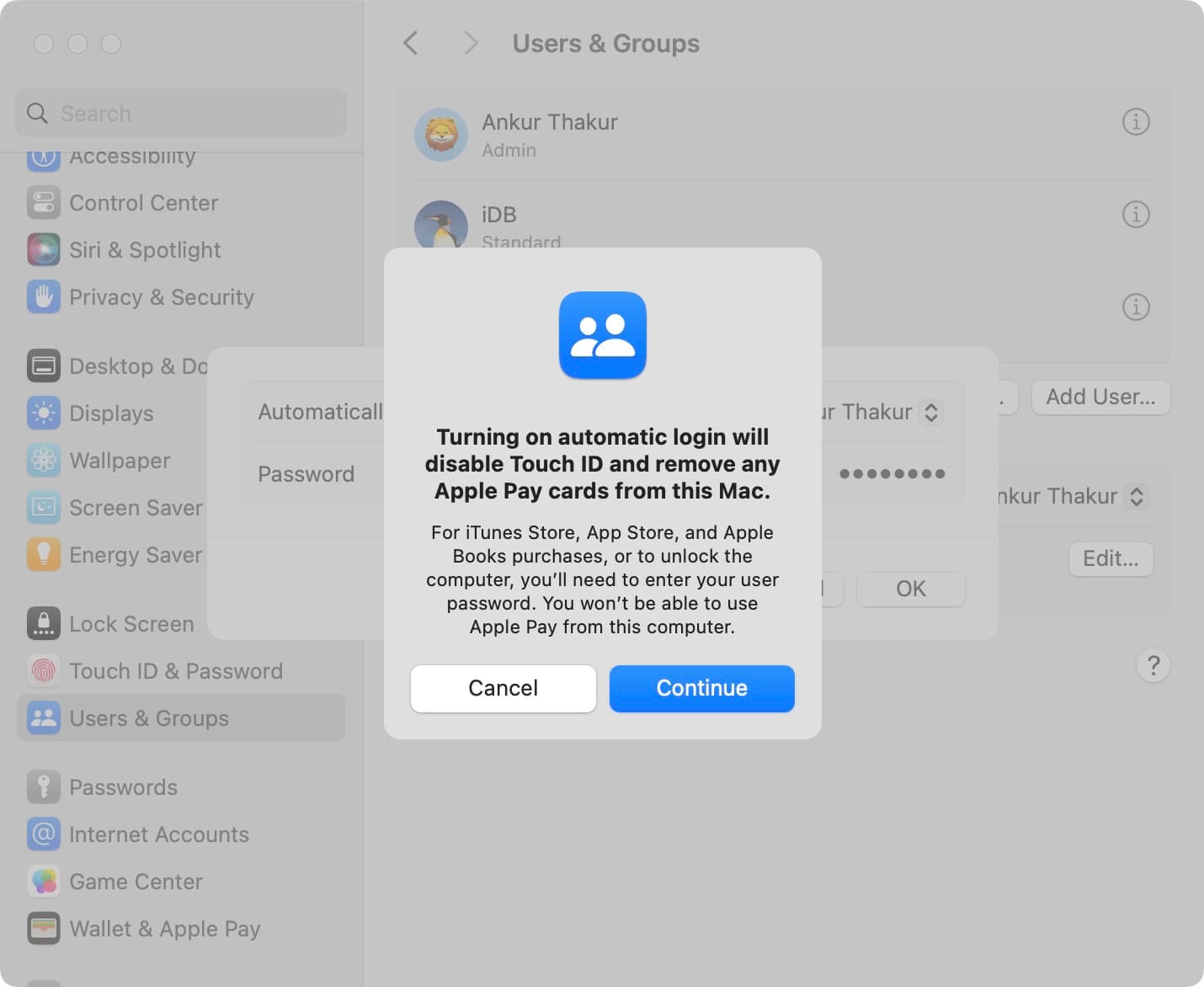
After you’ve set the account you want for Automatic Login, you should be able to test it out by restarting your Mac. When it turns back on, it should log you into the selected account automatically without requiring you to enter any passwords.
On old versions of macOS
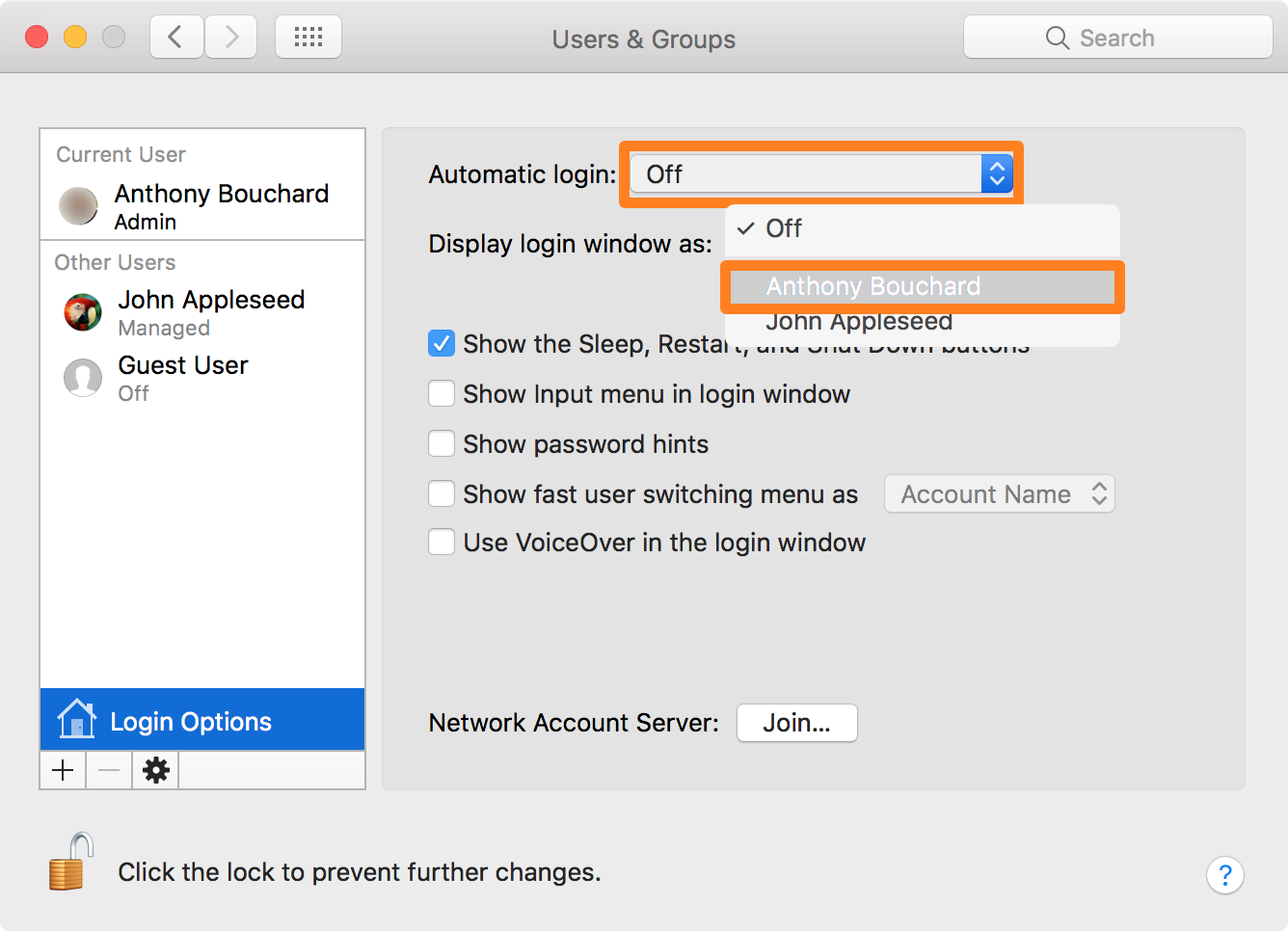
Go to System Preferences > Users & Groups > Login Options. From here, click the lock button at the bottom left of the window and authenticate using your admin password. Finally, click inside the Automatic Login combo box and select the account you want your Mac to log in to automatically when it powers on.
Fix automatic login not working on Mac
Although this feature lets the Mac log you in automatically when the computer is started, it will not log you in automatically again if you log out or switch users. If this happens, you’ll need to enter your password to re-enter your account. Nevertheless, if you simply reboot the computer, it will once again log you in automatically.
If you’re having trouble setting up automatic login for a specific account on your Mac, it could be because FileVault is enabled on that account or because it has been configured for login with an iCloud account. If the problem has to do with FileVault, you’ll need to turn it off.
After you follow either of the two remedies above, you should be able to go through the steps mentioned in this article to set up the Mac user account for automatic login.
Will you be setting up any of your Macs for automatic login?
Check out next: