Have you ever enabled VoiceOver on your iPhone or iPad either by accident or out of curiosity, and then couldn’t figure out how to disable it? In this tutorial, we’ll show you how to turn VoiceOver off and regain control of your device.
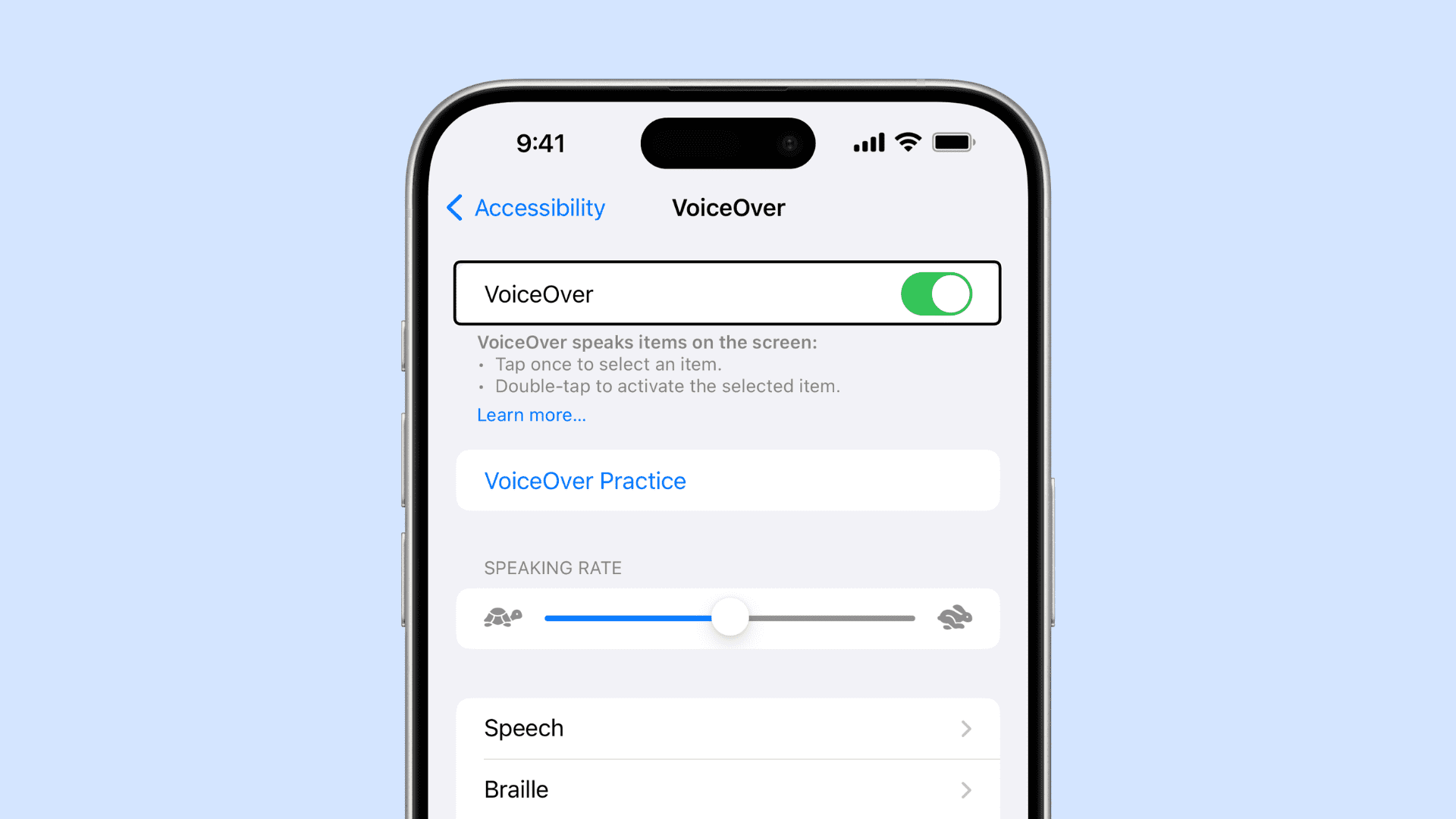
With VoiceOver enabled, tapping on a button or icon just makes your iPhone spit out a ton of Siri voices that narrate everything you do on your device aloud. So, one might get frustrated while trying to figure out how to turn it back off.
The way VoiceOver works is when you tap on something, iOS will read aloud what it is you’ve tapped on, and then you’ll need to double-tap on the item to invoke its function.
The feature is designed for those who can’t see well, and that’s why it’s so loud and obnoxious to those of us who don’t need it. So, what do you do to disable the feature if you don’t want it turned on anymore? It’s quite simple, really.
How to disable VoiceOver
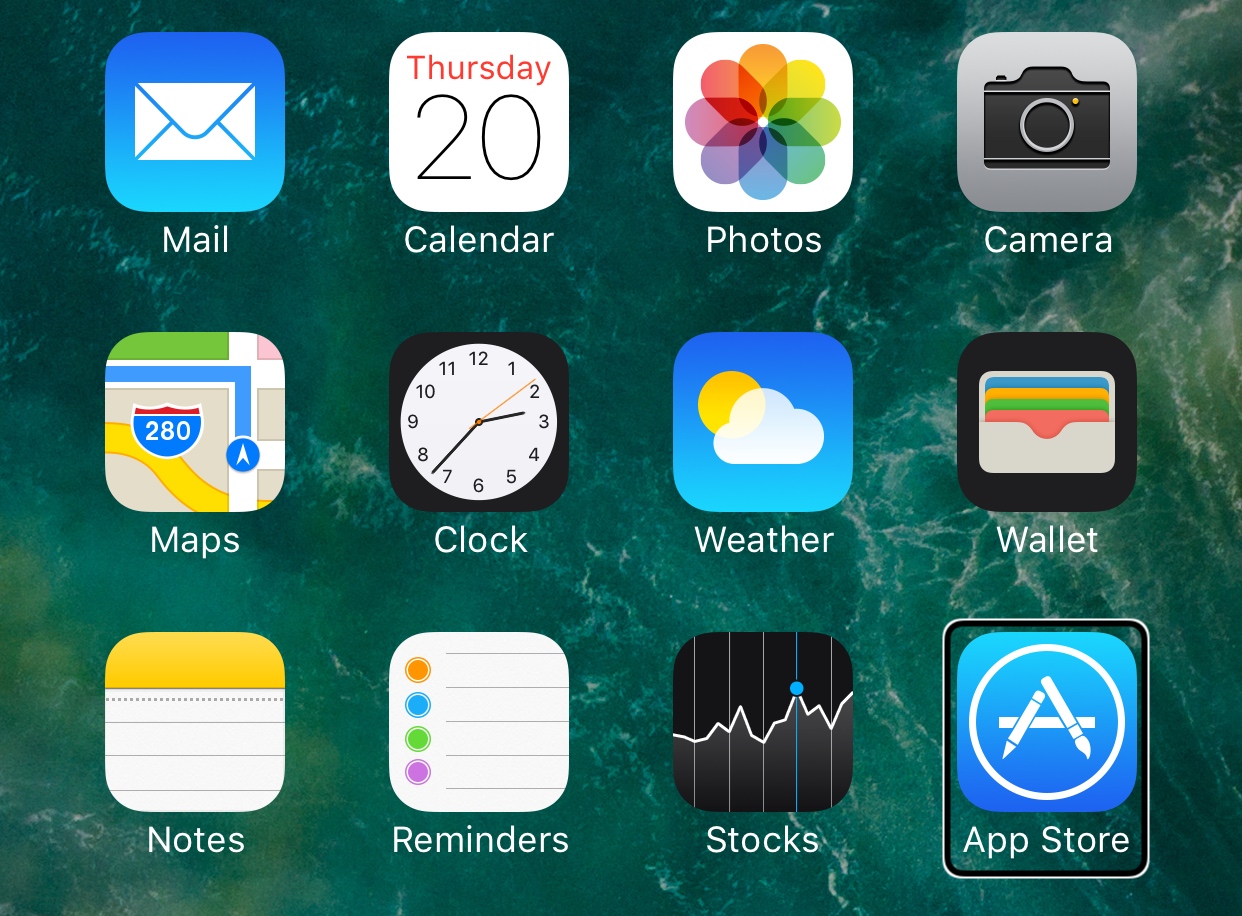
If you have VoiceOver turned on, then you should notice a bounding box around anything you select on your device. In this case, we’re on the Home Screen, and the bounding box is on the App Store app:
The easiest way to turn it off is to invoke Siri and ask it to “Turn off VoiceOver.”

Alternatively, you can follow these steps.
The Home Screen is where we’re going to begin this tutorial since it’s a great place to start. Without further ado, follow these steps:
- Tap the Settings app once to select it, then double-tap it to open it.
- When the Settings app opens, tap once on the Accessibility section, then double-tap to open it.
- From here, you’ll need to tap VoiceOver in the Vision section to select it and then double-tap to open it.
- Once you can see the VoiceOver toggle switch, tap it once to select it, and then double-tap to toggle it off.
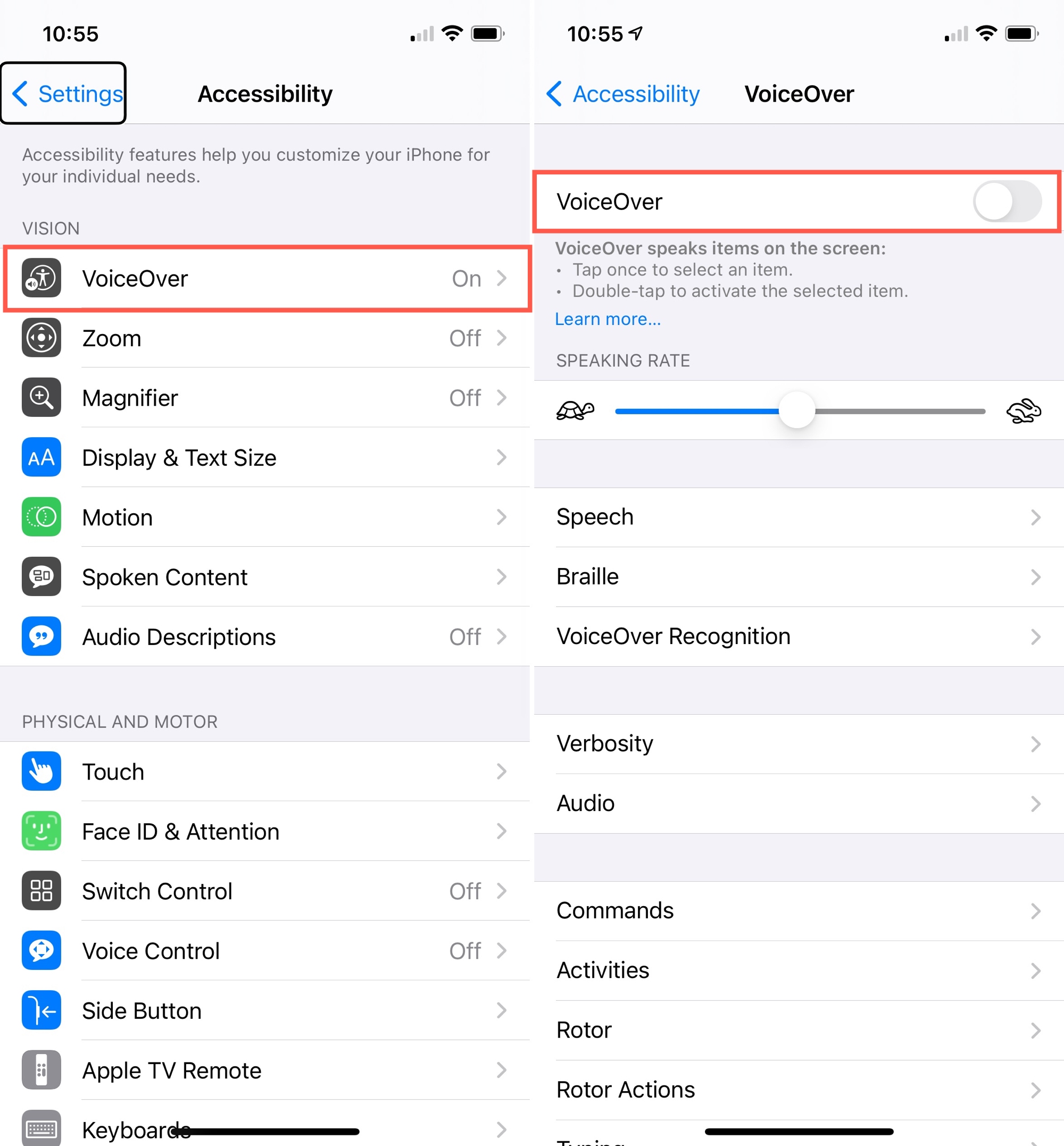
VoiceOver should now be disabled on your iPhone or iPad. Now that that’s over, your iPhone will stop narrating everything you do out loud, and you won’t have to double-tap on everything to engage it.
Check out next: