Want to avoid toll roads in Apple Maps on your iPhone, iPad, or Mac? In this tutorial, we’ll share two different methods to do that.
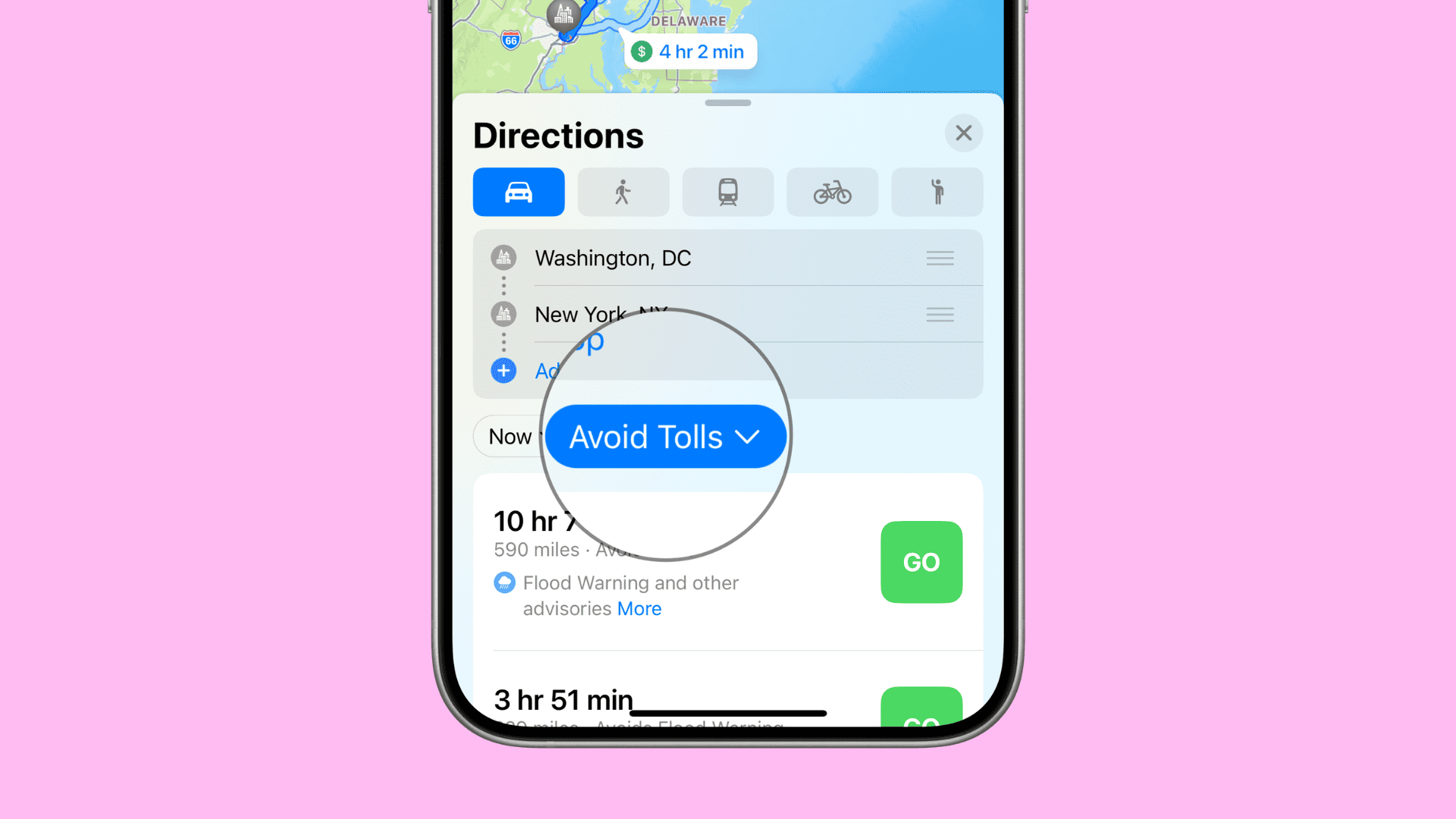
Apple Maps offers the ability to streamline your navigation experience by avoiding toll roads or highways. Since nothing’s worse than being stranded on a toll road without any cash, it’s a breath of fresh air to know you don’t need to download a third-party navigation app like Google Maps to avoid them.
Important: Because toll roads are typically designed to help save time during lengthy road trips, the ETA to get to your destination may increase when toll road options are turned off.
Avoid toll roads in Apple Maps
Follow these steps to avoid toll roads for a particular journey.
On iPhone or iPad
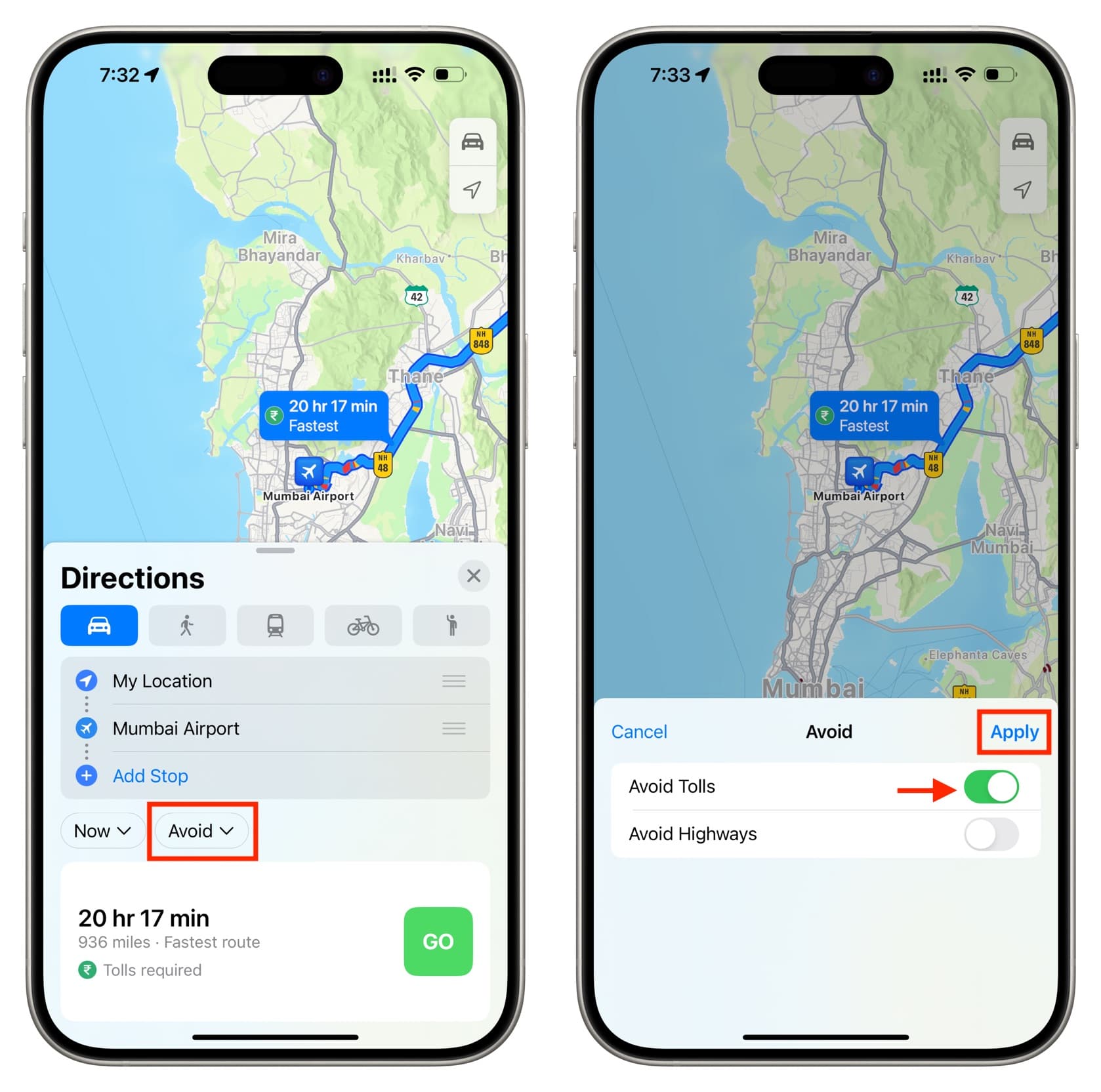
- Open the Maps app on your iPhone and begin a navigation route to any start point and end point you want.
- Once you see the overview of your road trip, tap Avoid.
- You’ll see the options to avoid tolls and highways. Turn on Avoid Tolls and tap the checkmark icon or Apply.
- Apple Maps will now reroute your destination to avoid toll roads. Once satisfied, tap on the green GO button to begin navigating.
On Mac
- Search for a location in Apple Maps and get directions to it.
- Click the Avoid button, check Tolls, and then click the checkmark icon. If you don’t see the Avoid option, click Options and check the box for Avoid Tolls or Highways.

Turn on toll avoidance in settings
Another way to avoid tolls by default for all your journeys while navigating in the Maps app is found in settings. Here are the steps for that.
On iPhone or iPad
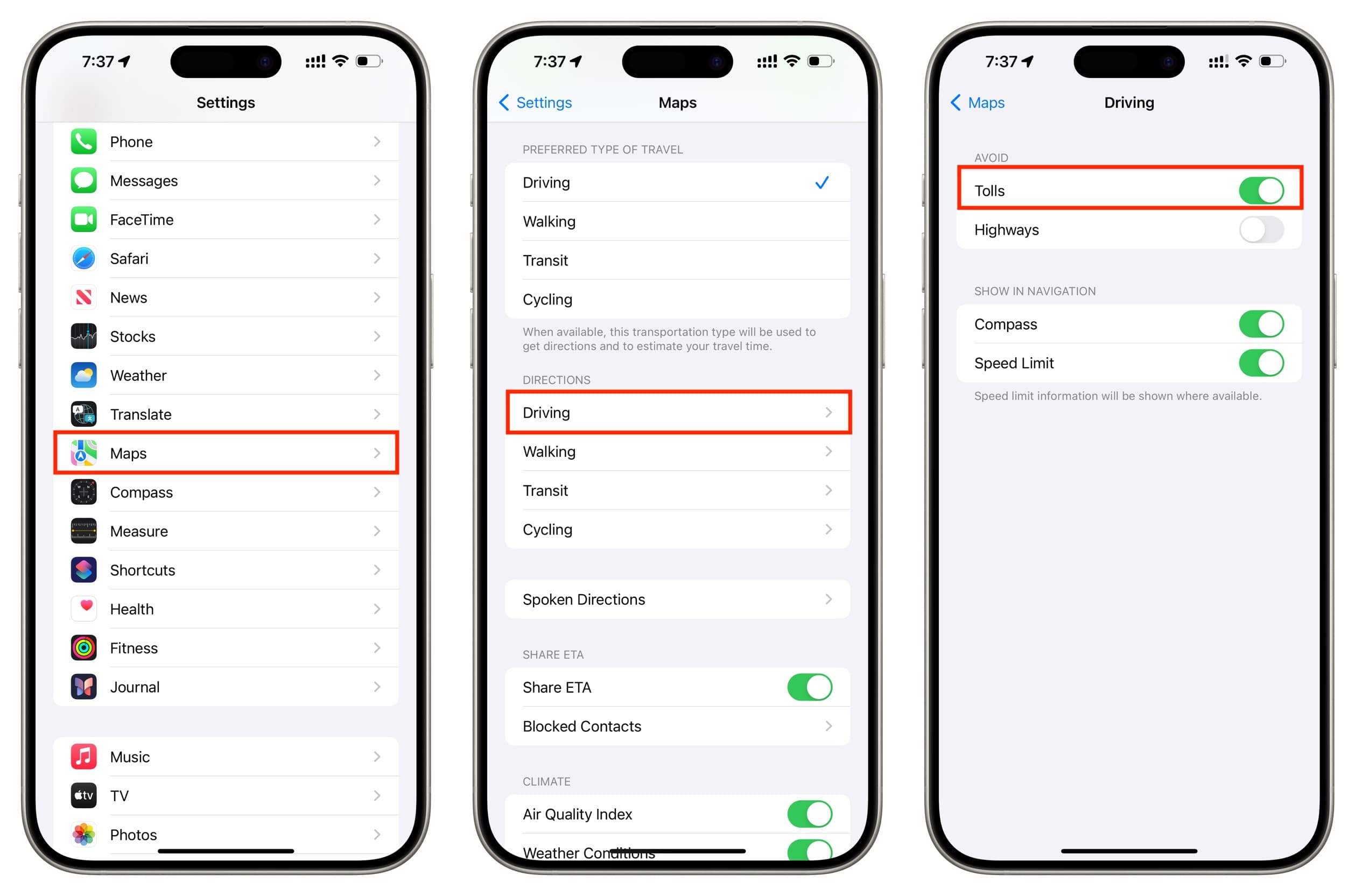
- Open iOS Settings, tap Apps, and select Maps.
- Tap Driving under the Directions heading.
- Turn on the Tolls switch under the Avoid section.
On Mac
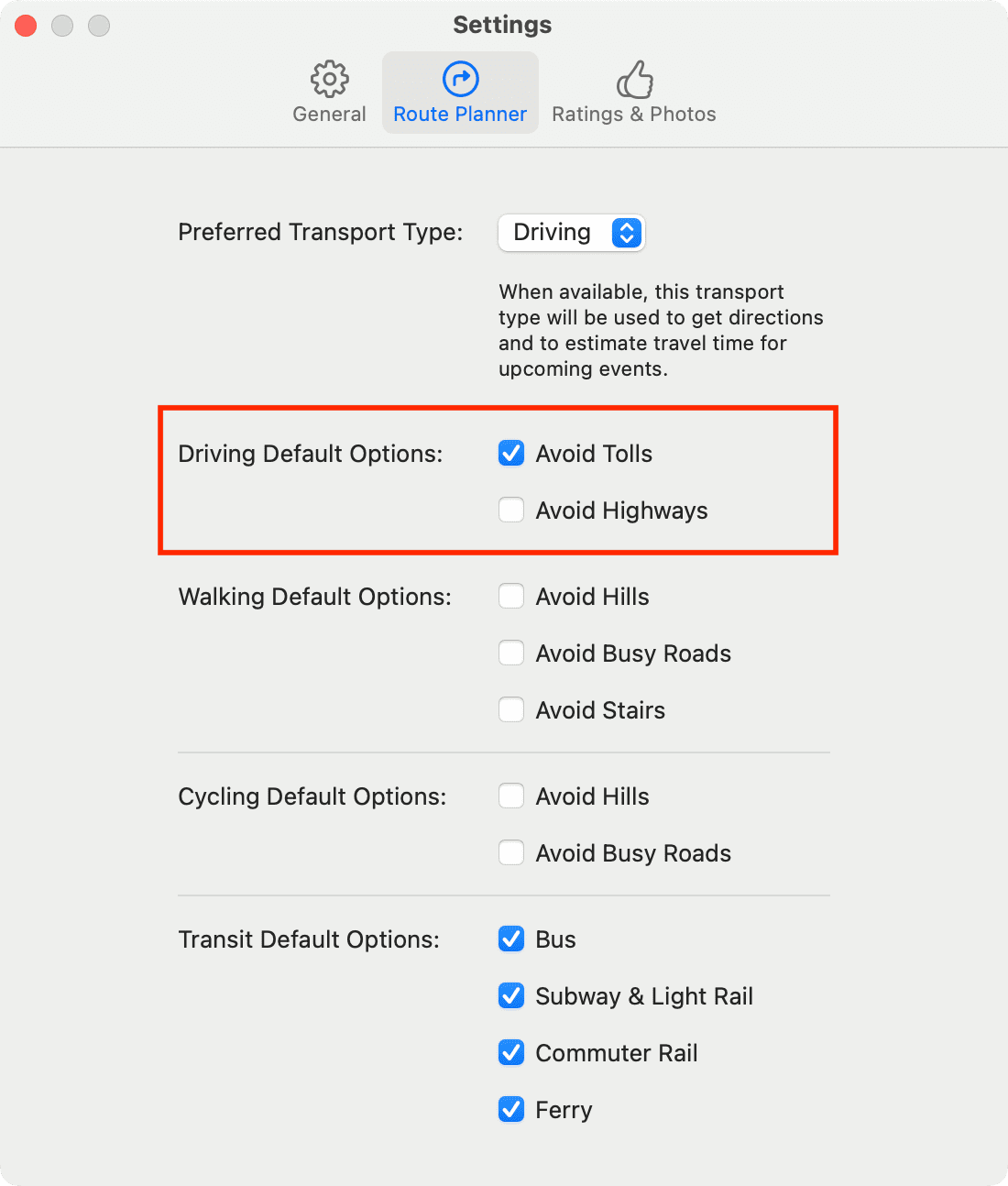
- Open the Apple Maps app and click Maps > Settings from the top menu bar.
- Go to the Route Planner tab from the top.
- Check the box for Avoid Tolls next to Driving Default Options.
Now that you’ve disabled toll roads, you can be off to your destination and won’t have to frequently stop to spend your money at toll booths.
Have you tried the toll avoidance feature in Apple’s Maps app yet? How did it work for you? Let us know in the comments below!
Check out next: 17+ tips to use your iPhone with your car