Learn how to remove password protection from a locked PDF document so other people can open and read the file without typing the password.
You have four techniques to remove the password from a locked PDF file and save it as a password-free document.
Preview app
Apple’s Preview app can remove the password lock from a PDF.
1) Open a locked PDF in Preview and enter the password when asked.
2) Click File > Export in the top menu bar.
3) Click the Permissions button.
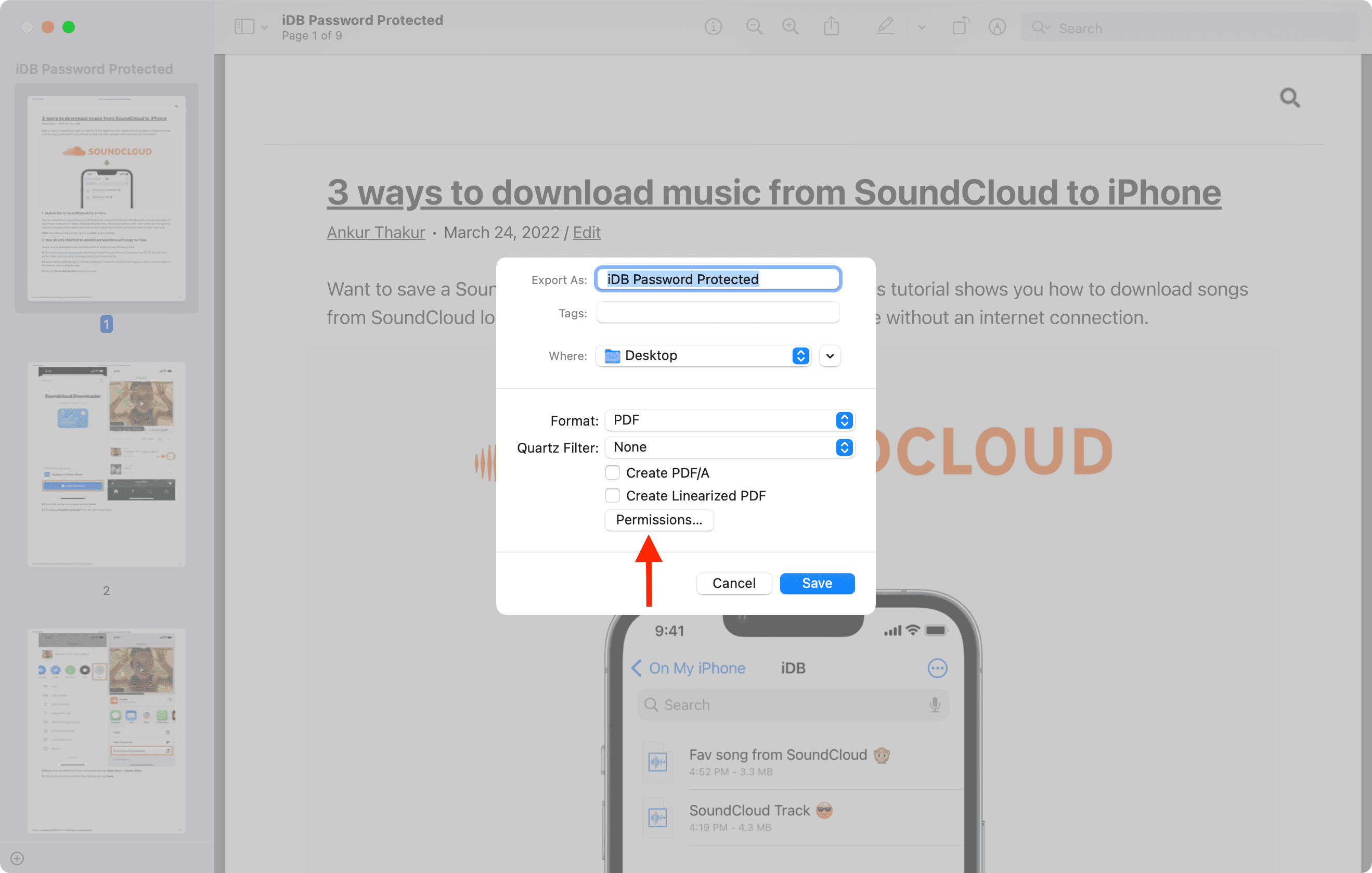
4) Type the document password in the “Owner Password” section and click Apply.
5) Rename the file as needed; select a location; make sure the Encrypt option is unchecked (if you see it); and click the Save button to export a password-free PDF.
Safari
To remove password protection from a PDF in Apple’s Safari browser:
- Click File > Open File in Safari menu or press the Command + O keys.
- Select your locked PDF and click Open.
- Enter the PDF password.
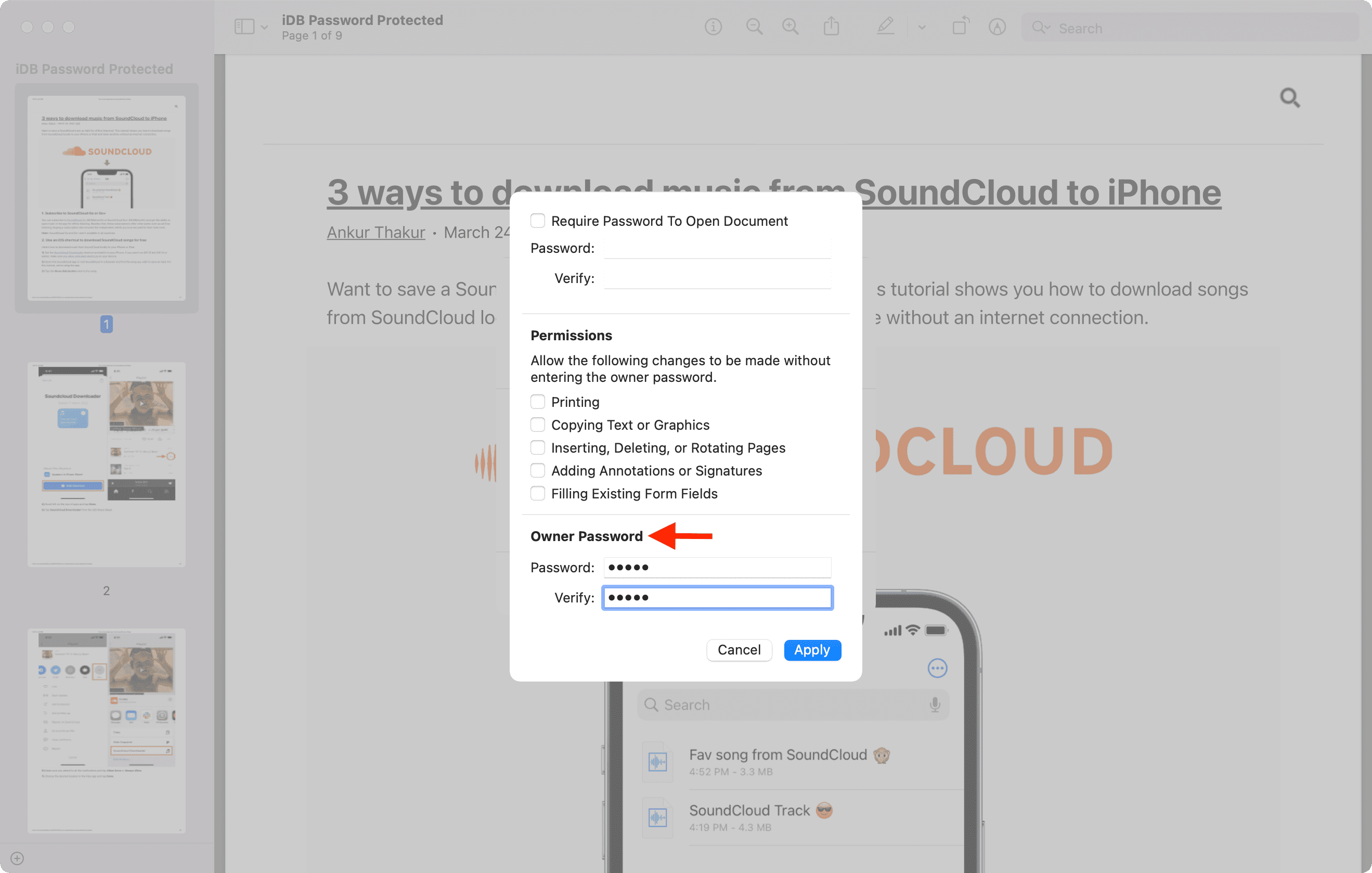
- Click File > Print from the top menu bar. Or press the Command + P keys.
- Click the arrow in the PDF drop-down menu and select Save as PDF.
- Lastly, name your passwordless PDF, choose a location, then click Save.
Google Chrome
Google Chrome can also remove the password lock from PDFs.
- Drop a locked PDF onto the Chrome window. Or click File > Open from the top menu bar. Or press the Command + O keys.
- Type the PDF password and click Submit.
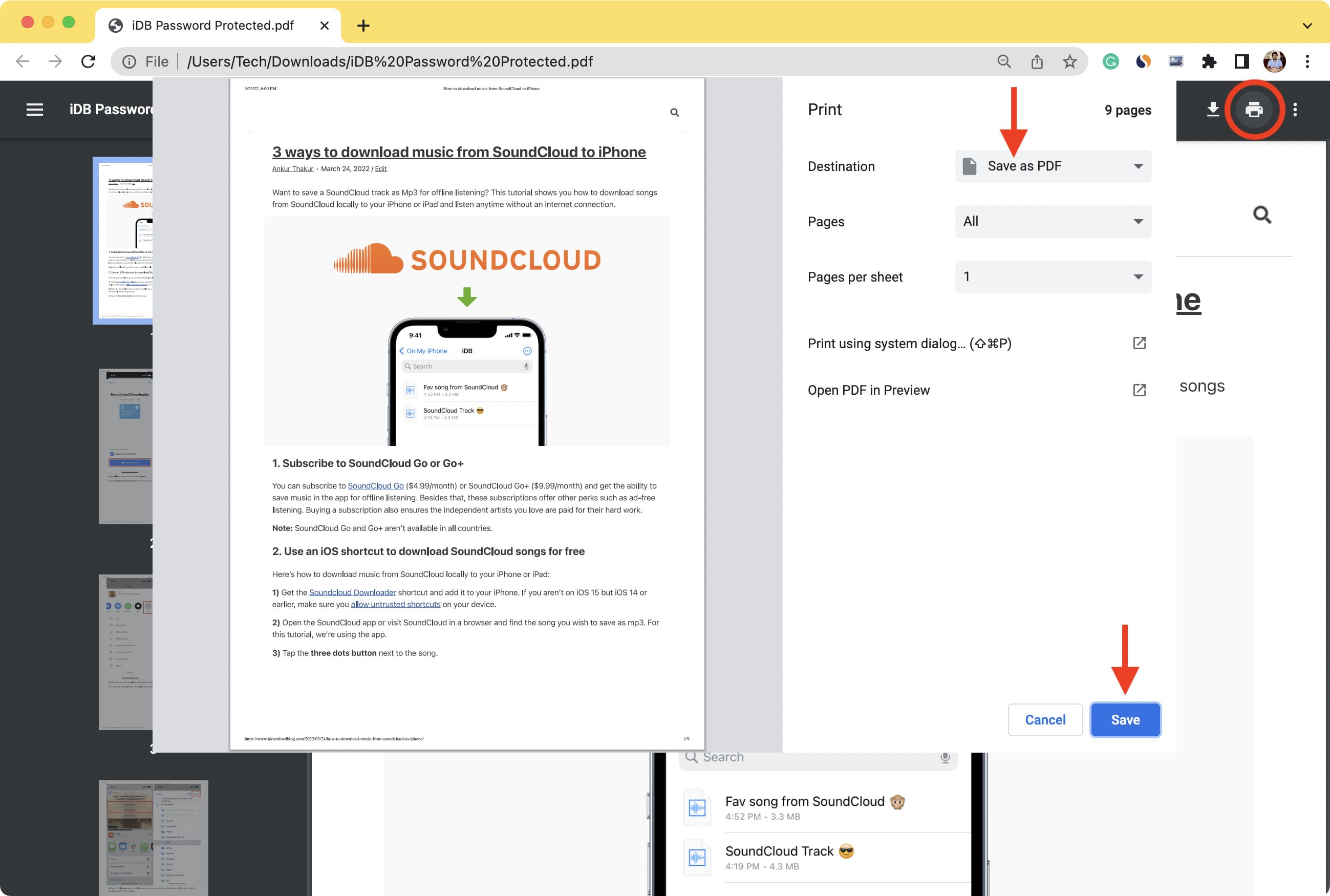
- Click the printer icon in the top-right corner. Or press the Command + P keys.
- Select Save as PDF next to Destination.
- Then click Save to export a passwordless PDF.
iLovePDF
Websites like iLovePDF can unlock password-protected PDFs without having to install App Store apps.
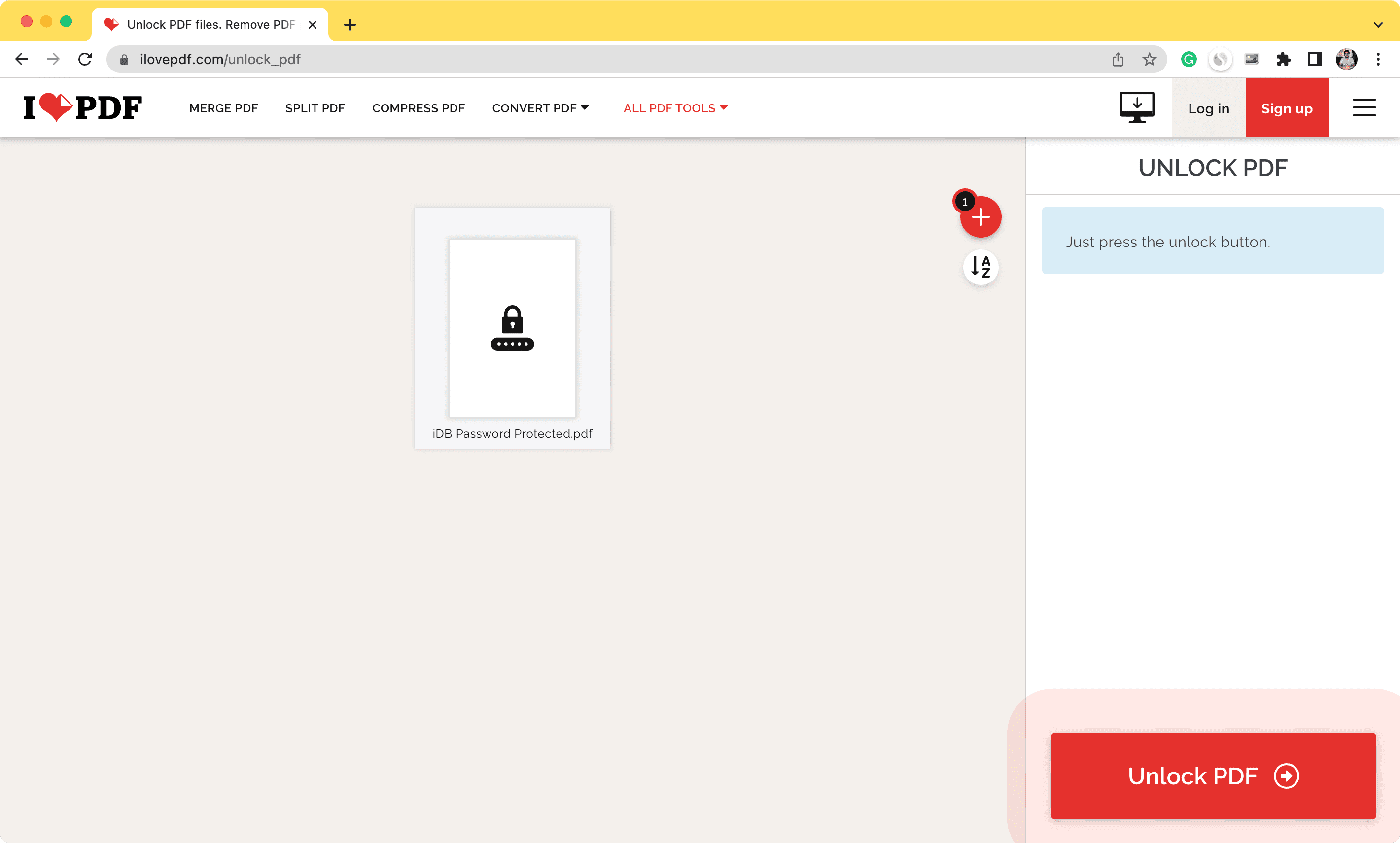
- Visit iLovePDF.com/unlock_pdf in a desktop browser.
- Drop your locked PDF into the window.
- Click Unlock PDF and enter the password if prompted.
- Finally, click Download unlocked PDFs.
Remove PDF lock if you forgot the password
The above techniques (except for iLovePDF when the PDF password is very short) won’t let you unlock PDFs without knowing the password.
As a rule of thumb, I suggest checking the source for more information about removing the password lock. For example, whenever I request my bank statement, it’s delivered as a password-protected PDF to my inbox, with the full instructions in the message body.
If you don’t know the password, try an app called PDF Password Remover by cisdem. I’ve extensively tested the free version, and it works as advertised (with some caveats mentioned below).
1) Drop your locked PDF onto the PDF Password Remover window or click Add Files in the toolbar to manually navigate to the document
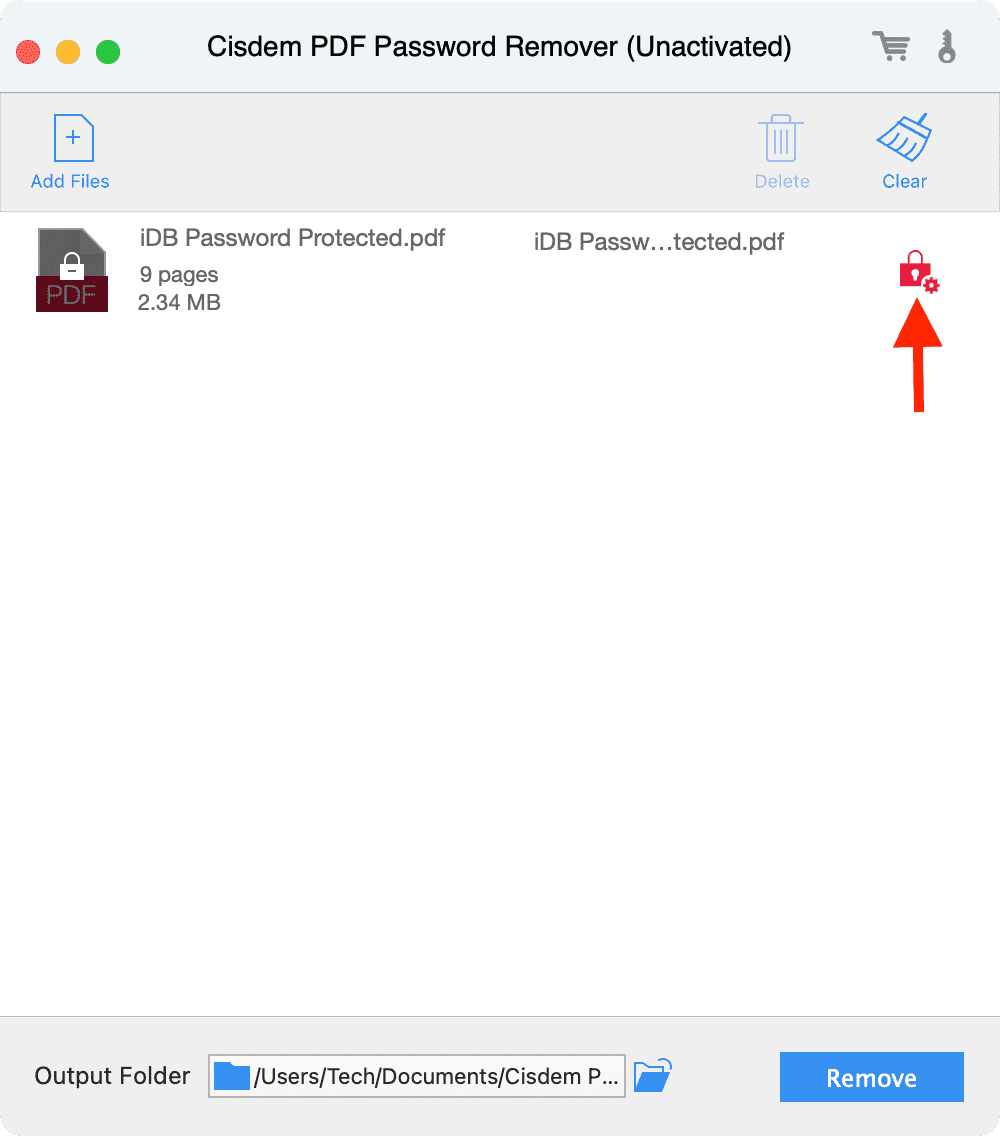
2) Click the red lock and gear icon next to the PDF.
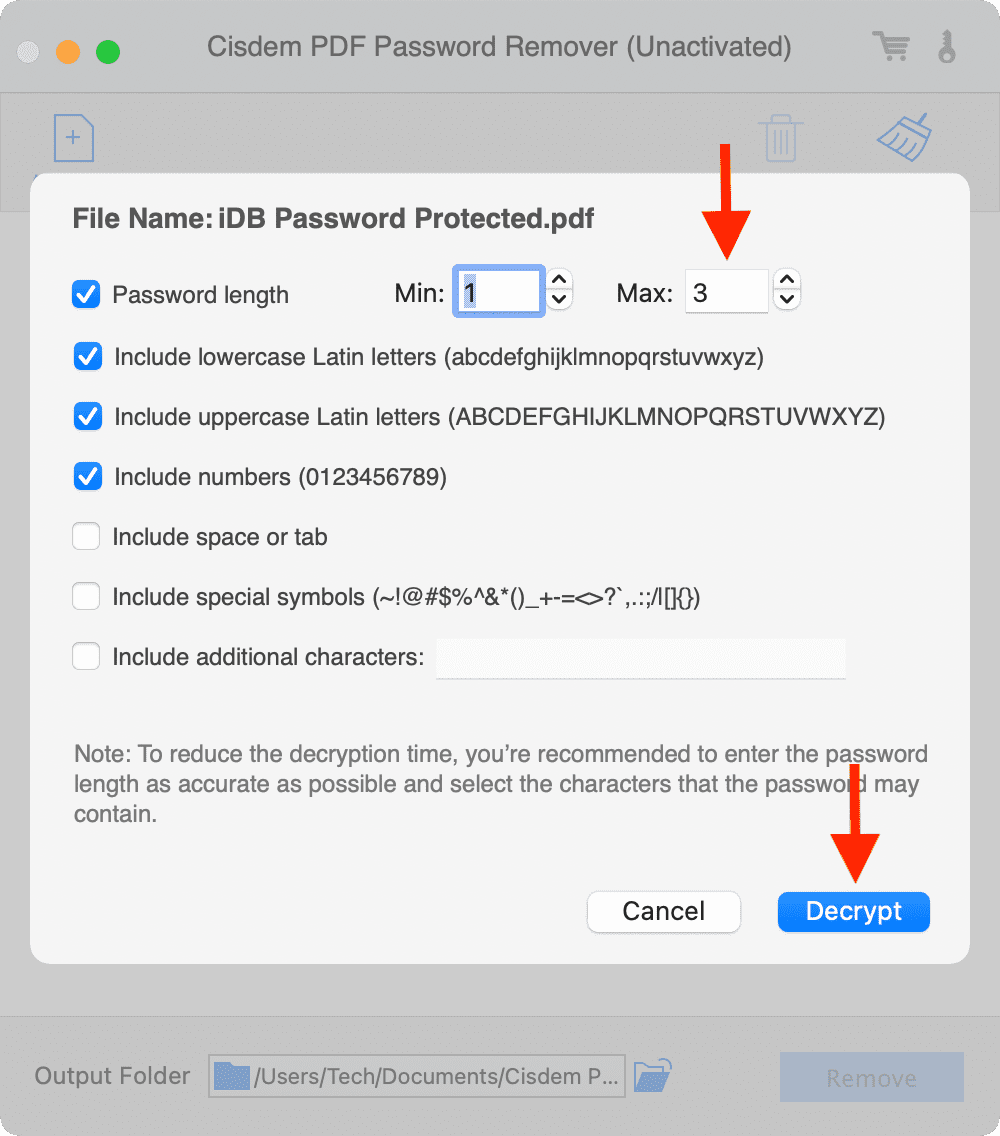
2) Click the Forgot option, take your best guess at the password length, and type it in the Max field.
3) Click the Decrypt button.
4) Finally, click Remove > Continue to remove the password. Your unlocked PDF is saved in the selected location. The default save location is set to the Cisdem PDF Password Remover folder inside the Documents folder.
Important things to know
The free edition of PDF Password Remover restricts you to exporting half a PDF up to 3 pages. I’ve timed how long it takes to decrypt the password; here’s what I found:
- PDF passwords up to 3 characters are unlocked in under a minute.
- PDF passwords comprising 4 characters can take an hour to decrypt.
- PDF passwords longer than 5 characters take more than a day to break, as the app needs to try millions of password combinations.
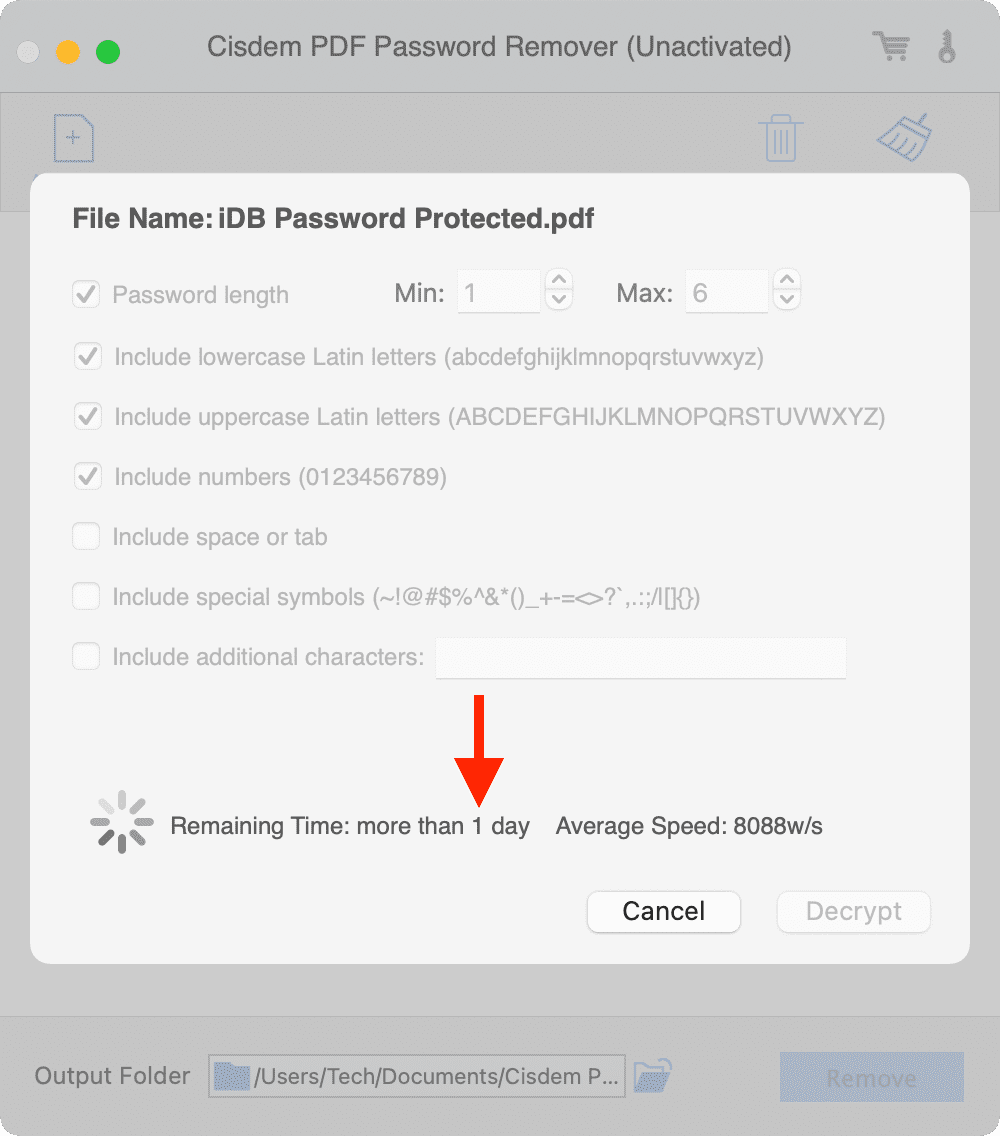
The problem is that many legal documents, like bank statements and contracts, are protected with complex passwords that are much longer than five characters. Also, disabling auto-sleep in macOS and leaving the app running for hours doesn’t guarantee the password will be cracked; don’t be surprised if the app returns an error after running for hours because you didn’t select the correct options beforehand.
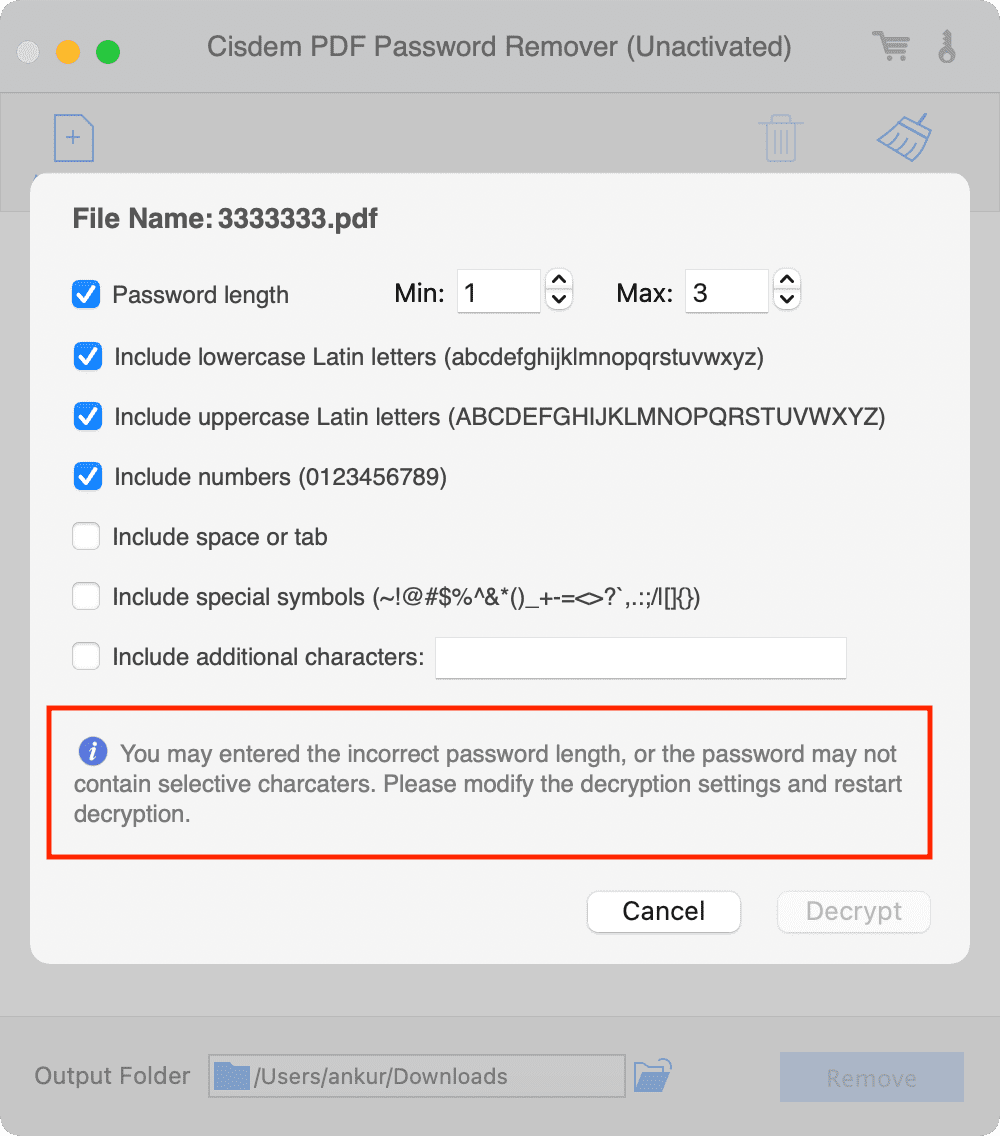
As you may have guessed, I don’t have a strong opinion about PDF Password Remover other than that it successfully removed 4-character passwords from my locked PDFs.
More on PDFs: