Learn how to set any bookmarks folder as the location where Safari saves webpages you have marked as favorites on your iPhone, iPad, or Mac.
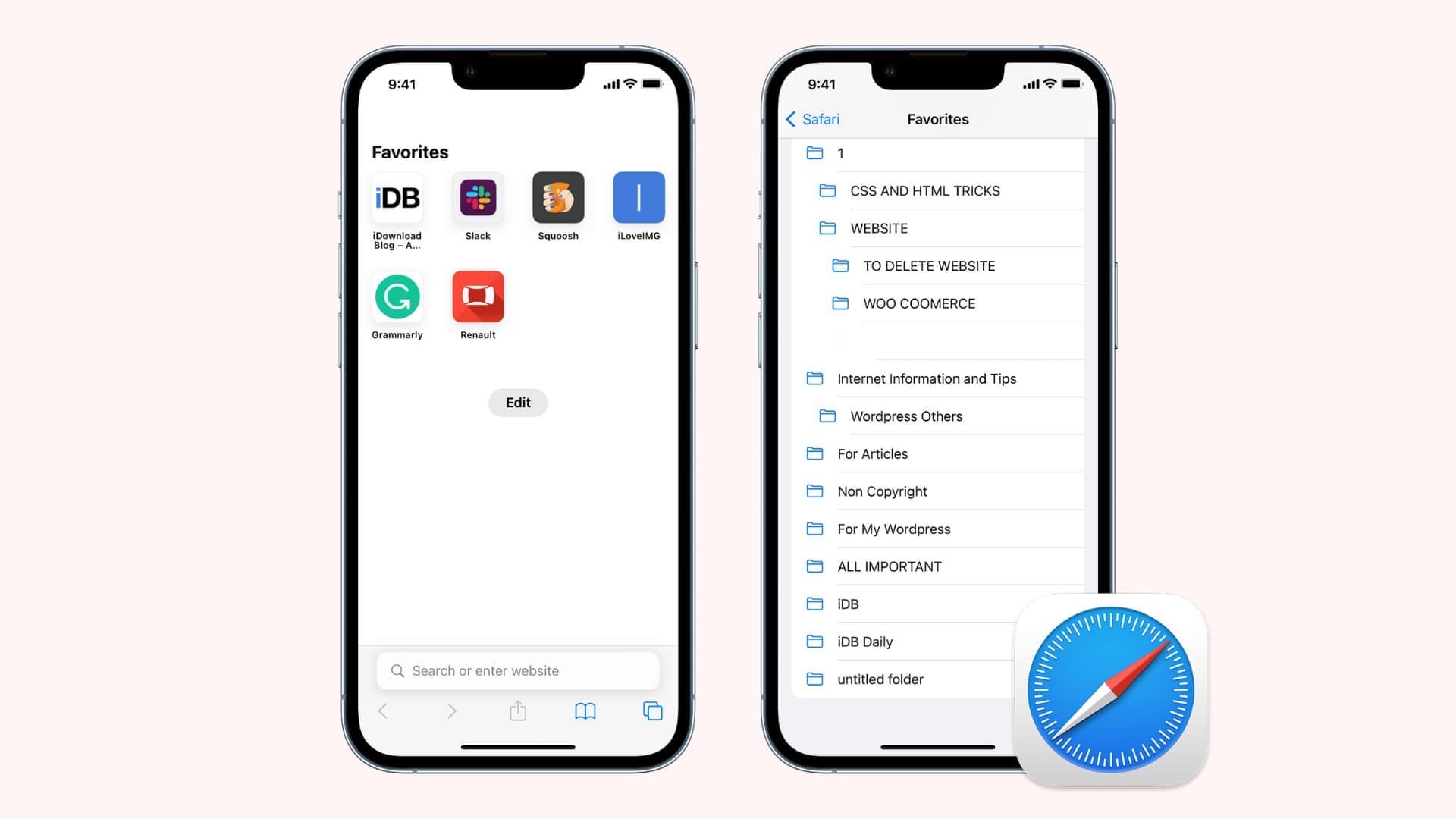
Saving websites to Safari Favorites allows you to access them right from the start page.
The browser stores websites you add to favorites in the default Favorites folder, but you can change it.
How’s this useful?
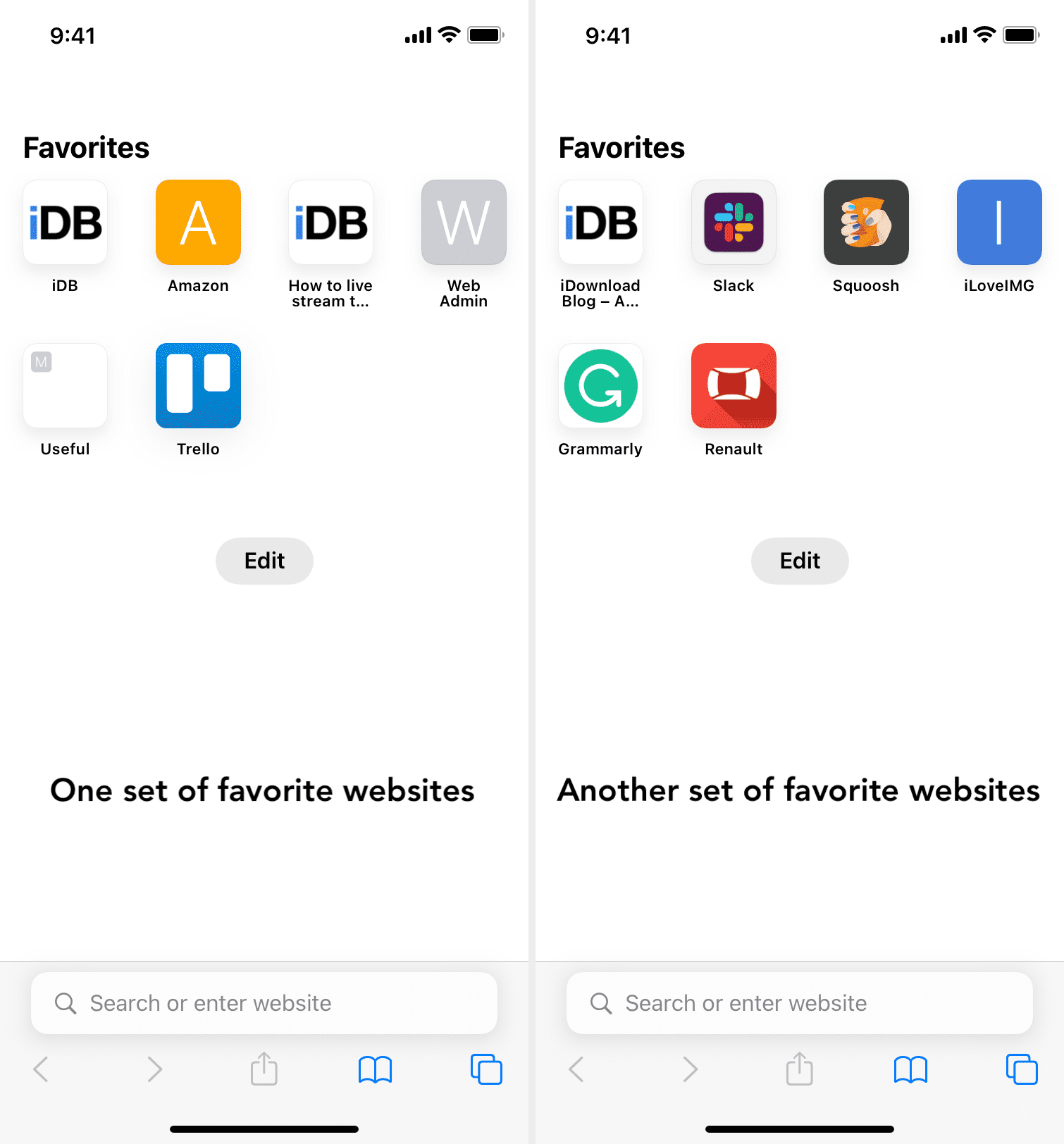
A customizable Favorites location enables you to separate work and home content by setting up two Favorites folders: one for work and the other for play.
Safari scans your Favorites location to display appropriate website thumbnails when you create new tabs or interact with the search bar.
And if you’ve maintained a specific bookmarks folder filled with websites you care about, follow the steps below to instantly make it your new Favorites folder. After that, those websites you’ve added to that folder over time will appear on Safari’s start page for quick access.
Safari’s Favorites location is a per-device setting. So you must set the default Safari Favorites folder separately for each iPhone, iPad, and Mac you own, as this particular setting doesn’t sync via iCloud.
If you want uniformity, set the same Favorites location across all your devices, or the sites favorited on one device may not necessarily appear in the Favorites section on another device, and vice versa.
iPhone and iPad
- Open the Settings app.
- Tap Apps at the bottom of the screen.
- Select Safari in the list of applications.
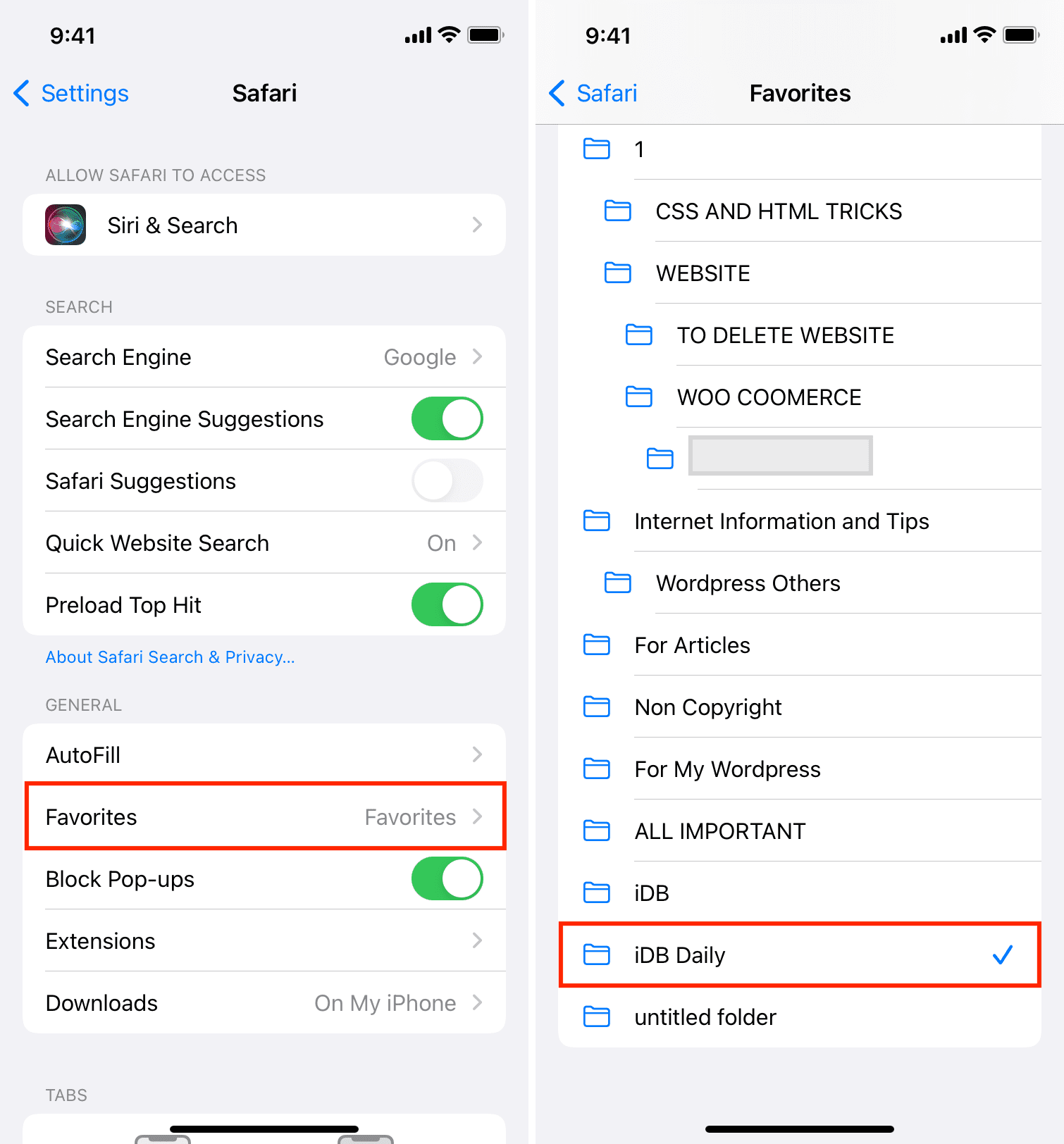
- Tap Start Page Favorites (formerly just Favorites) under the General heading.
- Select a bookmark folder to set as your new Favorites location.
Open Safari; the websites saved in the bookmark folder you just picked appear on the start page under the Favorites heading. The Favorites section also shows up on all new tab pages and when you touch the URL bar.
Mac
- Open Safari on your Mac.
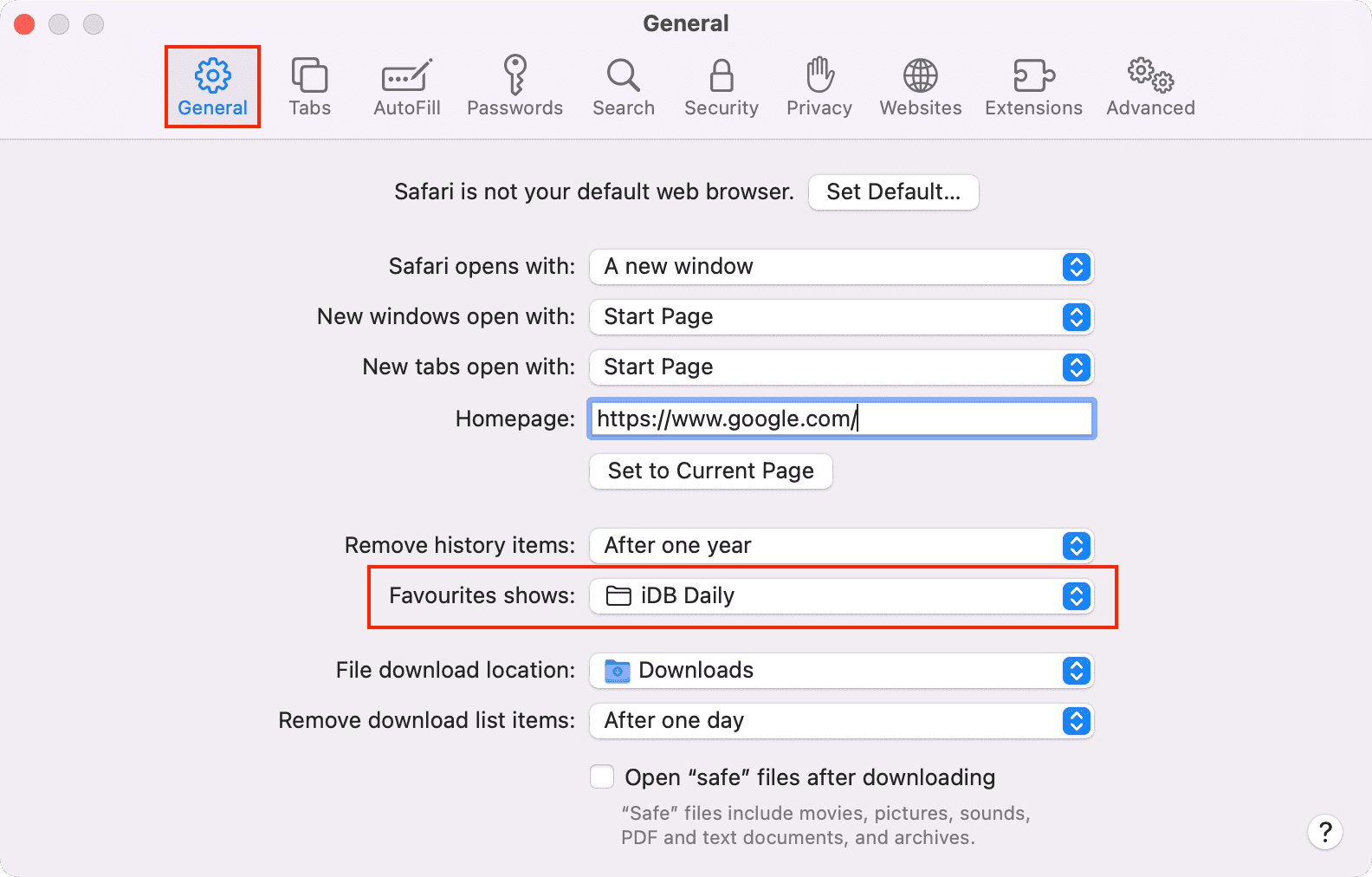
- Click Safari > Settings from the top menu bar or press the Command + , (comma) keys.
- Make sure you’re in the General tab, and choose an existing bookmarks folder by clicking the menu next to ‘Start Page Favorites’ or ‘Favorites Shows.’
More on Safari: