Featuring a built-in Stocks app and the ability to check on a stock via Siri, the Apple Watch is a great tool for quickly garnering info on the stocks that interest you, allowing you to keep track of your favorite companies’ financials right from your wrist.
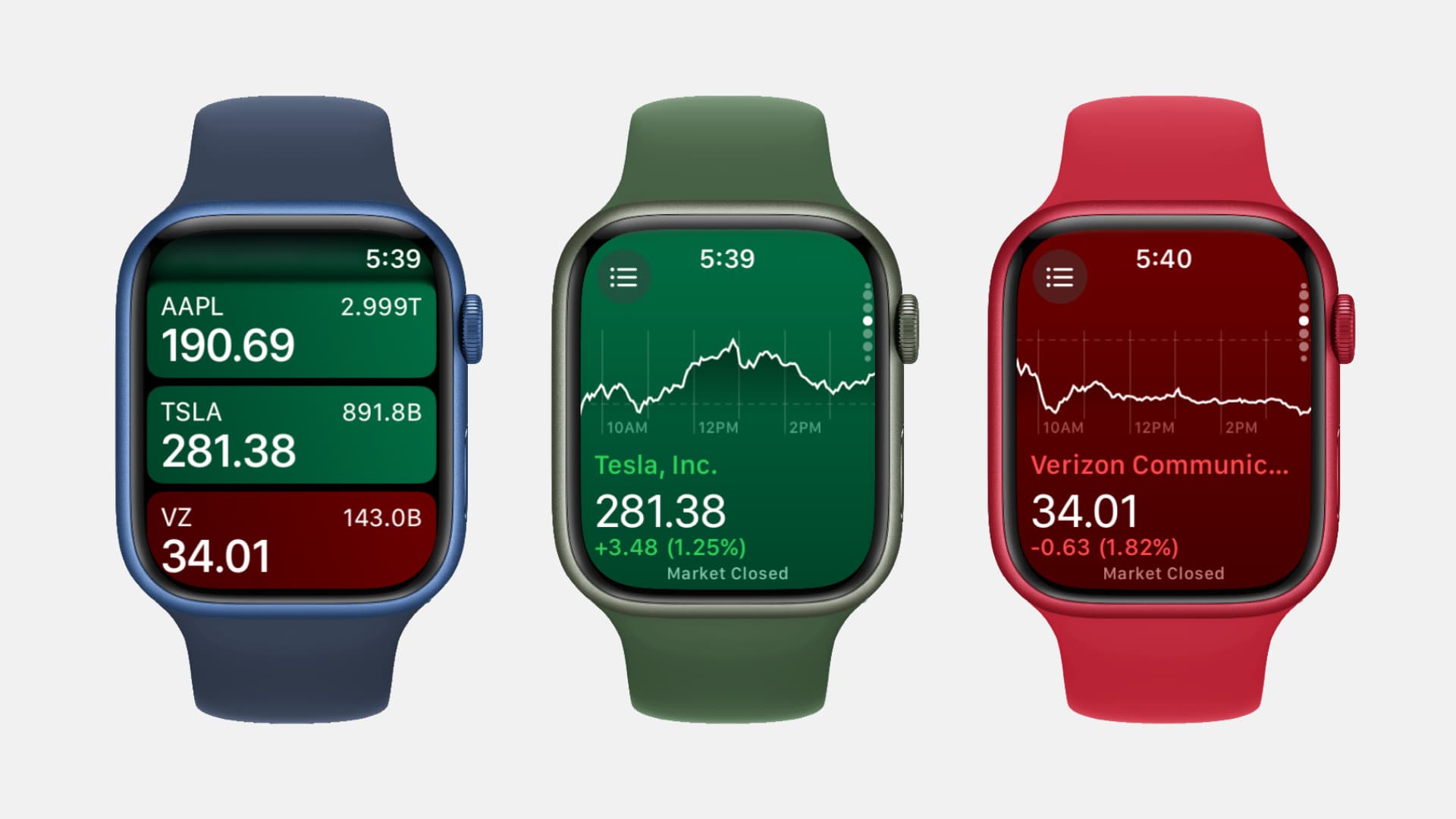
If you’re big into the stock market, then you’ll no doubt appreciate the features that the Apple Watch brings to the table with regard to stock tracking.
Tracking stocks
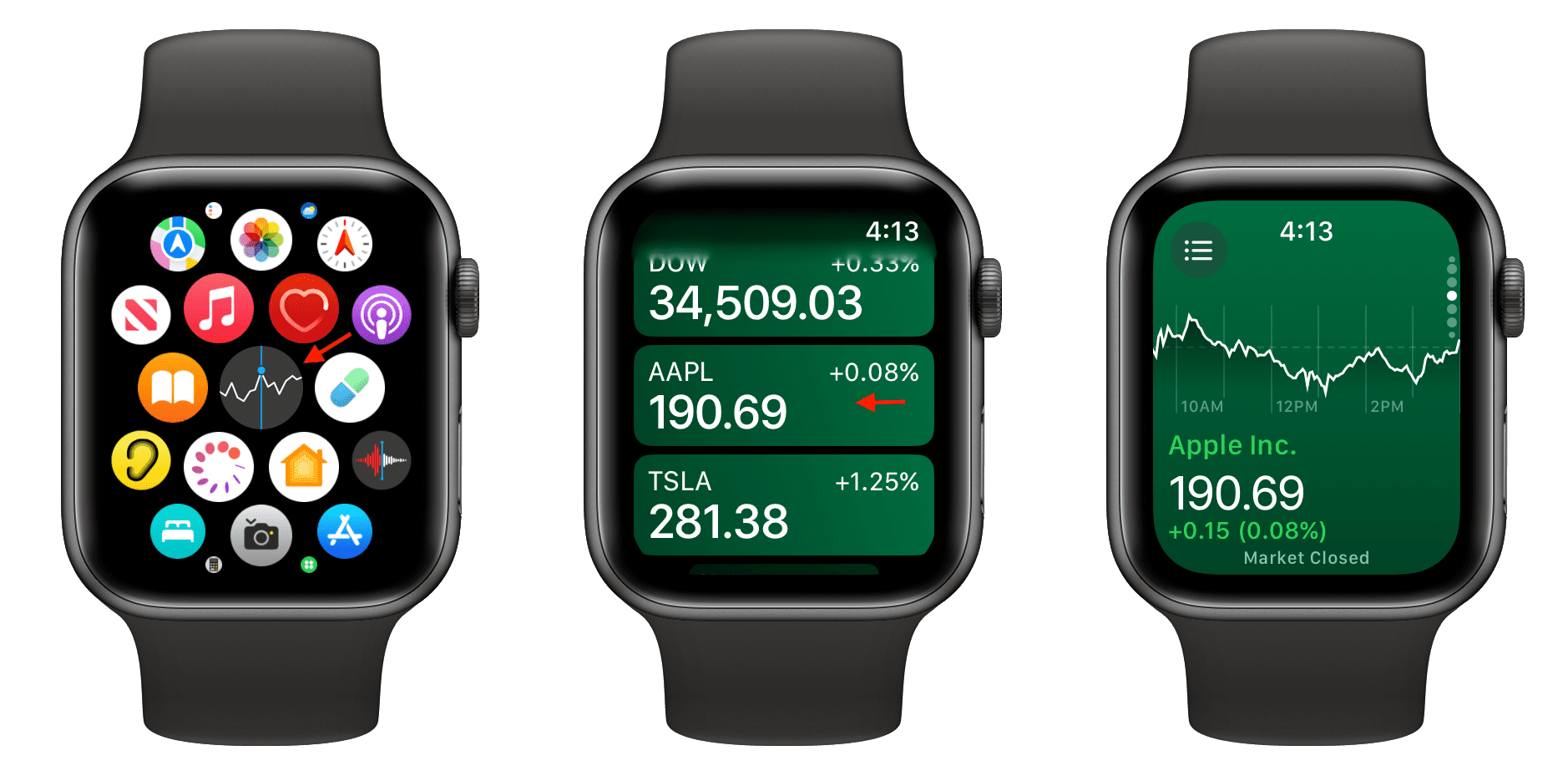
- Launch the Stocks app on your Apple Watch, and you should see a listing of multiple stock symbols and indexes. You can scroll through this list using the Digital Crown or by simply swiping your finger on the display.
- For more detailed information on a stock or index, tap the item that you wish to view. For example, if you have AAPL listed, tap on the AAPL section for more detailed information on Apple’s stock.
- Once you do, you’ll gain a detailed synopsis of AAPL’s current status, performance graphs, etc. You can tap on the performance graph or the time periods (1D, 1W, 1Y) to change the length of time shown on the graph.
Using Siri to track stocks
To use Siri to track stocks on your Apple Watch, invoke Siri and say something like this:
- How is Apple doing today?
- What was today’s closing price for Verizon stock?
- What is AT&T’s stock status?
Adding or deleting stocks
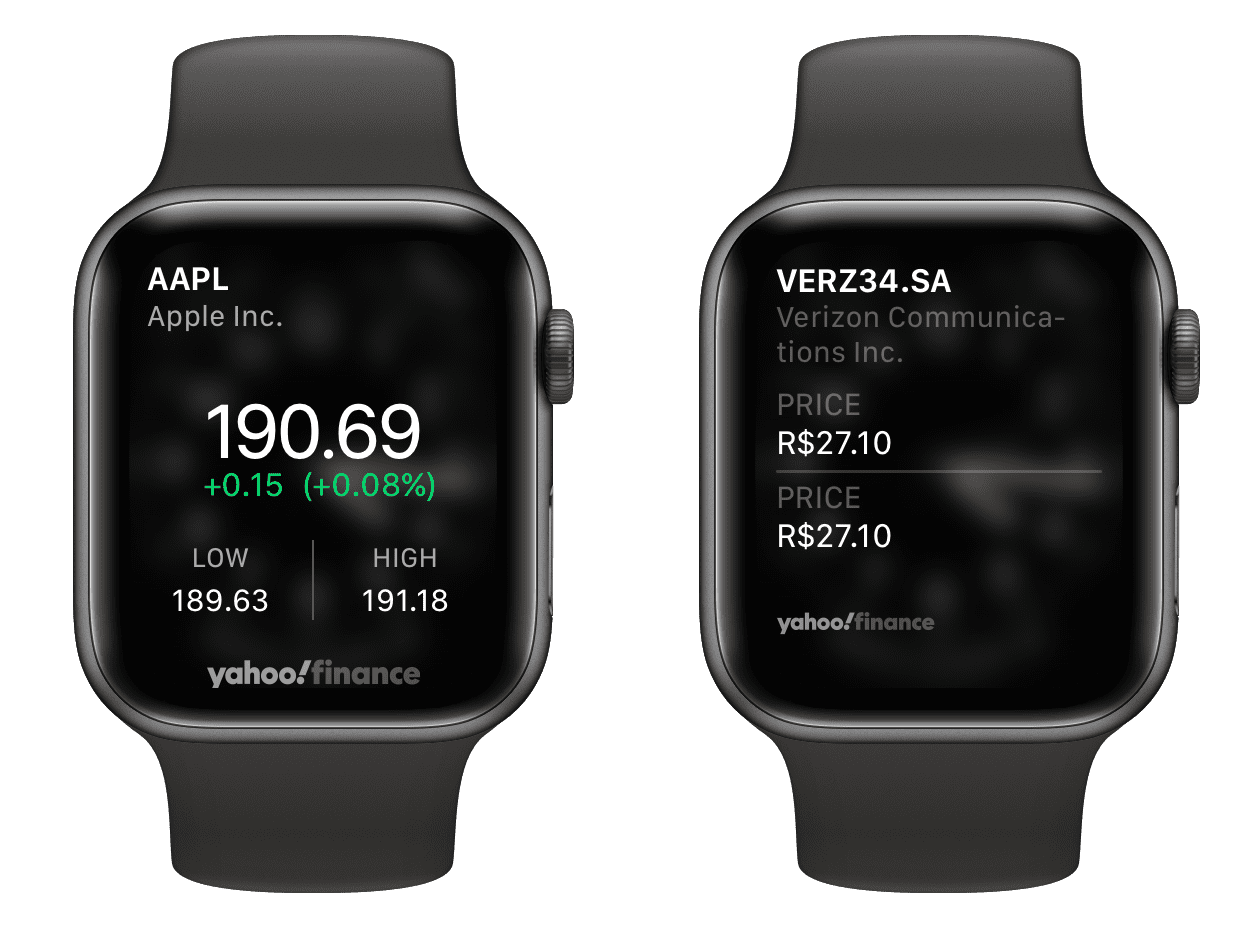
The data displayed in the Stocks app on the Apple Watch is mirrored from the Stocks app on the iPhone. Therefore, you can configure the Stocks app on your iPhone. Additionally, you can also add, remove, and rearrange companies and stocks right from your watch by following these steps.
Add a stock
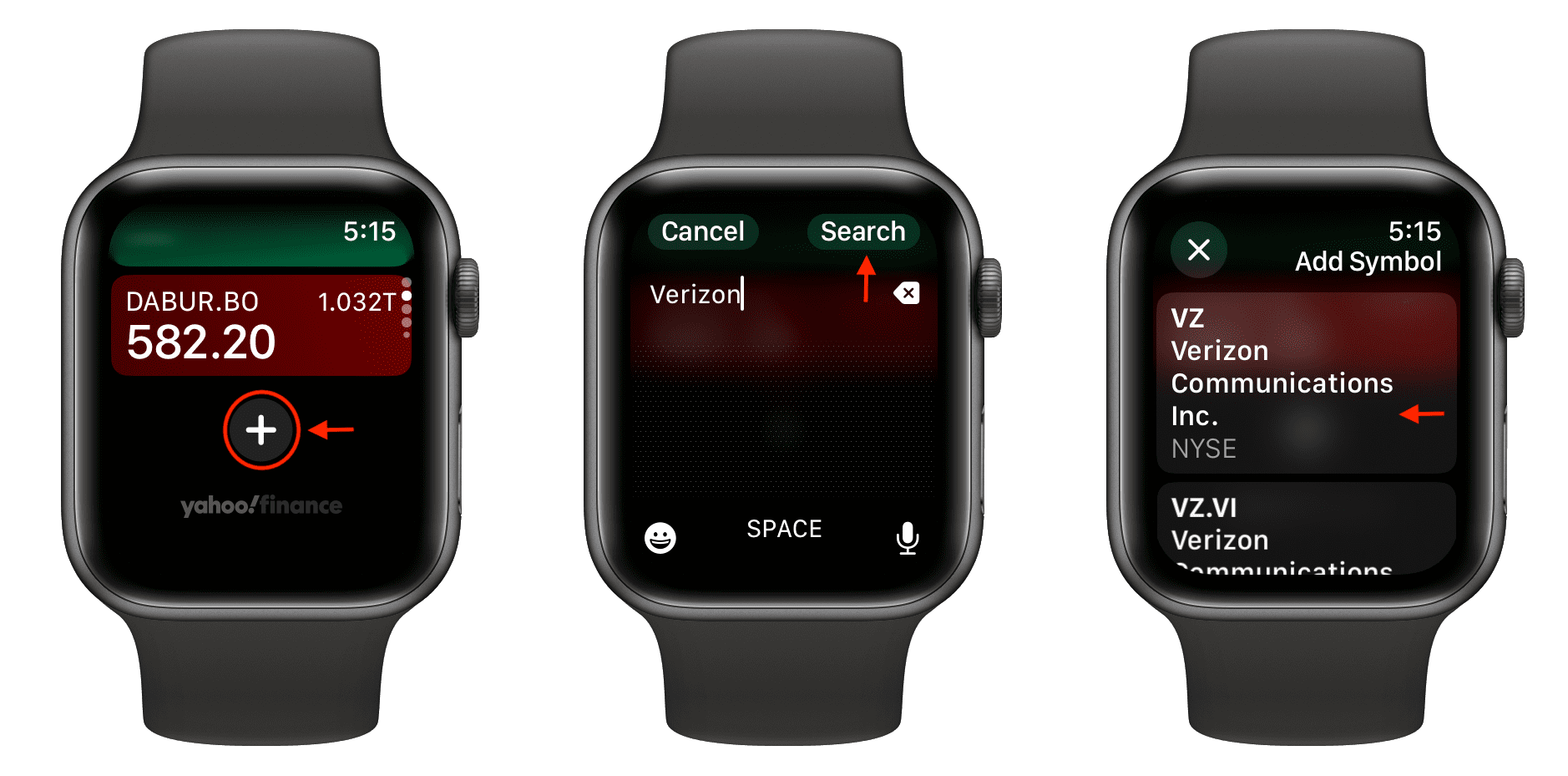
- Go inside the Apple Watch Stocks app.
- Scroll to the bottom and tap the plus button (+).
- Now, type the stock name and tap Search.
- Select the right stock from the search results to add it to your stocks list.
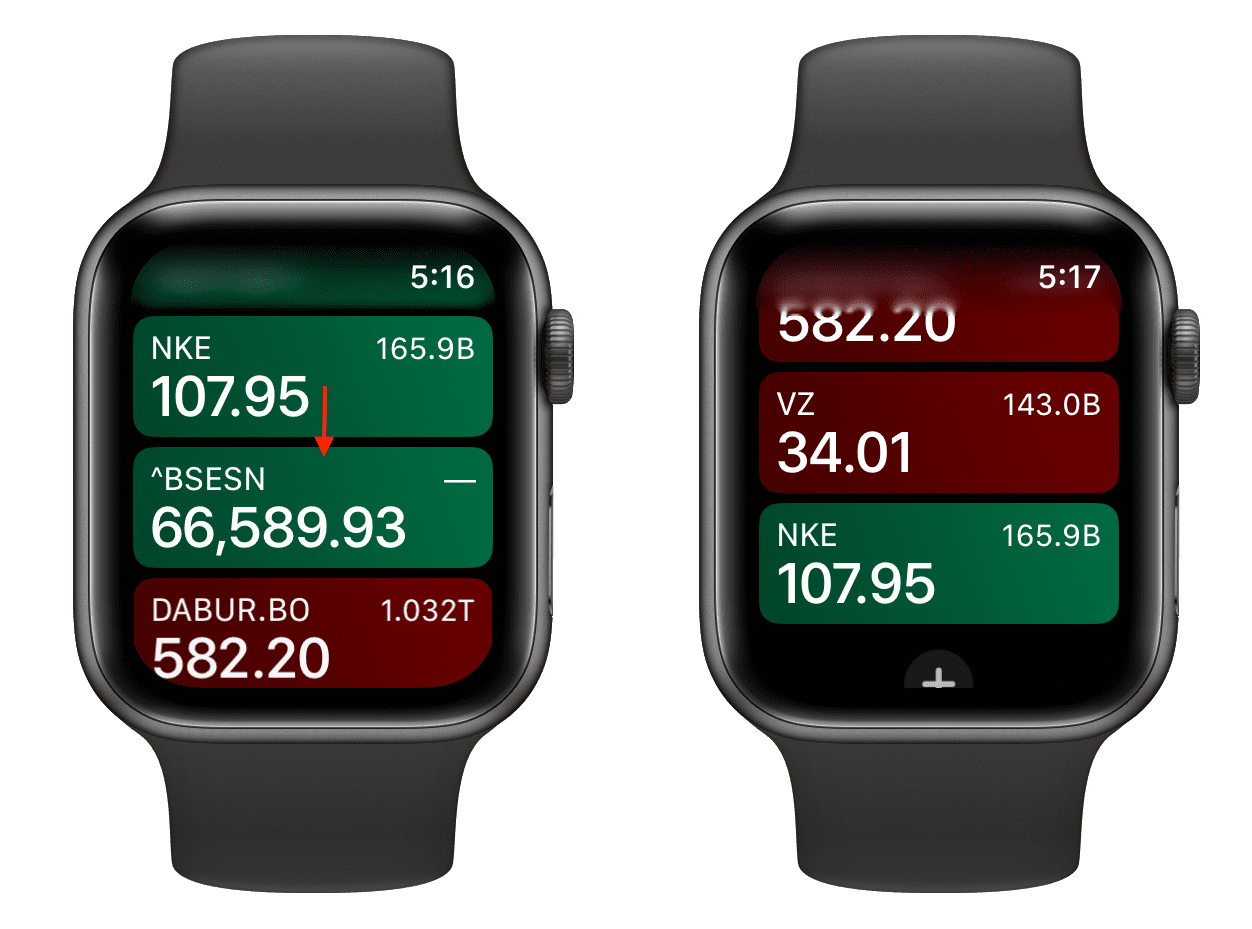
Rearrange added stocks
- Make sure you’re on the first screen of the Stocks app.
- Touch & hold an added stock and drag it up or down.
- Release your hold when you get to the desired spot in the list of added stocks.
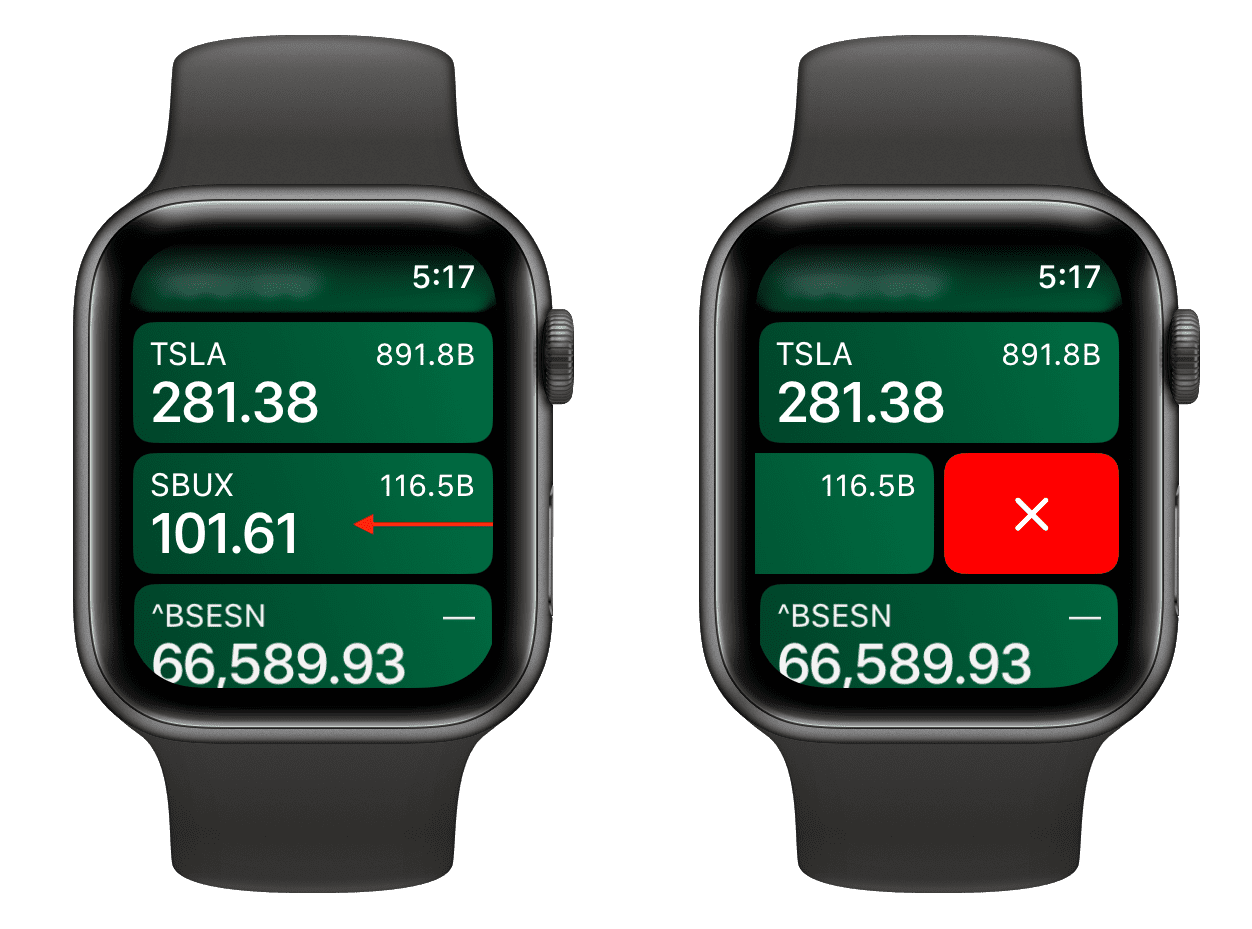
Remove an added stock
- Open the Apple Watch Stocks app to see a list of stocks you have added.
- Swipe left on the stock you want to remove.
- Tap the red trash can or X button.
Changing stock data
Along with the stock symbol and its current price, this listing is capable of displaying an additional data point. You can choose from the following data points:
- Price/Points Change
- Percentage Change
- Market Cap
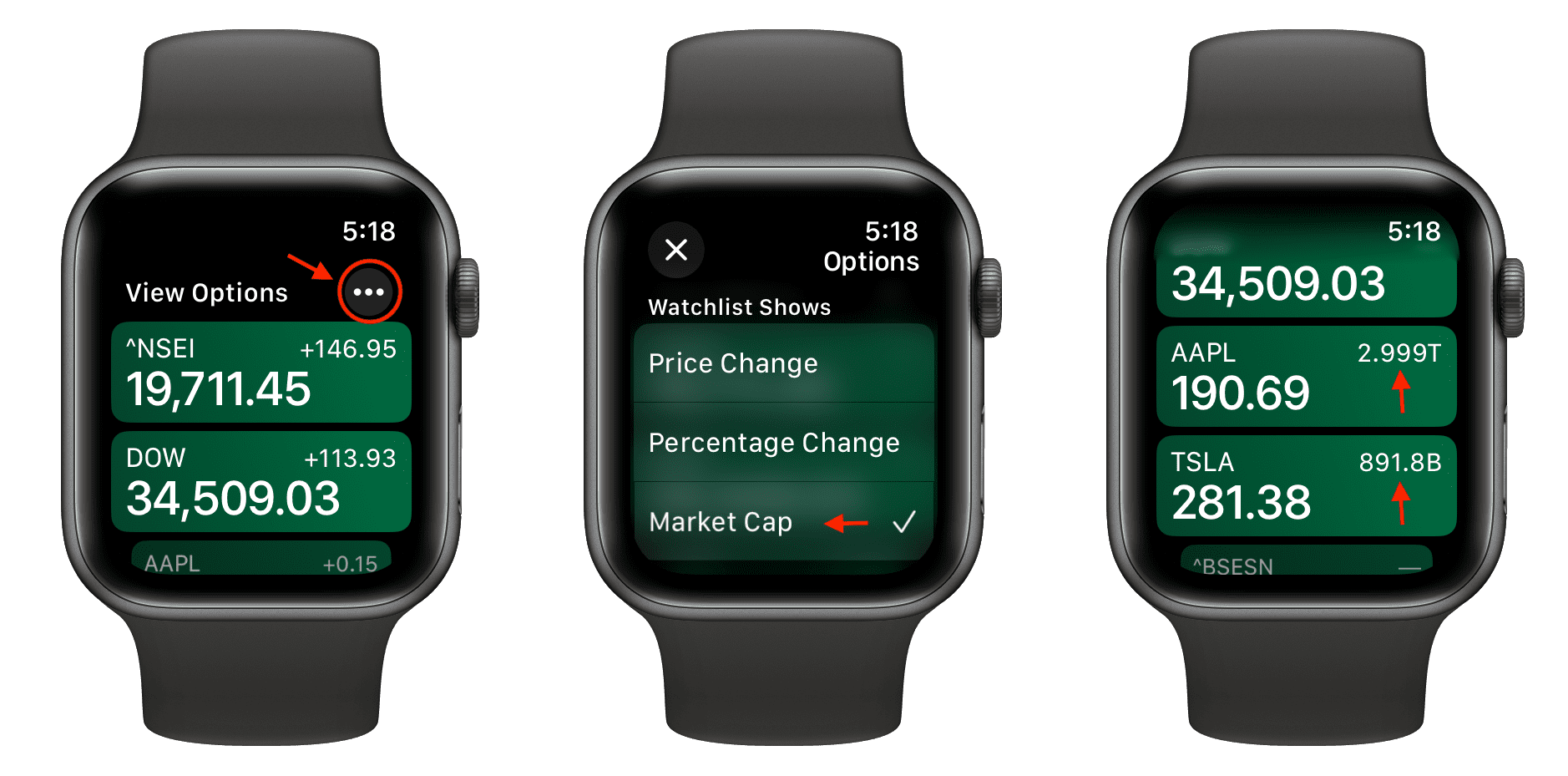
Here’s how to set your Apple Watch Stocks app to display the desired data point:
- Open the Stocks app.
- Tap the three dots icon from the top right.
- Select Price Change, Percentage Change, or Market Cap. I’m selecting the last option.
- Now, when you return to the main stocks view, you’ll see the selected data point. In my case, you can see that it says 2.99T (2.99 trillion) for the Apple stock and 891B (891 billion) for the Tesla stock.
Add stock info to the watch face
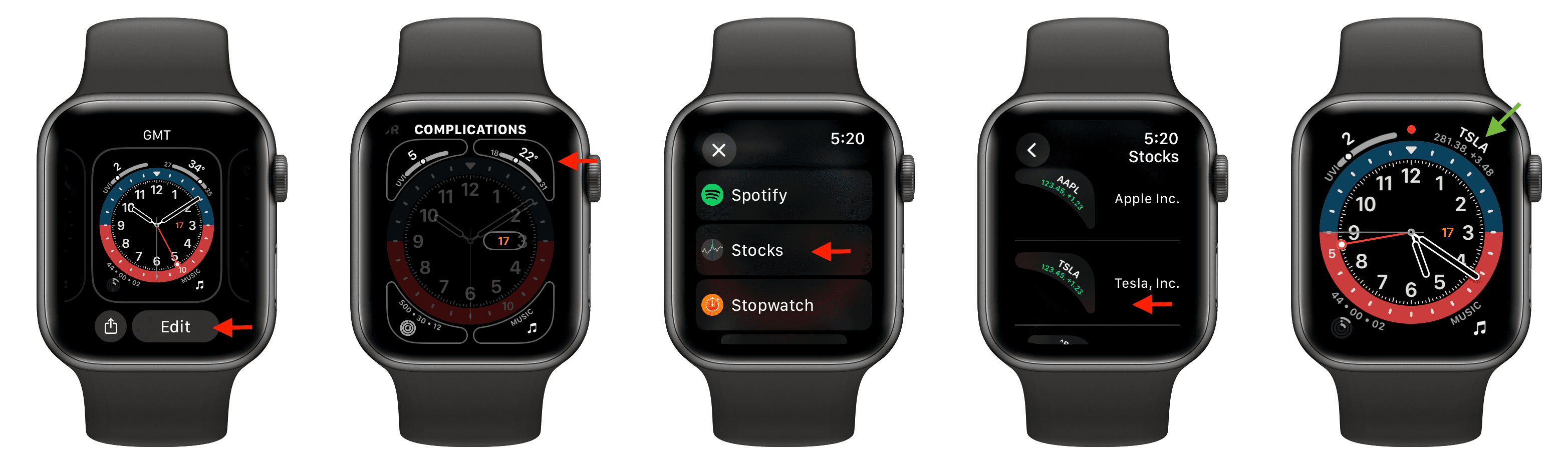
It’s possible to display stock information using complications on several (not all) watch faces. You can manage watch face complications from the Watch app on your iPhone or straight from your wrist. Here are the steps for the latter:
- Touch & hold a watch face that supports complications, and tap Edit.
- Swipe left until you reach the COMPLICATIONS screen.
- Select a spot to add the complication. I’m selecting the top right complication spot.
- Scroll through the list of apps and tap Stocks. Then, tap Symbol.
- Now, choose to add the last viewed stock to the complication or turn it off and select one of the added company stocks.
- Press the Digital Crown twice to return to the watch face, and you’ll see the added stock complication there.
Customize the Stocks app
You can decide what’s shown on the clock face complication.
- Open the Watch app on your iPhone.
- Scroll down the My Watch section and tap Stocks.
- Select an option for Clock Face Complication Shows.
As you can see, the Stocks app on Apple Watch is a pretty deep app with lots of options. If you’re interested in following the stock market, then you may find that it’s a great tool for you.