Learn how to summarize text on a Mac to read a short version of a document without using Apple Intelligence, modern AI tools, or other apps at all.
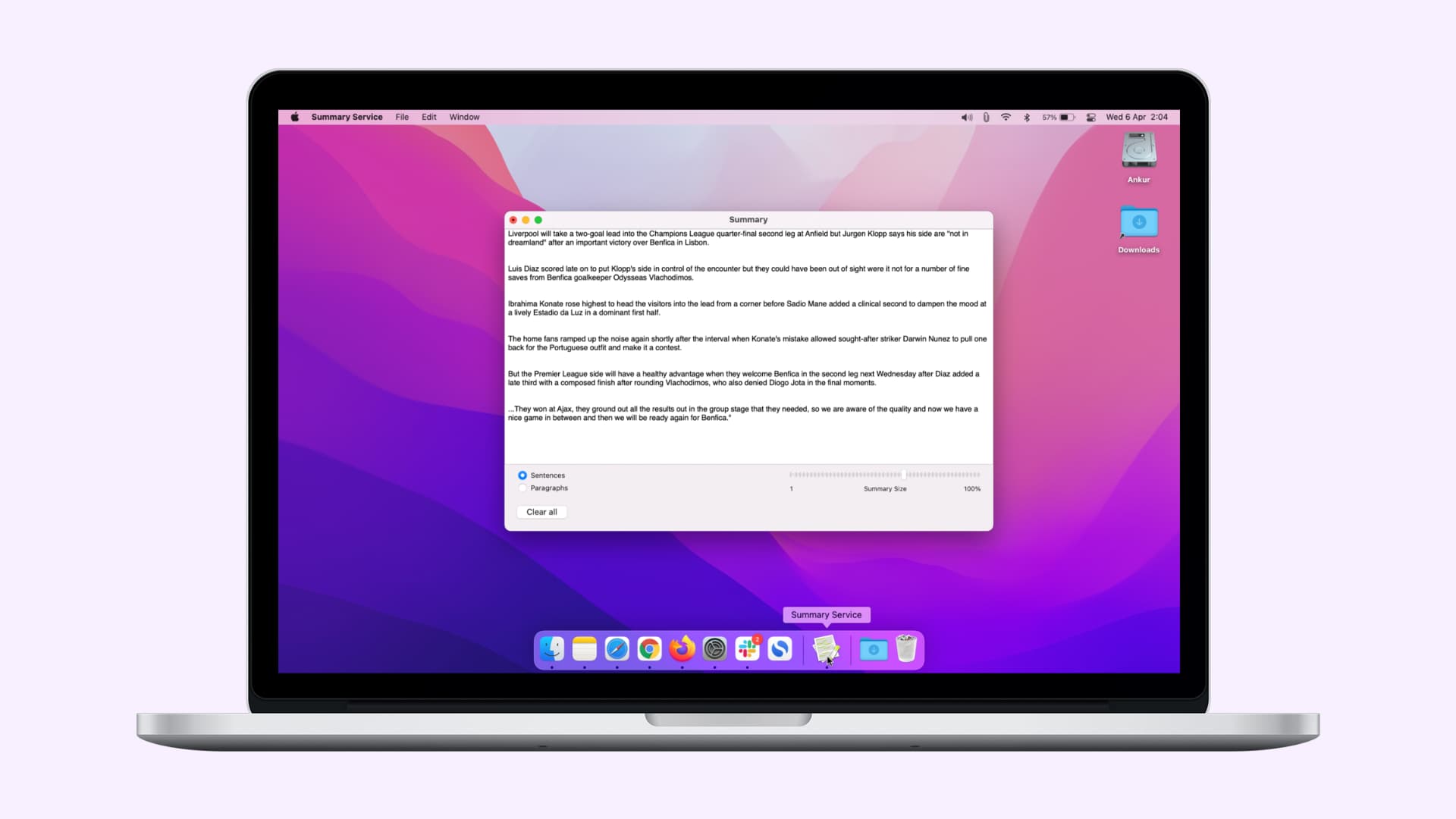
Writing Tools in Apple Intelligence can summarize text, make long text shorter, and create new text from scratch based on your prompt.
But if you don’t want to use Writing Tools or other AI tools, you can use a lesser-known text summarization that has existed in the macOS operating system for years.
Turn on Summarize on your Mac
- Open System Settings.
- Select Keyboard in the bottom-left.
- Click the Keyboard Shortcuts button on the right.
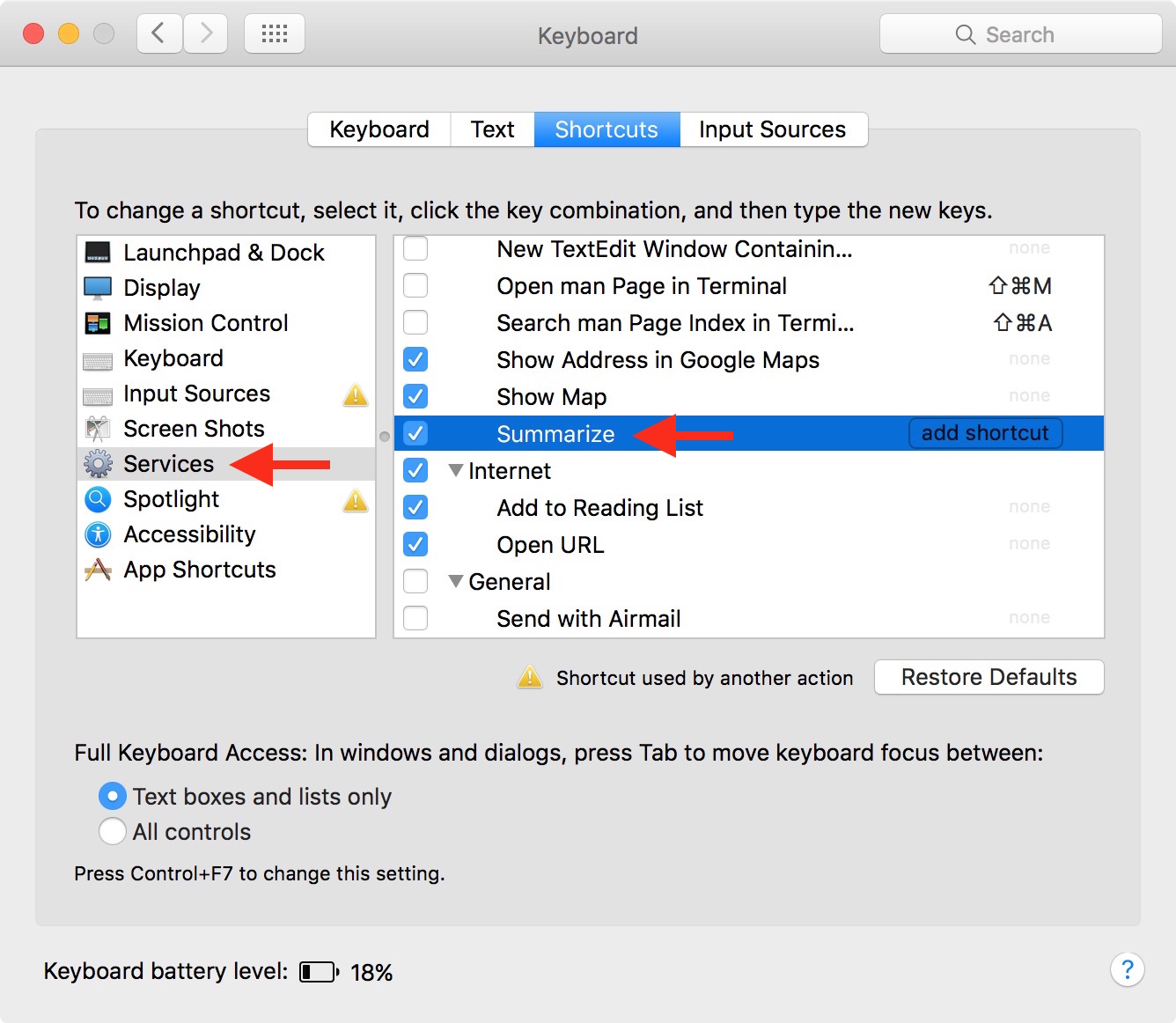
- Select Services in the left sidebar.
- Expand the Text section, tick the box next to Summarize, and click Done.

If your computer is running an older macOS version, go to System Preferences > Keyboard > Shortcuts > Services > Text, and tick the box next to Summarize.
Use the Summarize feature
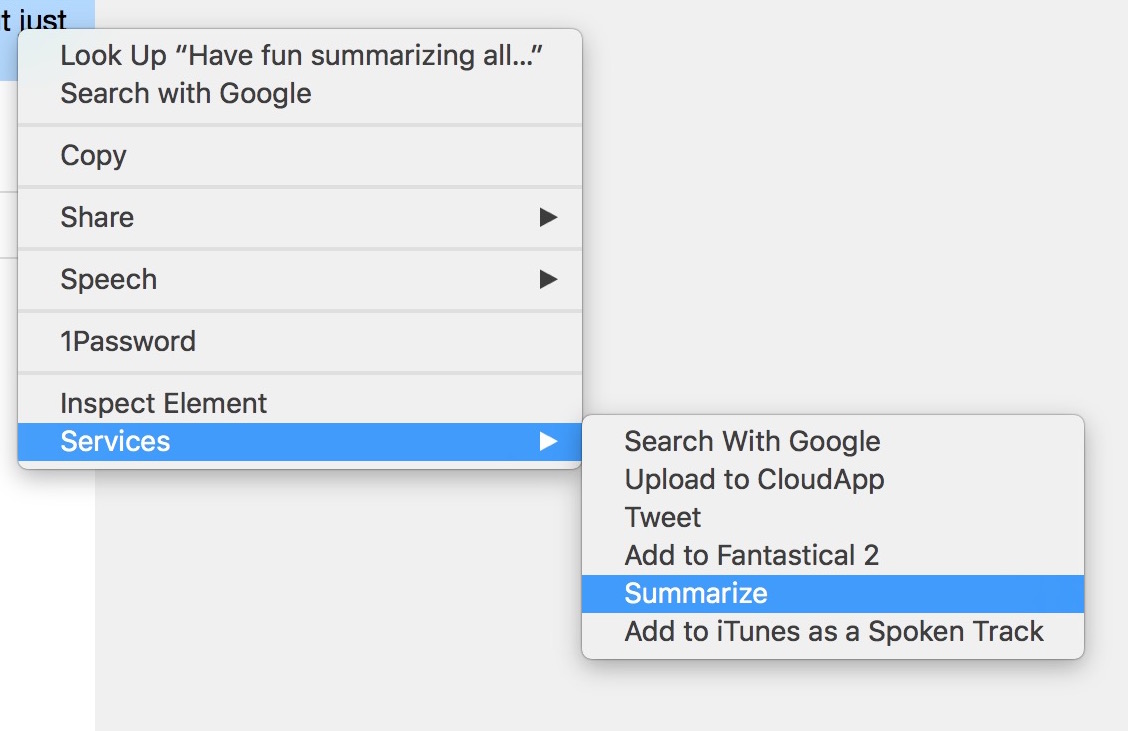
Now that Summarize is on, highlight text in an app, email, PDF, or similar, then click the app’s name in the menu bar and select Services > Summarize.

You’ll see a summarized version of the highlighted text in a new window that you can save as a text document.
You can also change summarization length to offer more or less information and adjust options from sentence-to-sentence to paragraph-to-paragraph. Alternatively, select text and choose Services > Summarize from the right-click menu. In some apps like Word, this option doesn’t appear in the menu.
I’ve tested Summarize in several apps, and it seems to work well in any software where I can work with text, including Safari, Chrome, third-party email clients, and more. However, paragraph summary doesn’t seem very useful because it cuts out larger sections of text.
Beyond this built-in macOS feature, you can also try third-party websites like smmry.com, quillbot.com, and resoomer.com to summarize your text.
Also, check out: Tips to customize the new iOS 27 Siri app on iPhone or Mac