Learn how to have Siri read your new messages in CarPlay so you can know what the text says without taking your eyes off the road or touching your iPhone.
Texting and using the phone while driving is one of the leading causes of accidents. With your iPhone kept near the dash while driving, you may be tempted to pick it up and read a text from your spouse or colleague, which can lead to distracted driving and major mishaps.
To combat this, enable and use the Announce Messages feature so Siri reads your incoming messages. You can hear it through your car’s speaker while keeping your eyes on the road.
Here’s how to set it up.
Have Siri read aloud new messages in your car
You can enable this from your car or your iPhone. We have listed both steps below.
From your car
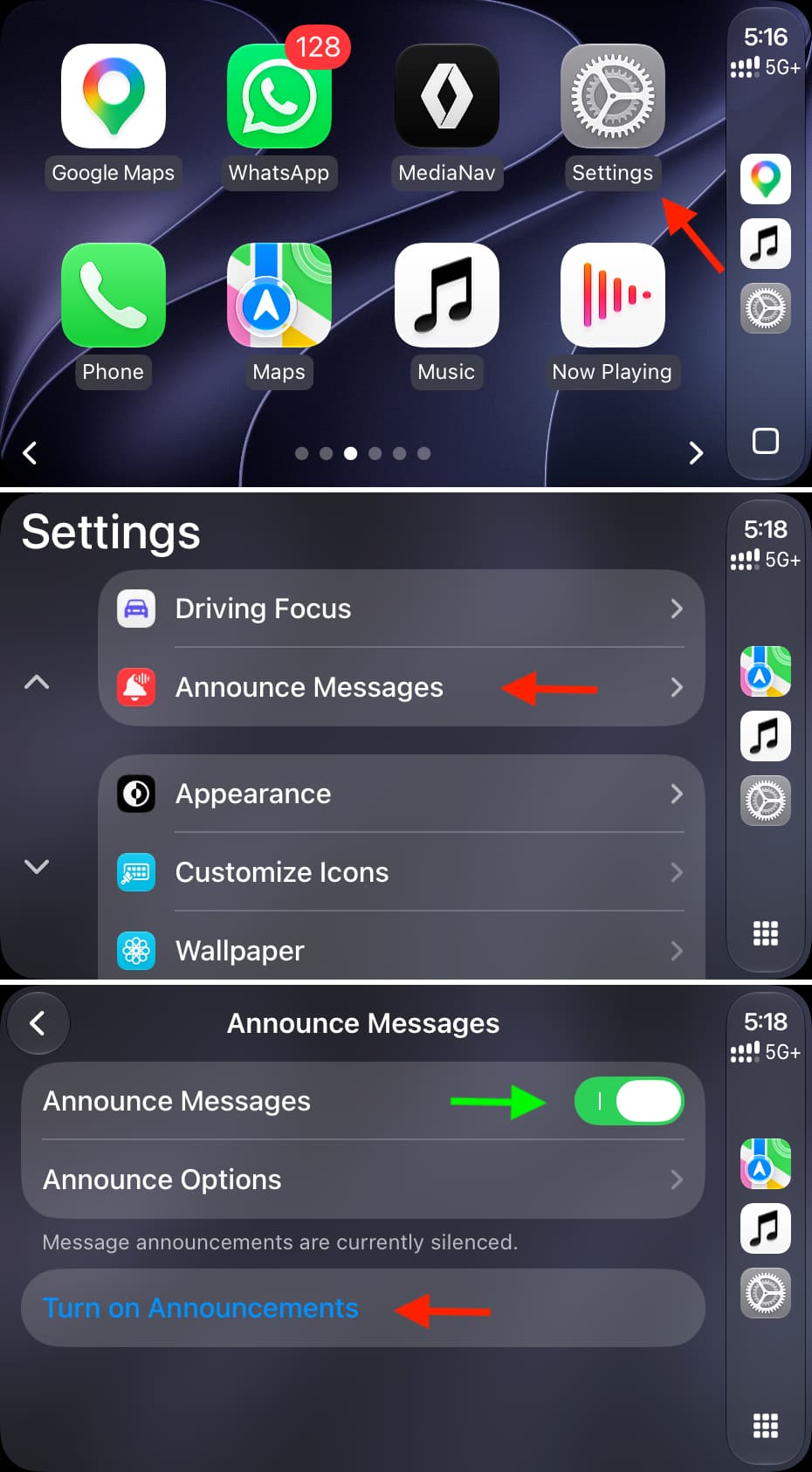
- Start wired or wireless CarPlay through your iPhone.
- Open the CarPlay Settings app on your vehicle display.
- Tap Announce Messages from the top.
- Turn on Announce Messages.
- Tap “Turn on Announcements” if you see it.
From your iPhone
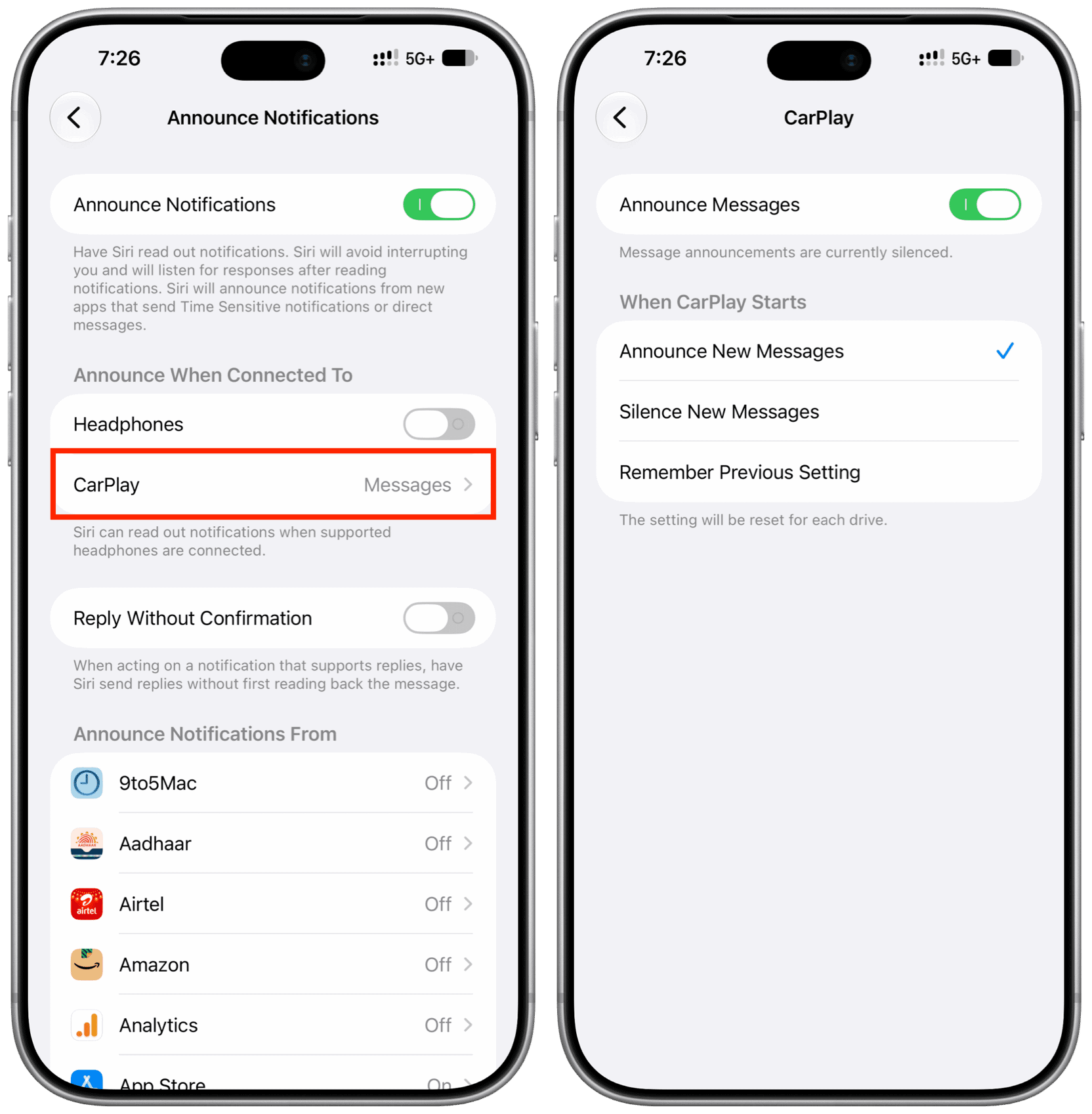
- Open the Settings app on your iPhone.
- Scroll down and tap Notifications.
- Tap Announce Notifications.
- Turn on Announce Notifications.
- Turn off Headphones if you don’t want your messages to be read in your ears in the ‘Announce When Connected To’ and tap CarPlay.
- Turn on Announce Messages and select Announce New Messages.
Moving forward, when you’re using CarPlay and get a new SMS, RCS text, or iMessage, Siri will read it aloud, and you’ll hear it through your car’s speaker.
Reply to message
Invoke Siri by saying “Siri or Hey Siri,” or press the voice assistant button on your car’s steering wheel or dashboard area (if available in your vehicle) and say something like:
- Reply ‘your actual message’
- Reply to ‘person’s name’ ‘your actual message’
Silence message announcements for a ride
Maybe you’re driving with other people in your car and don’t want Siri to read your texts aloud. You can ensure privacy by silencing message announcements for that ride (i.e., CarPlay session).
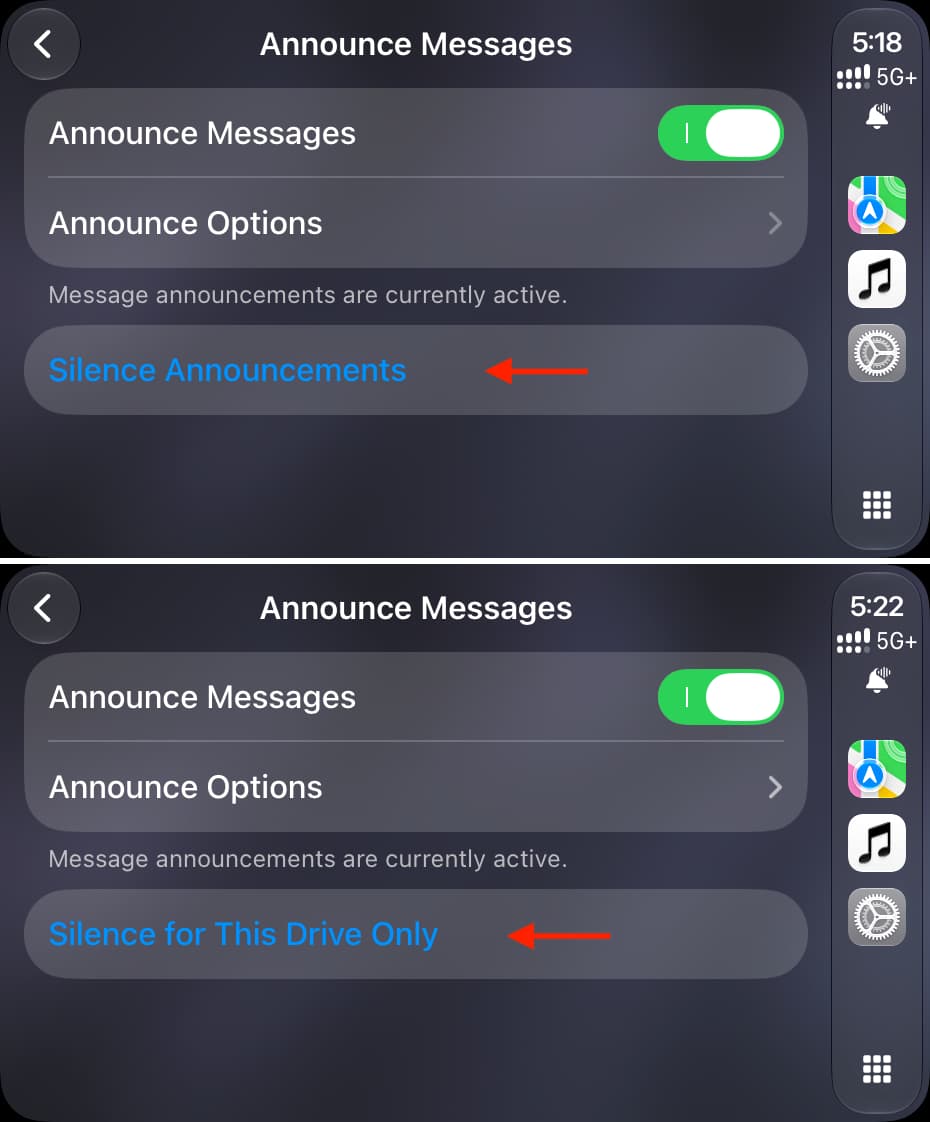
- Open the Settings app on your CarPlay screen.
- Tap Announce Messages.
- Tap Silence Announcements or Silence for This Drive Only.
Select what happens when CarPlay starts
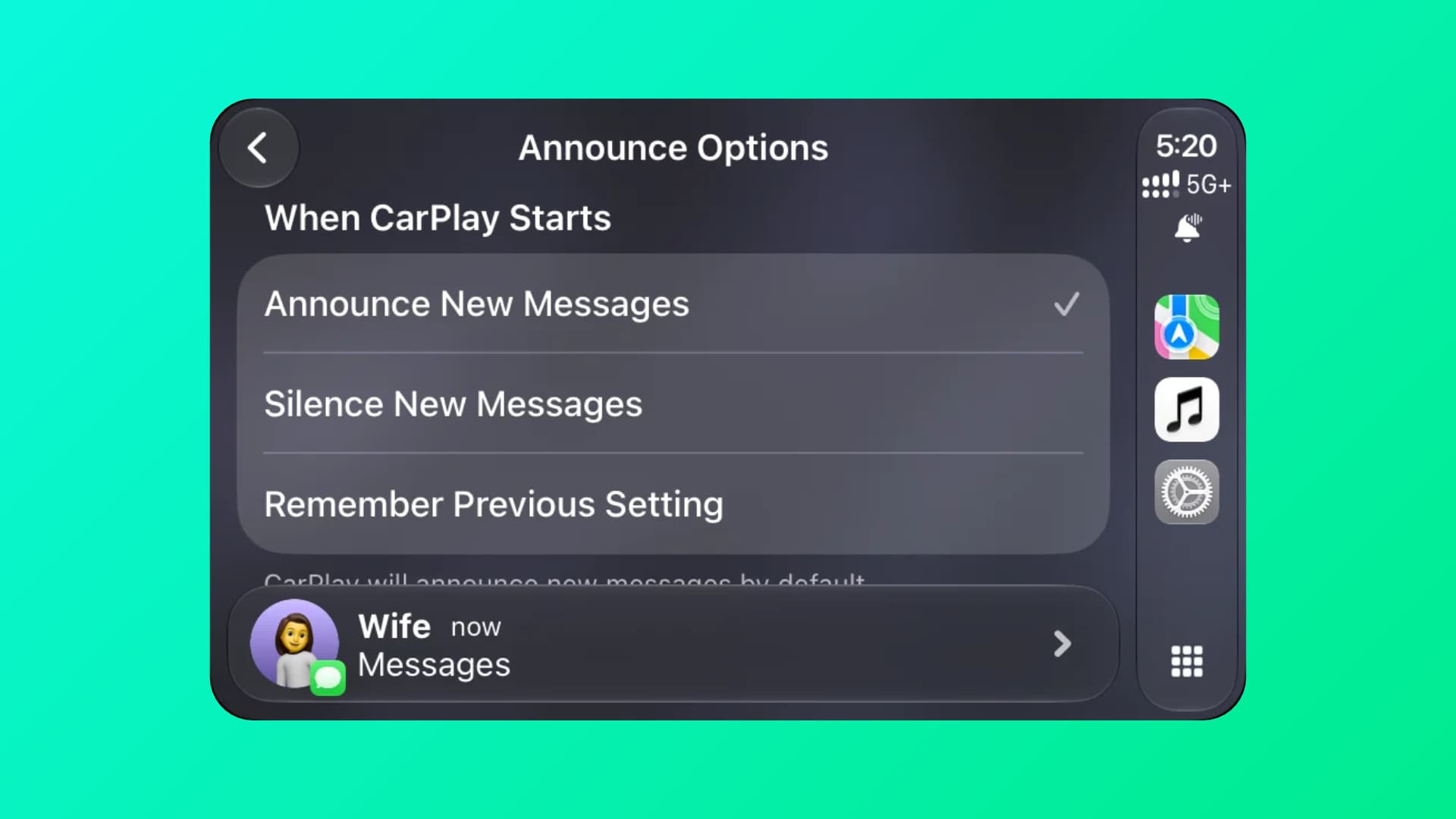
You can decide what message announcement setting is the default for when you start CarPlay.
Go to CarPlay Settings > Announce Messages > Announce Options or iPhone Settings > Notifications > Announce Notifications > CarPlay and select one of these options under the ‘When CarPlay Starts’ heading:
- Announce New Messages: Siri will read new incoming messages.
- Silence New Messages: Siri won’t read new incoming messages, but you can return to this feature’s settings and tap ‘Turn on Announcements’ for this ride.
- Remember Previous Settings: Siri will remember whether you choose to turn on message announcements or silence it and honor that.
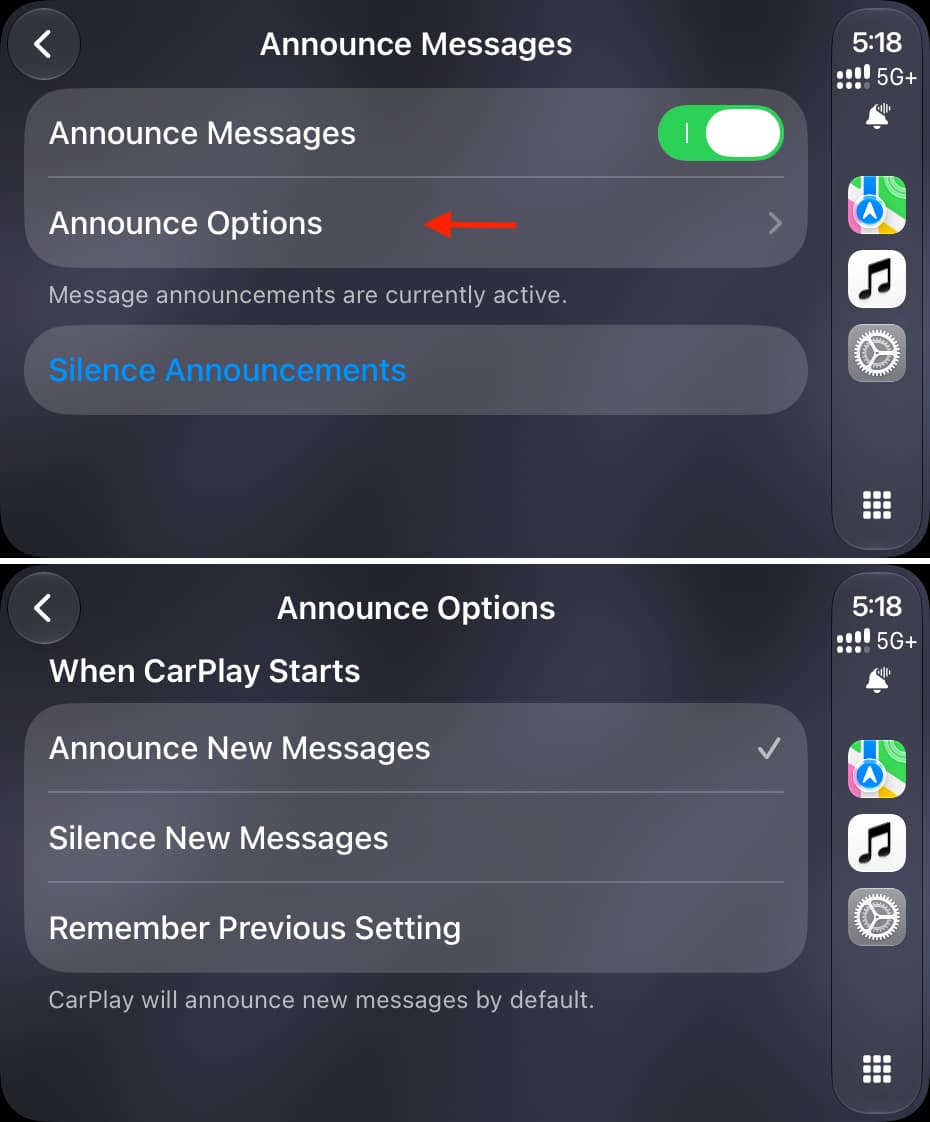
If you always drive alone, then ‘Announce New Messages’ as the default is fine.
If you’re on an occasional trip with some people and don’t want this feature, select ‘Remember Previous Settings’ and then silence the message announcements. This way, CarPlay will stay silent even if you take breaks during driving (i.e., stop and resume CarPlay).
Select ‘Silence New Messages’ if you don’t want Siri to read your messages aloud by default.
I usually drive alone and have set it to ‘Announce New Messages.’
Turn off message announcements
If you no longer need Siri to read your texts, head back to CarPlay Settings > Announce Messages and turn off the Announce Messages switch.
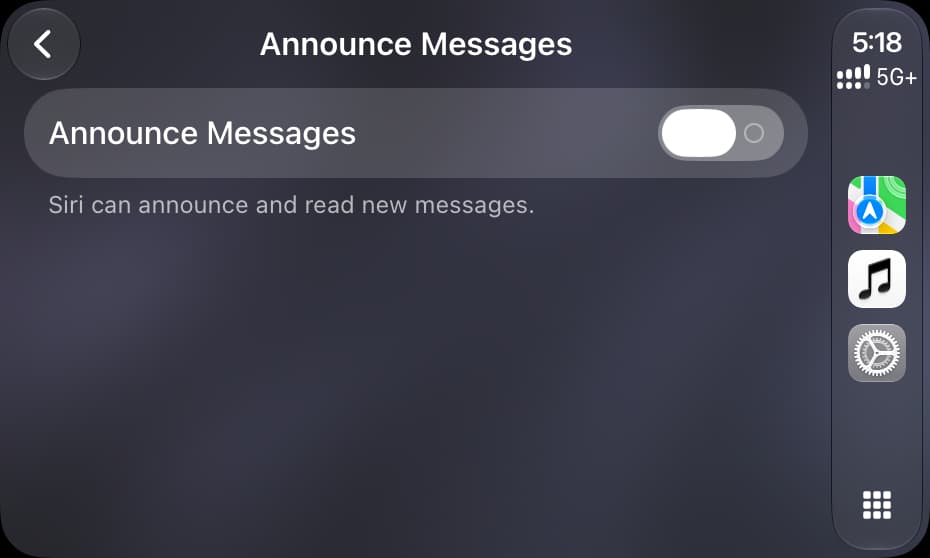
You can also go to iOS Settings > Notifications > Announce Notifications > CarPlay and turn off Announce Messages.
More on CarPlay: