In this quick tutorial, we show you how to disable the touchscreen on the new 2026 MacBook Pro with a PROLED XDR display if you only use the trackpad or want to lock the screen while cleaning.

If you got the latest MacBook Pro for its lightweight design, powerful M5 Pro or M5 Max chip, or the incredible notchless PROLED XDR display but not so much for its touchscreen, then macOS offers an option to disable touch input completely.
Deactivating the touchscreen also makes sense because, unlike most touchscreen Windows laptops, the new MacBook’s screen does not go fully flat (180°). So if you poke your finger on the display, it leads to wobble.
Secondly, while macOS 27 Golden Gate is a bit friendlier for touchscreen on MacBook Pro, it’s not a fully touch-first operating system. So beyond normal swipes and taps, you may not be able to use the touchscreen comfortably for anything precise, as you can on iPad or iPhone.
Whatever your reason, turning off the touchscreen is pretty straightforward.

Remember, macOS Golden Gate supports touch input when your iPad is connected to your Mac as a secondary display using Sidecar. But if you disable the touchscreen on the new MacBook Pro, it will also turn off the Sidecar touch input. You can still move the Mac pointer to the iPad and control it that way.
Disable touchscreen on MacBook Pro
- Open System Settings on your MacBook Pro.
- Select Accessibility in the left sidebar.
- Click Touch under the Physical and Motor heading.
- Turn on ‘Ignore Touch Gestures.’
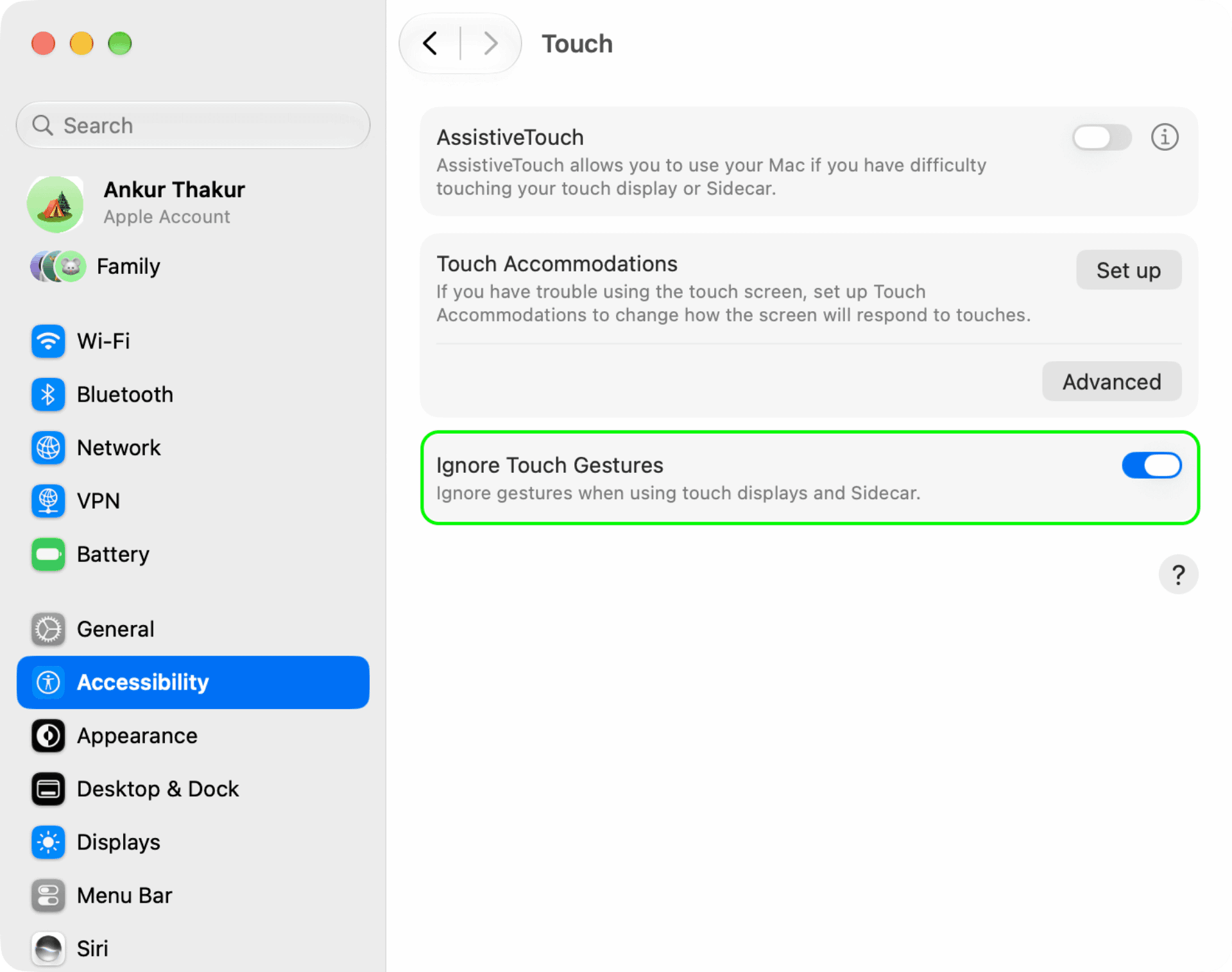
Touch your MacBook Pro screen or the iPad screen if using Sidecar, and it will no longer respond to finger taps, swipes, gestures, etc.
If you change your mind and want to restore touchscreen functionality, return to Touch accessibility settings and turn off Ignore Touch Gestures.
Use the Cleanbuddy app to lock the screen when cleaning
When it’s time to clean your MacBook screen to get rid of fingerprints and smudges, you can follow the above steps to block touch input and clean it.
Or, if you clean the screen frequently, you can get the CleanupBuddy app ($2.99) by Guilherme Rambo, which locks the keyboard, mouse/trackpad, and touch screen so you can clean your computer without worrying about accidental touch and key input.
Also check out: