Learn how to group reminder lists to see tasks from multiple lists in one place and to better organize and streamline the Apple Reminders app on your iPhone, iPad, and Mac.
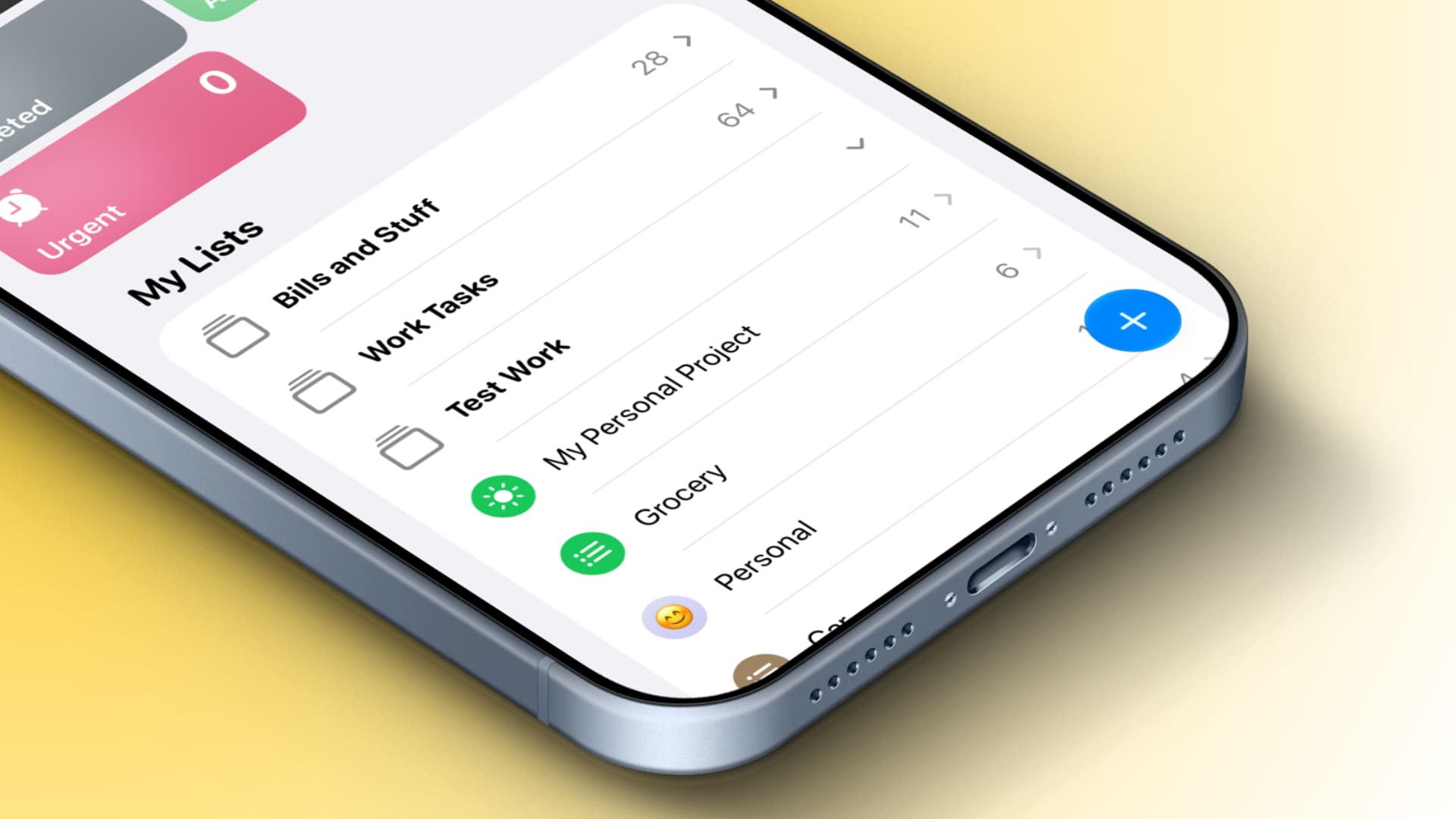
You can create several reminder lists to better organize your to-dos instead of having them all in one list. But if you create too many reminder lists, you can group them for better management.
For instance, if you have separate reminder lists for your three kids’ homework, you can put them all in one group called ‘Kids Homework.’
Similarly, if you have grocery lists, shopping lists, Christmas gift lists, and more, you can bundle them into a group you can call ‘Shopping.’ You get the idea…
When you tap a reminder group, it shows all tasks from all its lists on one scrollable screen; you don’t have to go back and forth.
The reminder group feature is similar to how, if you have too many photo albums or music playlists, you can further organize them into album folders and playlist folders in the Apple Photos and Music app.
Like reminder lists, your reminder groups also sync via iCloud to all your devices with the same Apple Account.
Drag and drop to create reminder list groups
You can drag one reminder list and drop it over another to automatically create a group. Then name your group, and you’re all set. This works on iOS, iPadOS, and macOS.
But remember that you can only drag and drop one list at a time. If you want to add several lists to a group at once, follow the next method on your iPhone or iPad.
Create reminder groups the other way
iOS
1) Open the Reminders app on your iPhone or iPad.
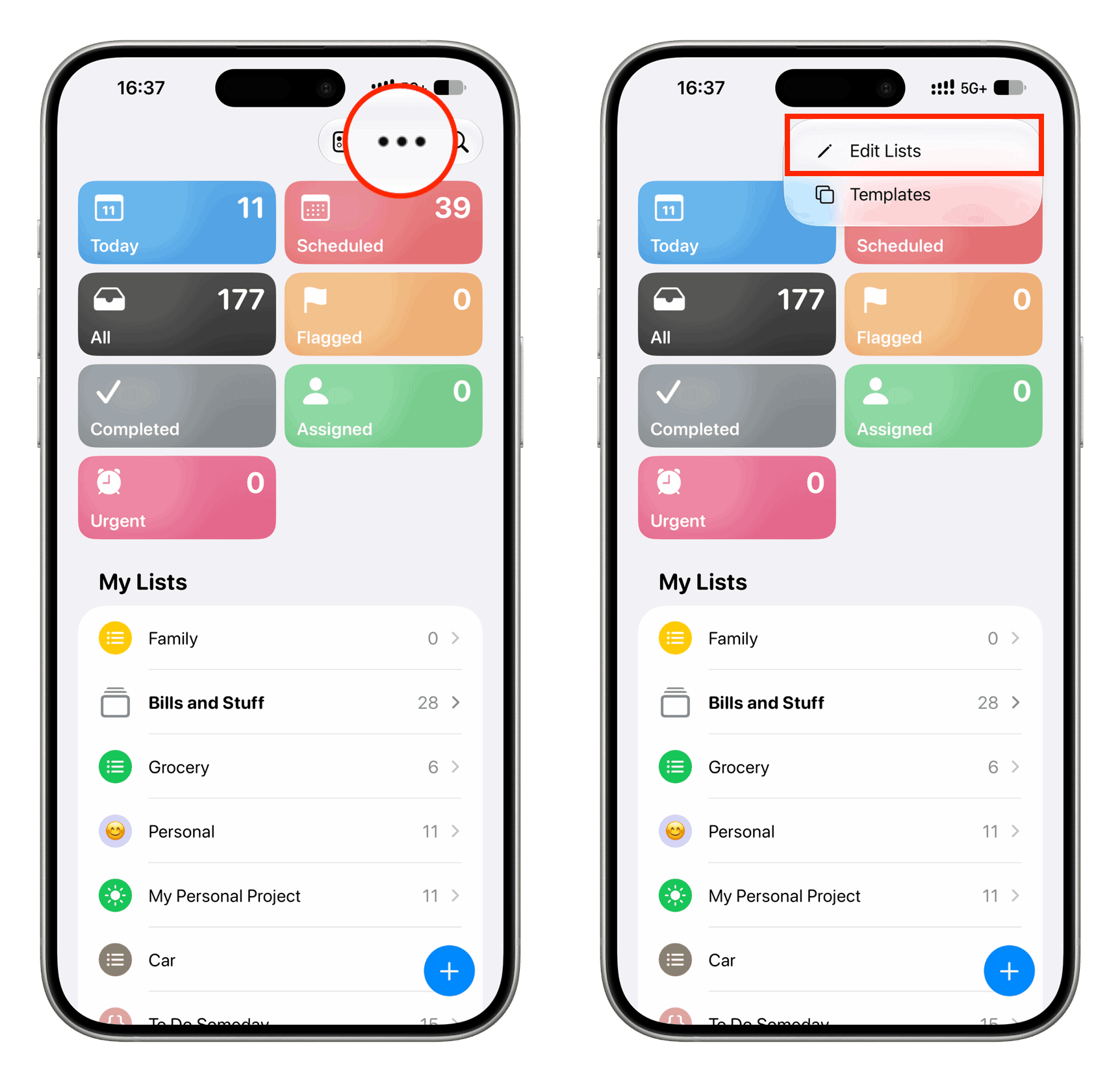
2) Tap the three dots icon at the top and select Edit Lists.
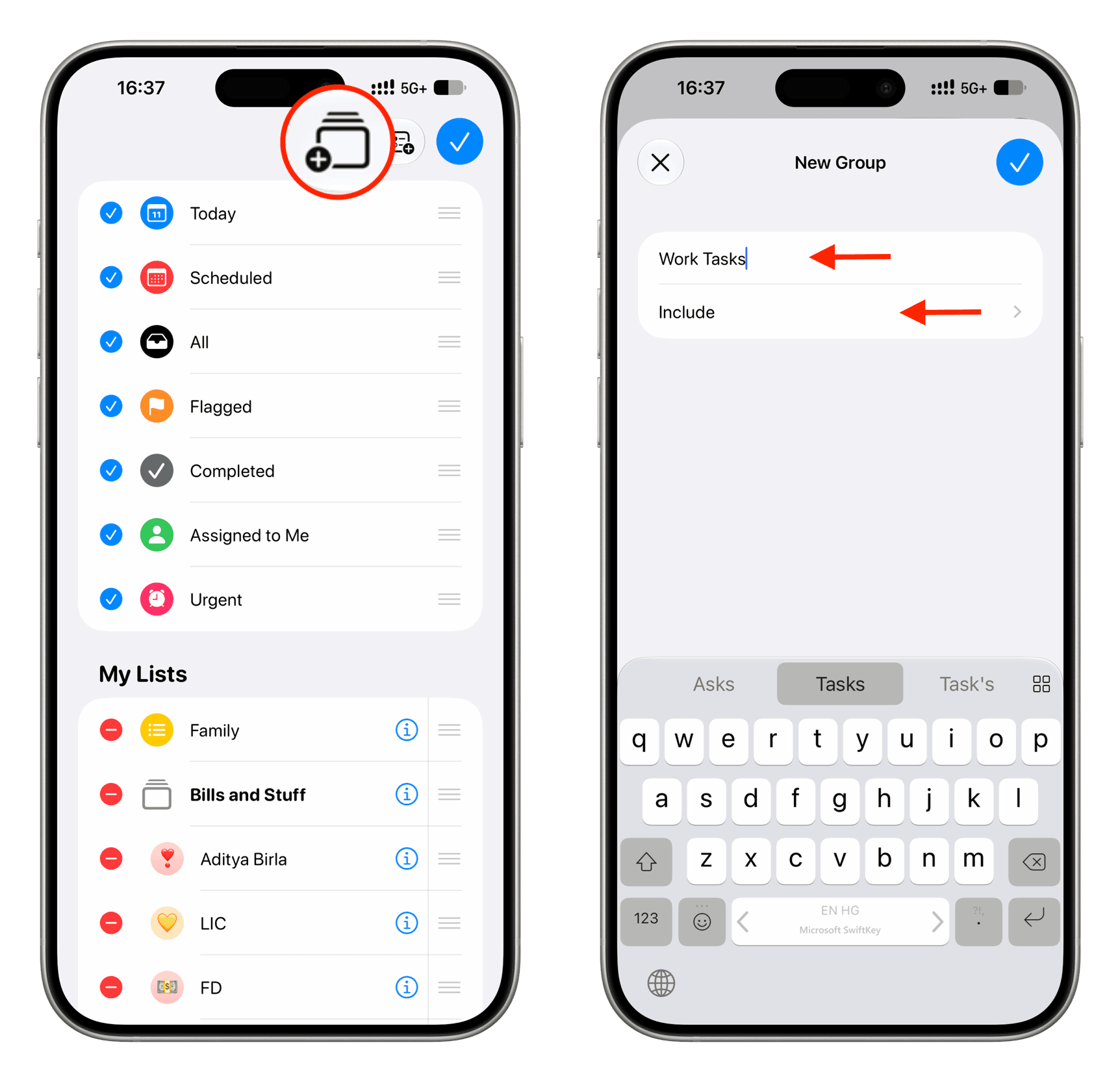
3) Tap the new folder icon.
4) Give a name to your folder. Then tap Include to see a list of all your reminder lists.
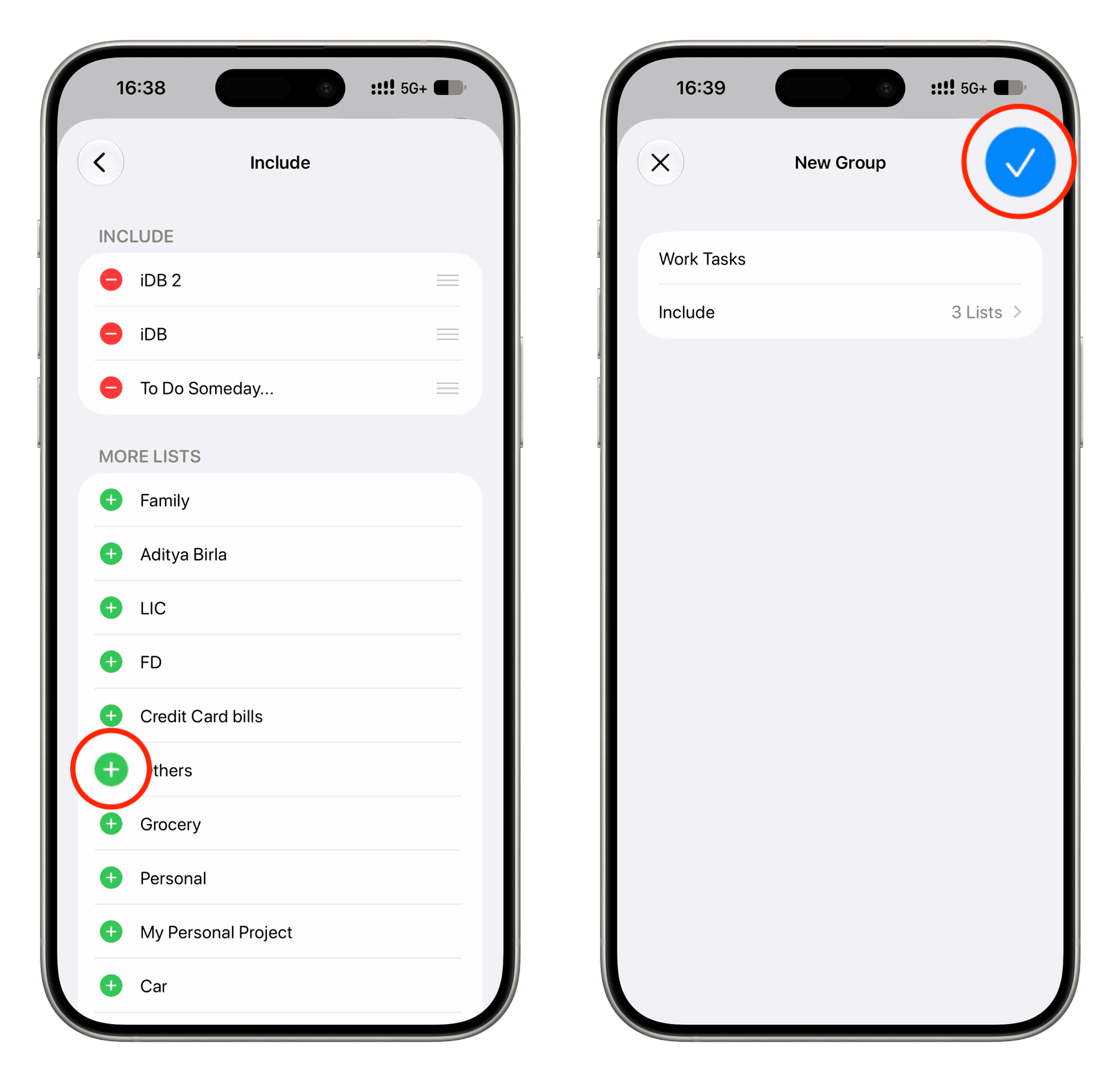
5) Tap the green plus button for each list you want to add to this group. Then, tap the back button.
6) Tap the checkmark icon here and once again on the next screen to finish creating your reminder group.
macOS
1) Open the Reminders app and select a reminder list.
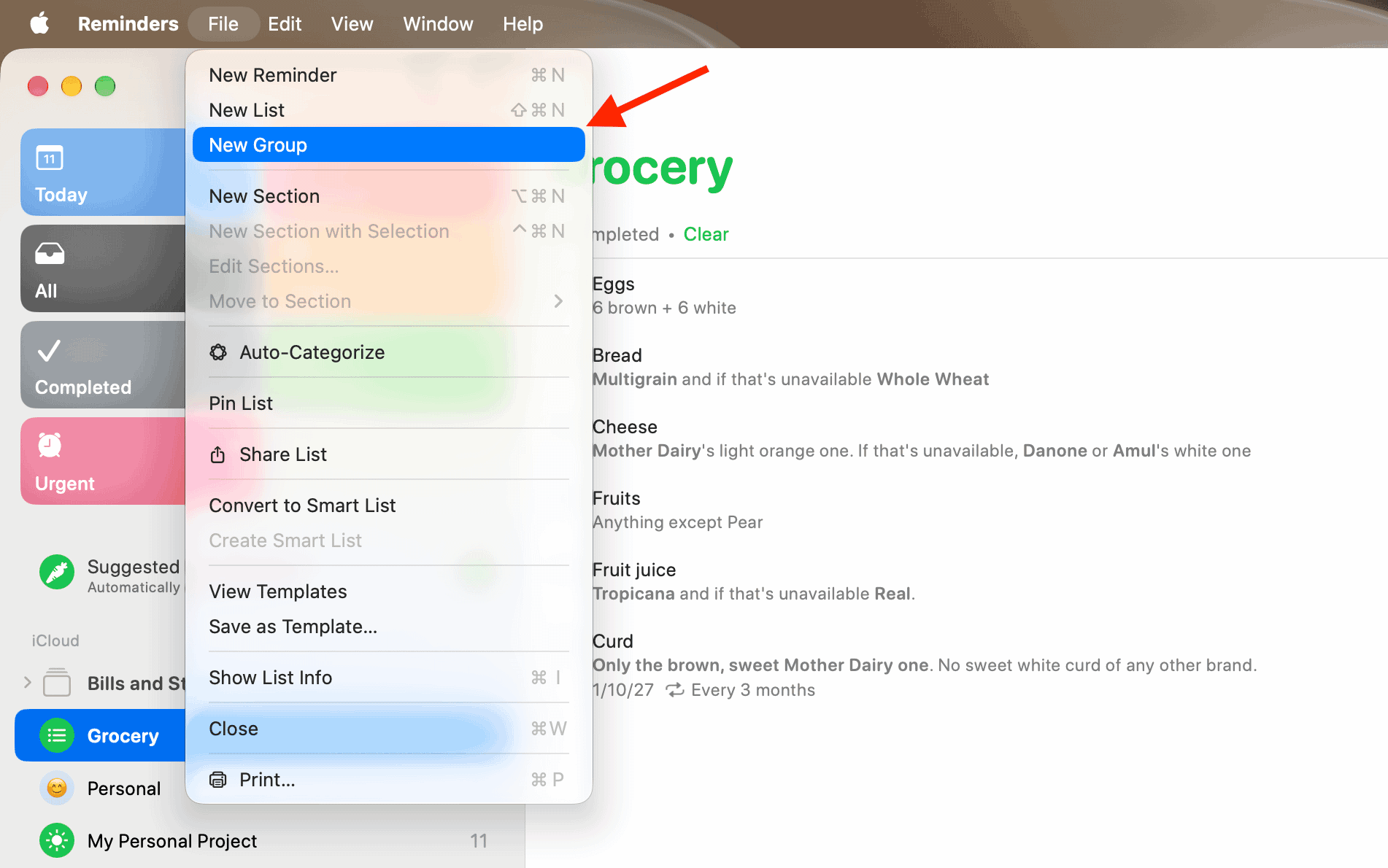
2) Click File in the top menu bar and select New Group.
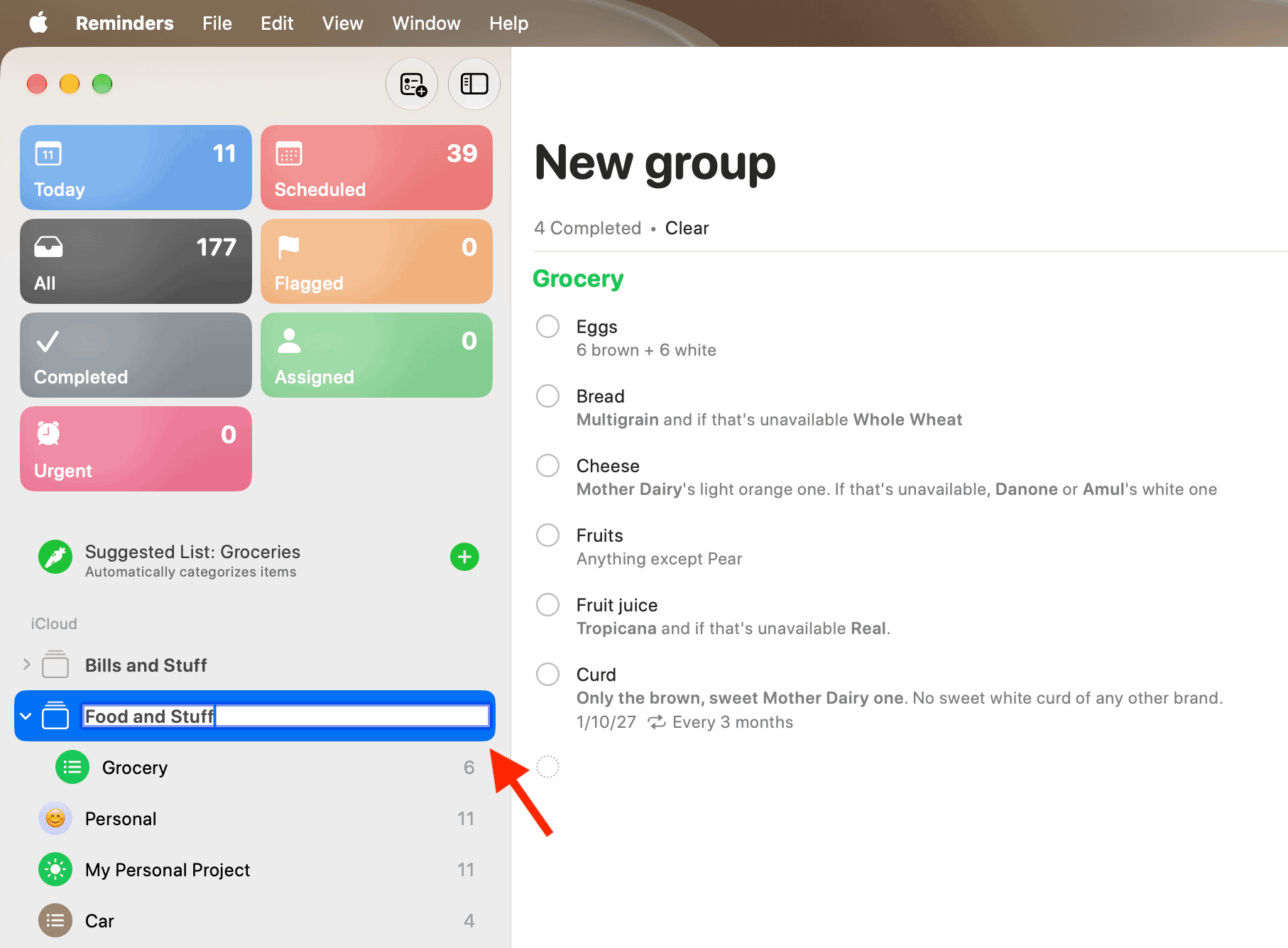
3) Give your group a name and press the return / enter key.
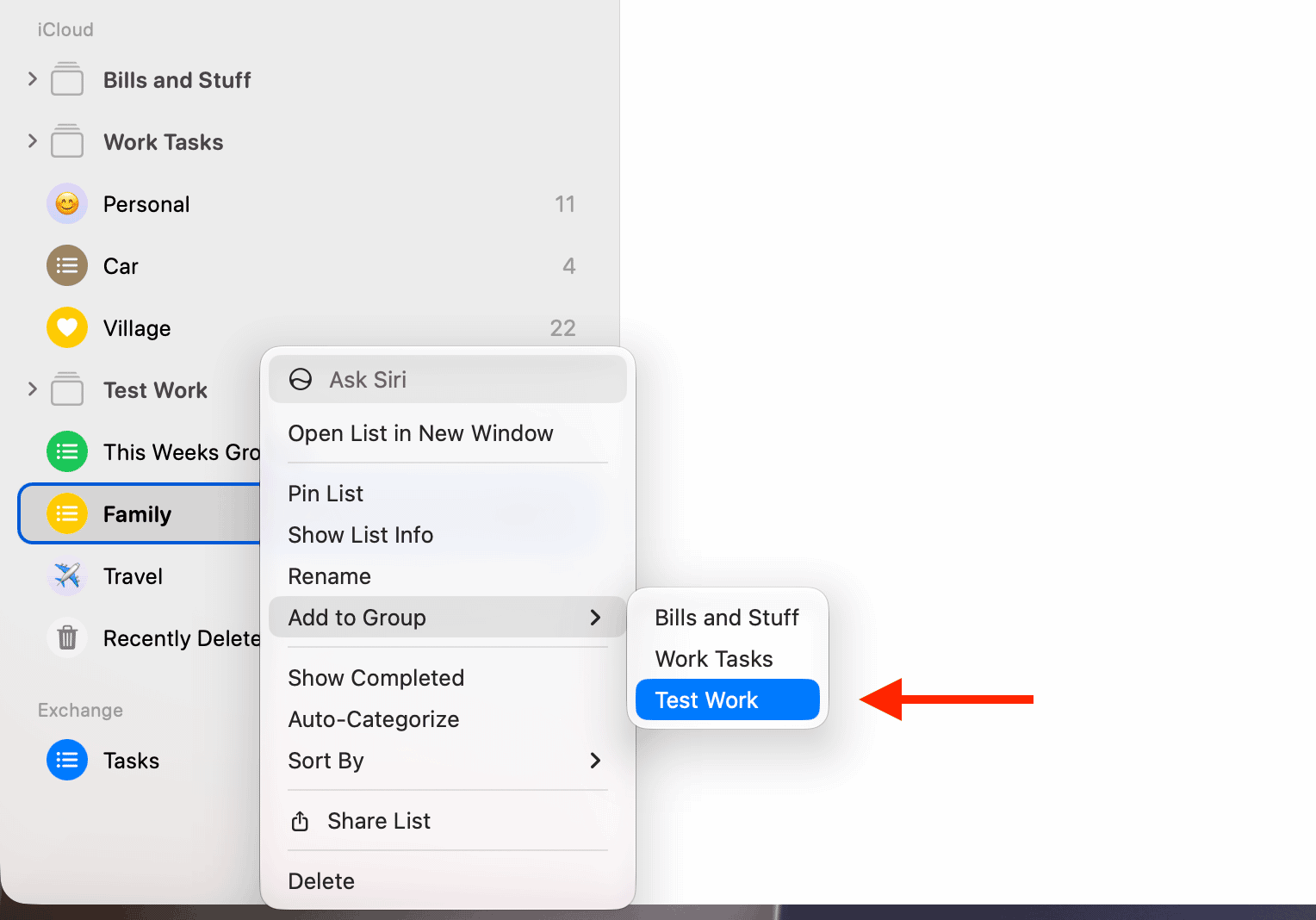
4) Control-click or right-click on other lists and add them to the group. Unlike iOS, the Reminders app on macOS doesn’t offer an easy way to add many lists to a group at once.
Using reminder group
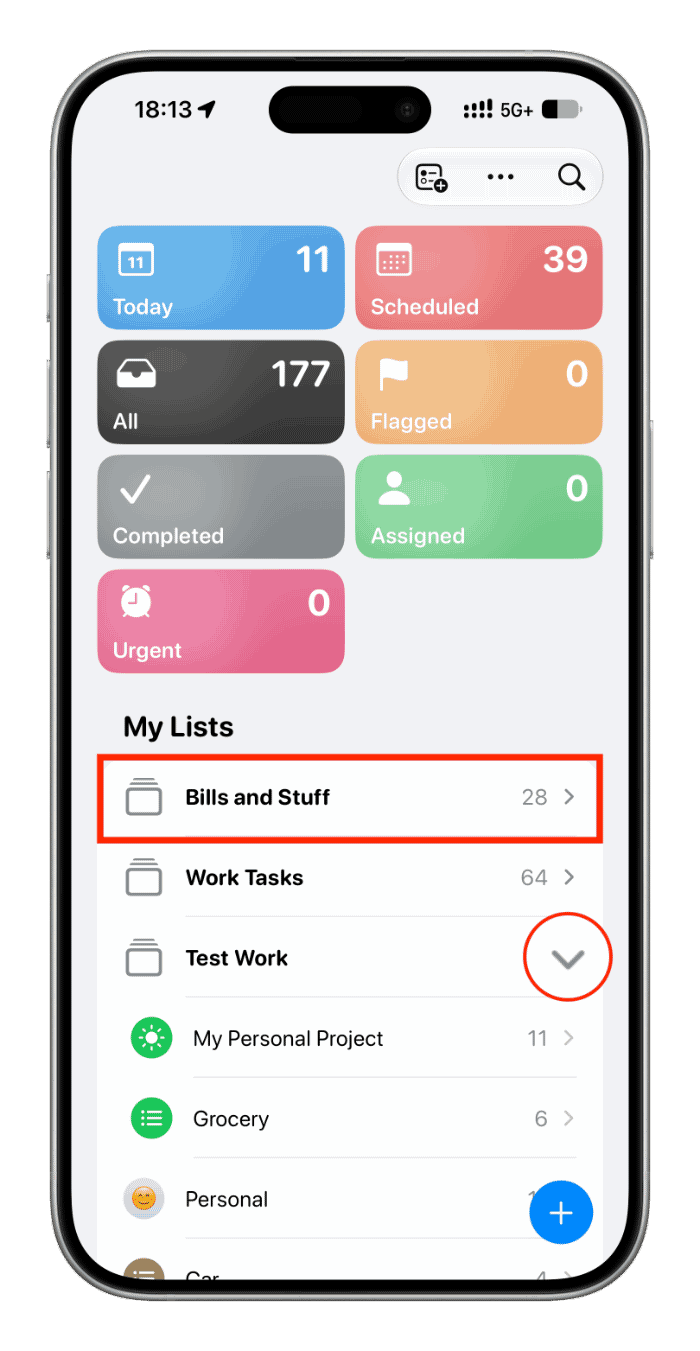
Tap/click a group to see all tasks from all lists that are added to this group.
Or, tap/click the arrow to see all lists and go inside one to see only its tasks.
Rename, add, or remove lists from a group
You can use drag and drop to add or remove lists to and from a group. You can also right-click on a list on Mac and add it to an existing group.
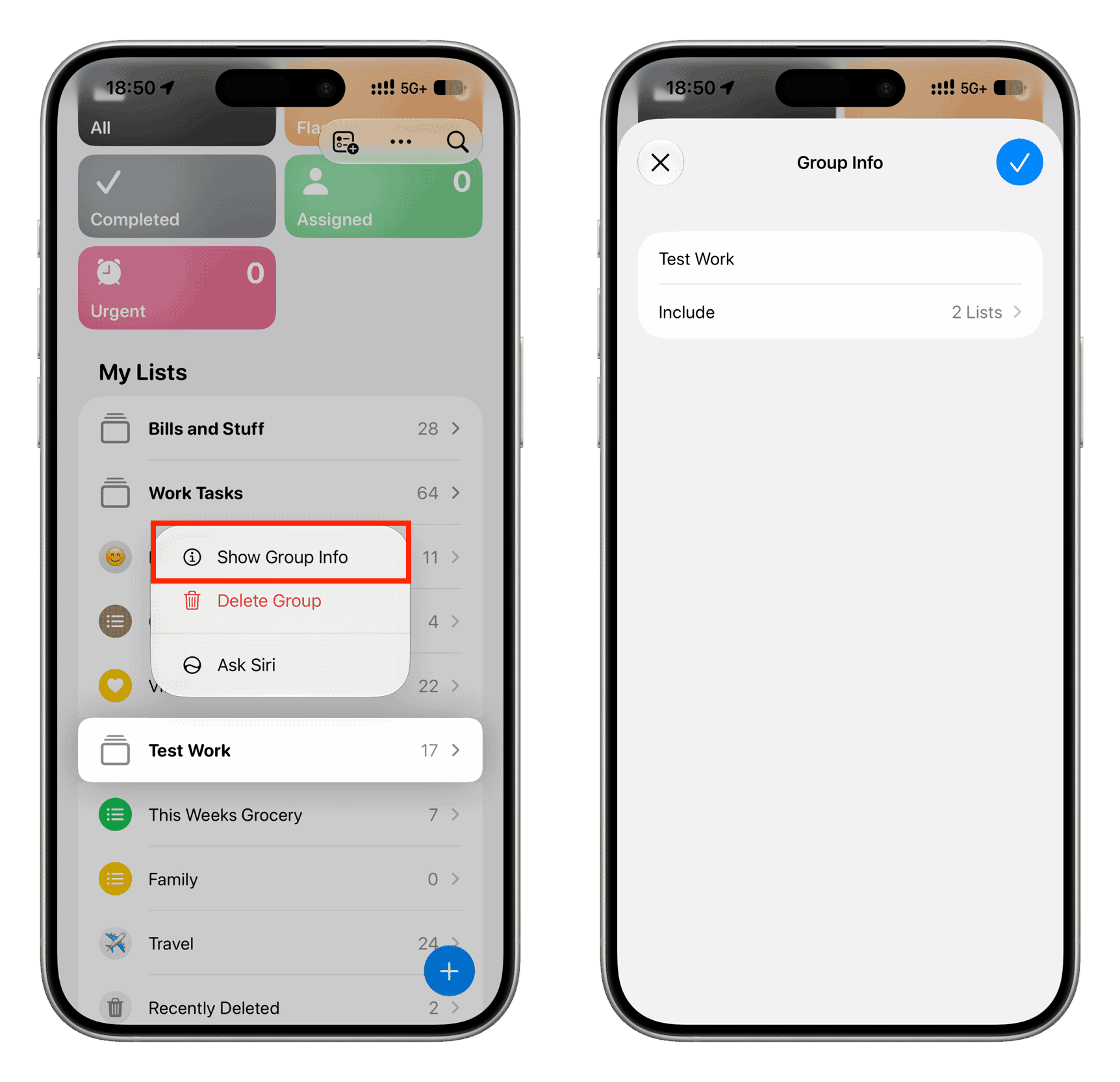
On iOS, there is yet another way to add or remove lists or rename the group, as explained below:
- Open the Reminders app.
- Touch and hold a group and select Show Group Info.
- Rename the group here if needed.
- Tap Include, and use the green plus button next to the list you want to add. Use the red minus button to remove a list. Then go back and save the new changes by tapping the checkmark icon.
Reorganize where the groups appear
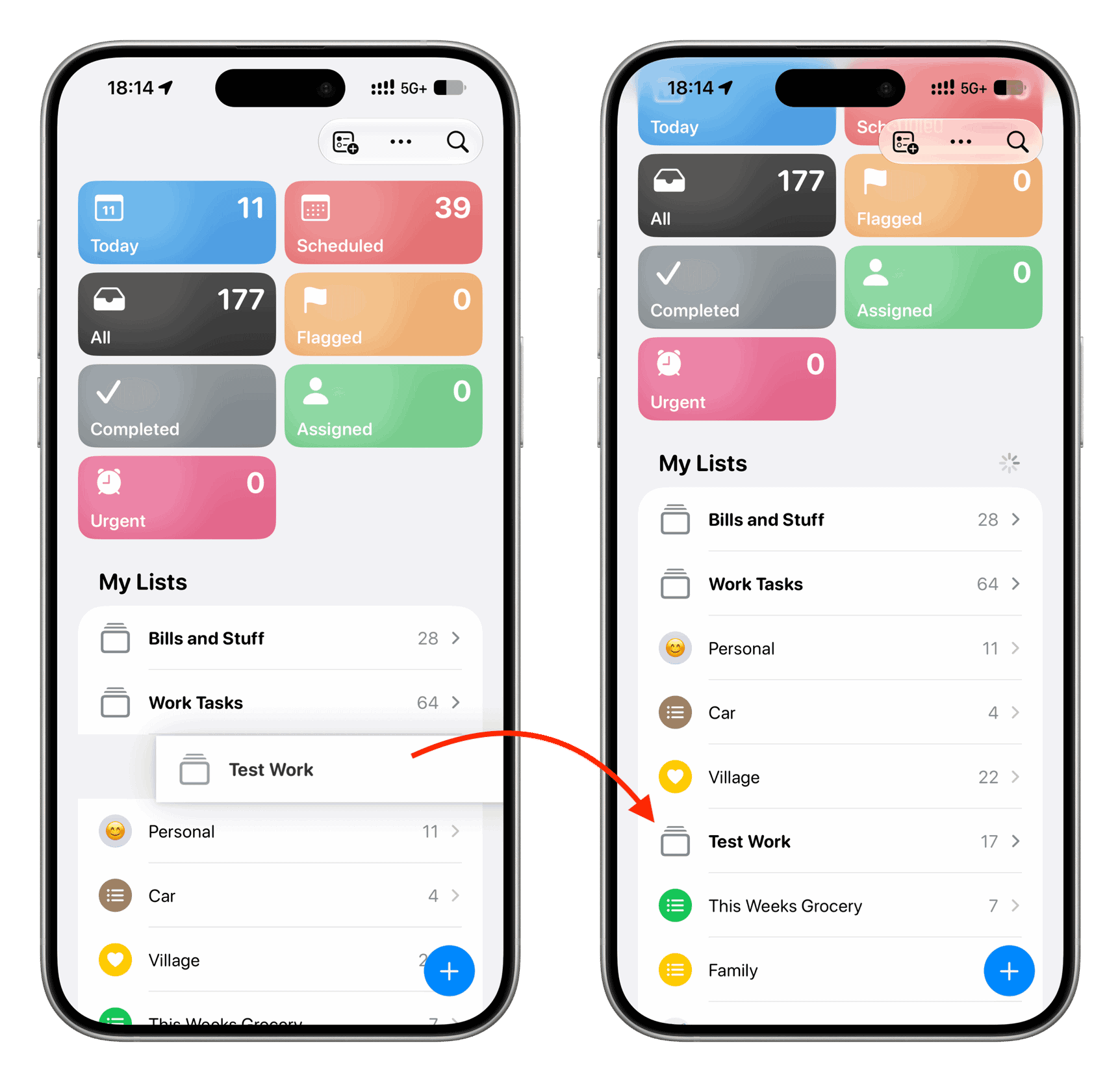
Touch and hold a reminder group, then drag it to another spot in the list.
Delete reminder group
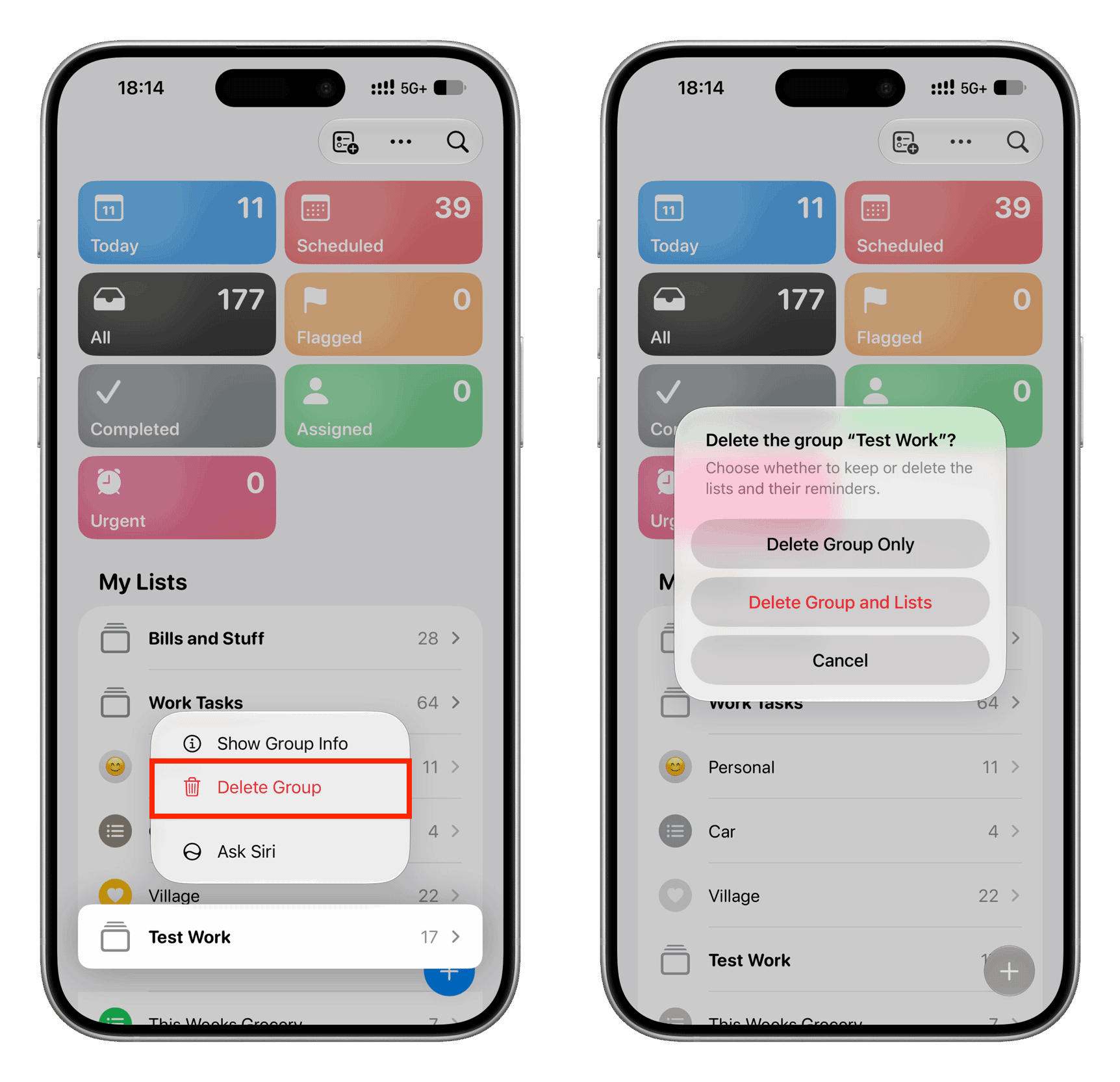
Touch and hold a reminder group on iOS or right-click on macOS, then choose Delete. If the group has lists with tasks, you’ll see the option to delete only the group (while keeping the list) or delete the group and the lists in it.
What do you think of reminder groups? Will you be using it?
Also, check out: How to use templates in the Reminders app on iPhone, iPad, Mac