Learn how to access the missing App Switcher on your Apple Watch in watchOS 27 to see your recently used apps and swipe left to force-close one.
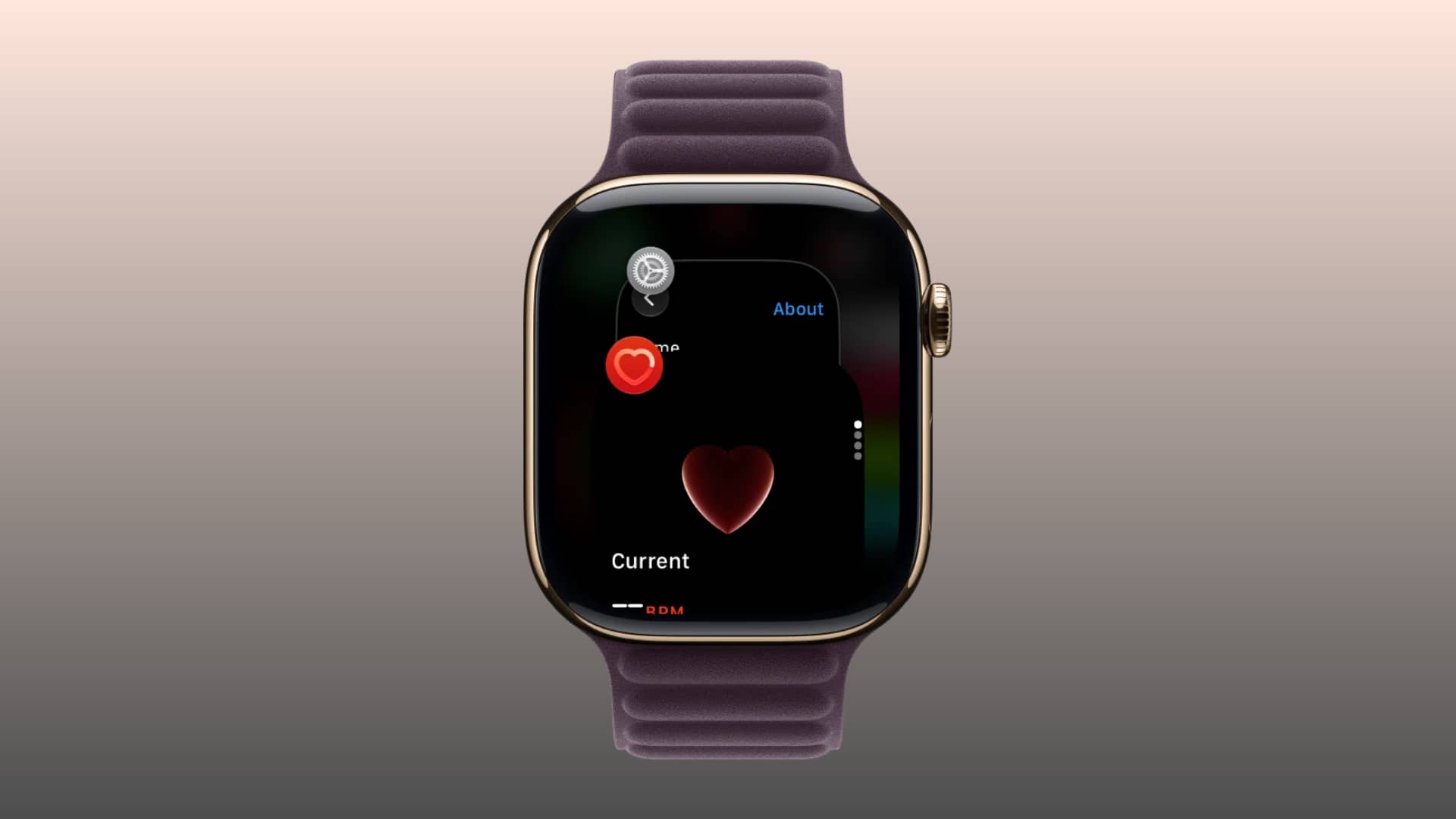
Before the watchOS 27 update, you could double-press the Digital Crown to bring up the App Switcher and access your recently used apps.
However, Apple introduced a new Live Rewind AI feature for Series 12 and Ultra 4 in watchOS 27, and it’s mapped to a double-press of the Digital Crown (Live Rewind has finally arrived in watchOS 27.3, which is currently in beta).
Double-pressing the Digital Crown on older watch models running watchOS 27 does nothing, leading users to believe there is no way to access recently used apps, aside from hoping to see them on the revamped Home Screen.
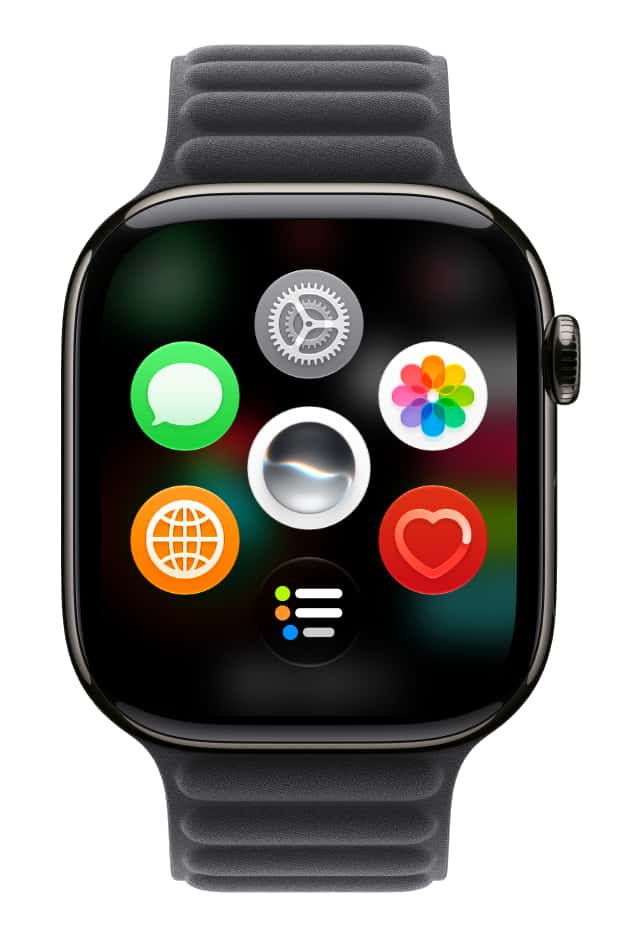
But that’s not entirely true. Apple has simply changed how we access the App Switcher. Here’s the new method that works on all Apple Watch models running watchOS 27.
See recently used apps on Apple Watch in watchOS 27
- Update your Apple Watch to watchOS 27.2 or later.
- Make sure you’re inside an app, and not on the watch face or Home Screen.
- Touch and hold the bottom of the screen until you feel a soft vibration.
- Swipe up or down to go through all your recently used apps.
- If you swipe to an app card and don’t do anything, watchOS will automatically show that app on the full screen after a couple of seconds.
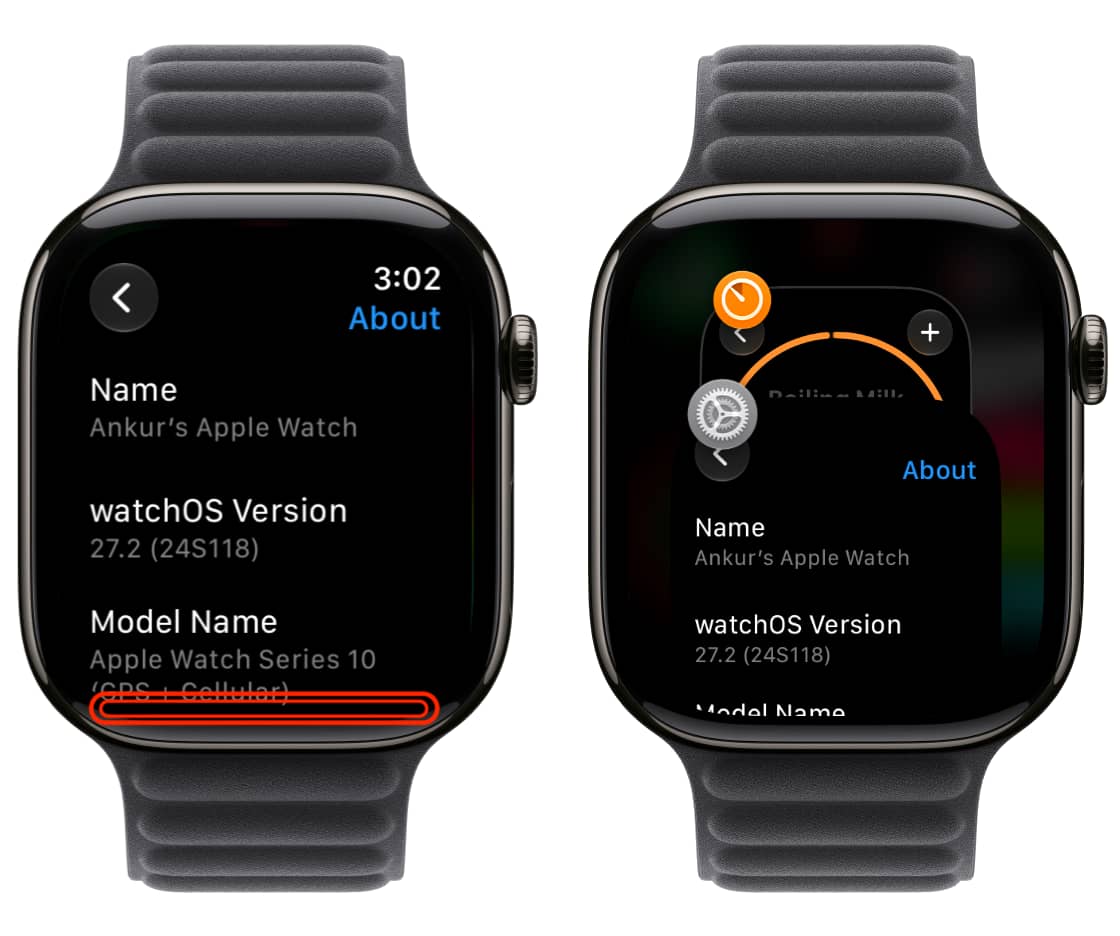
You can also swipe left on an app card and tap the big red X icon to quit it. Remember, the old method to force-close an app using the power-off screen still works.
Remember that, just like iOS, you shouldn’t close all recent apps if your goal is to save battery. It can actually hurt battery life, as Apple itself has pointed out.
Also, check out: