Learn how to change the captions or comments you added to photos in your shared iCloud photo albums on iPhone, iPad, Mac, and the web.

iOS 27.2, iPadOS 27.2, and macOS 27.2 Golden Gate now allow you to edit captions of a shared album as well as comments under individual photos. Before this update, if you needed to change a comment, you had to delete the comment and add a new one.
You can change the album caption and individual photo comments from iPhone, iPad, Mac, and even iCloud Photos on the web. Here are the full steps for all.
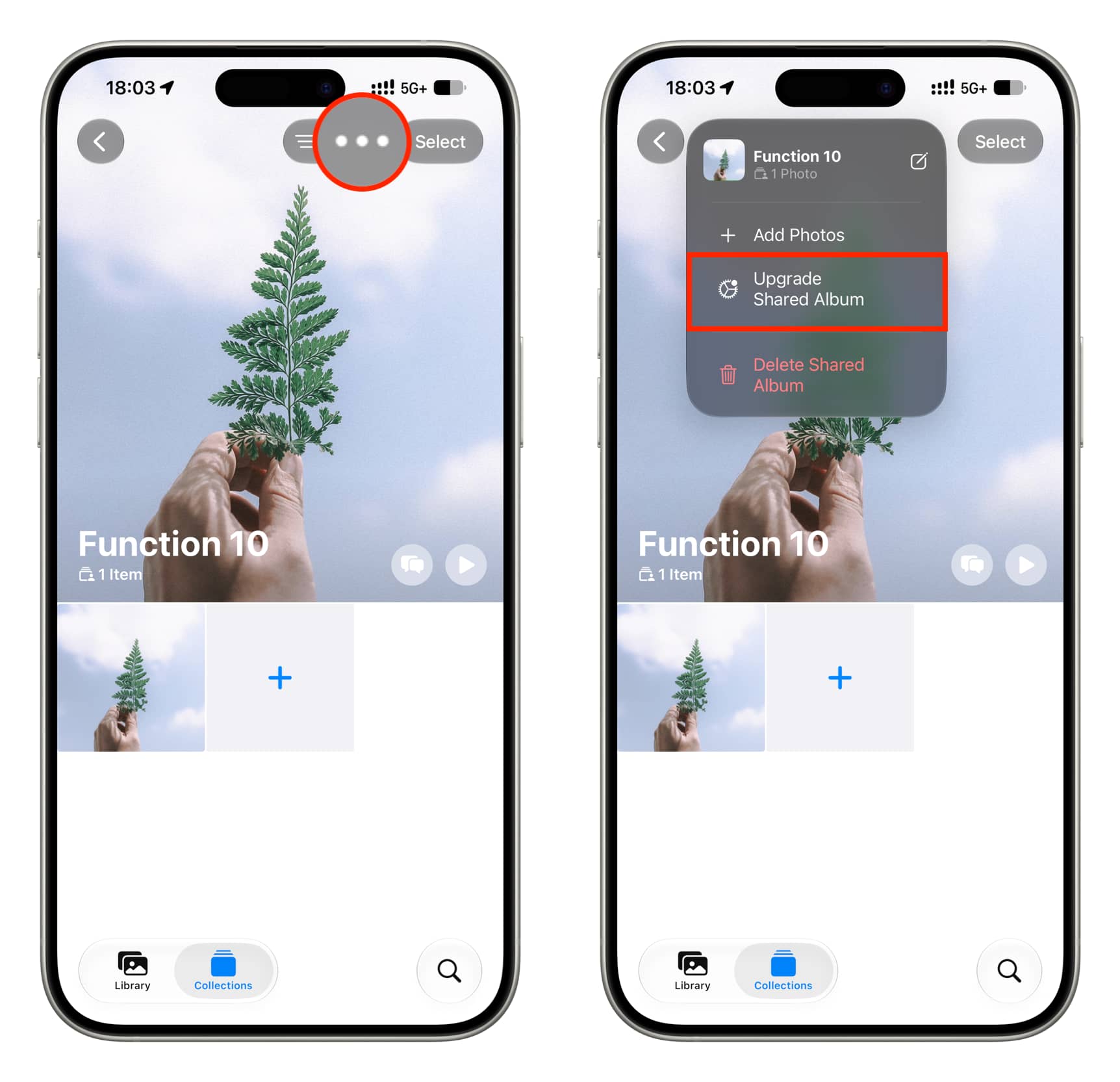
Important: You can only change the caption and comments for upgraded shared albums, which count against your iCloud space, support emoji reactions, and require iCloud Photos to be set up on the device where you’re creating the album. You can upgrade your old shared albums by tapping the three-dot icon and selecting ‘Upgrade Shared Album.’
Change shared iCloud photo caption
Every time you add one or more photos to a shared album, you’re given the option to add a caption. If you didn’t add one or want to edit the current one, here’s how to do that. The steps are similar for all platforms.
iPhone and iPad
1) Update your device to iOS 27.2, iPadOS 27.2, or later.
2) Open the Photos app, go to the Collections tab, and enter a shared album.
3) Tap the activity icon.
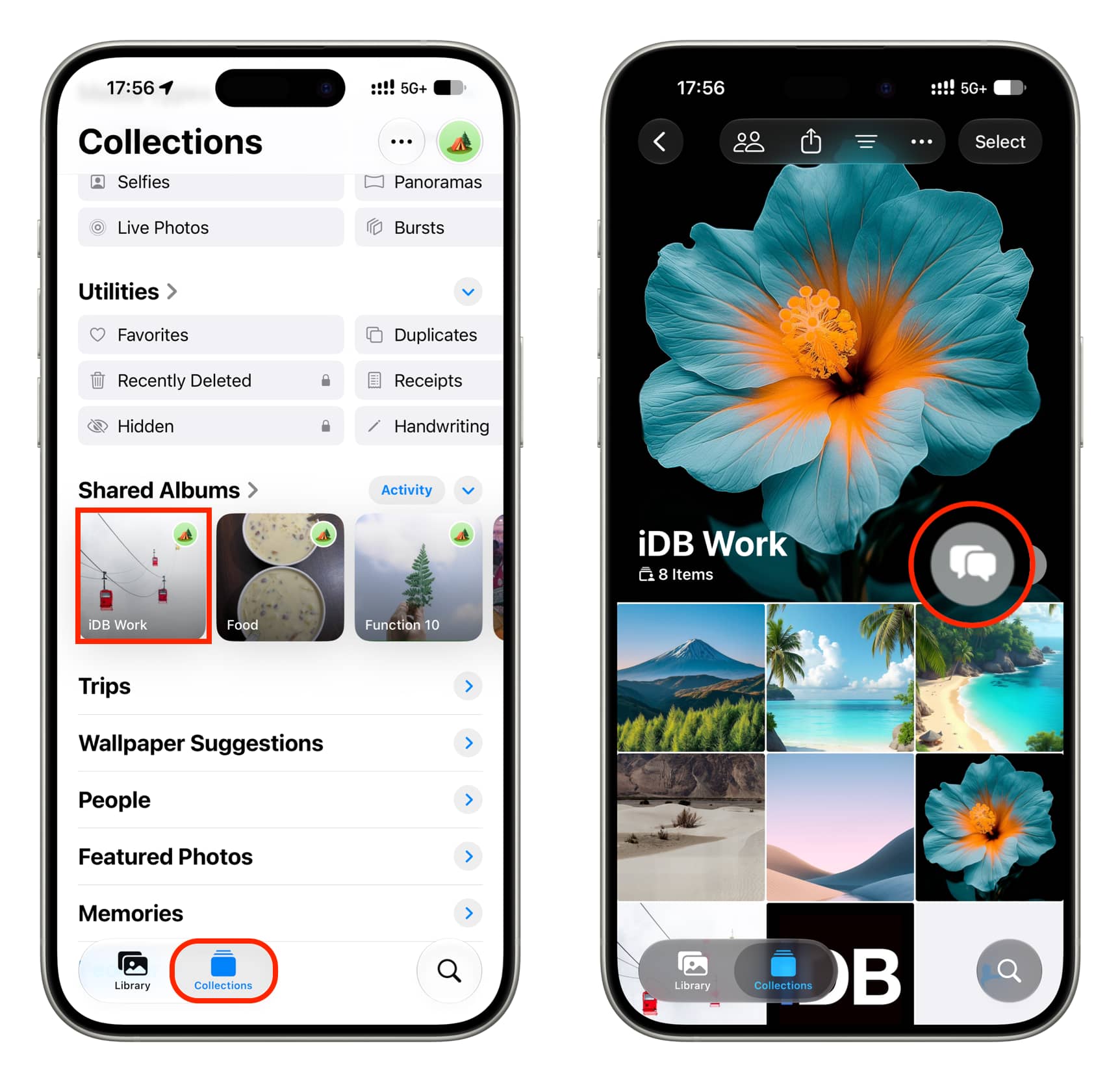
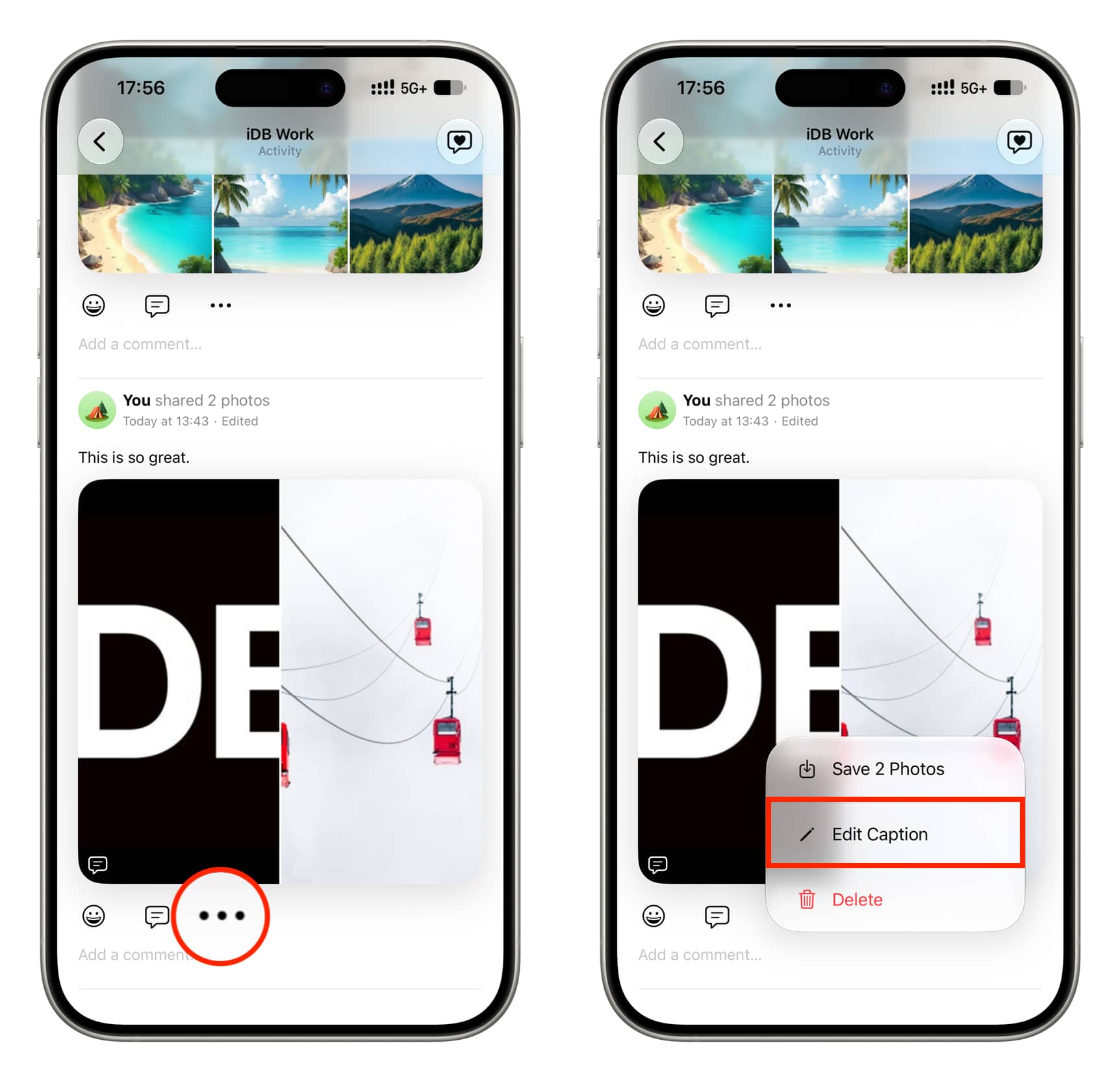
4) Find the activity that says ‘You shared N photos.’ You could have more than one such activity if you add photos and videos to this album in separate batches. Tap the three dots icon for that activity and select Edit Caption.
5) Add or edit the caption and tap the checkmark icon to save it. An ‘Edited’ label appears for this activity at the top; tapping it doesn’t show the actual edit history (i.e., the old caption).
Mac
- Open the Photos app on your Mac running macOS 27.2 Golden Gate or later.
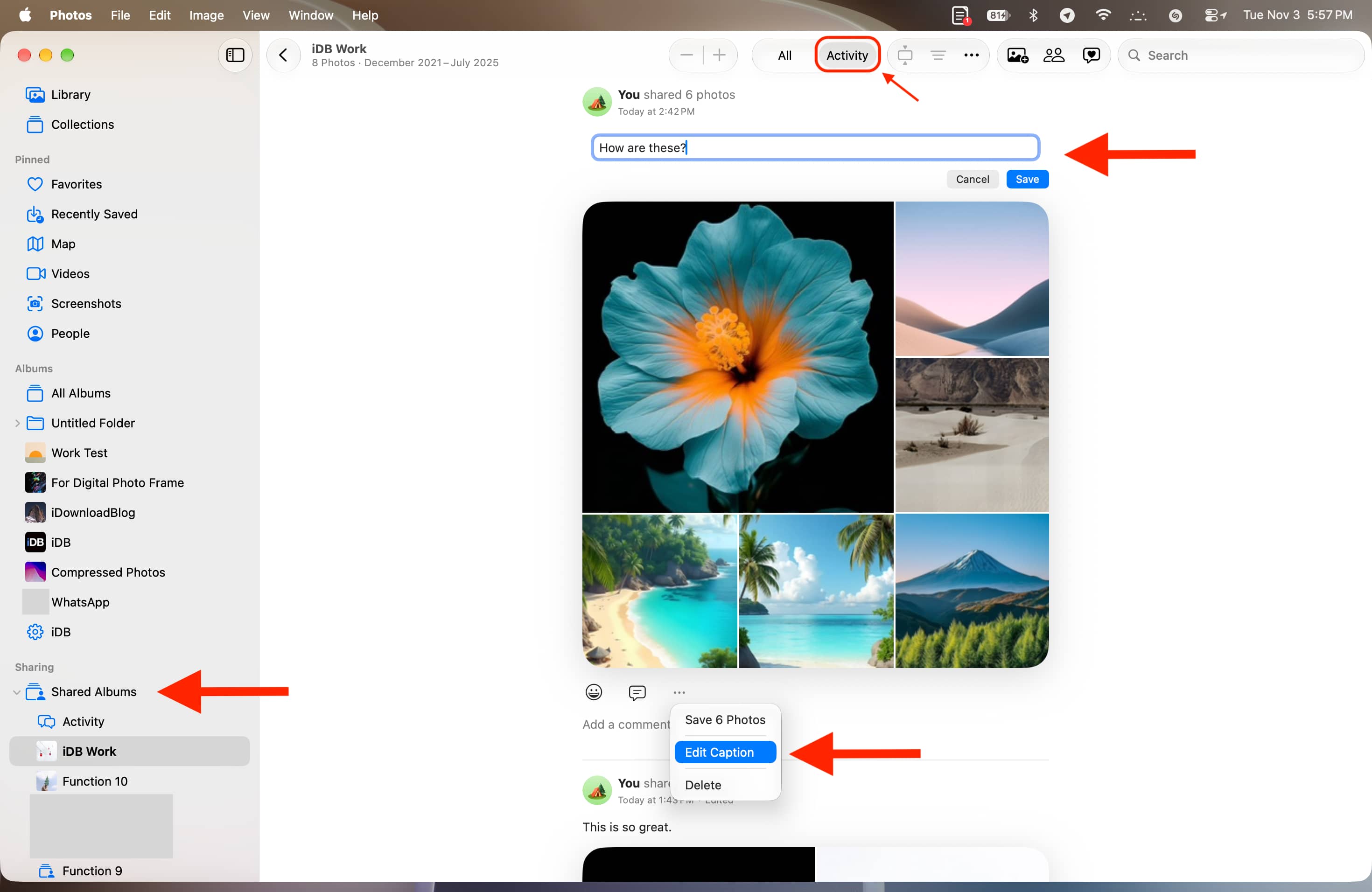
- Click Shared Albums in the left sidebar and open an album.
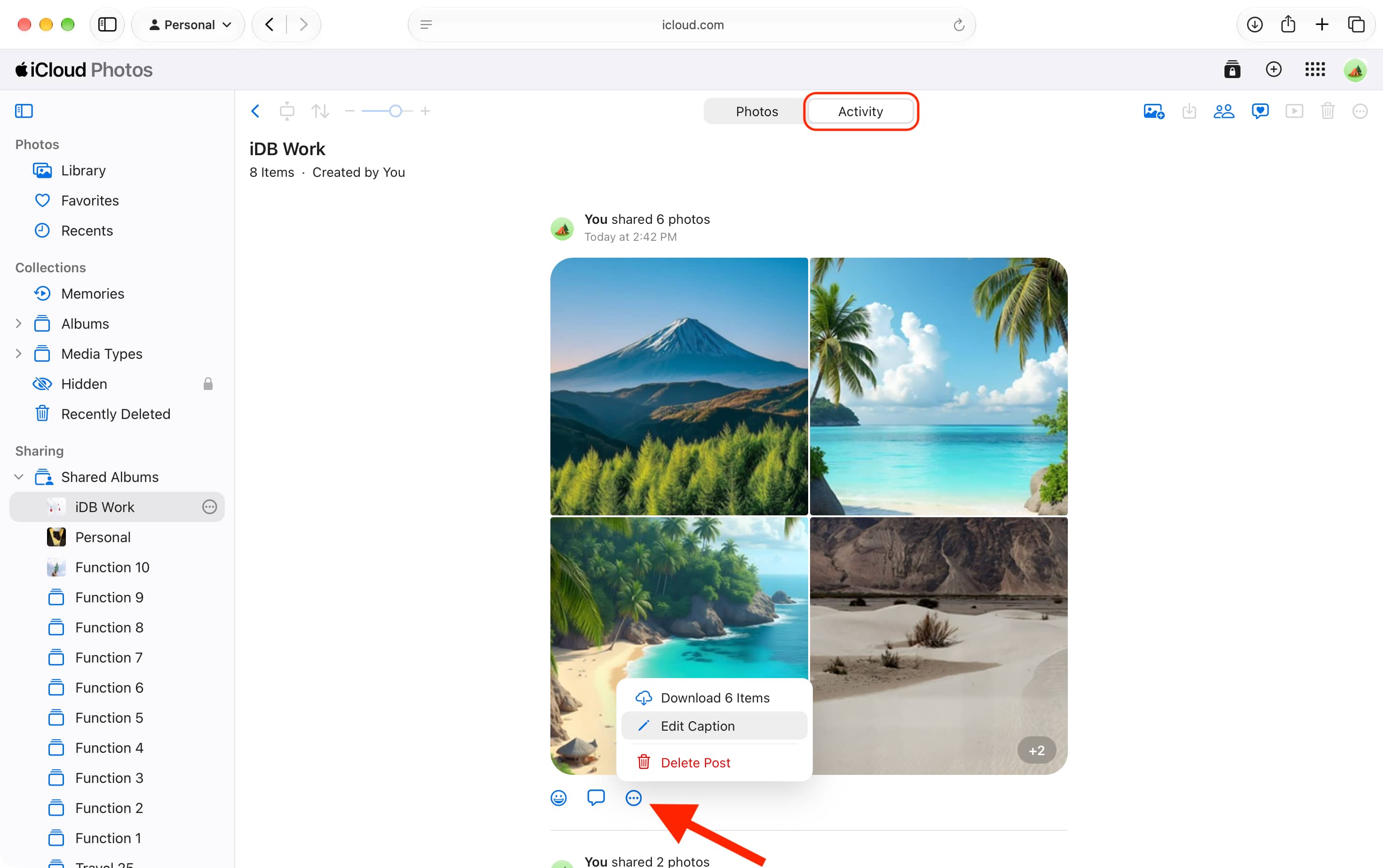
- Click Activity at the top.
- Click the three-dot button and select Edit Caption.
- Add or edit the caption, then click Save.
iCloud Web
- Visit iCloud.com/photos and sign in with your Apple Account.
- Click Shared Albums on the left and select a photo album.
- Switch to the Activity tab from the top center of the screen.
- Click the three-dot icon for an activity and select Edit Caption.
- Add or change the caption and click the big Save button.
Edit comments added to a photo in shared iCloud album
You can add comments to every photo you add to a shared album. Latest OS updates let you edit the comments if needed.
iPhone and iPad
- Open the Photos app and go inside a shared album.
- Tap a photo to view it on full screen.
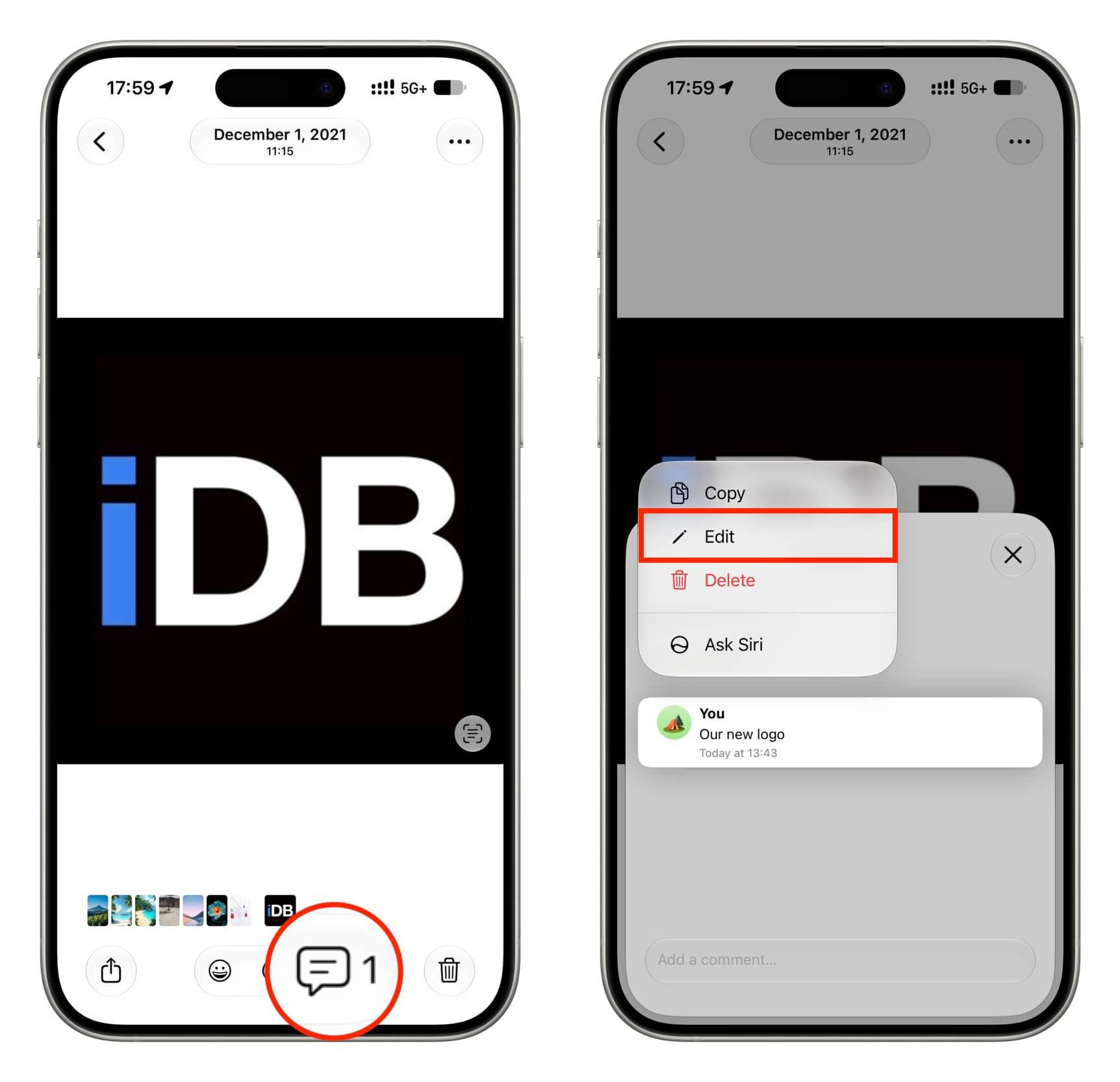
- Tap the comment icon.
- Touch and hold an existing comment and select Edit.
- Rewrite your comment and tap the checkmark icon to save it. Note that you can’t delete all text to remove the comment; instead, just swipe left on the comment and tap the red trash icon.
Mac
- Go to the Photos app on your Mac and select a shared album.
- Double-click an image to open it in large view.
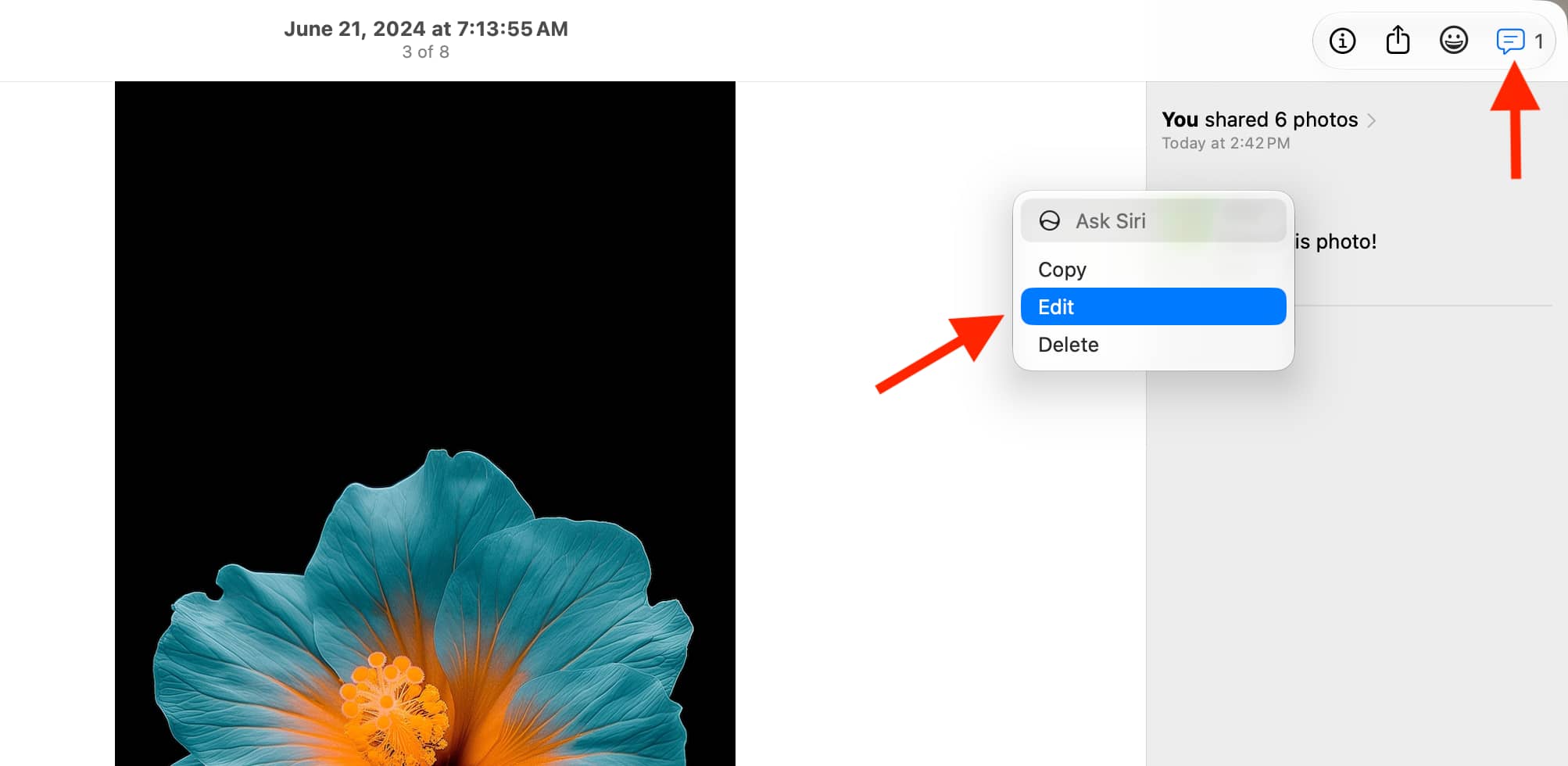
- Click the comment icon in the top-right corner.
- Control-click on a comment and select Edit.
- Change the comment text and click Save.
iCloud Web
- Visit iCloud.com/photos, go inside a Shared Album, and open a photo.
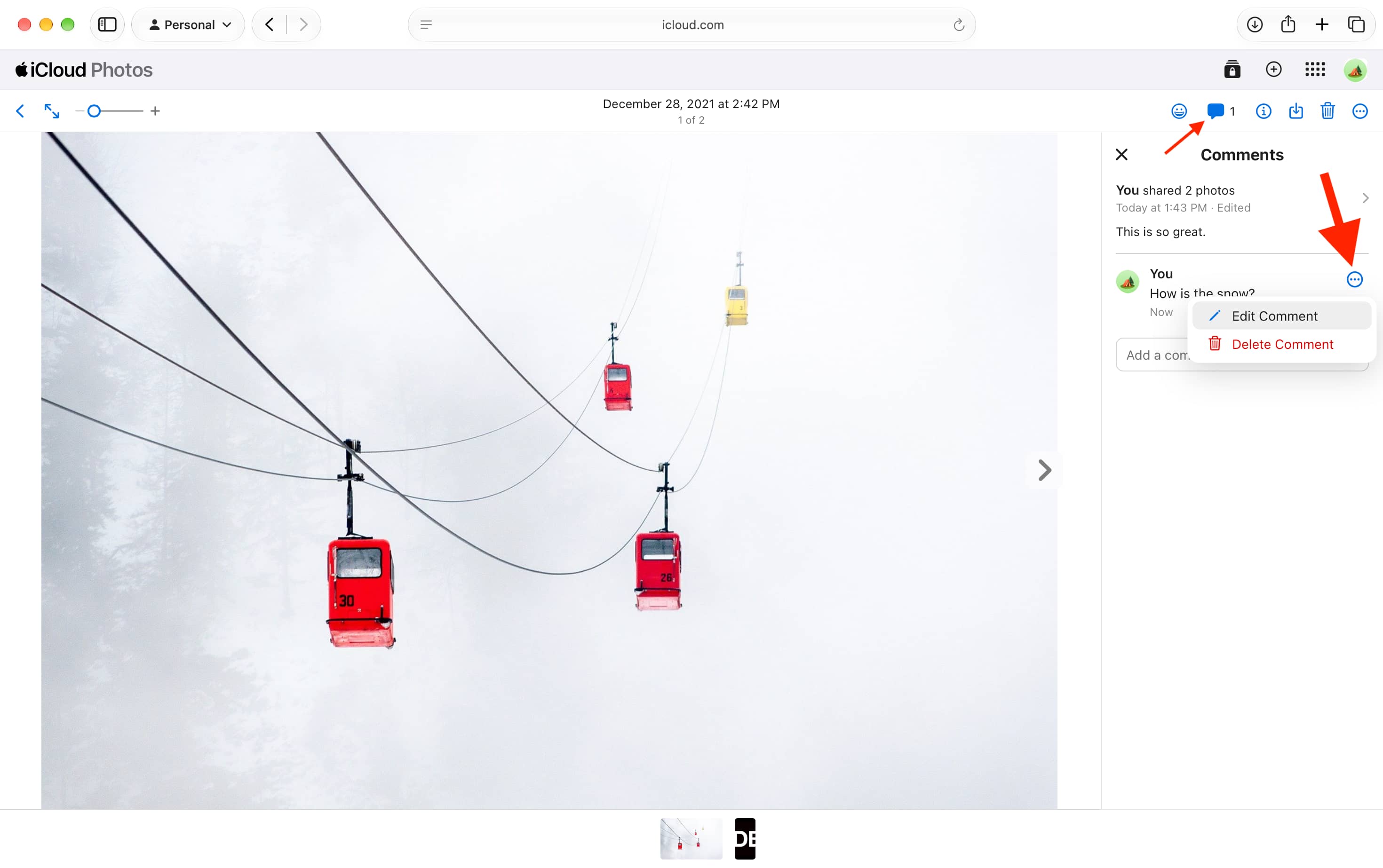
- Click the comment icon in the top right corner.
- Hover the mouse pointer over the comment, click the three dots icon, and select Edit Comment.
- Edit the comment and click Save.
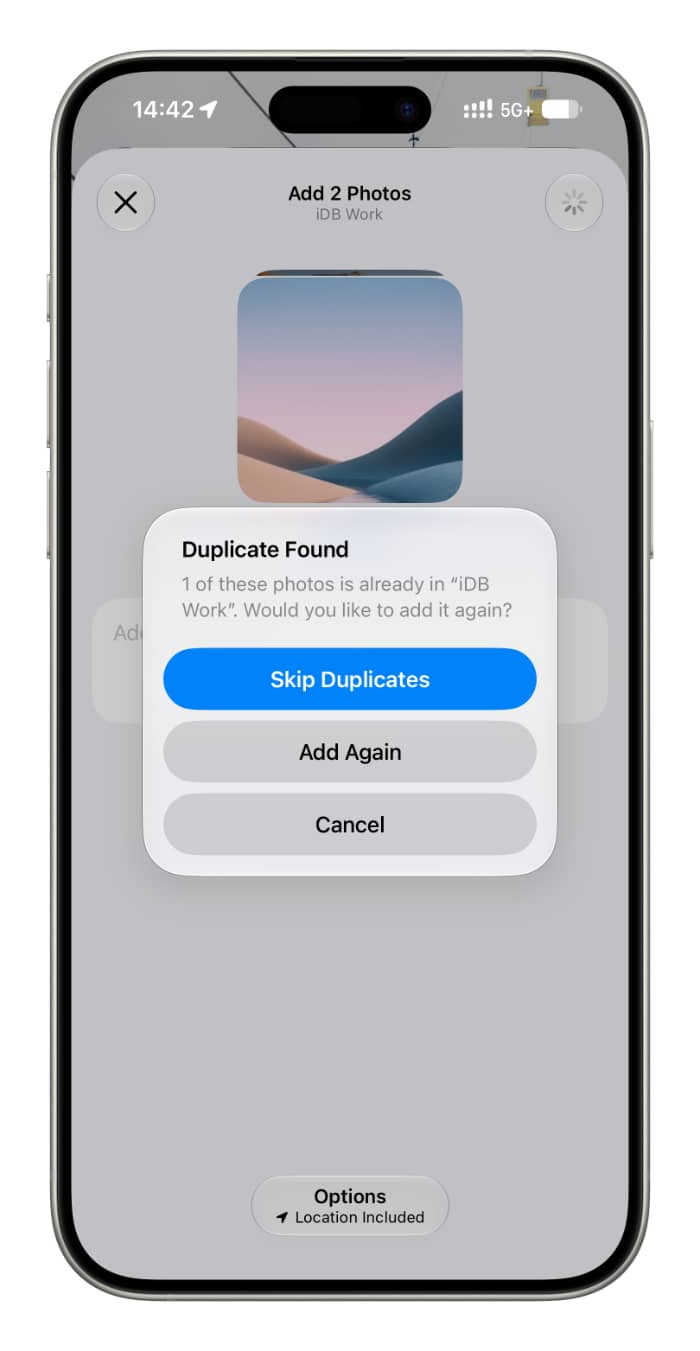
Additionally, Apple OS 27.2 now shows a popup to prevent duplicate photos from being added to the shared album.
Also, new in iOS 27: