Follow these tips if your MacBook’s built-in trackpad or Mac’s external Magic Trackpad is working but not tracking accurately, making the pointer difficult to control.

I use Apple’s Magic Trackpad with my Mac mini, and my MacBook Pro and MacBook Air already have a functioning trackpad. Once in a while, especially after a new software update or after several weeks of continuous use, I notice that the trackpad isn’t working as it usually does.
For instance, the pointer will start lagging or moving erratically. Other times, it will move super fast, and I can’t position it over small click points on the screen.
In nearly all cases (at least with me), this happens because of software glitches, and it’s easy to fix. Here’s what works for me, and I’m pretty sure it will work for you as well.
Wipe the trackpad
Small drops of water, oil, body lotion, etc., may be on your trackpad, causing abnormal finger tracking. Use a dry tissue paper or soft cloth and gently clean the surface.
Lock and unlock your Mac
Press the power button to lock your computer. Then, wait for 10 seconds and unlock it again. Now try using the trackpad; it should work properly.
Adjust trackpad speed settings
Go to System Settings > Trackpad and set the Tracking Speed to somewhere near the middle. Now run your finger over the trackpad, and the pointer should move accurately.

Turn the Magic Keyboard off and back on
This tip has worked for me a few times in the past. I like it because it doesn’t require me to fully stop what I’m doing and restart the computer. Of course, this doesn’t apply if you’re on a MacBook.
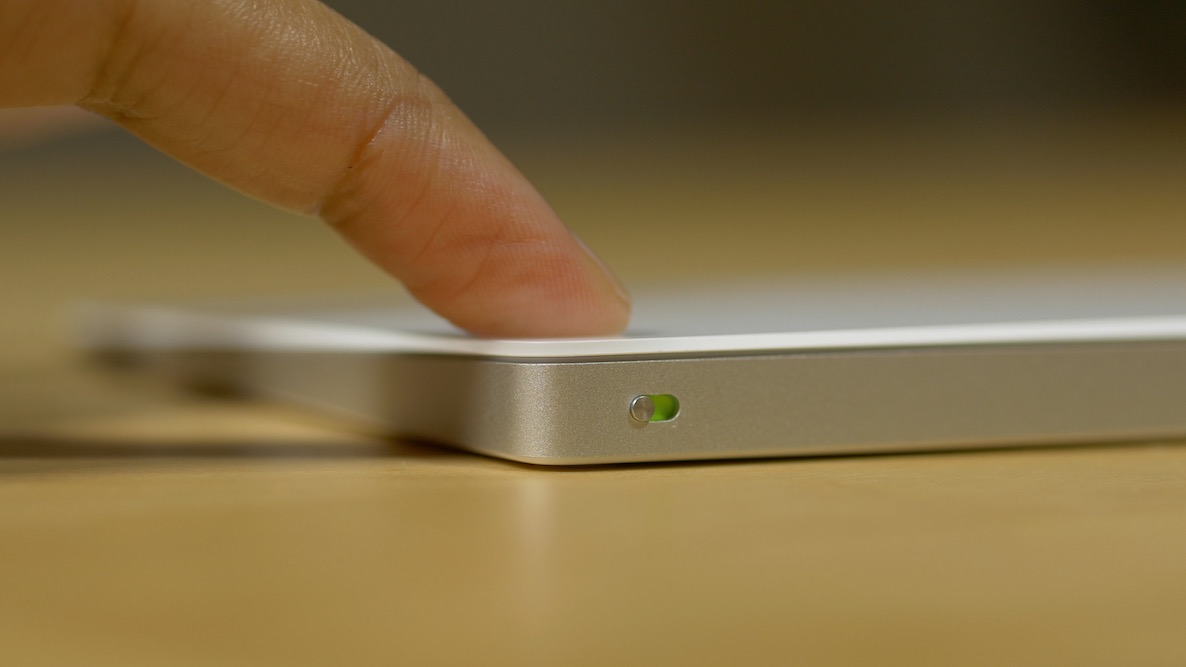
Simply use the power button on the external Magic Trackpad to turn it off. Then go to macOS System Settings > Bluetooth and make sure it says “Not Connected” under the trackpad name. Then, turn the Magic Trackpad back on and wait for it to auto-connect. If it doesn’t connect automatically, go to Mac’s Bluetooth settings to connect it manually.
Use the same Mac to charge your Magic Trackpad
Even if the external Magic Trackpad is charged adequately, connect it to the same Mac using a USB-C or Lightning cable. Leave it charging for about 5 minutes, then try using it again.
Restart your computer
In case the above basic solutions haven’t worked for you, go ahead and restart your Mac (Apple icon > Restart). This tip has also worked for me in the past to fix trackpad issues. If you can’t use the pointer at all, force shut down your Mac by holding the power button for a few seconds.
Try the remaining advanced (also read as time-consuming) tips if the above ones have not worked for you.
Forget your Magic Trackpad and connect it again
First, make sure you have another wired or wireless mouse or trackpad connected to your Mac. Then, follow these steps:
- Go to macOS System Settings > Bluetooth and click the info button next to Magic Trackpad’s name. Click Forget This Device and confirm.
- Restart your Mac and the trackpad.
- Return to Mac’s Bluetooth settings and pair it again.

The trackpad should work flawlessly now.
Update your Mac
If your Mac is running an older version of macOS, update it to the latest version available for it.
Repeat the forget and reconnect process
Before you move further, repeat the trackpad forget and reconnect process a couple more times.
Add a new user account and try using the trackpad there
Create a new user account on your Mac and check if the trackpad works properly there. In case it does, the issue could be a new app you installed. Delete that and restart your Mac. In case the problem continues, delete the trackpad-related Bluetooth property list files, as shown in the linked article.
Reinstall macOS
You can reinstall macOS without losing data to fix software problems. Try it out.
Factory reset your Mac and set it up again
Lastly, if nothing helps and you think the problem could be hardware-related, consider erasing your Mac and setting it up again. This is the ultimate solution to fix all software problems. If the trackpad continues to work poorly, it’s likely a hardware issue. Get your MacBook or Magic Trackpad checked at an Apple Store.
Also, check out: Fix Magic Keyboard, Trackpad, or Mouse not connecting to Mac