Google Chrome now has a native split screen feature on both Mac and Windows, so you can view two websites side by side without installing third-party browser extensions, enabling experimental flags, or relying on your computer’s built-in split screen mode.

Whether I’m researching for articles or just pasting code from the source to the visual editor, having two sites open side by side is a godsend. Earlier, I would either open two Chrome windows and then use macOS Split Screen mode. Sometimes, I just open one site in Chrome on one virtual desktop space (available on both macOS and Windows) and another in Firefox on an adjacent virtual space, and then switch between them with a four-finger swipe on the trackpad.
But after Chrome’s native split screen mode, I find myself using it more often, and it does the job. Here’s all you need to know about it.
Enter split view
There is more than one way to place two websites side by side in Google Chrome.
If you have one of the websites open
- Right-click over the open website name at the top and select Add Tab to New Split View.
- The first website will move to one half of the screen, and your Chrome start page will take the other half; open another site here.

If you have both websites open
In case both websites are loaded, here’s how to put them in split view with ease.
- Make sure one of the websites is on the screen.
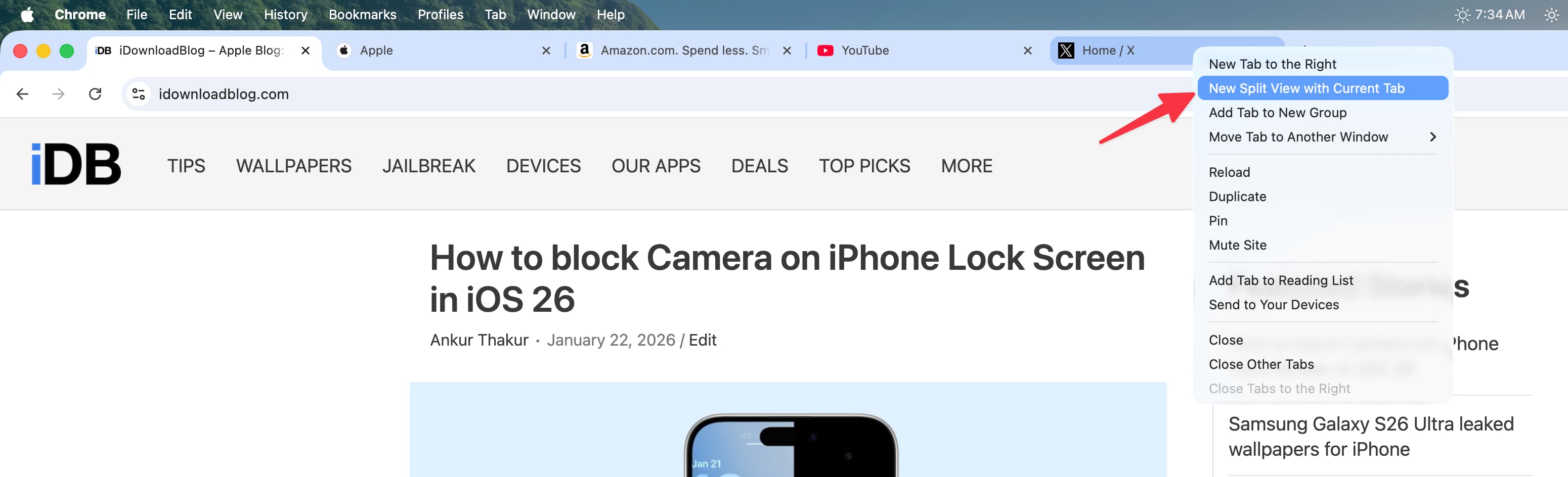
- Then, right-click over the other website name and select New Split View with Current Tab. Your current website and the one on whose tab name you right-clicked will now open in split view mode.
Drag left or right to enter split view
You can also hold a link on a webpage in Chrome and drag it to the left or right sides to enter split screen.

In case you don’t want this feature, turn it off by going to Google Chrome Settings > Appearance > Allow split view drag-and-drop on left or right edge of window.
Swap the existing split view website with another
If you already have two sites open in split view in Google Chrome and want one of them to be replaced by another site, just right-click over that tab’s name and select Move Tab into Split View > Swap with Left or Right View.

Resize the windows
Once you’re in split-screen mode, use the small tab in the center of the divider wall to make one side larger and the other smaller.

Reverse the views
Click the split view button in the top left corner of your Chrome window or use the three dots button at the bottom of the divider, and choose Reverse Views. This will put the left website on the right side and vice versa.

Exit split view
If you close one of the websites by clicking the tiny X button at the top, then the other one automatically exits split screen view.

You can also click the split screen button and choose to close left or right tabs.

To exit split-screen mode without closing either tab, click the split-screen button or the three dots icon, then select Separate Views.

The split view button in Chrome’s toolbar is only visible when you put two websites side by side. But you can permanently show it there by right-clicking on it and selecting Pin. After this, you can enter split-screen mode with just a click.

What do you think of this feature?
More on split view: