Learn how to trim an audio file on an iOS device to remove the beginning, end, or middle parts and keep just the desired portion.

While the built-in Photos app lets you trim a video, there are no such options for editing audio tracks alone. The Apple Files app can play MP3, WAV, AAC, and other audio files, but not edit them. Additionally, the Gallery section of the Shortcuts app also lacks an option to trim audio files.
As a result, you’ll have to use third-party audio trimming apps, and we’ll walk you through the process of using a couple of them. We’ll also talk about a workaround that involves trimming an audio file using Apple’s iMovie.
Trim the end and beginning parts of an audio file on iPhone
Most people typically only need to remove the silence or unnecessary parts from the beginning or end of an audio file, while keeping everything else in between. If that’s you, follow these quick steps. We’re assuming your audio track is saved in the iOS Files app. If it’s in Google Drive, Dropbox, Box, or OneDrive, show these apps in the Files app or manually import that audio file to the Files app first by tapping the share button and selecting Save to Files. This will make things easier.
1) Download and open the free Toolbox app on your iPhone or iPad.
2) Tap Trim under the Audio heading.
3) Select one or more MP3, WAV, M4A, or AAC files from the Files app interface and tap Open.

4) Now drag the left and right ends as needed to exclude the unneeded portion. Then, tap Start.
5) The audio file is trimmed. Tap Files to save the cropped audio track to the Apple Files app or hit Share and pick an app from the iOS Share Sheet.

You can also use the Audio Cutting option in the Audio Editor app (mentioned below) to trim out the corners of an audio track.
Trim the end, beginning, middle, or other parts of an audio file on iPhone
If you also want to remove parts of the audio recording from the middle or anywhere else, you can use the free Audio Editor app or Apple’s iMovie app (along with another third-party app). We’ll quickly mention both methods below.
Using Audio Editor
1) Download and open the free Audio Editor Audio Cutter app on your iPhone or iPad and tap Audio Editing. Then, allow the app to access your Media and Apple Music library.
2) Tap the Import button, followed by From File.
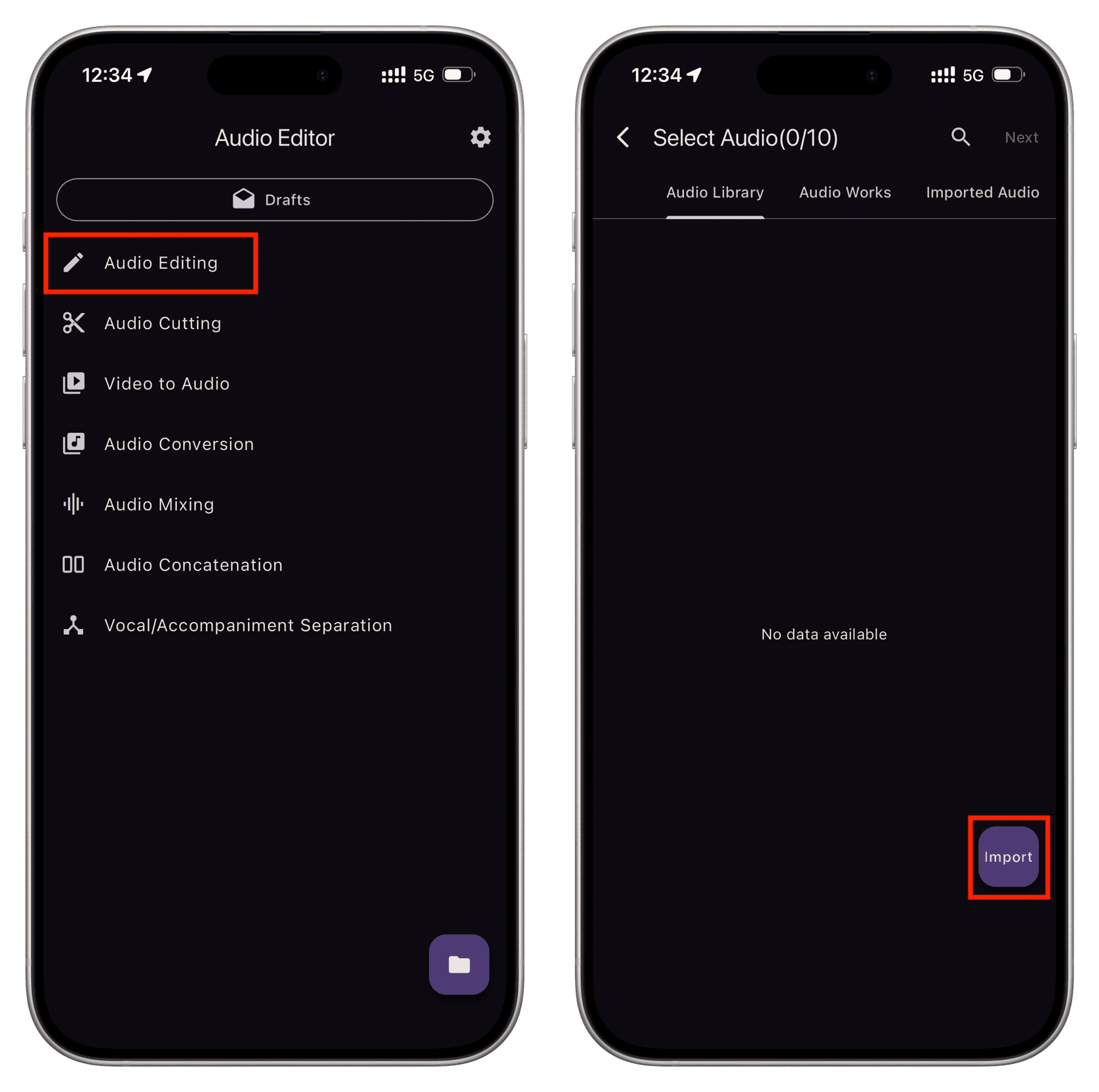
3) Select the audio from the Files app interface. And once the audio is imported to this app, tap it in the ‘Imported Audio’ section and hit Next.

4) Drag the vertical head to the spot on the audio editing timeline where you want to make a cut, and tap Split at the bottom. You’ve successfully chopped the audio file into two parts.

5) Now, drag the vertical head to the other spot on the timeline and tap Split again. You have now cut the audio into three parts.

6) Assuming you want to remove the middle part, tap to select it, and then tap Delete from the bottom. That part of the audio file is gone now. Repeat these steps to split and remove additional parts of the audio if needed.

7) Now, it’s time to remove the gap(s) created by deleting a portion of the audio. To do this, touch and hold one of the parts and drop it just at the end of another part so there is no gap.

8) Tap the play button to preview the final trimmed file, and if you’re happy with the remaining trimmed portion, tap Export from the top. Change the filename, format, bitrate, and sample rate if you want; or leave these as the default if you want to keep things simple and hit Confirm > Share. Now, choose Save to Files or another app to save/share the trimmed audio.

iMovie
Apple’s iMovie is an old and trusted app for editing photos and videos and turning them into movie clips. Since it’s a video editing app, it doesn’t let you edit just an audio clip. So, you’ll have to add at least a photo to your iMovie editing project, add the audio file, then split and trim the audio file as needed, and save everything as a video file. After that, you’ll have to extract the audio from the video file.
1) Open iMovie and tap Movie under the Start New Project section.
2) Select a photo (it doesn’t matter what you pick) and tap Create Movie.

3) Once you’re on the editing screen, tap the plus button (+), followed by Files, and select the audio file to import it to iMovie.

4) Trim the audio file using iMovie.

5) Now, you can select the picture on the timeline to delete it, or you can leave it; it doesn’t matter; iMovie will still export the project as a video file.
6) Tap Done > share icon > Save or Share Video > Save Video.

7) Now, extract audio from this video file as explained in our separate tutorial.
Trim an audio recording in the Voice Memos app
If you recorded an audio in the Apple Voice Memos app on your iPhone or iPad, then there is a native way to trim the beginning and end parts of it. The Voice Memos even allows you to replace any part of the existing recording by overwriting that piece with a fresh recording.
1) Open the Voice Memos app, tap a recording, and then hit the wave icon. You can also tap the three dots icon and select Edit Recording.
2) To overwrite any part of the existing recording, drag the vertical playhead to the right spot, hit the big Replace button to start recording. When you’re done, tap the pause button.

3) To trim the audio recording, tap the three dots icon at the top and select Trim.

Now, move one or both arrows (< and >) as shown in the screenshot below, and tap Trim to keep only the selected yellow part or tap Delete to remove the selected part, while keeping everything else.

4) Then, tap Apply, followed by the checkmark to save it as a new recording or save it to the existing recording. Select the former if you want to keep the original untrimmed audio file.

Which of the above apps will you use? Or, do you have some other app suggestion?
Also, check out: How to use any audio file as iPhone ringtone in iOS 26