Learn how to rotate, straighten, crop, trim, flip, and adjust a video’s aspect ratio using the Apple Photos app on iPhone or iPad to edit the clip exactly how you want.
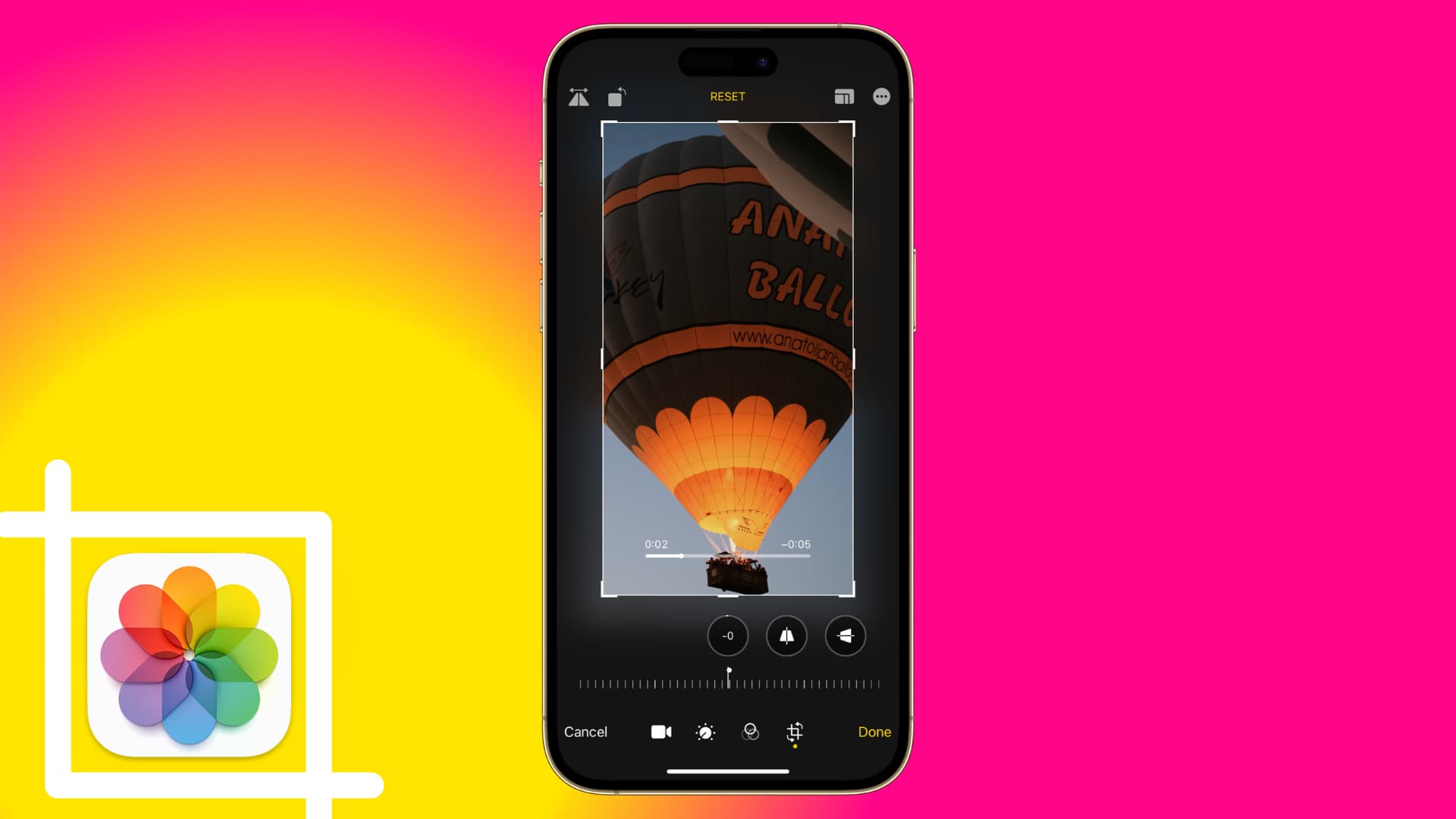
Start by opening the Photos app and tapping a video clip. Then, tap the edit icon and go to the Crop tab.

From here, you can rotate, straighten, crop, adjust the aspect ratio, and flip the video (all of which are explained below). After editing, tap the yellow Done button to save your changes.
Tip: While editing, use the two-finger pinch gesture to zoom in or out. And if you want to remove all changes, tap the RESET button at the top.
Rotate the video
Tap the rotate icon (represented by a square with a curved arrow) to turn the video 90 degrees. Repeat until you reach the desired orientation.

Straighten the video
Tap the straighten icon (the first icon, a circle divided by a line). Then, straighten the video by sliding the horizontal dial below the tool left or right, which will rotate it counterclockwise or clockwise, respectively. The effect’s intensity, ranging from -45 degrees to +45 degrees, is displayed inside the tool’s circular icon. As you move the dial, a grid appears on your photo to help you with alignment. Tap the icon again to reset it to zero (0) and start over.

Aside from that, you can also tap the vertical or horizontal icon (the second and third icons, respectively), then drag the slider left or right, which makes it easy to adjust the video’s skewed perspective.
Crop the video
To apply quick freeform cropping, simply drag one of the four grid corners or edges and let go of the selection rectangle. After a moment or two, your cropped video appears.

Adjust the aspect ratio
The Photos app lets you choose from a range of cropping ratios, including freeform, square, wallpaper, 9:16, 4:5, 5:7, 3:4, 3:5, and 2:3.
To access all built-in aspect ratios, select the crop tool, then tap the rectangle-like icon near the top-right corner of the screen. A horizontally scrollable list of all the aspect ratio presets appears lined up across the bottom of the Photos interface. Now scroll the list left or right with your finger, then tap a desired value to instantly see the results. To adjust it in a freeform style, tap the lock icon and then drag the corner and edge tabs.

Flip the video
Tap the flip icon from the top left. Your video will be flipped horizontally. Note that the iPhone Photos app doesn’t support direct vertical flipping.

Trim the video
Go to the Video tab of the editing screen (i.e., don’t tap the Crop button). Now, use the sliders on both sides of the timeline below the video to adjust your start and stop times as desired by dragging the sliders with your finger. The segment selected for trimming will be tinted yellow on the video timeline.
To preview the video before trimming, simply tap the triangle Play button.
If you’re happy with your video, tap Done and choose to trim the original video or save the trimmed portion as a new video file.

Also, check out: