Learn how to boost your privacy in Google Chrome by locking Incognito tabs behind Face ID or Touch ID when switching between apps on your iPhone.
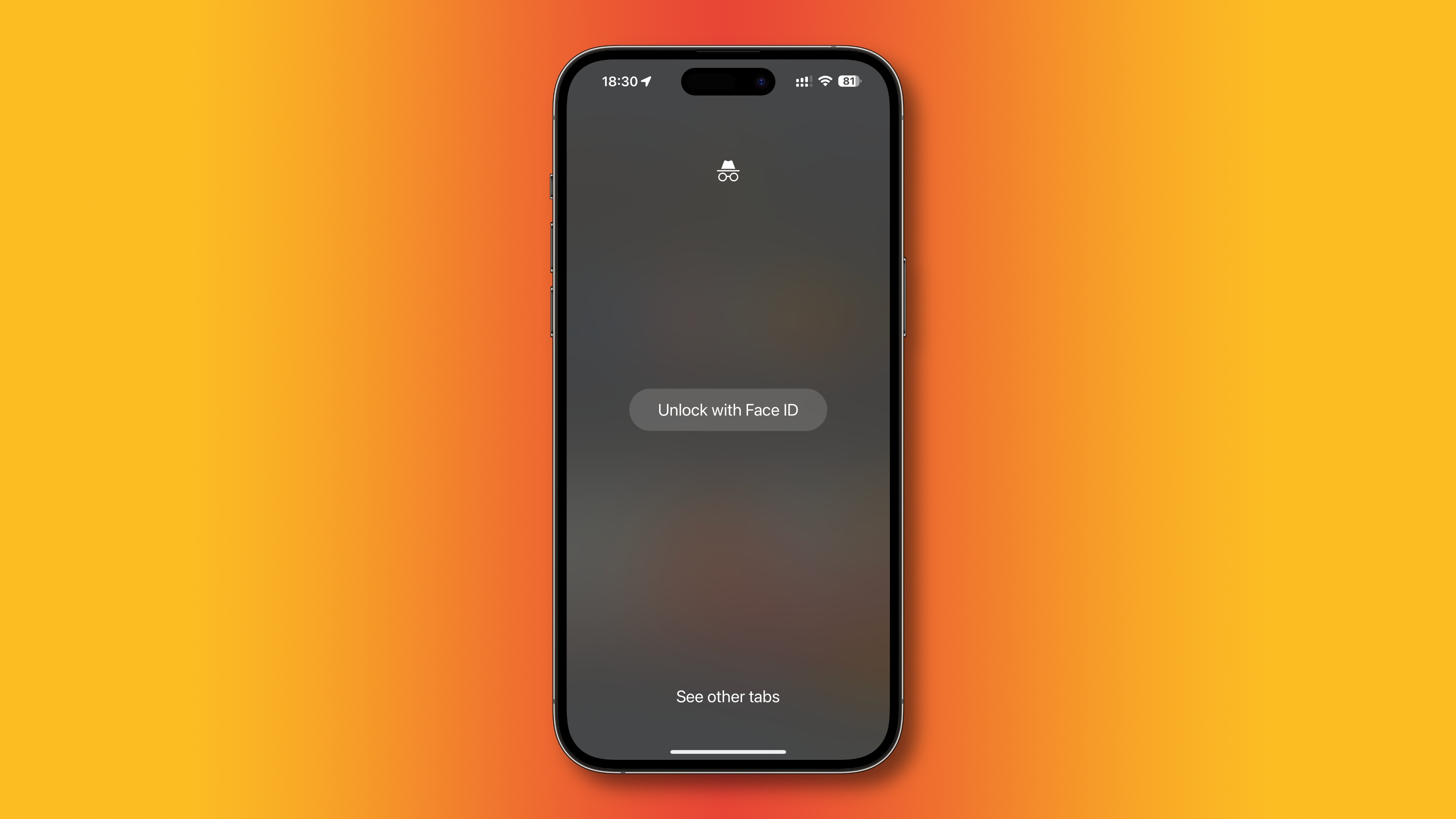
The Chrome browser has crucial features that protect your privacy, like locking saved logins and passwords with Face ID or Touch ID on compatible iPhones and iPads. You can also browse the web privately without Chrome remembering your activity by entering Incognito mode.
Incognito mode runs in a separate window from your regular Chrome tabs. But if you quit Chrome without closing any open Incognito tabs, your Incognito session will resume the next time you open the browser. And if someone looks over your shoulder or uses a toe device, they can see what you were browsing privately. Thankfully, Google lets you protect Incognito tabs with biometric authentication.
Lock Google Chrome’s Incognito mode with Face ID
- Open Chrome on your iPhone or iPad.
- Touch the ellipsis menu (…) and choose the Settings cog wheel icon.
- Select Privacy and Security from the list.
- Tap Hide Incognito tabs.
- Select ‘Lock immediately with Face ID’ or choose to hide it after 10 minutes. If this is the first time you’re making this change, you’ll see the regular iOS popup asking for your permission to let Chrome use Face ID; tap Allow here.

The next time you restart the browser in Incognito mode or switch between your Incognito tabs and regular ones, you’ll see a blank screen and two options: Unlock with Face ID and Close Incognito tabs. Choose the former to authenticate with Face ID, Touch ID, or your passcode, and access the Incognito tabs from the last session; choose the latter to close those tabs instead.
Is this feature available on the Mac?
As of now, you can lock private Chrome tabs only on iPhone, iPad, and Android phones. This feature isn’t yet available in Chrome for macOS.
Check out these other Chrome tips: