Learn how to recognize and extract text from images or videos using the built-in Live Text feature on your iPhone, iPad, and Mac.
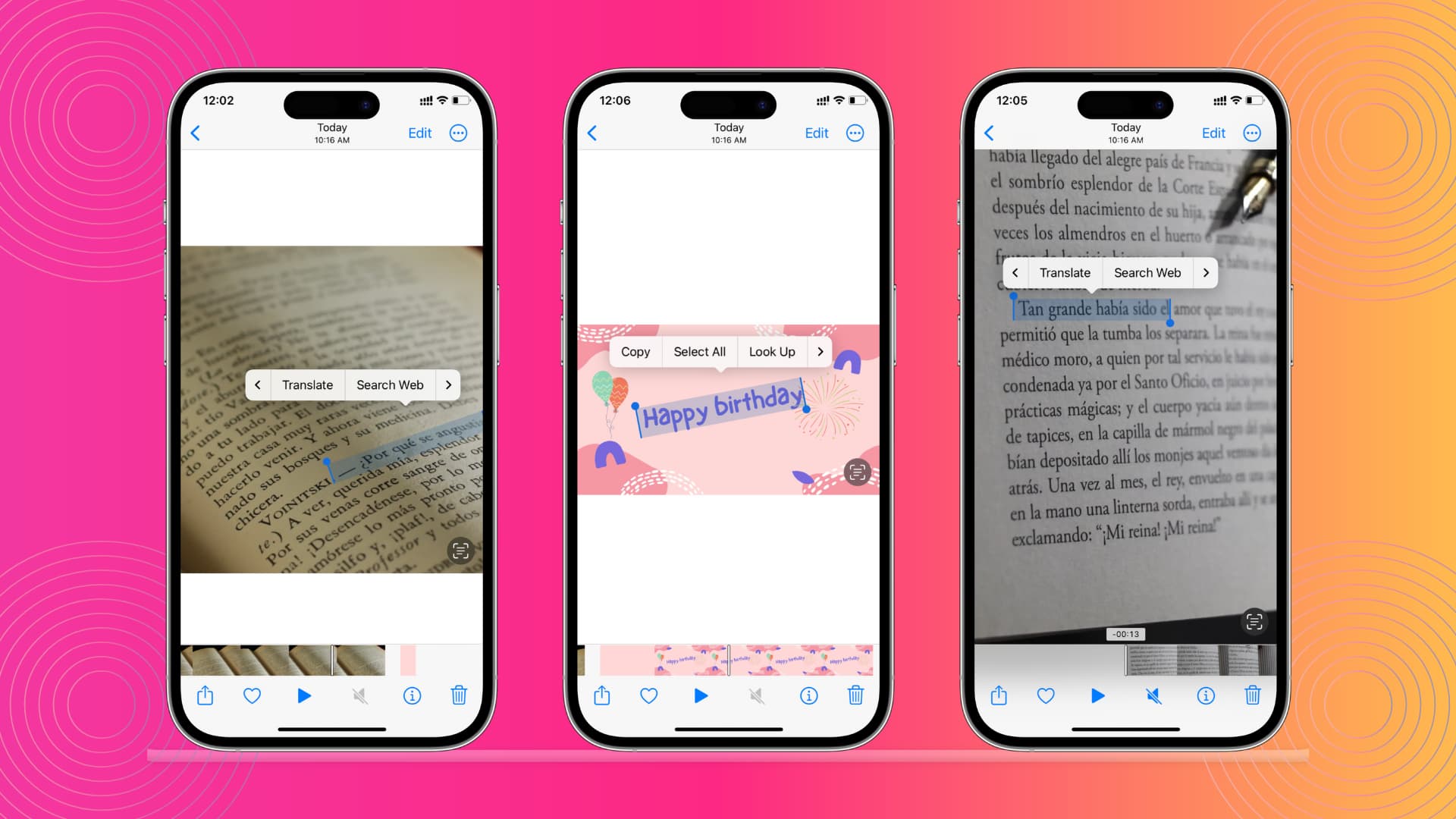
Live Text recognizes text inside an image or paused video frame. Once text is recognized, you can copy it, translate it, look up its definition, and much more.
Live Text works in several built-in Apple apps like Camera, Photos, Safari, Files, Preview, and Finder Quick View.
Supported languages
As of now, Live Text works for the following languages:
- Cantonese
- Chinese
- Czech
- Danish
- Dutch
- English
- French
- German
- Indonesian
- Italian
- Japanese
- Korean
- Malay
- Norwegian
- Polish
- Portuguese
- Romanian
- Russian
- Spanish
- Swedish
- Thai
- Turkish
- Ukrainian
- Vietnamese
Use Live Text in existing photos or videos
Important: To use Live Text in a video, pause the video while the desired text is displayed on screen.
iPhone and iPad
Say you took a photo of a physical note using your iPhone or some text that you want to copy into the Notes app or use as a caption on Instagram. With Live Text, you can simply grab the text and copy/paste it.
- Launch the Photos app on your iPhone or iPad and tap the image with the text you want to copy.
- You should see a Live Text button in the bottom right corner. Tap this button to open the Live Text view.
- Select the text you want using your finger.
- You’ll now see options to Copy, Select All, Look Up, Translate, Search Web, Share the text, and so forth.
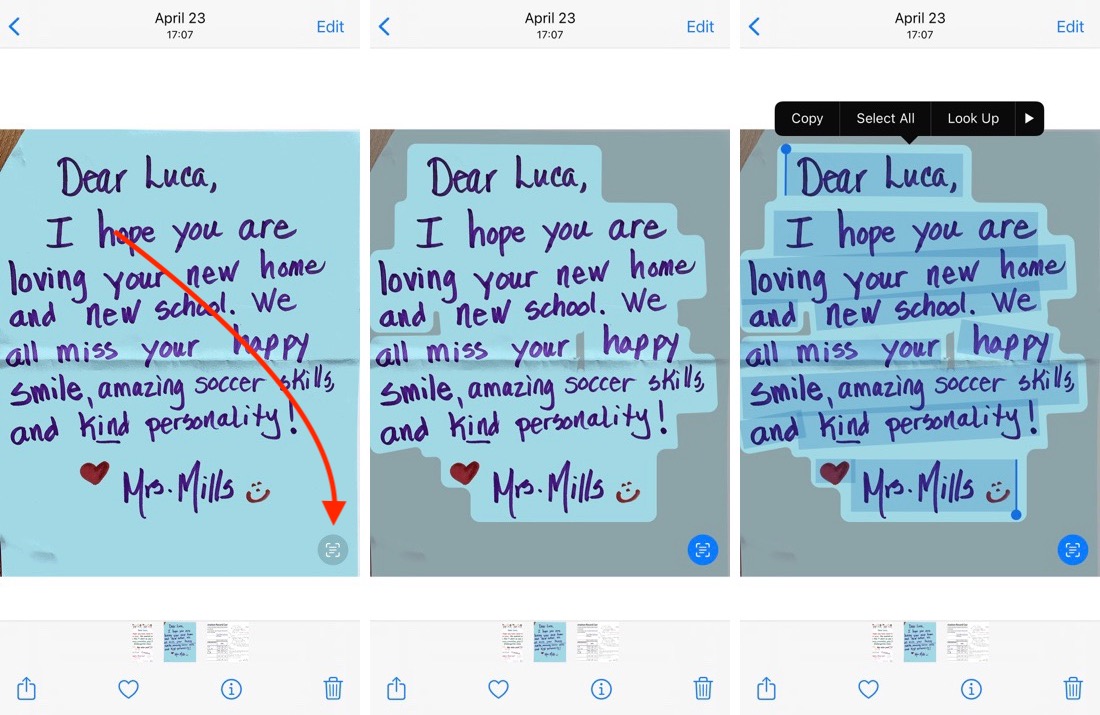
Once you’ve copied the text, you can paste it into another app.
Note that you don’t necessarily have to hit the Live Text button every time. You can simply tap and hold the text directly in the image and then copy it or take other actions.
Mac
You can use Live Text to recognize text from photos or media on a web page in Safari.
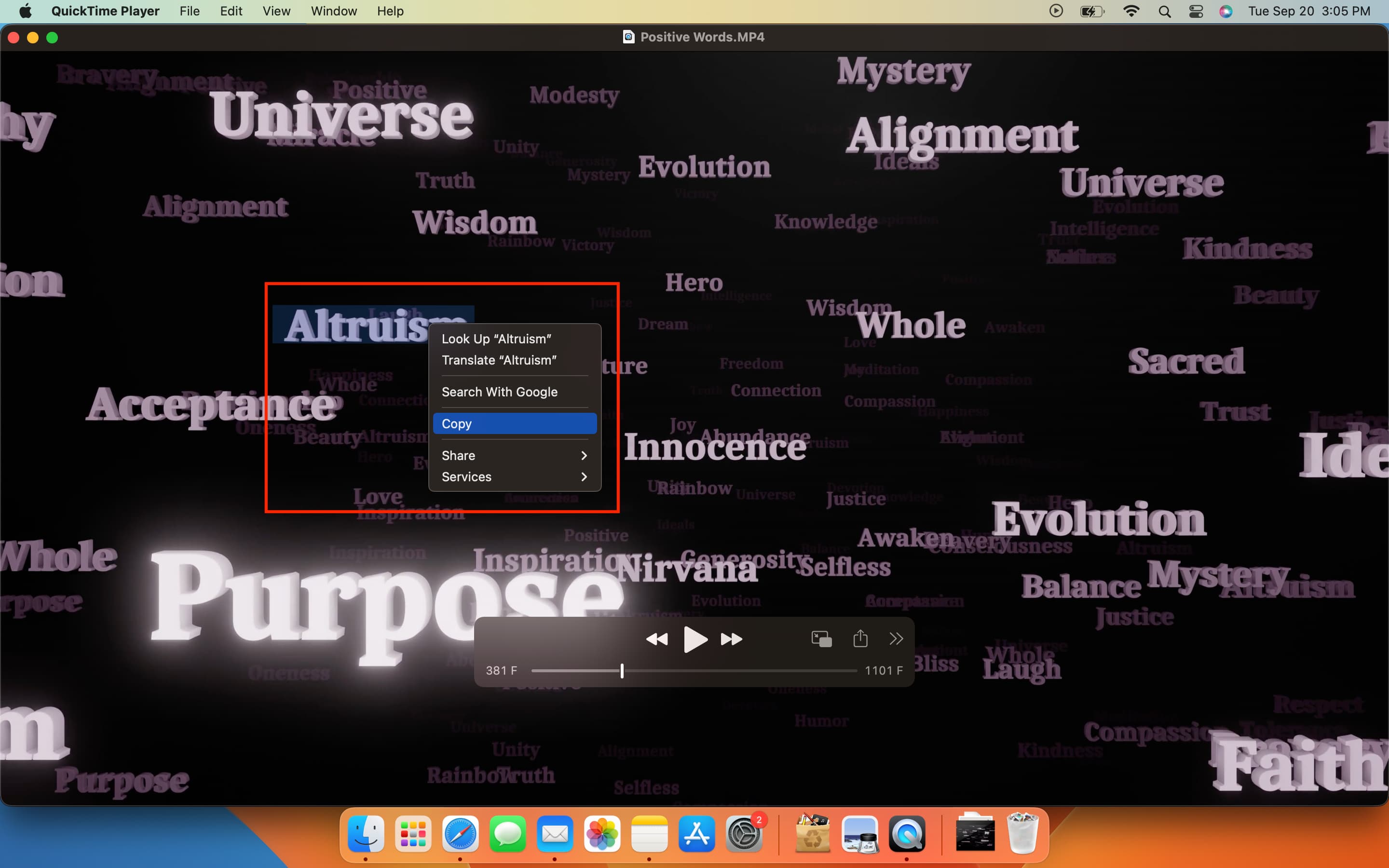
- Open a photo in Photos or Preview or view it in Quick View in Finder (by selecting the image and pressing the Space Bar). You may also open a webpage in Safari with the image having text.
- Live Text should recognize text automatically in the background. Hold your mouse pointer over the text and drag to select it.
- You can copy the selected text by using right-click or via the Command + C shortcut. When you right-click, it will also show the option to translate, Look Up, share, search the web, etc.
Extract text using the iPhone camera and Live Text
You can use the iPhone camera to extract text from anything seen in the viewfinder.
- Open the Camera app on your iPhone or iPad, point it at an object that has text on it, and tap the area where the text is.
- A yellow bracket will now show up around the text.
- Tap the Live Text button on the bottom right corner. You can now drag your finger on the text to select parts of it. You may also choose to copy, share, Look Up, translate, and select all.
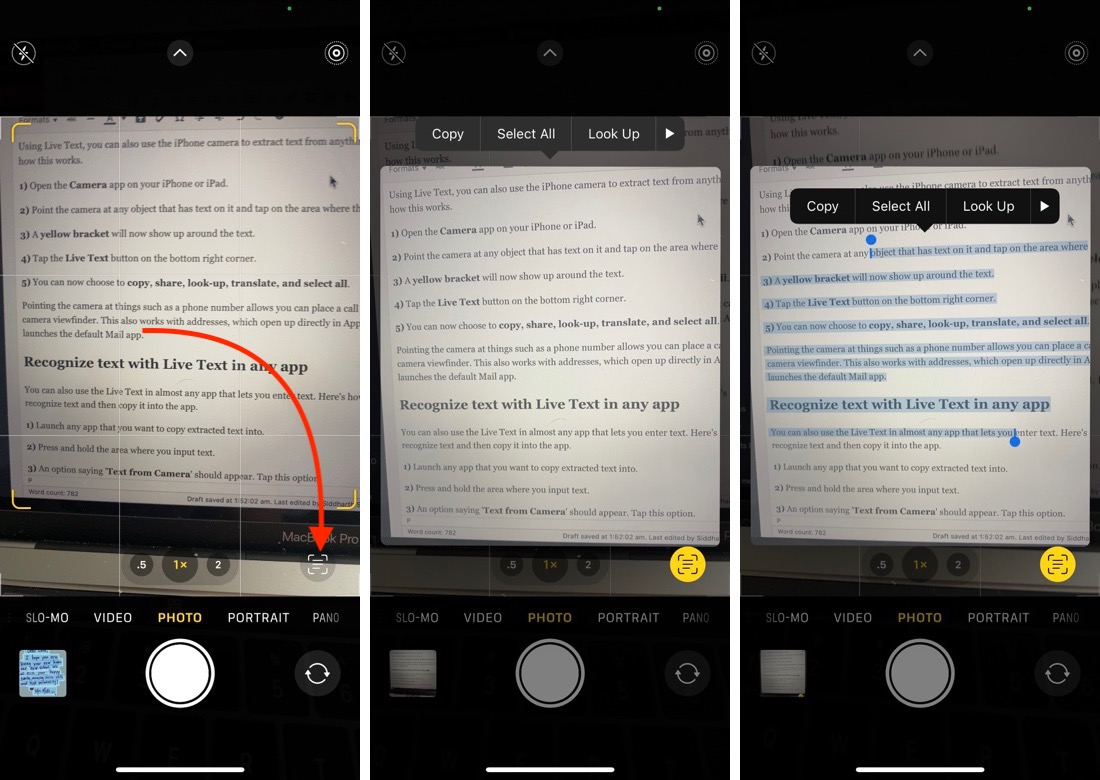
Pointing the camera at something like a phone number allows you to place a call directly from the iPhone camera viewfinder. This also works with addresses, which open up directly in Apple Maps, and email IDs, which launch the default Mail app.
Insert Live Text directly within iOS apps
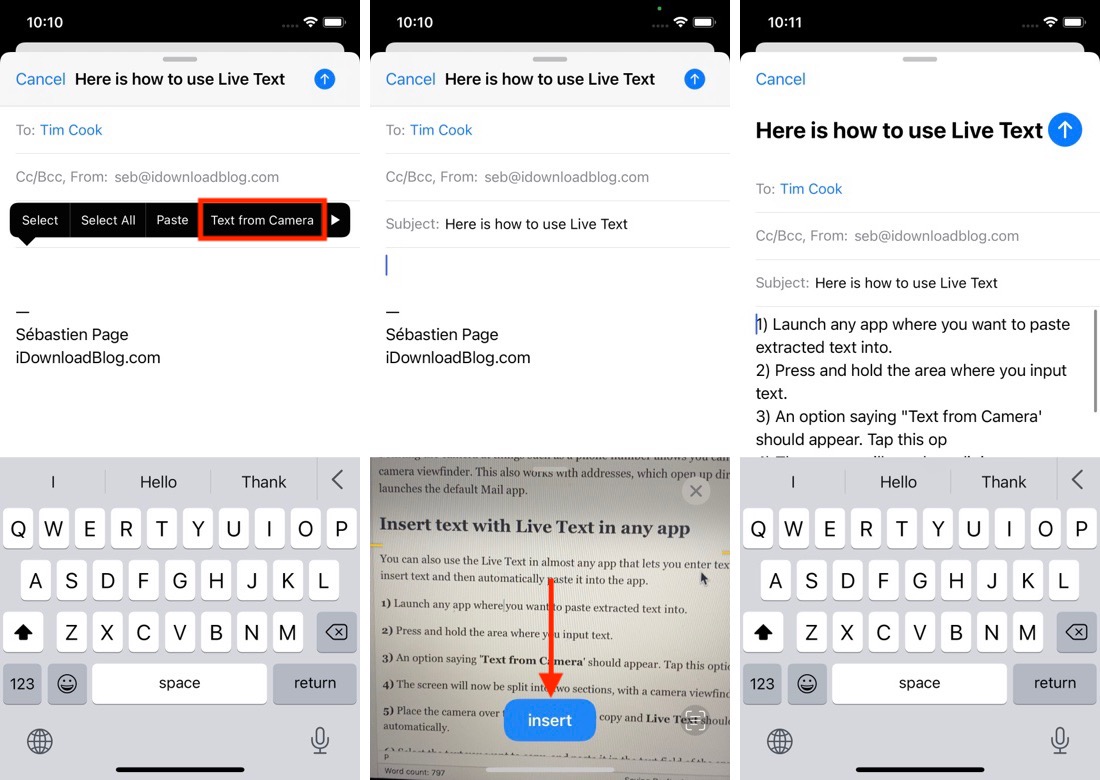
You can also use Live Text to insert text directly within iOS apps.
- Launch an app where you want to paste the extracted text, such as Mail, Notes, etc.
- Touch and hold the area where you want to input text and select “Text from Camera.” In apps like Mail, tap the paperclip icon above the on-screen keyboard and select Scan Text. The screen will now split into two sections, with a camera viewfinder appearing at the bottom.
- Place the camera over the text you want to copy, and Live Text should start recognizing the text automatically. Tap the Insert button to get the text into the typing area of the app.
Also, check out: