Learn how to save translations as favorites and browse your recent translations in the Apple Translate app on your iPhone so you can refer to them whenever needed on your international trips. And if the translations are not useful, you can also delete them from the history.
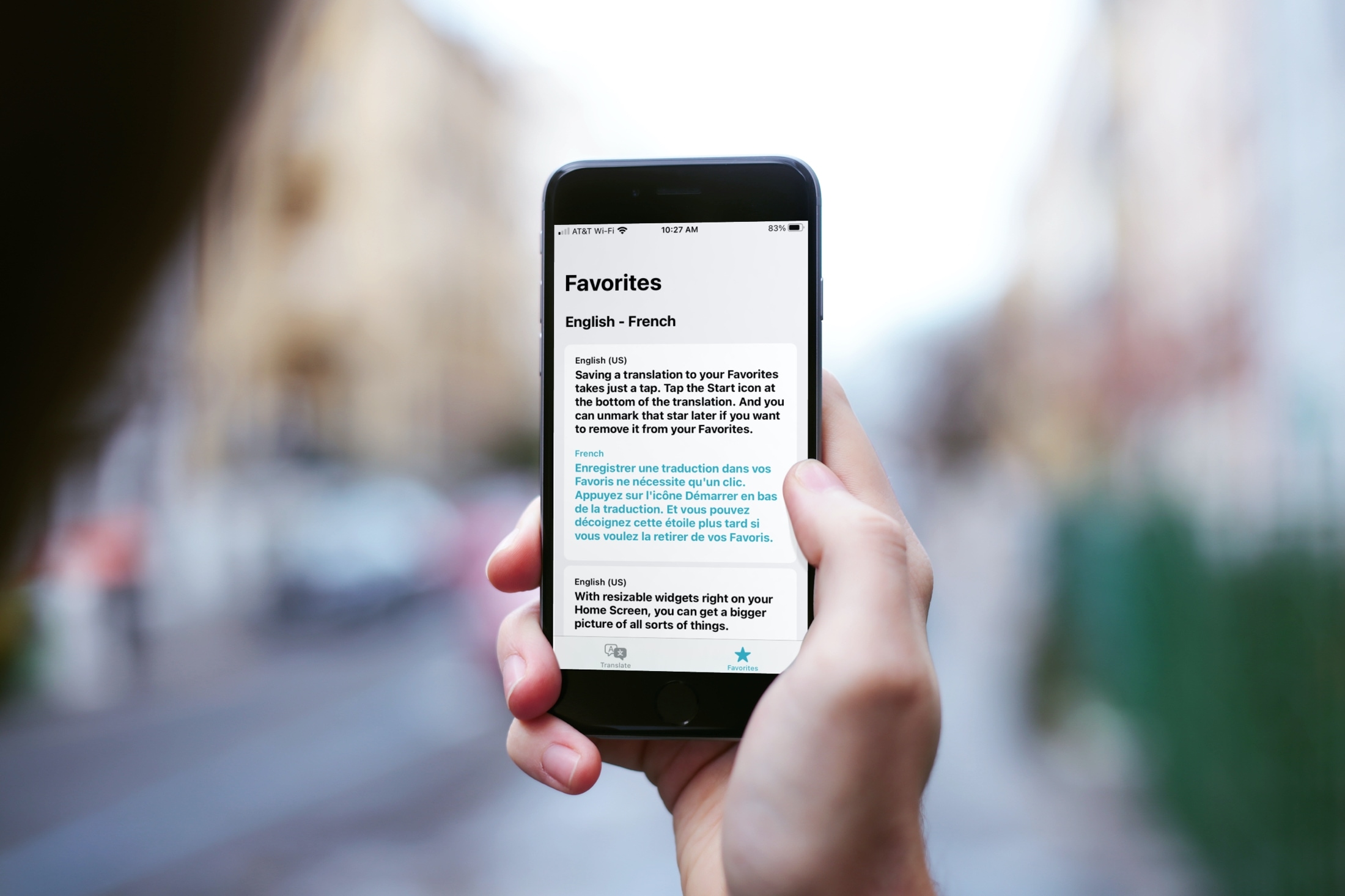
Apple offers a built-in Translate app that lets you translate words and sentences in several popular languages like English, Japanese, French, German, Italian, Mandarin, Spanish, and more.
In addition to basic translation, you can also save popular translations for quick future use, as well as see the recent phrases you translated.
Save translations as favorites
Saving a translation to your Favorites takes just a tap. Tap the star icon at the bottom of the translation.

Note that the star only appears when you use the app in portrait mode. So, if you’re in landscape view, just turn your device to save a translation.
Remove from favorites
You can unfavorite a translation later if you no longer need to keep it. To do that, tap the favorites icon, swipe to that translation, and unmark that star. Alternatively, you can swipe left on the translation and tap the unfavorite icon, or swipe all the way to the left to do that in one go.

Browse recent translations
You can swipe down on the Translation screen to see your past translations.
Alternatively, tap the favorites icon and scroll down until you see a Recents heading. You can hit the Play button to hear it again or the star to mark it as a favorite.

Delete your Translate history
Swipe left on a recent translation and hit the red trash button.

Explore other translation tips: