Having extra fonts available on your Mac is awesome. You might be composing a document that you want to have a special look. Or maybe you like using unique font styles for taking notes. Whatever the case may be, you can certainly find fonts on the internet and install them, which is super easy. But you might not realize that your Mac has cool fonts tucked away that you can use.
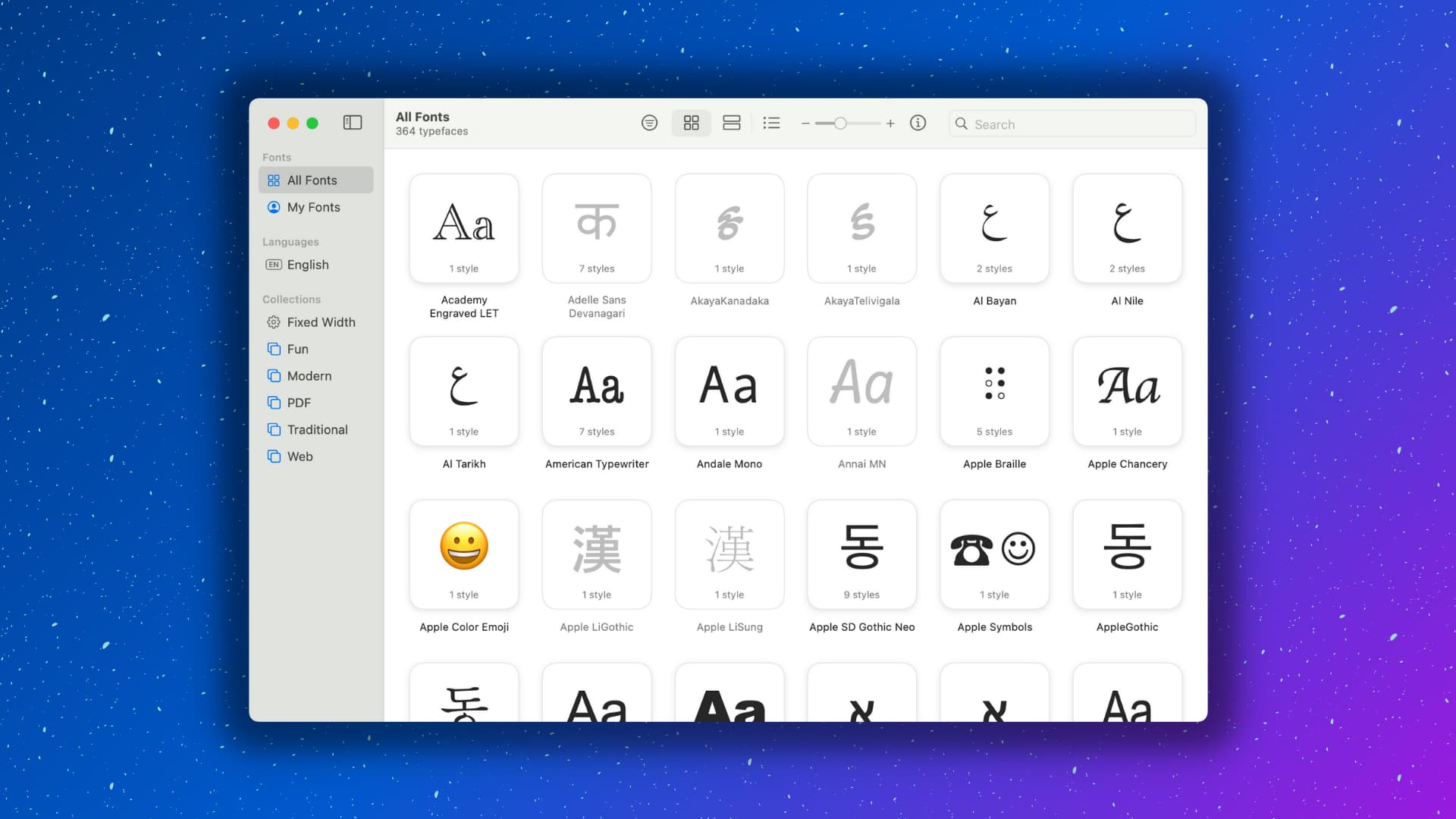
With macOS Catalina came many font families like Canela, Graphik, and Mukta, and individual fonts like Hei, Kai, and SimSong Regular. While the names may or may not be familiar to you, you can not only take a look at these hidden font styles but also use them!
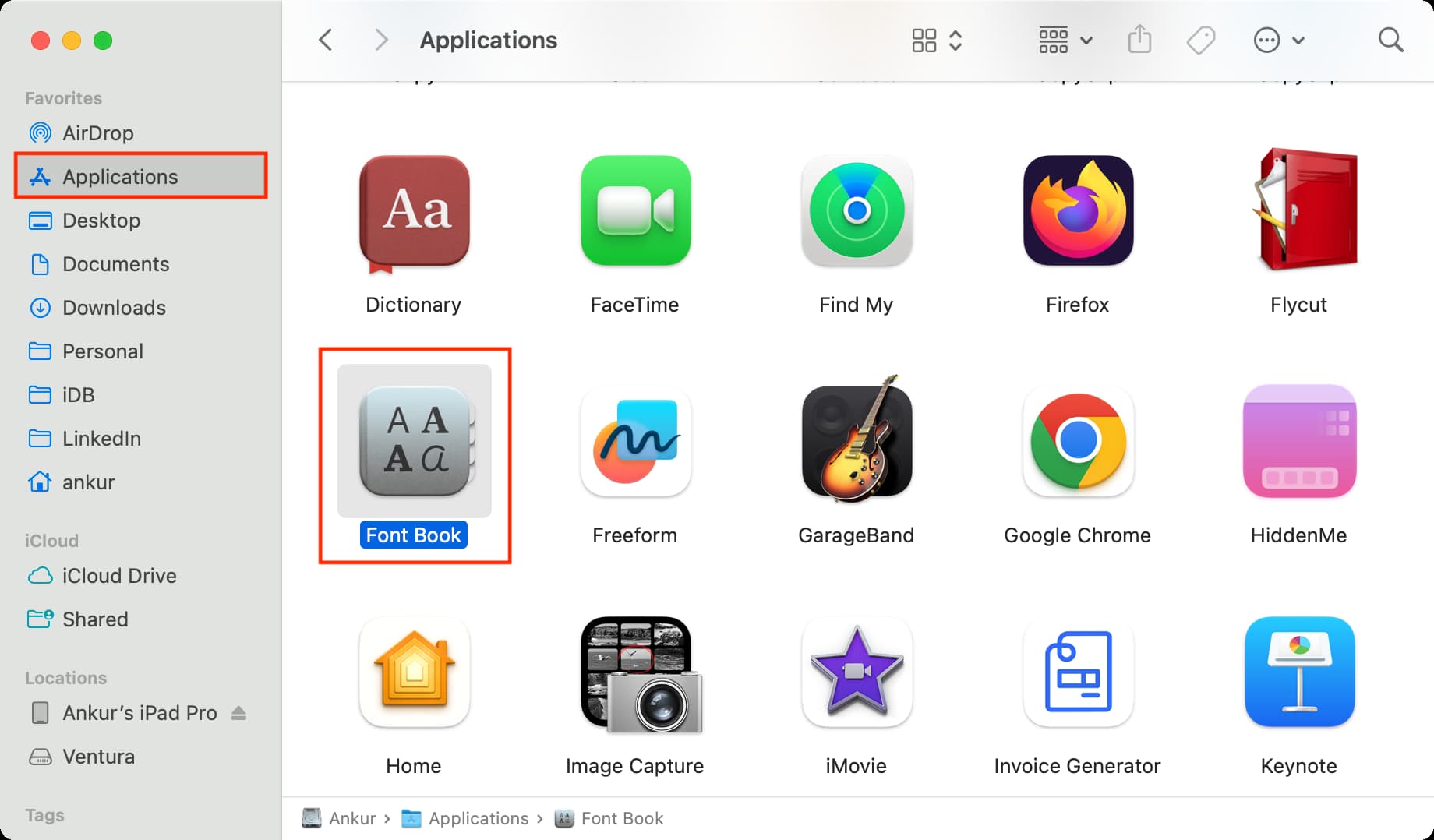
1) Open the Applications folder. Or, with Finder open, click Go > Applications from the menu bar.
2) You’ll see Font Book; go ahead and open it.
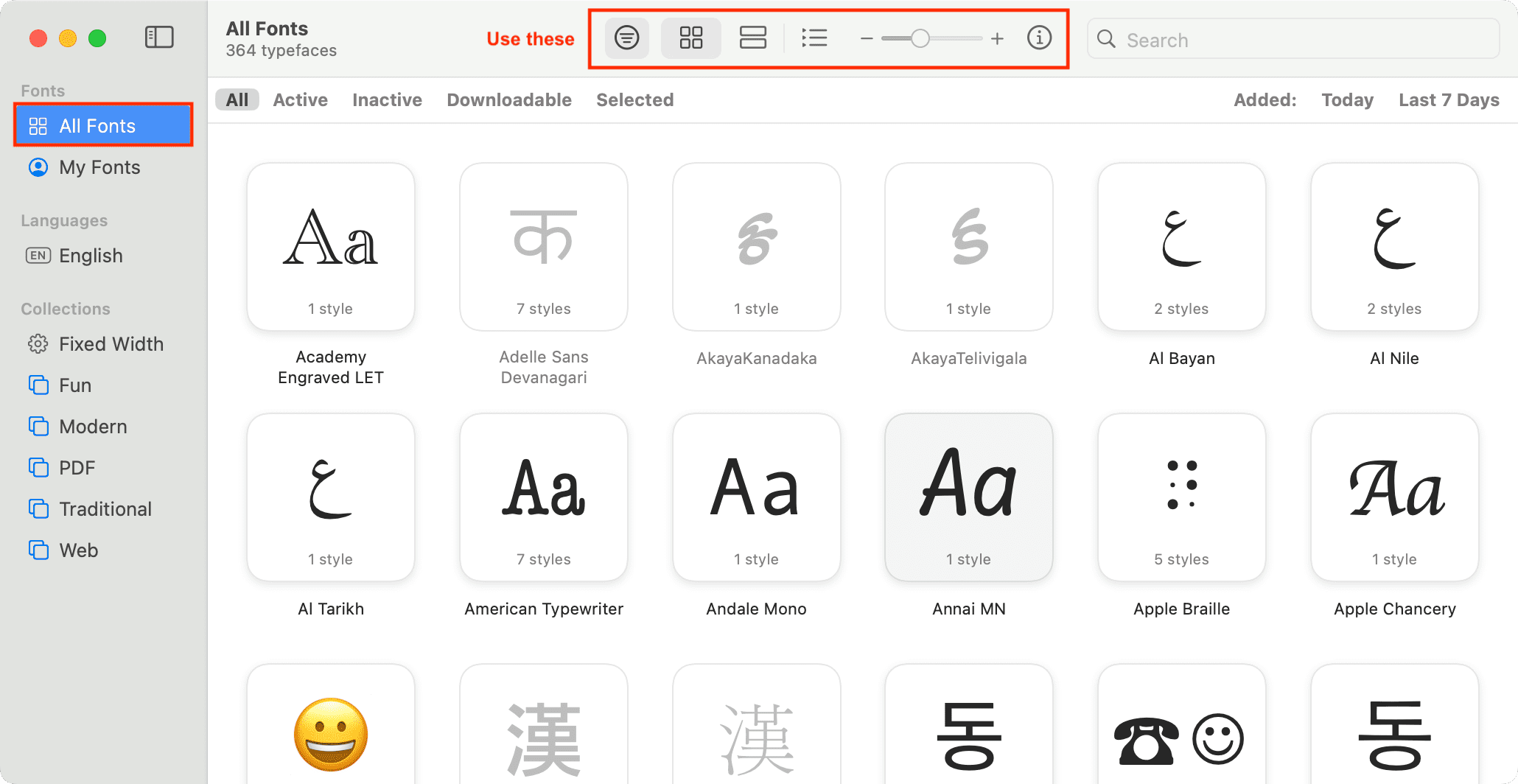
3) On the left, pick All Fonts.
4) All fonts available to you are listed here. Use the Toggle filter bar icon and other icons at the top of the Font Book window to better see the several fonts.
5) Those that are grayed out just need to be downloaded so that you can use them. Double-click a font, and you’ll see its preview. Some fonts also have different styles, and you can use the tiny arrows there to preview them. If you like a font and want it on your Mac, click the download button.
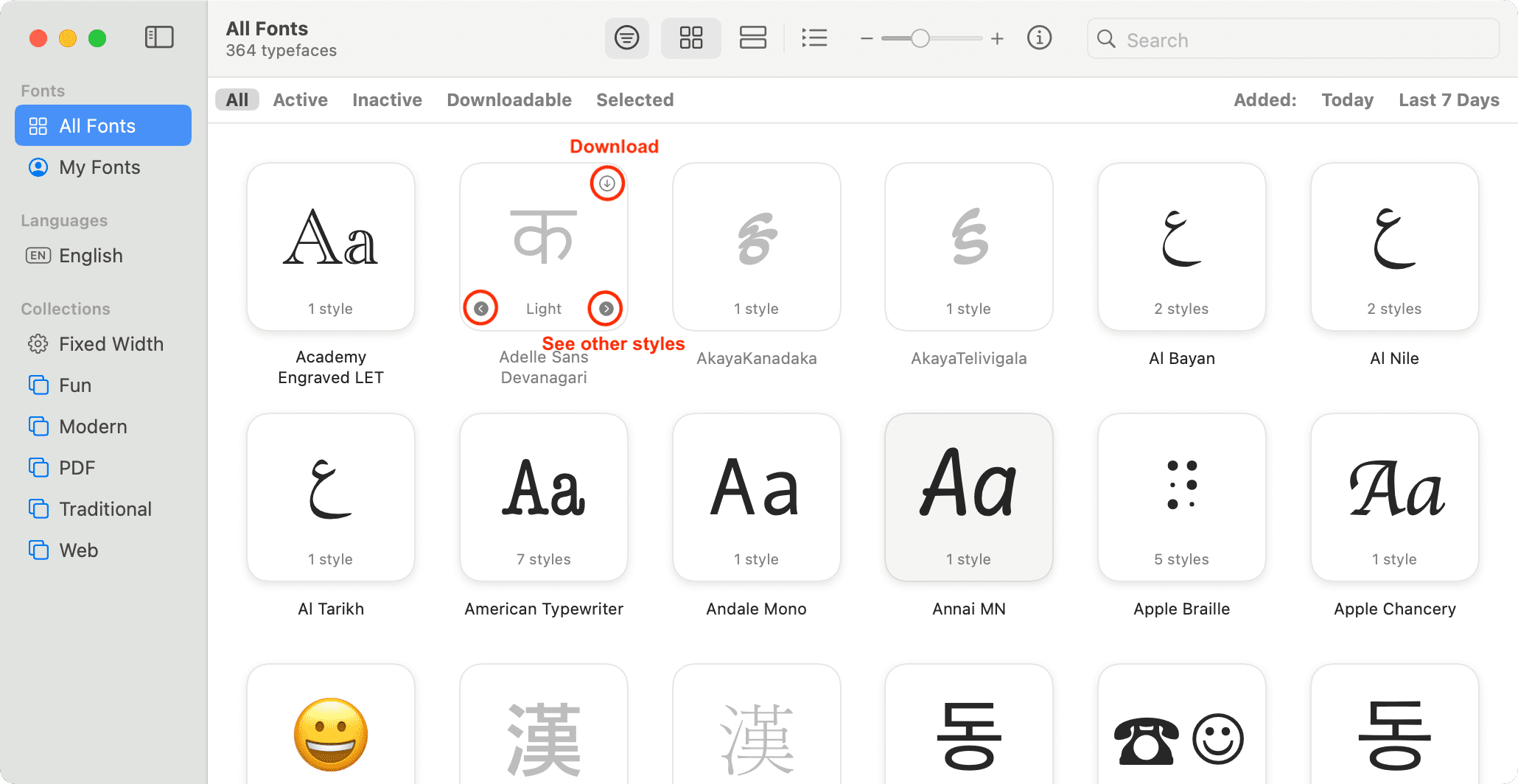
Once the font is downloaded and installed, it will no longer be grayed out, indicating that it’s available for your use.
Use these fonts in Mac apps
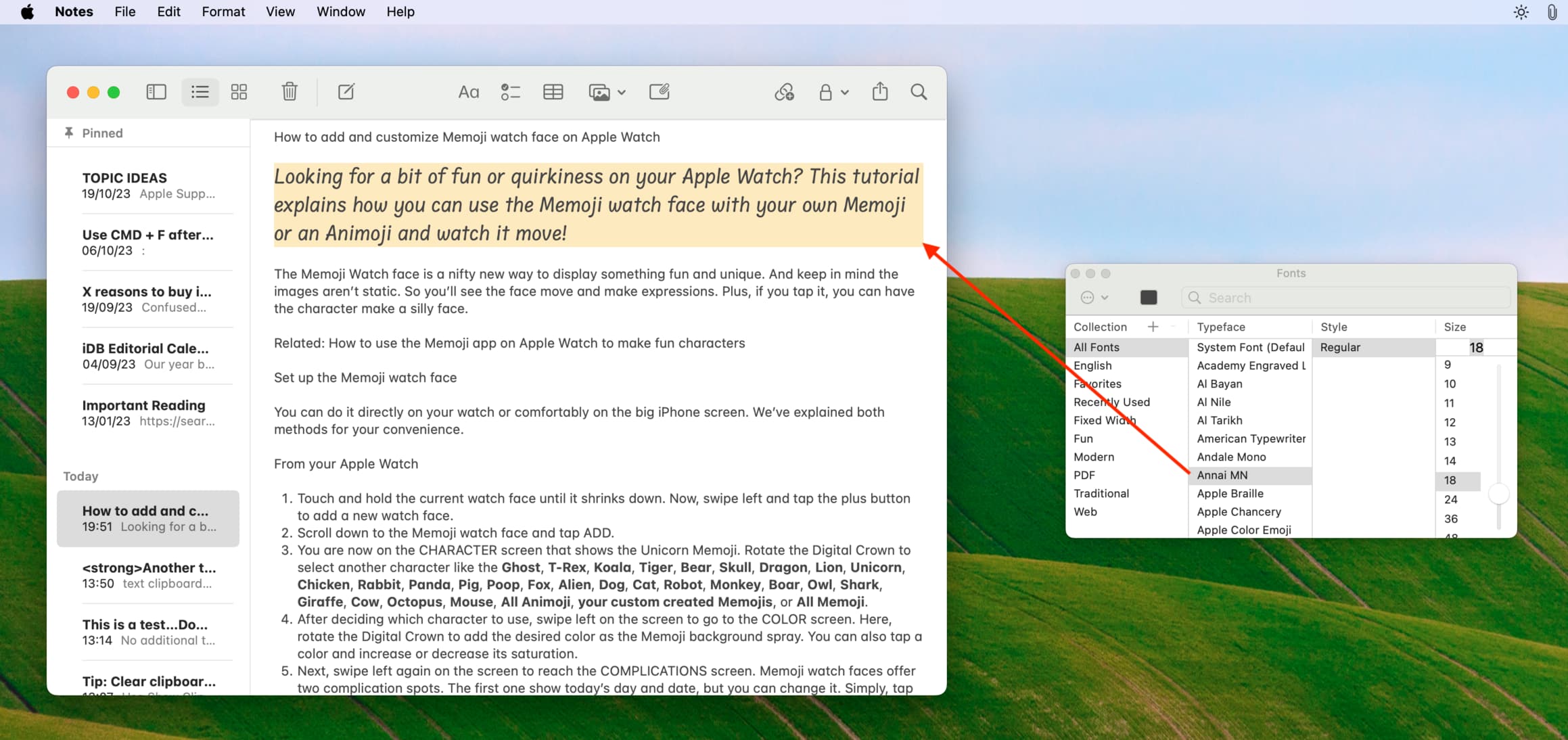
Once you install a new font, you can find it in the menu bar for most apps. For instance, open the Notes app or Pages app and click Format > Font > Show Fonts from the top menu bar. You can scroll down and pick the font you want to use or pop the name into the search box to speed up the process.
Select your font Family, Typeface, Style, and Size, and you’re ready to use it.
If you get tired of the same old Arial or Times New Roman font styles on your Mac and want to try something new without scouring the internet, these hidden fonts are a treasure house!
Are you going to check them out? If so, let us know which fonts you like to use!
On a related note: