In this tutorial, we’ll show you how to use the referenced Music library feature to stop the app from creating duplicate copies of your media and help save local space on your Mac or Windows PC.
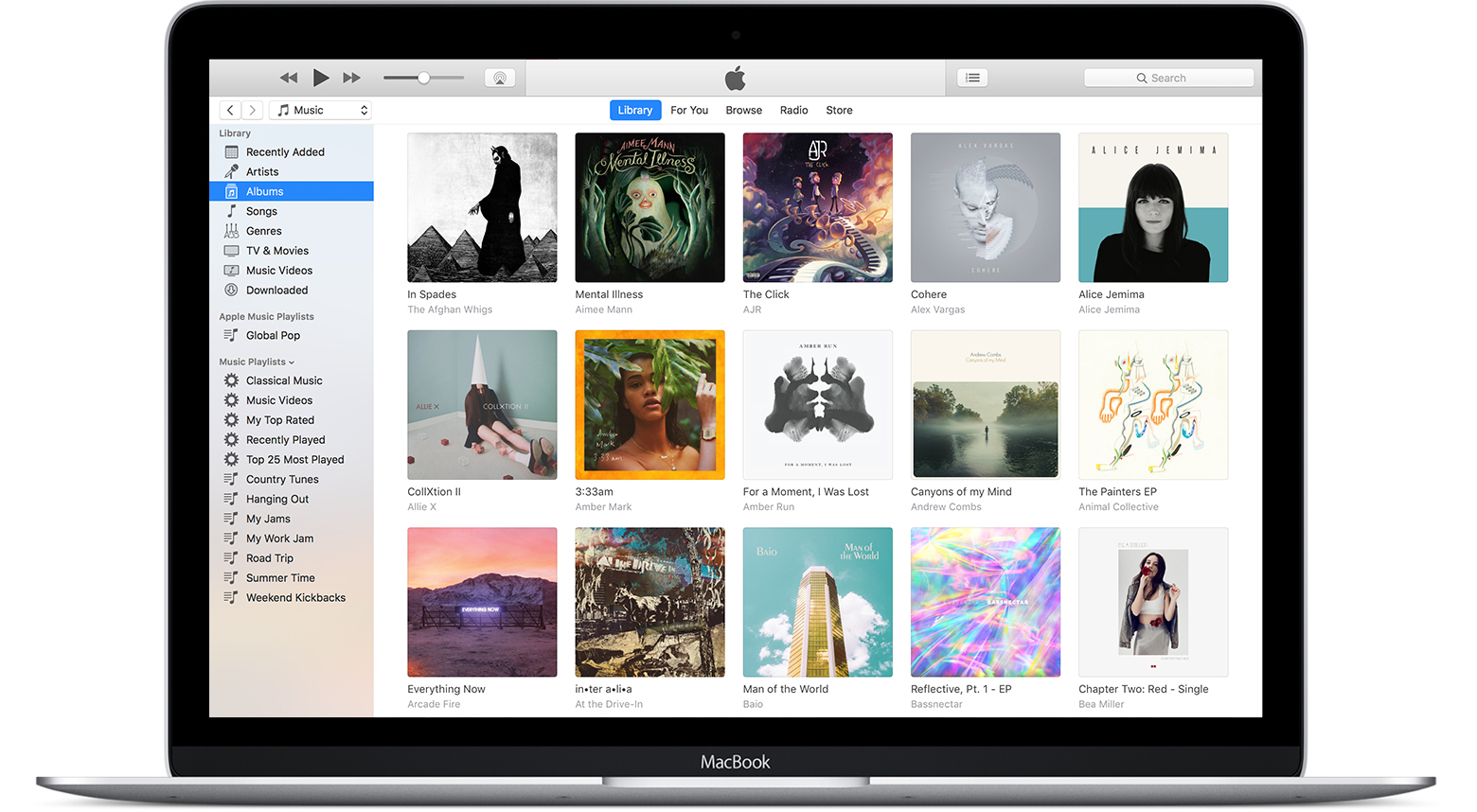
I have a ton of music on my computer that I ripped from my personal CD collection.
It isn’t uncommon for some people to have a vast music/video collection spanning multiple volumes or external disks. As you know, the Apple Music app (or the old iTunes) doesn’t automatically know about your media unless you import the items so they appear in your library.
The Music app library is a .musiclibrary file in your Music folder that the computer uses to keep track of your imported media and metadata, such as play counts, ratings, and more. For iTunes, the library used to be an .ITL file in your iTunes folder.

When importing music from a CD, the files get automatically added to the Music Media folder.
When you add MP3s another way, that is, choosing the Add to Library option from the File menu or by dragging them into the app, Music may or may not create copies of your source files, depending on the setting you have chosen. If it’s set to copy imports in the media folder, Music keeps your originals intact, and you can even delete any imported files in their original locations because Music now has copies.
Here’s how to switch to a referenced Music library that doesn’t create duplicates when importing stuff that’s already stored somewhere on your computer.
Use the Apple Music app in referenced library mode
- Open the Music app on your computer.
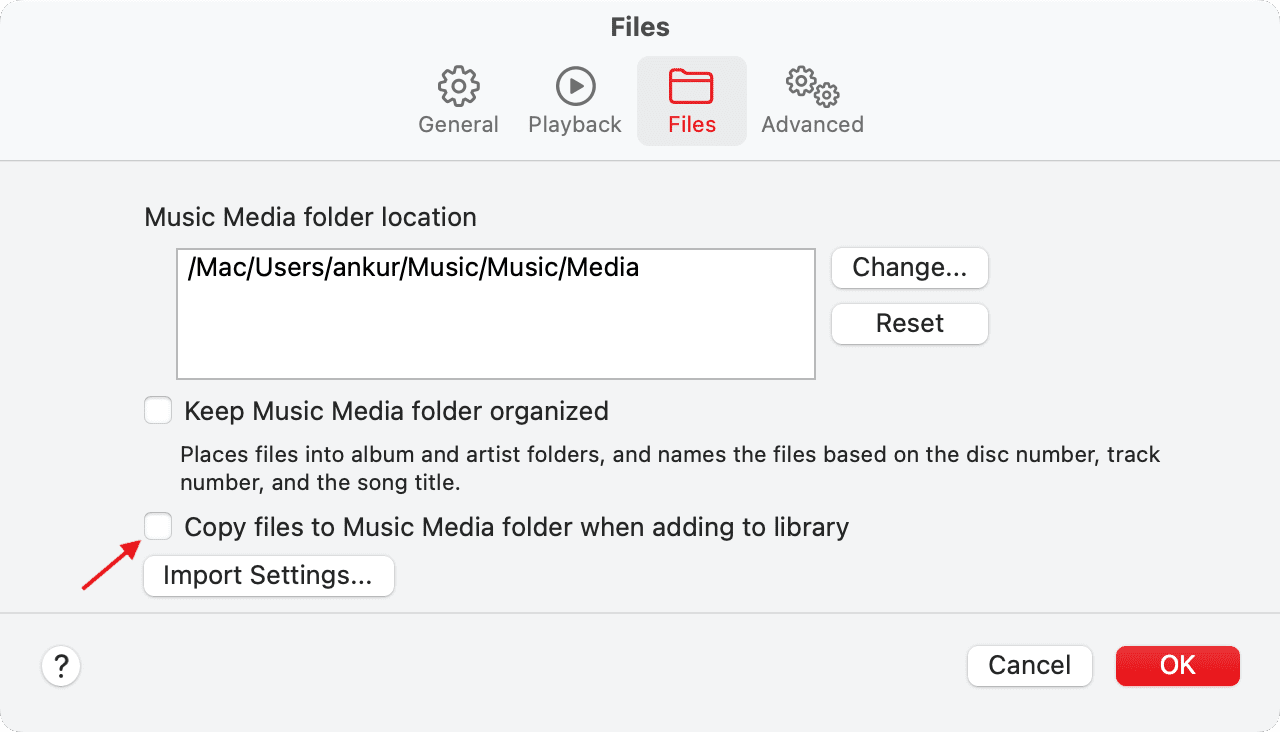
- Click Music in the top menu bar, then choose Settings.
- Go to the Files tab.
- Untick the box for “Copy files to Music Media folder when adding to library.”
Use iTunes in referenced library mode
If you’re still using iTunes on your old Mac or Windows PC, follow these steps instead:
- Open iTunes and click iTunes > Preferences on Mac. On a Windows PC, click Edit > Preferences.
- Visit the tab labeled Advanced.
- Untick the box next to “Copy files to iTunes Media folder when adding to library.”
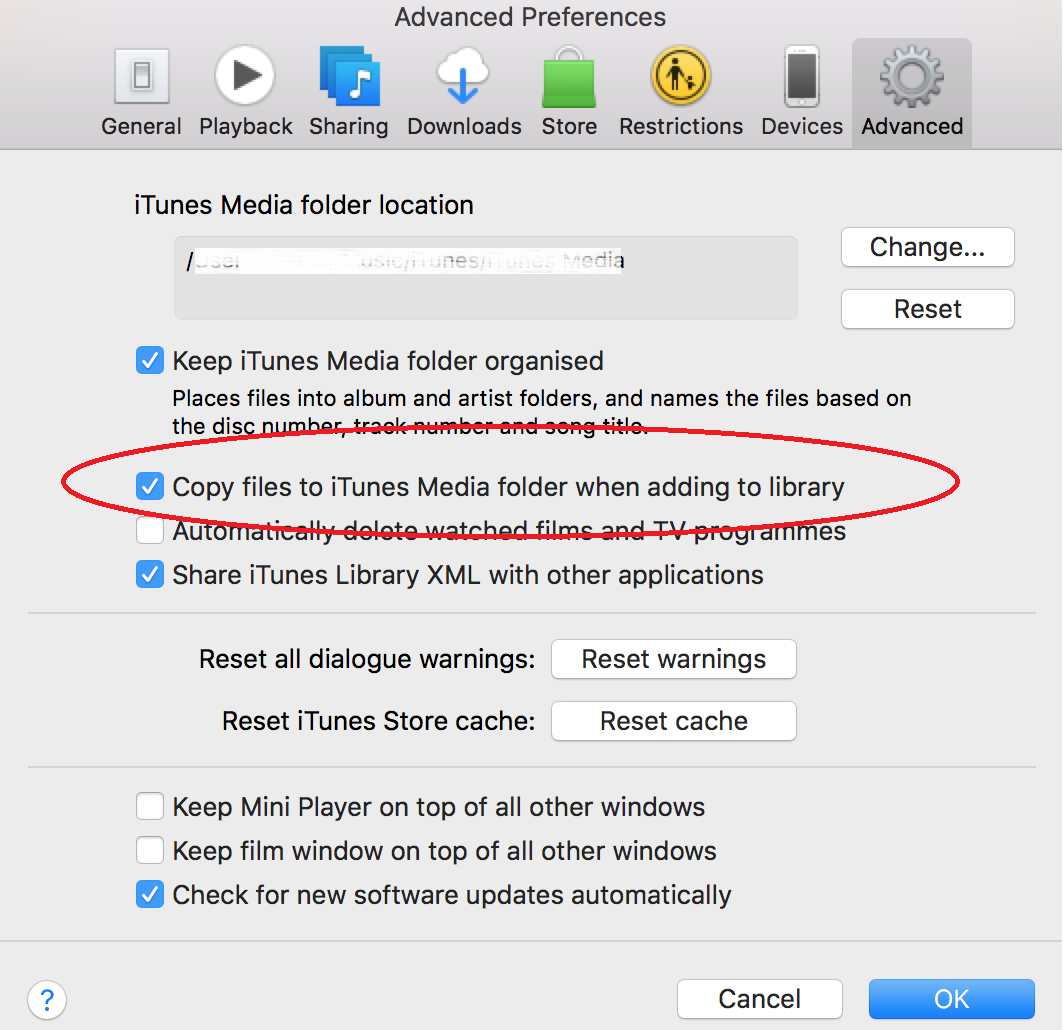
Now, when you import an item to the Music app or iTunes, a reference (or pointer) to the item is created rather than a copy of the item itself. Referenced library mode is great if you prefer manual file management and organization without worrying about duplicates.
I like to meticulously nest my music and other media manually into multiple sub-folders. I find it easier to manage, copy, share, and back up my media this way, so I’m using Music in referenced library mode.
This mode should be indispensable to those of you who prefer to keep multi-gigabyte video files on an external disk rather than in the Music app Media folder on your computer.
Tip: Hold down the Option key while you drag files to the Music/iTunes window to temporarily override this setting.
Consolidating your music library
If you use a referenced library, it’s easy to forget that moving the original files to another folder or disk will confuse the Music app because it expects them in the old locations. This is a major issue when moving your library to a new computer or an external drive. Thankfully, that’s what the library consolidation feature was designed for.
Consolidating your library keeps the originals in their original location and creates copies placed in the Music Media folder. This lets you safely move your music folder to a new computer or external disk without losing anything.
Here’s how to consolidate your Music or iTunes library:
1) Open the Music app or iTunes on your Mac or Windows PC.
2) Click the File menu, then choose Library > Organize Library.
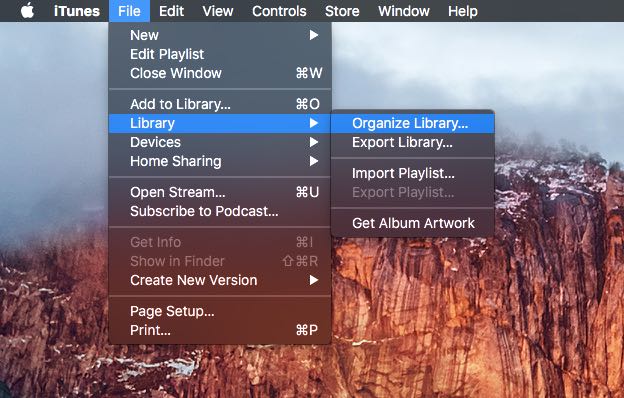
3) Tick the option labeled Consolidate files.
Tip: To have your media files organized into sub-folders (like Music, Movies, Podcasts, and so forth), tick the option labeled “Reorganize files in the folder Media/iTunes Media.”
4) Click OK to continue.
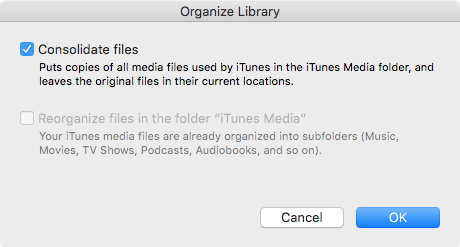
Any referenced items will be copied into the appropriate sub-folders in your Music/iTunes Media folder.
This may take a while, depending on the number of source files being consolidated, their size, the speed of your computer, available storage space, and other factors.
By default, the Music/iTunes Media folder lives in your account’s Music folder on Mac and in My Documents/My Music/iTunes on Windows.
To see where your Media folder is currently located, access the Music app’s settings, click the Files tab, and look for the location under the section labeled Media Location or iTunes Media folder location. To set a custom location, click Change and choose a folder for imports.

This will not automatically move any of your previously imported files to the new location unless you consolidate the library. Hit the Reset button to revert to storing imported items in the default Music folder.
Check out next: