In this tutorial, we’ll share two simple tips to put an end to spam calendar invites on your Apple device.
We’re all very well aware of email spam.
It’s something we’ve been living with for just as long as we’ve been using email, and quite frankly, it’s not as bad as it used to be because email services such as Gmail are increasingly better at catching these messages before they even show in your inbox.
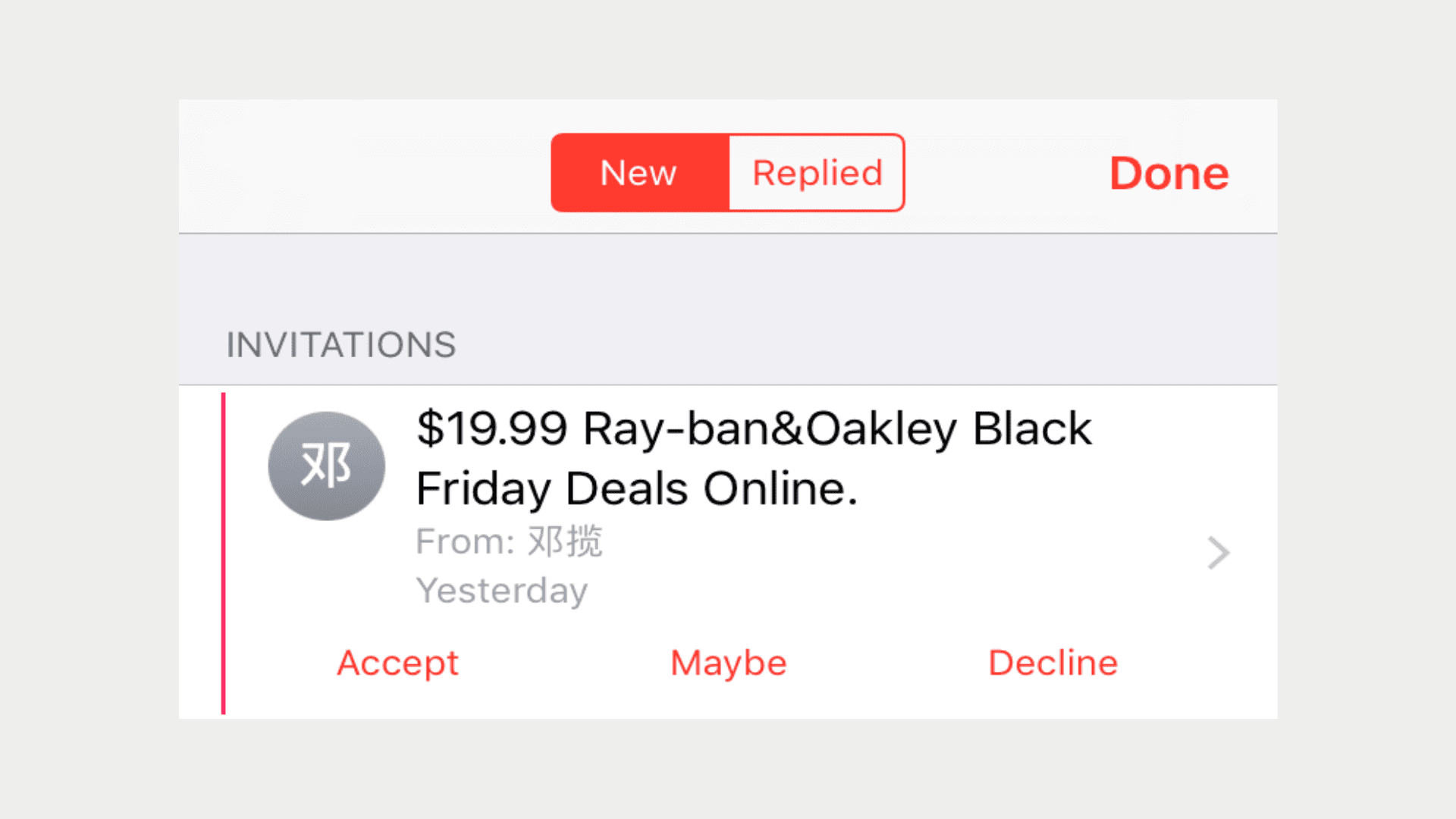
Annoyingly, there is another kind of spam, and it relies on your iPhone, iPad, or Mac and iCloud calendar. The technique is actually pretty low-tech yet very clever. Chinese spammers send iCloud calendar invites to your email address, which they probably scraped from some website, knowing that it will most likely trigger a notification on your iPhone and iPad.
- If you accept the invite, your calendar will be filled with events promoting various products, usually fake Ray-Ban or Oakley sunglasses.
- If you decline the invite, well, you just alerted the spammer that you did notice the invite and confirmed the email address he sent the original invite to is active, pushing him to send you more and more invites.
It seems that no matter what you do, you lose. Fortunately, there are a couple of things you can do to disable calendar invite spam on your iPhone, iPad, or Mac and delete events you might have accepted.
Turn off spam calendar event invitations
The first solution is to disable those notifications you might have received on your iPhone, iPad, or Mac. To do so, you need to change one simple setting, but strangely enough, you can’t do this directly from your Mac or iOS device. Instead, you have to do that from iCloud.com.
1) Visit iCloud.com/calendar/ in a web browser and log in using your Apple Account.
2) Once you’re in the Calendar web application, click the three dots menu button and choose Settings.
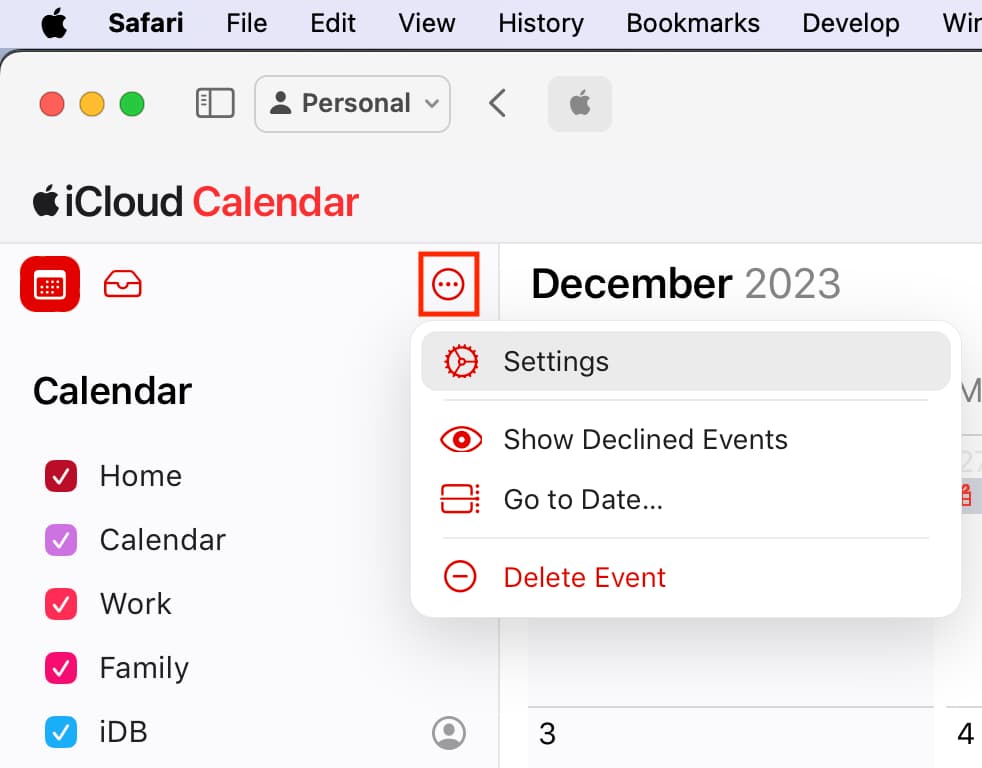
3) Go to the Account tab.
4) Under the Receive Invitations section, select via Email instead of in-app notifications for your main email and all its aliases.
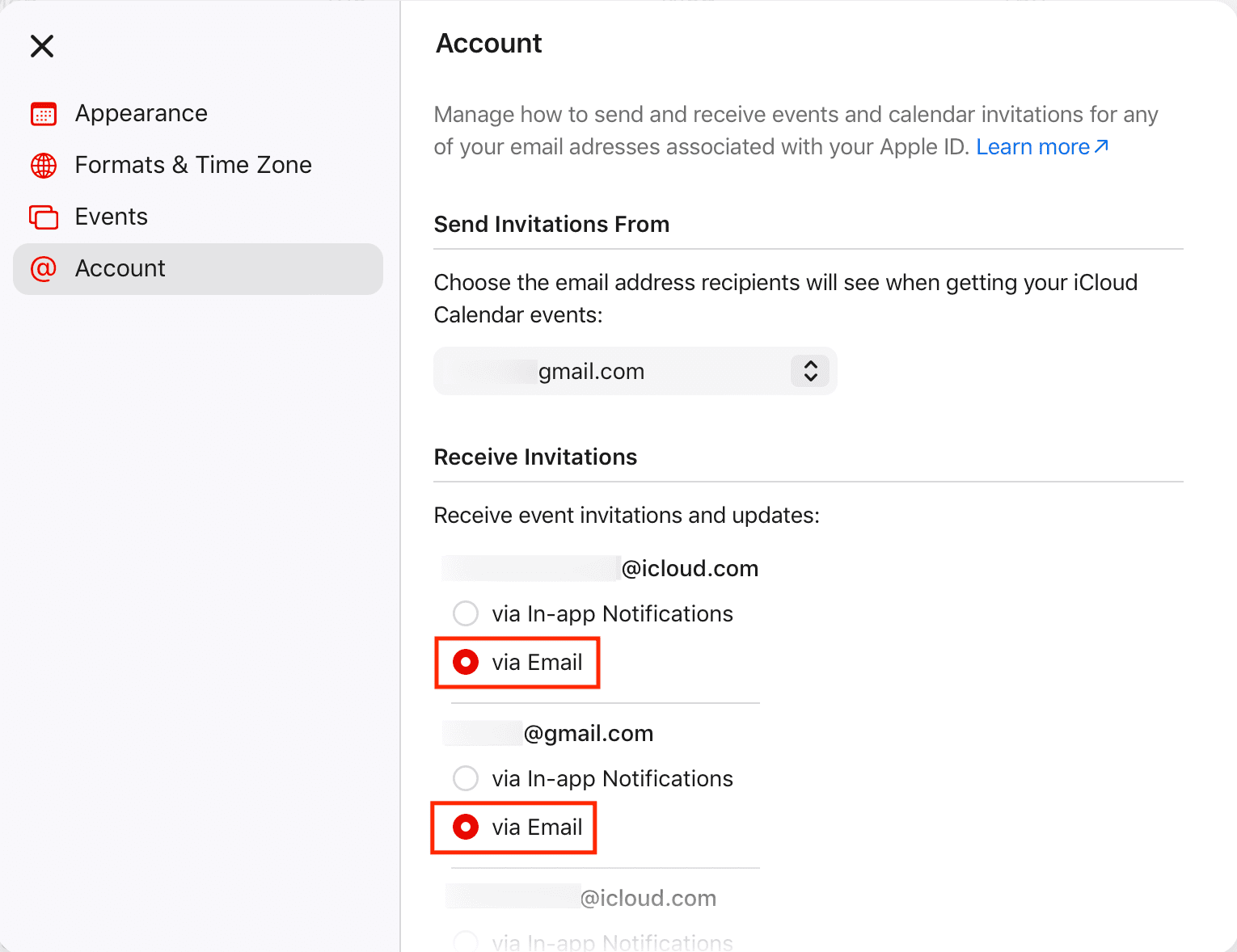
This won’t stop the spamming from happening, but at least you’ll not receive those invitations via your Calendar application. Instead, they’ll be sent to your email inbox, where you can easily delete them without really notifying the spammer of whether you accepted or declined the invitation.
This method works, but obviously, it’s a real pain, especially if you rely on in-app notifications for your calendar. That is why I prefer this second method.
Add these spam events to a temporary calendar
The other way to prevent spam calendar invites from taking over your time, energy, and attention is to accept them and store them in temporary calendars.
In order to do this, we’ll first have to create a new iCloud calendar, which can be done directly from your iPhone, iPad, or Mac. Once we receive a spam invite, we’ll accept it while making sure to add all those spammy events to our temporary calendar. Once that’s done, we can safely delete the calendar.
Here’s a more detailed version of this method.
1) First, we’re going to create a temporary iCloud calendar. On your iPhone or iPad, open the Calendar application and tap the calendar icon or Calendars. Then tap Add Calendar > Add Calendar.
2) Create your temporary calendar by calling it whatever you please (I called mine Crap Spam) and tap the checkmark/Done to save that new calendar.

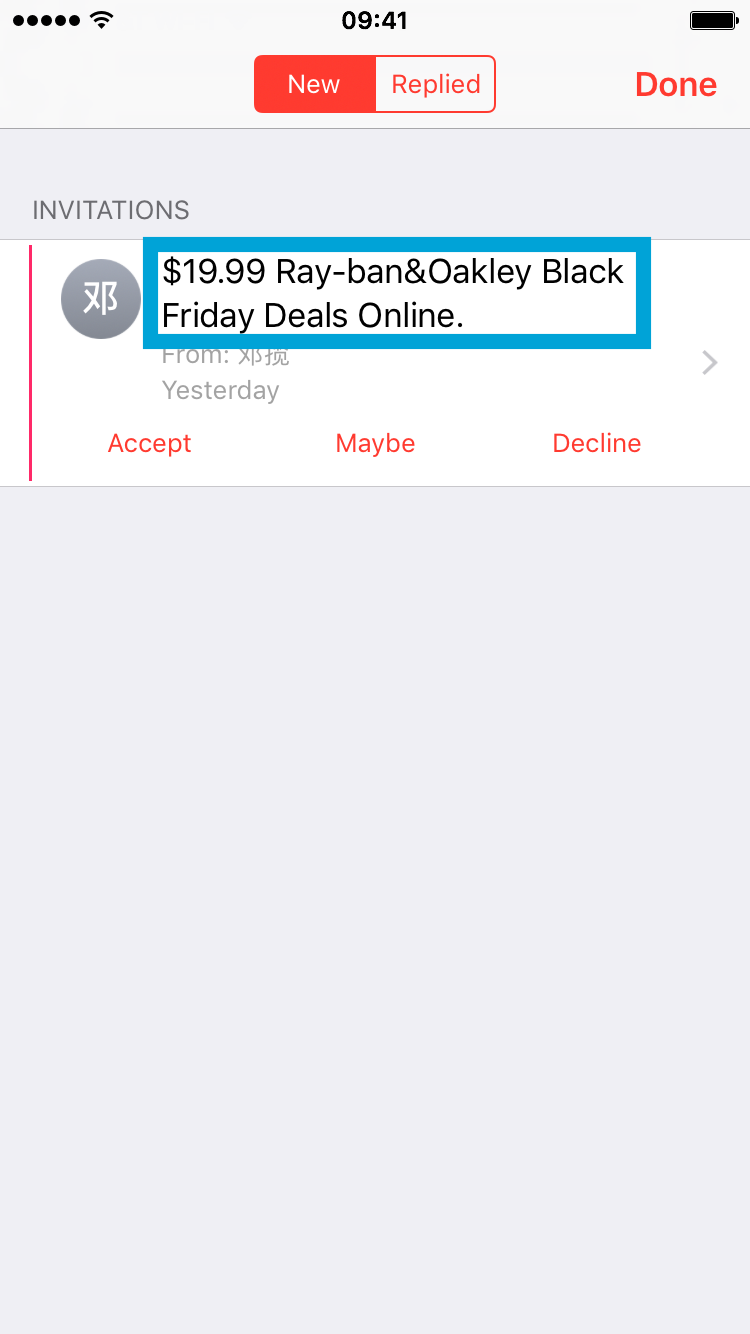
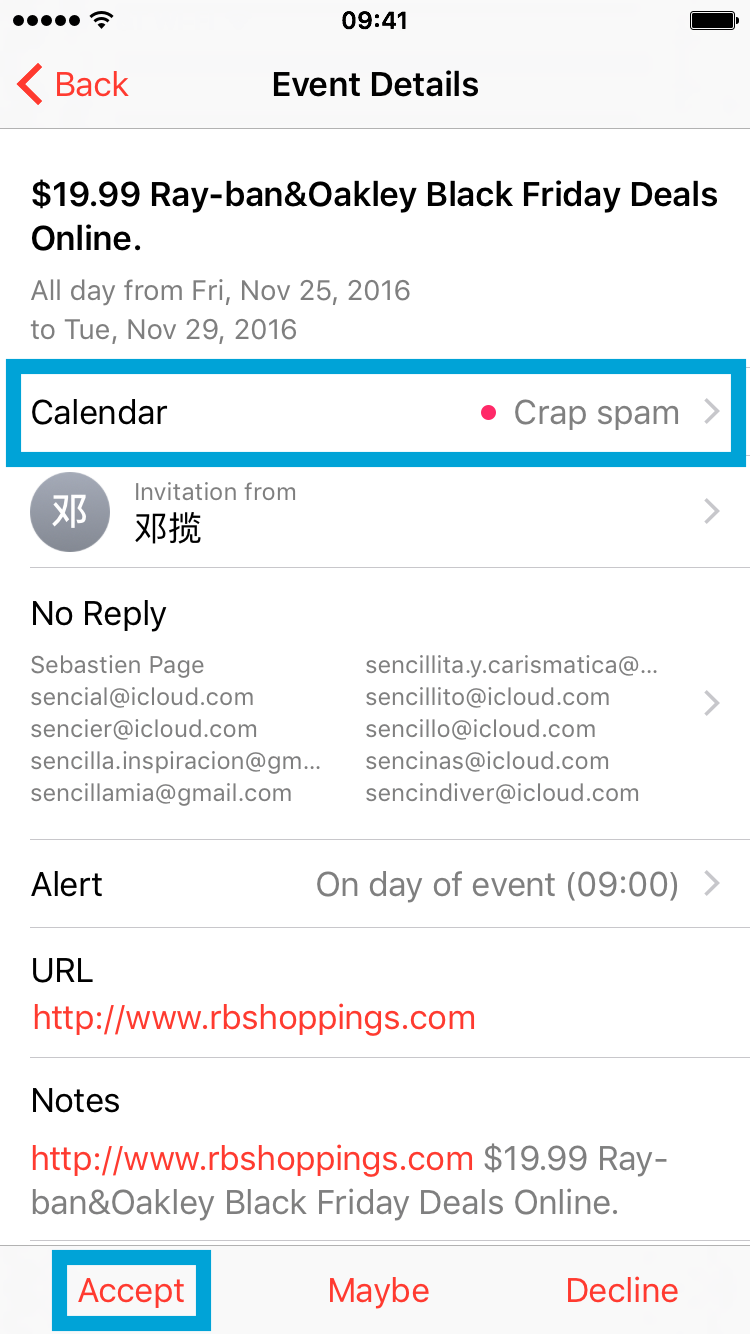
3) Now, we’re going to accept this invitation while making sure all spammy events are added to our temporary calendar. To do so, go to your spam invitation. Tap the invitation. Make sure you don’t tap on Accept/Maybe/Decline. You just want to tap on the invitation itself. For example, in this screenshot below, I’d tap on the title of the invitation ($19.99 Ray-ban etc…).
4) Once you’re in the event details, this is where you’ll select to add these spammy events to your temporary calendar. To do that, tap the Calendar button, then select the temporary calendar you previously created. In my case, I chose to add these spammy events to my Crap Spam calendar. Once you’ve selected the right calendar, tap the Accept button at the bottom of the screen. Going forward, all these new spammy events will be added to the calendar you selected.
5) Finally, we want to delete the temporary calendar containing the spam events. To do so, go back to your list of calendars in the Calendar app, tap the info icon ⓘ next to your temporary calendar, select Delete Calendar, then confirm you do indeed want to delete that calendar.
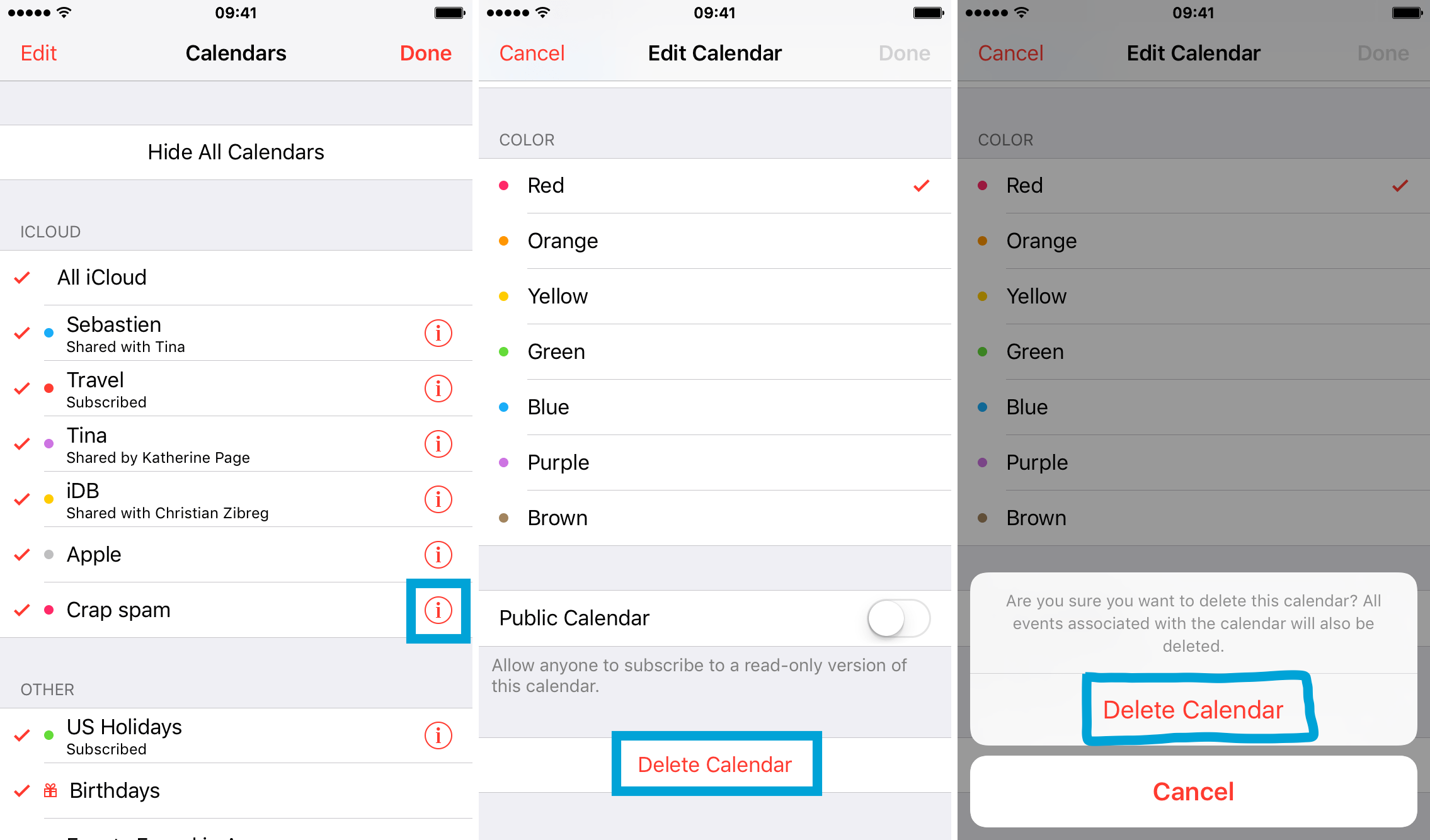
The beauty of this method is that the spammer will assume you are still receiving all these spam events and will be less likely to send you more invites. In the meantime, this spam will be out of sight and out of mind.
Obviously, this is not an ideal solution. The ideal solution would either be to have the option to report calendar invites as spam or, maybe even better, for Apple to find a way to block these spammers to begin with. Until that happens, you’ll have to use either or both of these methods.
Have you received calendar spam yet? If so, what was your way to fight it?
Other Calendar tips: