Find out when you last charged your Apple Watch and to what percentage, so you have a better understanding of how long the device lasts on a single charge.
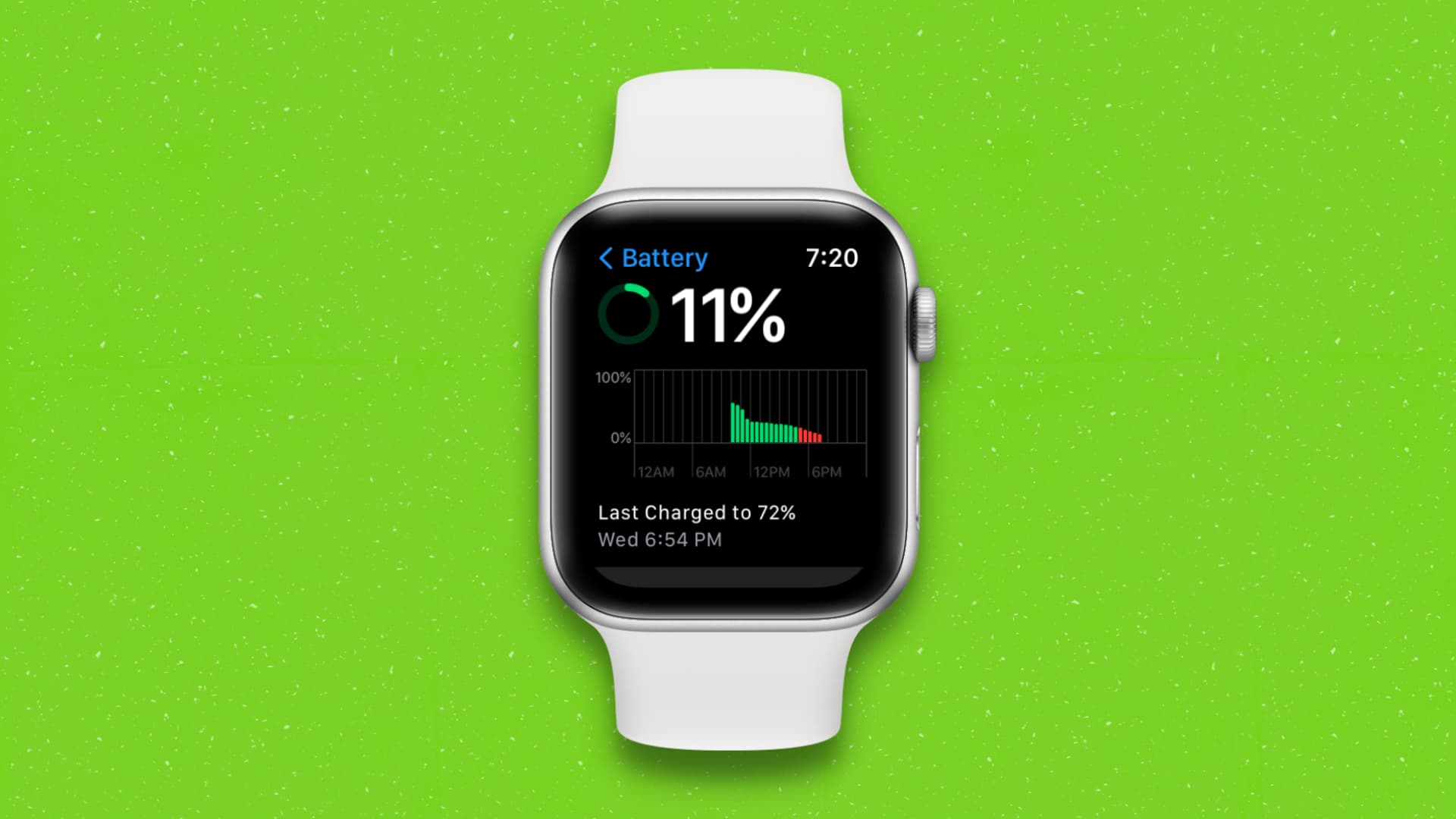
Check when you last charged your Apple Watch and to what percentage
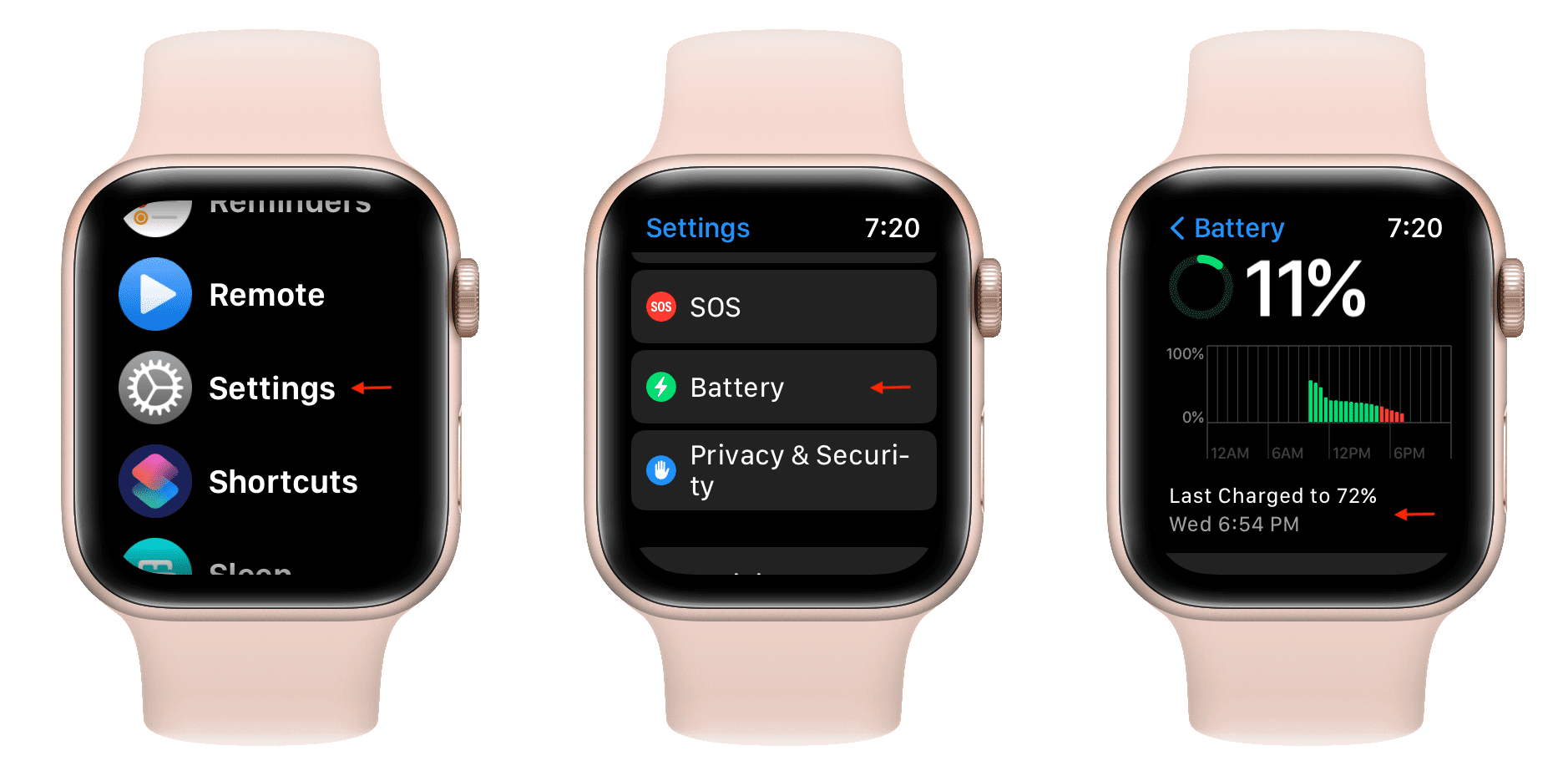
- Open the Settings app on your Apple Watch.
- Scroll down and tap Battery.
- You’ll see the percentage your watch’s battery was last charged to, along with the date and time of the last charging session and a little graph visualizing it.
Optionally, turn on Low Power Mode on this screen to extend your run time a bit.
Other options here include Battery Health information. A 100% capacity means the battery is good as new. Battery capacity will gradually decrease over time as you use your Apple Watch. This is normal for all lithium-ion batteries.
The Battery Health screen includes a toggle for Optimized Battery Charging, another thoughtful feature designed to prolong battery life. Optimized Battery Charging is turned on by default on iPhones, MacBooks, newer AirPods, and Apple Watches.
Note: Older OS versions show the last charge time in the companion Watch app on your iPhone. Go to General > Usage and look at the Time Since Last Full Charge at the bottom.
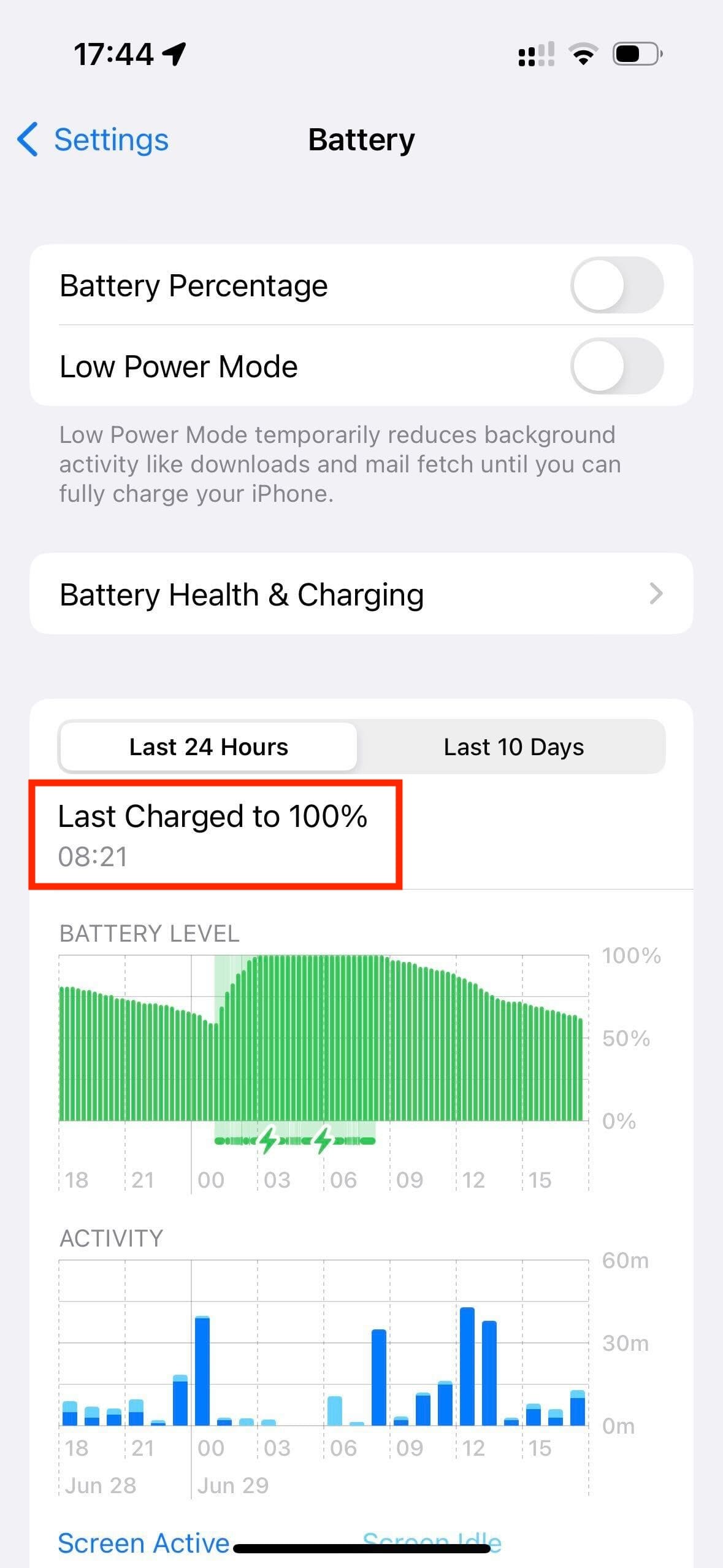
Tip: Head to Settings > Battery on your iPhone to see when you last charged it and to what percentage.
Related battery tips: